
The customer panel and follow-ups
For anyone who wants the full picture while answering a ticket: who the customer is, what else is going on with their account, and what needs to happen next.
The customer panel is the column on the right of an open ticket. It is made of cards, each of which can be collapsed, and you can choose which cards show and in what order. Hide customer panel in the header tucks the whole column away; Show customer panel brings it back. Some cards only appear when there is something to show: Files when the thread has attachments, Custom fields when unpinned custom fields exist, Related contacts and Recent tickets when the customer has other contacts or tickets, and Help articles and Linked tickets when something is linked.
Customer
The first card is about the people on the ticket and the customer account they belong to.
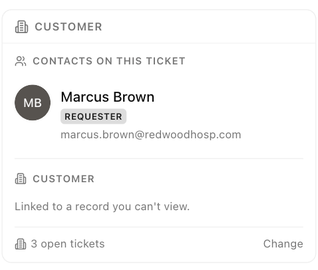
Contacts on this ticket lists the Requester (the person the ticket is with; replies go to them) and anyone in Cc. Hover a person for their actions:
| Action | What it does |
|---|---|
| Change requester | Makes someone else the person you are replying to. |
| Remove from Cc | Stops copying that person on future replies. |
| Add as a contact | Saves an unknown email address as a contact on the customer. |
| View contact / Edit contact | Opens the contact's record. |
Below the people, the Customer section shows the account the ticket is filed against, with its open-ticket count and details such as Local time, Phone, Location, Website, Account Owner, Customer since, Segments and any customer custom fields. Change links the ticket to a different customer, and Link to existing contact attaches the requester's address to a contact you already have. If the customer record is one you are not allowed to open, the section says Linked to a record you can't view.
Change the requester or remove someone from Cc
- In the Customer card, hover the requester and choose Change requester (or click the pencil next to To in the composer).
- Search your contacts with Search contacts…, or type a new address in name@company.com.
- Pick the person. From now on, replies go to them and the previous requester drops off the ticket.
To stop copying someone, hover their name under Cc and choose Remove from Cc. The change is noted in the conversation, and the person is left out of later replies.
Conversation details
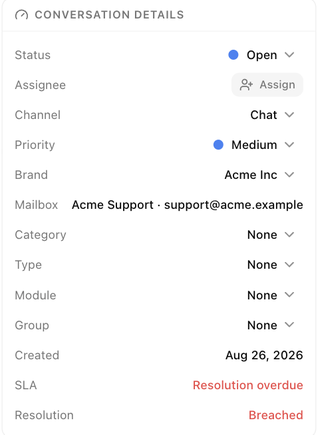
This card holds the ticket's properties. Click a value to change it.
| Field | Meaning |
|---|---|
| Status | Same as the header dropdown. |
| Assignee | Same as the header pill. |
| Channel | How the ticket arrived: Email, Portal, Manual, Phone and so on. |
| Priority | Low, Medium, High or Urgent. |
| Brand | The brand the ticket is handled under. Changing it changes the From addresses available. |
| Mailbox | The address the ticket arrived at and replies to. |
| Category | One of your ticket categories, if you use them. |
| Type, Module, Group | The ticket fields your administrator has set up. An asterisk marks a field that must be filled before the ticket can move to certain statuses. |
| Created | When the ticket was opened. |
| SLA | The policy that applies and its targets. First response: Breached or Resolution: Breached appear when a target was missed. |
Tags appear as badges at the bottom of the card.
Notes
Notes about the person (the first tab, named after the requester) or the Company, shared with the Customers module. Type in Note about …, press ⌘↵ or click Add note, and tick Pin to keep a note at the top. Anything your team has logged on the customer's record appears here, and notes you add here show on the customer too.
Assistant
Click Analyze (or Analyze this ticket) and the AI assistant reads the conversation and proposes a triage (priority, tags, category and assignee), a reply draft, and related tickets or articles. Each suggestion has Apply and Dismiss. If the card reads The assistant is off, an administrator can turn it on under Support settings → AI assistant.
Board & task
Link to tasks… connects the ticket to a task on one of the customer's boards, so support work shows up in the project. Pick an existing task, or create one from the ticket.
Files
Every attachment on the ticket, from the customer and from your team, with Preview and Download.
Customer sentiment
A score from 0 to 100 worked out from the customer's messages, with a small chart of how it has moved over the conversation. Until the assistant has analysed the ticket the card reads Sentiment appears once the AI summary runs.
Watchers
Click Watch to follow a ticket you are not assigned to; it then appears in your Watching view. Add teammates to notify… adds other watchers. Watchers are emailed on every reply and internal note.
Follow-ups
A follow-up is a dated reminder attached to the ticket. It shows in the inbox Follow-ups view and on your calendar. Until you add one, the card reads No open follow-ups for this ticket or its customer.
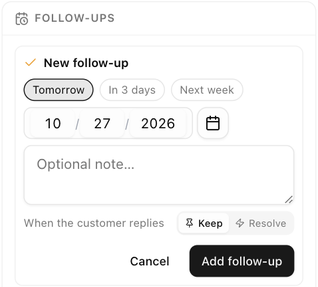
- In the Follow-ups card click Add follow-up (or use More actions → Add follow-up). A New follow-up form opens.
- Pick a date: Tomorrow, In 3 days, Next week or type one in the date field.
- Add an Optional note… saying what to do.
- Under When the customer replies, choose Keep (the reminder stays until you resolve it) or Resolve (it clears itself as soon as the customer answers). Your administrator sets which one is preselected.
- Click Add follow-up.
Due and overdue follow-ups show in the Follow-ups view of the inbox, on the Customers page and in the mobile app. From the card you can Postpone a follow-up (with a Next Monday shortcut) or mark it done.
Time tracking
Shows the time logged on the ticket (Total 0 min to begin with) and a stopwatch: press play to time your work on the ticket, and the reset arrow to clear it. Mark as worked on in the More actions menu adds time too.
Related contacts and Recent tickets
- Related contacts lists other people at the same customer, so you can Cc or switch to the right person quickly.
- Recent tickets lists the customer's other tickets with their status, so you can see whether they have asked before.
Help articles and Linked tickets
- Help articles shows articles from your help center that match the ticket, ready to insert into a reply.
- Linked tickets lists tickets merged into this one or otherwise connected to it.
Customize the panel
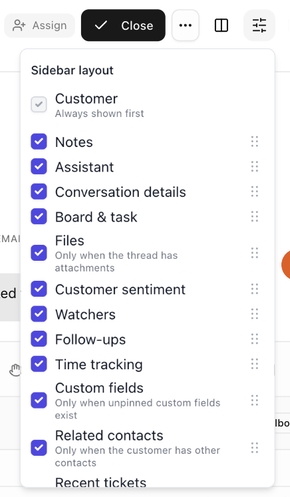
Click Customize sidebar (the sliders icon in the ticket header, or the link at the bottom of the panel). The Sidebar layout popover lists every card with a checkbox to show or hide it and a handle to drag it into the order you want. Customer is always shown first. Show all turns every card on and Reset to default restores the standard order. The layout is yours; teammates keep their own.
Next: Statuses, priority and SLA.