
The Support inbox at a glance
For anyone opening the Support inbox for the first time. This guide explains the layout, what each part of a ticket row tells you and the shortcuts that make the inbox quick to work in.
Open the inbox
Open Support → Support. The whole support desk is one page: the ticket list on the left, the conversation in the middle and the customer panel on the right. Tickets open in place, so you never leave the inbox to read or answer one.
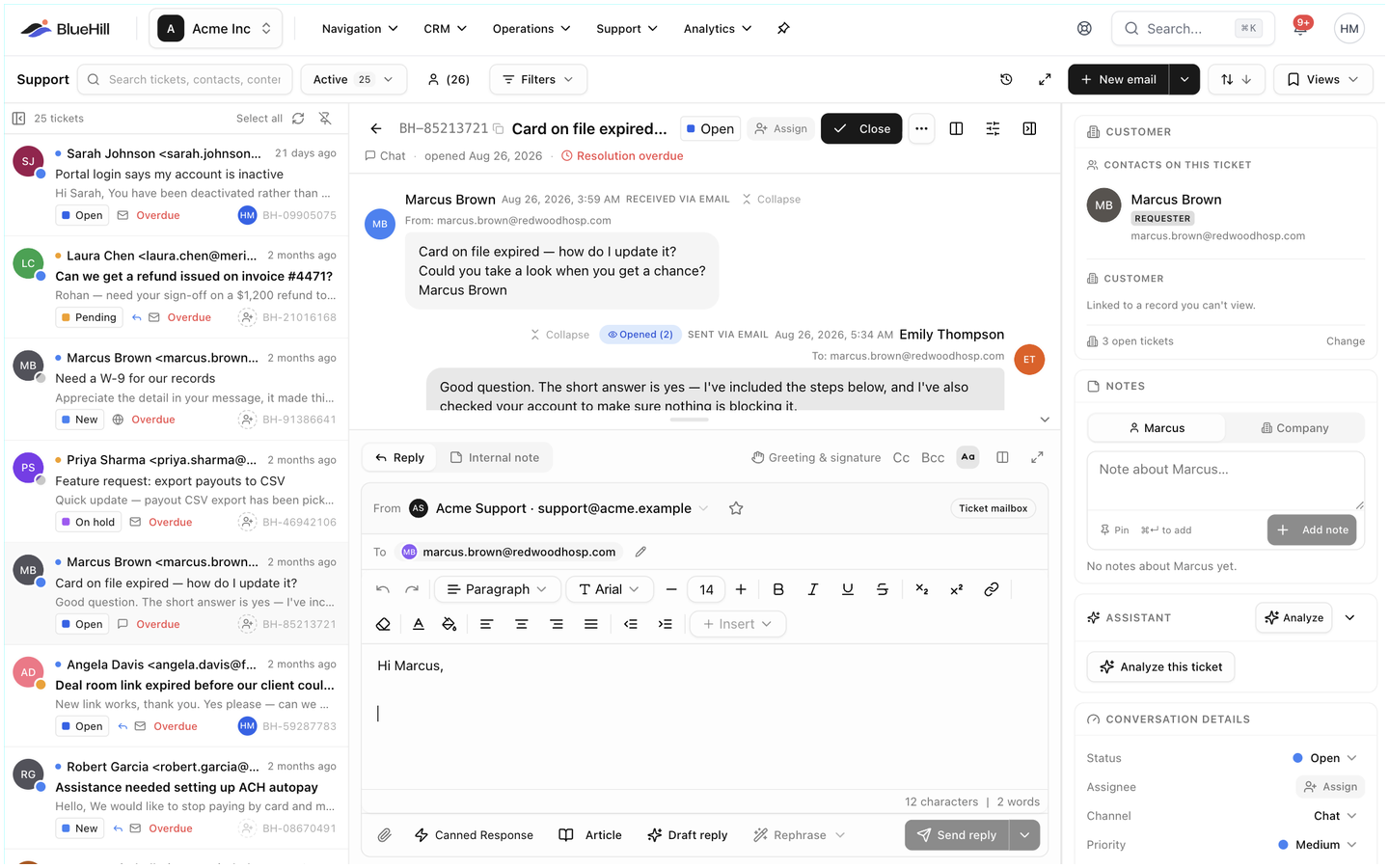
The three panes
| Pane | What it holds |
|---|---|
| Ticket list | Every ticket that matches the current view and filters, newest activity first. Click a row to open it. |
| Conversation | The ticket header, the messages and notes in order, and the reply composer at the bottom. See Work a ticket. |
| Customer panel | Cards about the requester, the customer account, the ticket's details, watchers, follow-ups and files. See The customer panel and follow-ups. |
Drag the divider between the list and the conversation to resize the list; double-click it to reset. Hide ticket list collapses the list so the conversation gets the full width, and Hide customer panel does the same on the right. Focus hides both side panes at once; Exit focus brings them back.
When nothing is open, the conversation pane reads Select a ticket to view the conversation. If your workspace has not finished setting up its support desk, the setup checklist appears there instead.
The toolbar
From left to right across the top of the page:
| Control | What it does |
|---|---|
| Search tickets, contacts, content… | Finds tickets by subject, number, requester, contact, company, custom field or message text. Press / to jump to it. |
| View | Switches between ready-made lists such as Active, Unassigned or Overdue, each with a live count. |
| Mine | The person icon with a count. Switch it on to keep only tickets assigned to you. |
| Filters | Opens the Filters panel. Active filters show as a count on the button. |
| Clear all filters | Removes every filter and the search term in one click. |
| Hide activity in conversations | The clock icon. Hides status changes, assignments and other system events in the conversation so only messages and notes remain. |
| Focus | The expand icon. Hides the side panes. |
| Acting as | If you have shared identities such as Accounting Team, choose which one you are writing as. |
| New email | Starts a new conversation. The arrow next to it also offers Create a ticket, Create a contact and your Drafts. |
| Sort | The two arrow buttons. Orders the list by Last updated, Created, Priority, SLA due, Status or, while searching, Relevance, ascending or descending. |
| Views | Saves the current filters, sort and columns as a named view and reapplies saved ones. |
Find and filter tickets covers each of these in detail.
Read a ticket row
Each row in the list shows:
- The requester's avatar, with a small coloured dot for the ticket's priority.
- A status dot and the requester's name (or No requester), with the company on the next line.
- How long ago the ticket was last updated. Hover it to see when the ticket was created and updated.
- The subject, in bold when the customer has replied and nobody has answered yet.
- A one-line preview of the latest message.
- Small icons for Customer replied, an Unsent draft, the channel the ticket arrived through (email, portal, phone and so on) and teammates who have the ticket open right now.
- An Overdue label when the ticket has missed its SLA target.
- Inline status and assignee pickers, so you can change either without opening the ticket, and the ticket number.
Hover over a row to see a preview card with the Latest from customer, Latest reply or Latest note, plus two quick actions: Mark as worked on and Add follow-up.
The list header
Above the rows, the header shows N tickets and a Select all checkbox. Tick rows to act on several tickets at once; the header then reads N selected with a Clear link. See Act on several tickets at once.
- Refresh reloads the list. It also refreshes itself every minute.
- Pin the list open keeps the list visible when you open or switch tickets. Unpinned, the list slides away as soon as you open a ticket, leaving a thin strip with the ticket count; click Show ticket list on that strip to bring it back.
- Long lists load 50 tickets at a time. Scroll to the bottom and click Load more (50/120) for the next batch, or switch to page-by-page paging in your preferences (below).
Keyboard shortcuts
| Key | Action |
|---|---|
| j / k | Next / previous ticket |
| x | Select or deselect the current ticket |
| c | New email |
| / | Jump to the search box |
| Esc | Clear the selection, or close the open ticket |
Choose your inbox layout
The default layout is Conversation: the list and the open ticket side by side, as shown above. If you prefer a table of tickets with the conversation opening on top, switch to Ticket list. Open your profile settings and, under Preferences, set Support inbox layout.
In the Ticket list layout the tickets appear as a table with Requester, Subject, Status, Assignee, Priority, Created / Updated and Ref columns. Tabs along the top hold your saved views, and Group by arranges the rows by Status (the default), Assignee or Customer, or not at all. On each row, Preview (or p) opens the ticket in a side panel and Open (or Enter) opens it fully; e closes it again.
The same Preferences card holds the other inbox options:
| Preference | Options |
|---|---|
| Support inbox layout | Conversation or Ticket list. |
| Jump to latest customer reply | Open a ticket at the customer's latest message instead of the top. |
| Support inbox list | Load more or Page by page for lists longer than 50 tickets. |
| Support inbox tabs | Off, or Per tab to let each browser tab keep its own view and filters. |
| Undo send | How long a reply is held before it goes out: Off, 5, 10, 20 or 30 seconds. |
| Default sender, Identities, Reply greeting, Reply signature | How your replies are addressed and signed. See Reply, add notes and use the composer. |
Support analytics
Support → Analytics reports on the whole desk for the Last 7 days, Last 30 days, Last 90 days or Last 12 months: Ticket volume, Tickets by channel, Tickets by priority, Backlog aging (how long open tickets have been waiting, from under four hours to more than three days), Sentiment over time and Busiest hours. The page is read-only; click Go to inbox to get back to work.
Next: Find and filter tickets.