
Reply, add notes and use the composer
For anyone answering tickets. The composer at the bottom of every ticket writes replies to the customer and private notes for your team.
Reply or internal note
The composer starts collapsed. Click Reply… to open it, or Internal note to go straight to a note. Once open it has two tabs:
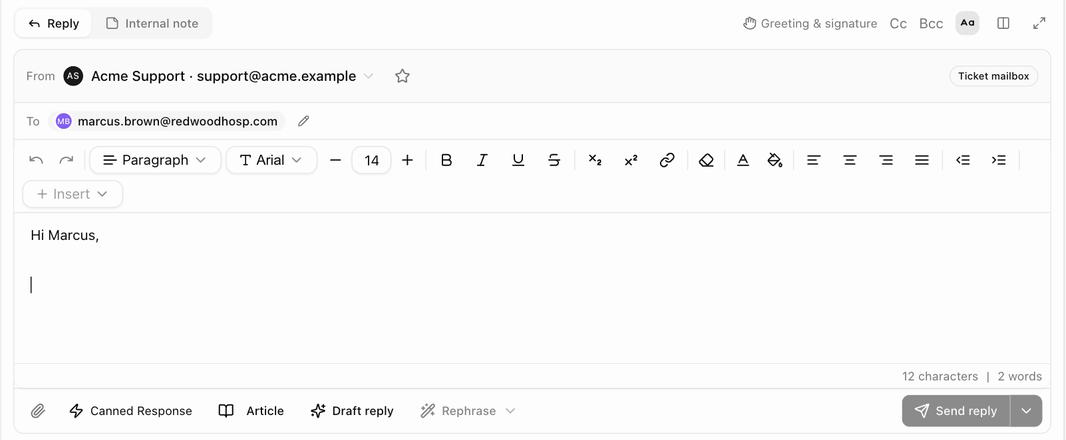
- Reply sends an email to the requester (and anyone in Cc). Your greeting (Hi Marcus,) is already filled in.
- Internal note adds a message only your team can see. The composer turns amber, a banner reads Internal note — not sent to the customer, and the placeholder reads Write an internal note (not sent to the customer)….
Who the reply goes to
- To shows the requester. Replies always go to the requester; to answer someone else on the ticket, click the pencil next to To and change the requester. See Change the requester.
- Cc and Bcc add other recipients. People you Cc stay on the ticket, so later replies include them too unless you remove them from the customer panel.
- From is the address the reply is sent from: the brand's mailbox, a named sender, or your own identity when the brand allows it. The ticket's own mailbox is preselected and marked Ticket mailbox. Click the star next to the address (Set as my default sender for this brand) to use it for every reply on that brand from now on.
Greeting and signature
Click Greeting & signature to see Your reply greeting and Your signature, which are added to the top and bottom of each reply automatically. Edit them there or under Preferences in your profile settings. A signature can use variables such as your name, your email address and the brand name, so one signature works across brands. When a sender mailbox has its own signature, that one is used instead of yours.
Write the message
The editor supports bold, italic, lists, links and pasted or dragged images. The Aa button shows or hides the formatting toolbar. A counter under the text shows the characters and words so far. The tools along the bottom:
| Tool | What it does |
|---|---|
| Paper-clip (Attach files) | Adds files up to 25 MB each. You can also drag files onto the composer. |
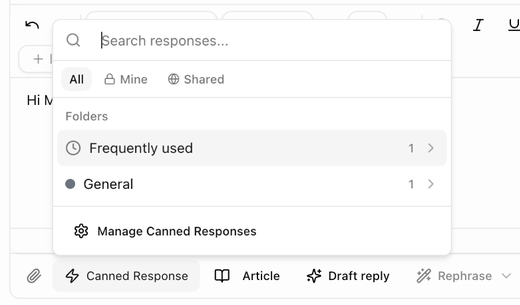
| Canned Response | Inserts a saved reply at the cursor. The picker has Search responses…, All / Mine / Shared tabs and your folders, with Frequently used at the top; type a response's shortcut (for example /thanks) in the editor to insert it without opening the picker. |
| Article | Searches your published help-center articles and inserts a link to the one you pick. |
| Send deal | Inserts the payment link for a deal linked to the ticket. Shown for workspaces that bill through BlueHill. |
| Draft reply | Writes a first draft from the conversation with AI for you to edit. |
| Rephrase | Polish, Fix spelling & grammar or More professional for the text you have written. |
| Expand icon | Opens the composer full screen; the chevron on the collapsed bar tucks it away again. |
Send, or send and set a status
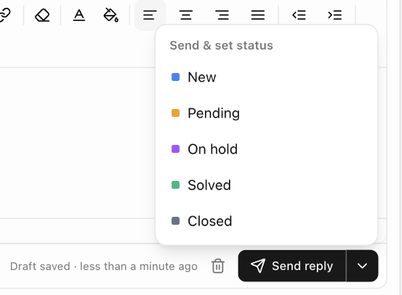
Click Send reply. It stays greyed out until you have written something beyond the greeting. To change the ticket's status at the same time, click the arrow next to the button: the Send & set status menu lists every status except the current one, for example Pending while you wait for the customer or Solved when the question is answered.
Sending a reply on a ticket that is New moves it to Open. If the customer sends a new message before you click send, the composer warns A newer message just arrived — review it before sending and keeps your draft.
Undo send
If Undo send is on in your preferences, the reply is held for 5 to 30 seconds. The composer shows Sending in 10s… with Undo and Send now. Internal notes are never held.
Drafts
The composer saves what you write every few seconds: Saving…, then Draft saved · less than a minute ago next to a trash icon. Leave the ticket and the draft is restored when you come back, on any device. The trash icon (Discard draft) asks Discard this draft? and removes the unsent text, recipients and attachments everywhere. Saved on this device only means the draft could not be synced yet; it is kept in your browser until it can.
Internal notes
Switch to Internal note to leave context for your team: what you found, what you promised, who to ask next.
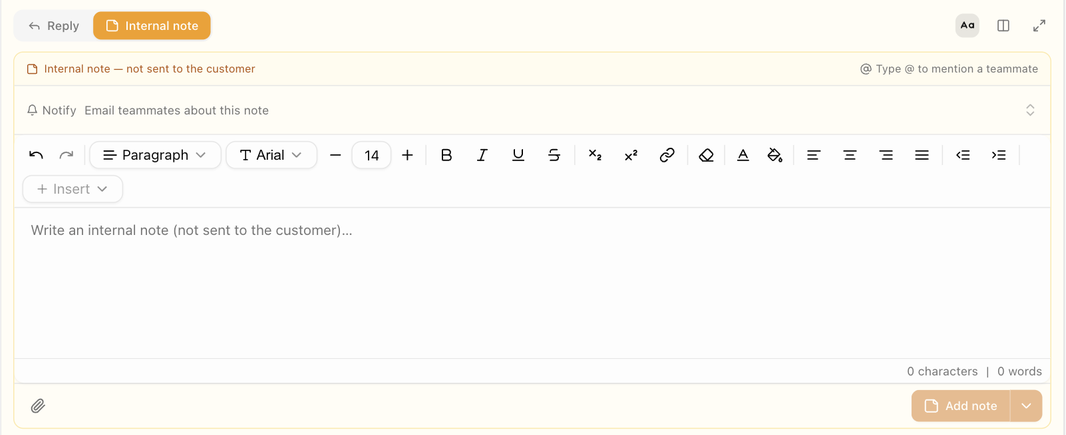
- Notify (Email teammates about this note) emails chosen teammates about the note. By default the ticket's assignee is suggested.
- Type @ to mention a teammate; mentioned people are notified too.
- Click Add note, or use Add note & set status to change the status at the same time.
- Notes appear in amber in the conversation. The author can Edit note or Delete note afterwards.
Notes never reach the customer, even if the ticket is later forwarded.
When sending is not possible
A reply can only be emailed from a brand with a verified sending domain. If your brand has none, the composer says Sending email requires a verified custom domain — verify yours in Settings → Support → Brands. Your draft is kept. Internal notes still work. See Add a custom domain.
Replies are also stopped for addresses on the suppression or Do-Not-Mail lists, except that you can always reply on a ticket the person wrote in on.