
Support settings: brands, domains and senders
For administrators setting up or changing how the support desk sends and receives email: brands, ticket numbering, auto-replies, custom domains and the addresses your team replies from.
The Support settings page
Open Support → Support settings. The left-hand menu groups the settings:
| Group | Sections |
|---|---|
| Overview | A health summary of the desk. |
| Channels & identity | Brands & domains |
| Ticket workflow | Statuses, Ticket categories, Ticket fields, Routing rules, SLA & business hours |
| Email & automation | Inbound filters, Suppressions, Canned responses, AI assistant |
| Customer-facing | CSAT, Help center, KB analytics |
| Data | Import |
Find a setting… at the top of the menu searches every section, including things you might not know the name of, such as ticket numbering or do not mail. A dot on Brands & domains means a domain still needs verifying.
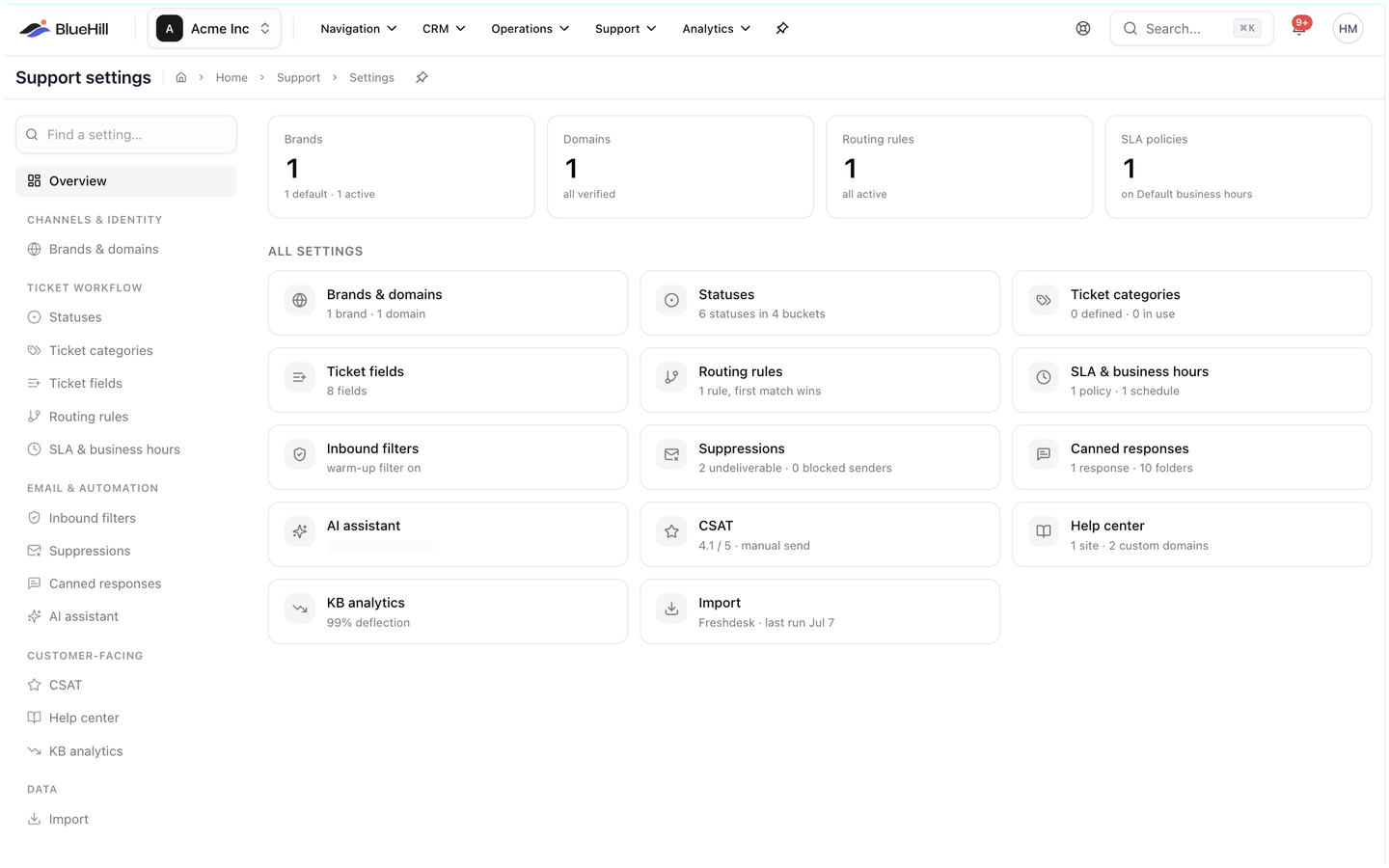
Overview shows four tiles (Brands, Domains, Routing rules, SLA policies) and an All settings grid where every card carries a one-line summary of its current state, such as 1 rule, first match wins. When something is wrong, for example a domain that failed verification, a Needs attention list appears above the grid with a button for each problem.
A new workspace also sees the Set up your support desk checklist: Create a brand & sender, Verify a sending domain, Set business hours & SLA and Publish a help center. Continue opens the guided setup; Dismiss hides the checklist.
This guide covers Brands & domains. The other sections are in Support settings: statuses, fields, routing and SLA and Canned responses, inbound filters, AI assistant and CSAT.
Brands
A brand is the identity your support emails are sent from. Every ticket belongs to one brand, which sets its ticket prefix, the From addresses available to agents, the auto-reply the customer receives and which help center its contact form belongs to.
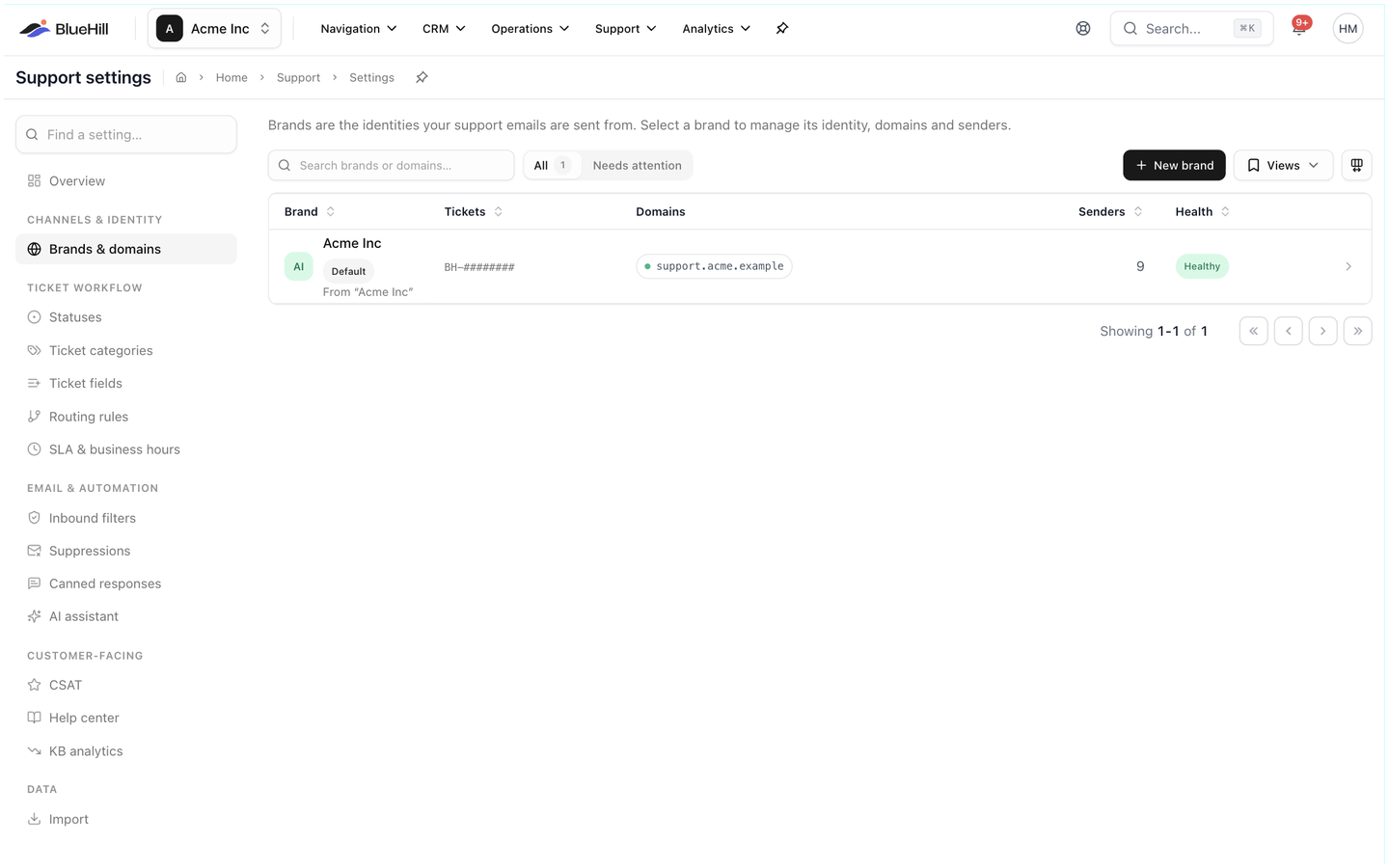
Brands & domains lists each brand with its Tickets prefix, From name, Domains (or Managed address only), number of Senders and a Health indicator. The Default badge marks the brand used for new tickets. Switch All to Needs attention to see only brands with a problem, or search with Search brands or domains….
Create a brand
- Click New brand.
- Enter the Brand name, a Ticket prefix (up to eight letters, shown in capitals, for example AS) and the From name customers will see.
- Click Create brand.
The new brand starts with a BlueHill-managed support address, which can send and receive straight away. Add your own domain when you want email to come from your company's address.
The brand page
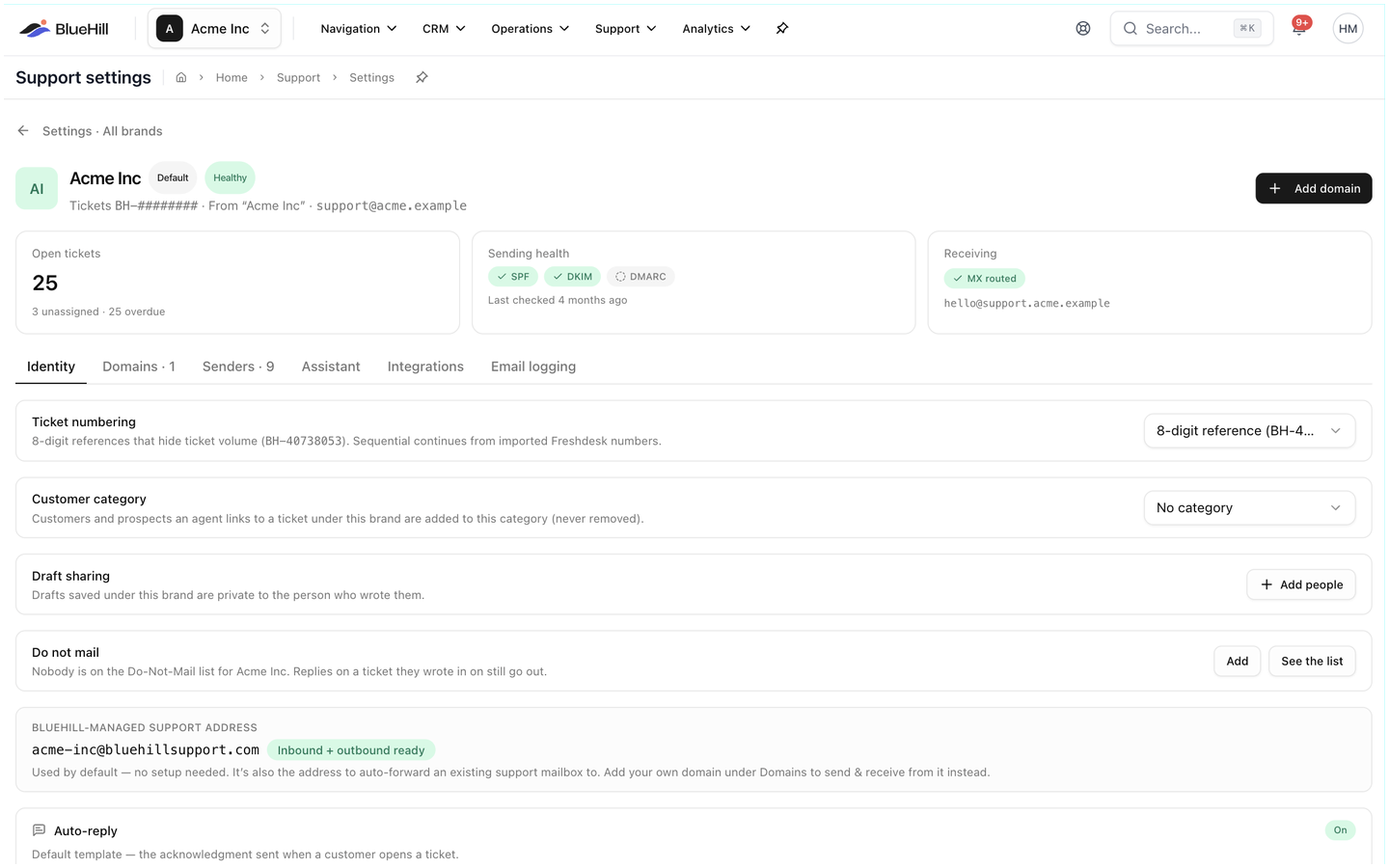
Click a brand to open it; Settings · All brands at the top takes you back. The header shows the brand's prefix, From name and mailbox address with Default and Healthy badges, plus Add domain. On a brand that is not the default, Make default makes it the brand for new tickets, the New email default and mail that arrives at the managed address. Three cards summarise Open tickets (with unassigned and overdue counts), Sending health (the SPF, DKIM and DMARC status of its domain and when it was last checked) and Receiving (MX routed, Mailbox forwarding or Managed address, with the inbound mailbox). The tabs below are Identity, Domains, Senders, Assistant, Integrations and Email logging.
Identity tab
| Setting | What it does |
|---|---|
| Ticket numbering | 8-digit reference (for example BH-40738053, the default, which hides your ticket volume) or Sequential (BH-1001, BH-1002…, continuing from any imported Freshdesk numbers). Switching to sequential asks you to confirm, because sequential numbers reveal how many tickets you handle. |
| Customer category | Customers and prospects an agent links to a ticket under this brand are added to this category automatically. Leave it on No category to skip this. |
| Draft sharing | Who can see unsent drafts saved under this brand: Private to each author, or the people you choose with Add people. |
| Do not mail | How many people and domains are on the brand's Do-Not-Mail list, with Add and See the list. |
| BlueHill-managed support address | The address BlueHill provides, such as acme-inc@bluehillsupport.com, marked Inbound + outbound ready. It works with no setup, and it is also the address to auto-forward an existing support mailbox to. |
| Auto-reply | On or Off: whether customers get an acknowledgement when they open a ticket, and what it says. |
| Deal message | The text Send deal inserts into a reply. Shown for workspaces that bill through BlueHill. |
Edit the auto-reply
- On the Auto-reply card, click Edit template.
- Leave Send an auto-reply on, or turn it off to acknowledge tickets silently.
- Edit the Subject and Message. Insert a variable adds placeholders such as the ticket number, the customer's name or the brand name, and the Preview shows the result with sample values.
- Save.
The default reads: We received your request (#12345678) / Hi Sarah, Thanks for reaching out — we've opened ticket #12345678 and a team member will reply soon. The auto-reply is only sent from a brand with a verified custom domain, and never to addresses on the Do-Not-Mail list. Individual mailboxes can switch it off under Senders.
Add and verify a custom domain
Replies, auto-replies and surveys are only emailed from a brand that has a verified domain of your own.
- On the brand page, open Domains and click Add domain.
- Enter the Domain (for example support.acme.com) and the Inbound mailbox, the local part of the address customers will write to (for example support).
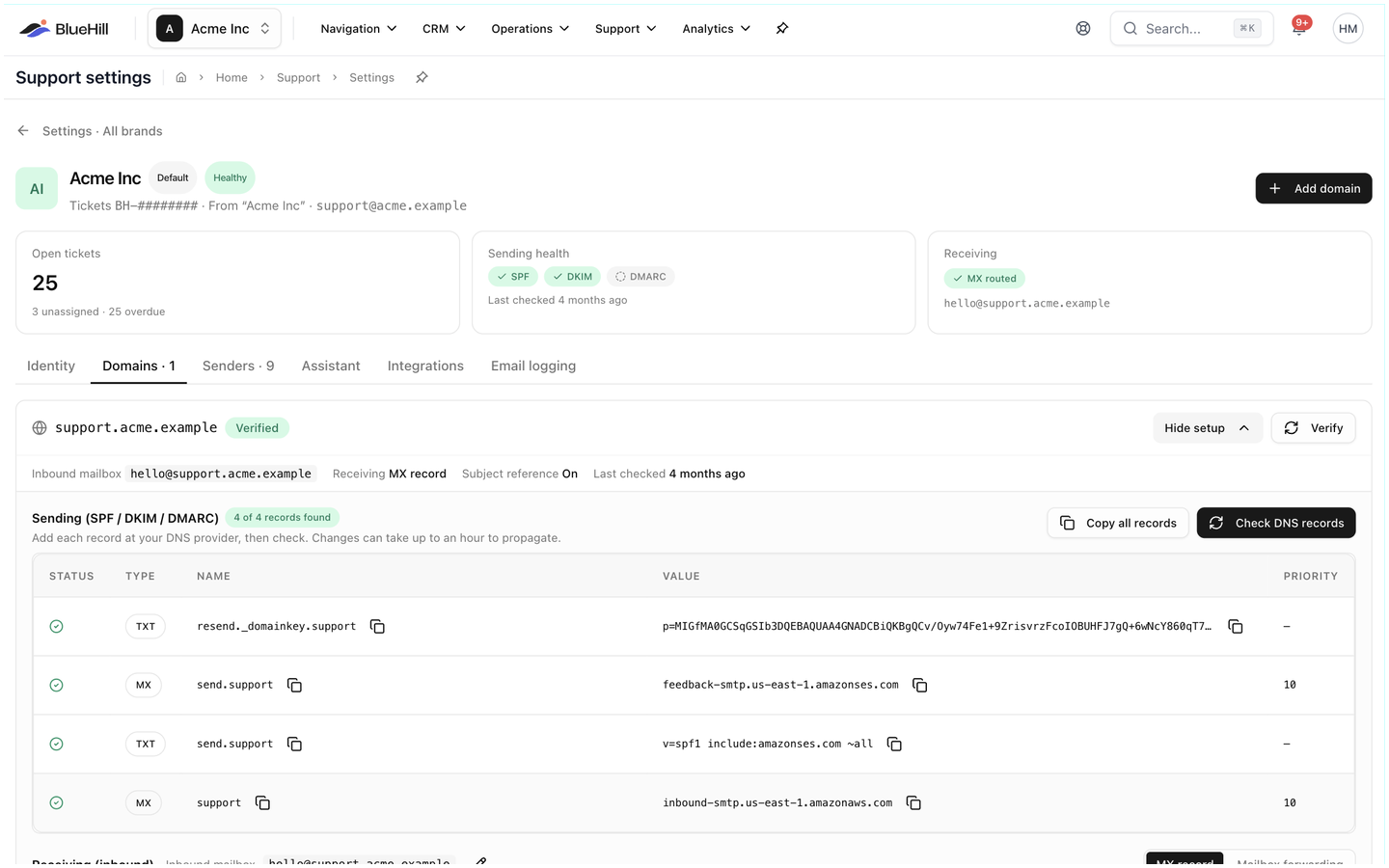
- BlueHill creates the DNS records you need. Click Setup on the new domain row to see them (Hide setup folds them away again).
- Under Sending (SPF / DKIM / DMARC), add each record from the table at your DNS provider. Copy all records copies them in one go. Changes can take up to an hour to propagate.
- Click Check DNS records (or Verify on the row). The row shows Verified and the panel reads 4 of 4 records found when every record is in place.
Choose how mail is received
Under Receiving (inbound) pick one of two modes:
- MX record: point the domain's MX record at BlueHill. Every email sent to any address at the domain becomes a ticket. Use this only for a domain or subdomain dedicated to support, because an MX record moves all of that domain's mail.
- Mailbox forwarding: keep your mailboxes where they are (Google Workspace, Microsoft 365) and auto-forward each one to the BlueHill address shown in the Forwarding mailboxes table. Replies go out from the original mailbox address.
Ticket reference in subject lines appends the ticket number, such as [BH-12345678], to every outgoing subject (replies, auto-reply, CSAT and forwards). Conversations thread by email headers either way, so turn it off for mailboxes whose mail should read like ordinary one-to-one email. The row summary shows Subject reference On or Off.
If another brand already uses the same domain, the row says Shared with …: the DNS setup and verification are shared, and each brand keeps its own inbound mailbox.
Senders tab
Senders are the From identities agents can choose when replying under this brand.
The table lists each sender's Name, Address, whether it is Available as From, its Auto-reply setting and the linked Team member (Not linked otherwise). A sender that has been deactivated keeps its row, marked (Deactivated).
- The brand mailbox (for example support@support.acme.com) is always listed and marked Brand mailbox. Its signature is set with Brand mailbox signature; leave it empty to fall back to the agent's own.
- Personal senders lets agents pick My identity, their own name at the brand's domain, as the From address. Turn it off when those addresses are not real mailboxes, which is usually the case with mailbox forwarding.
- Add sender creates a named identity: a Display name, a Mailbox local part, the Domain it belongs to and, optionally, the Team member it is linked to so that teammate can send as it. Available as From can be turned off to make a mailbox receive-only.
- Edit a sender to change its Auto-reply, restrict it to certain Teams, or give it its own Signature instead of the agent's.
- Move sends a mailbox to another brand: new tickets arriving through it belong to the chosen brand, while existing tickets stay where they are. Remove deletes the sender.
Assistant, Integrations and Email logging tabs
- Assistant sets whether the AI assistant's autopilot runs on this brand: Follow the workspace setting, On for this brand or Off for this brand, with brand-specific instructions. See The AI assistant.
- Integrations holds the Freshdesk API connection used by the import. Only administrators can change it.
- Email logging controls whether customer emails on this brand are logged to each customer's Activity tab: Log customer emails to Activity, which Direction (inbound, outbound), whether to Show message bodies on the timeline, and Per-customer pauses for customers whose email should not be logged.