
The customer portal at a glance
For anyone who wants the big picture before inviting the first customer: what the portal is, who can sign in, what customers can do there and how it connects to the rest of BlueHill.
Two sides of one feature
The portal has a customer side and a team side.
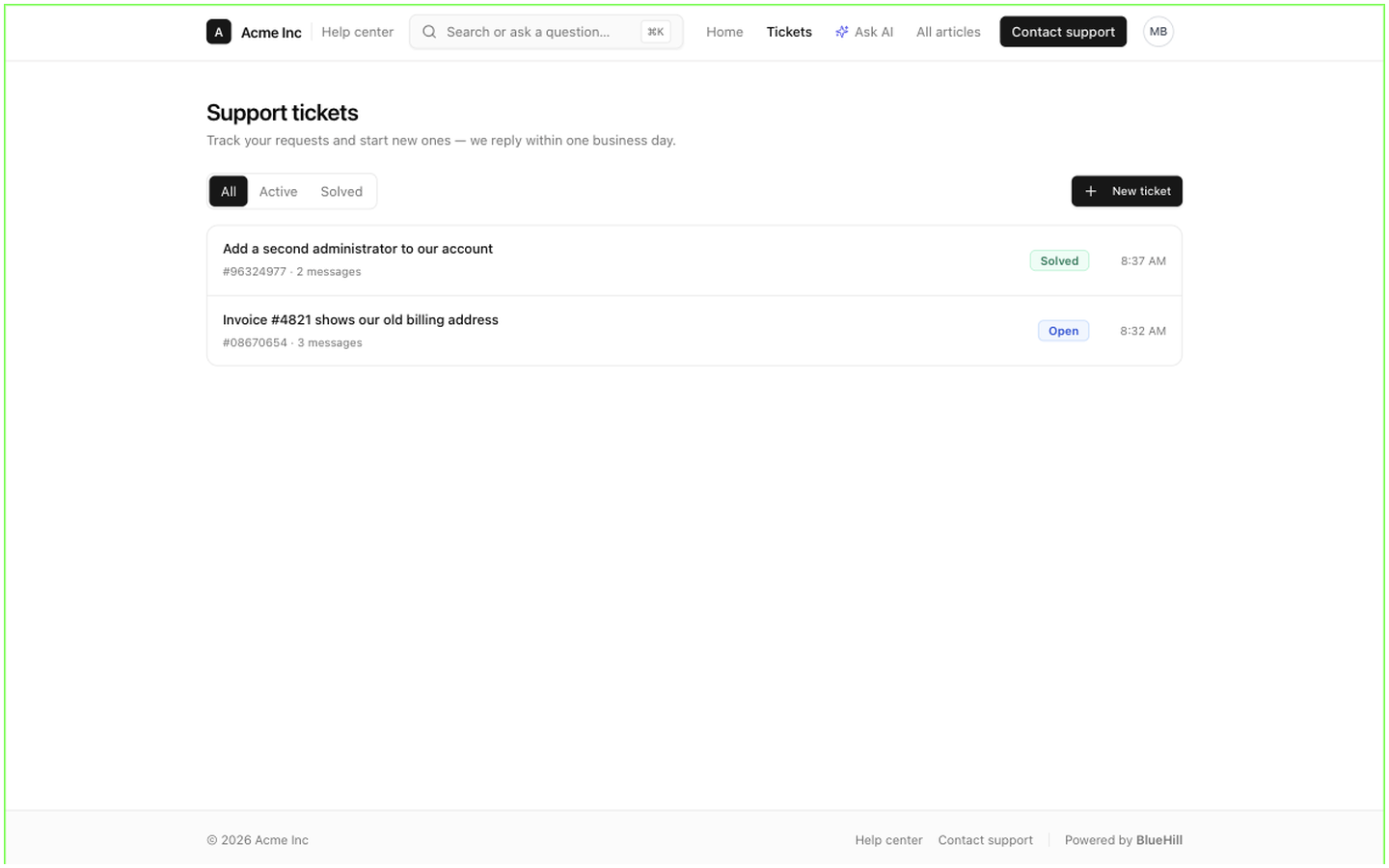
- Your customers open it in a browser, sign in with a code sent to their email, and see the help center with two extra links in the header: Tickets, and Home when they have onboarding access. There is nothing to install and no password to remember.
- Your team never signs in to the portal to do its work. Invitations, customer links, access levels and self sign-up are managed in the main app, and portal tickets arrive in the Support inbox like any other ticket.
Where the portal lives
The portal and your help center are one website. Until you add a custom domain, that website is portal.usebluehill.com: the help center sits under /help/ followed by your workspace's address, and the signed-in pages (Tickets, Home, My Profile) sit at the root of the site. Once a custom domain such as help.yourcompany.com is verified, the help center becomes its home page and the same domain serves the signed-in pages too.
The portal takes its name, logo, accent colour and footer from the help center's Branding settings. If you run several support brands, each brand's help center is its own site, and a customer sees the branding of the site they signed up on or last visited. See Branding, addresses and brands.
Who can sign in
| Person | Can they sign in? |
|---|---|
| A portal user you invited | Yes. They receive an invitation, create their account and sign in with an emailed code. |
| A visitor who signed themselves up | Yes, if you have switched on self sign-up for that help center and their email domain is allowed. |
| A workspace owner or admin | Yes. Owners and admins can sign in to preview the portal. They are not linked to a customer, so they see only requests they submitted themselves. |
| Any other team member | No. Agents, managers and other staff roles use the main app. The portal tells them to sign in there instead. |
One email address can belong to several workspaces. After entering the code, such a user picks the workspace to enter. Within one workspace, a portal user belongs to at most one customer.
What a customer can do
| In the portal | Details |
|---|---|
| Read the help center and Ask AI | The public help center never needs an account. Signed-in users also get the Ask AI chat when you have enabled it. |
| Open a ticket | New ticket on the Support tickets page asks for a subject and a message. Screenshots can be pasted or dragged in. |
| Follow tickets | A user linked to a customer sees every ticket of that customer; an unlinked user sees only the requests they submitted. The customer sees your public replies, never your internal notes. |
| Reply | A reply on a solved or closed ticket reopens it. |
| Complete onboarding tasks | Tasks you have published from a board appear on Home, grouped by project, for linked users with onboarding access. |
| Keep their profile up to date | Name, phone number and time zone on My Profile. |
What a customer cannot do in the portal: close or solve a ticket, add people in copy, set a priority, upload files other than images, or change the email address they sign in with. Your team handles each of these from the inbox or from the Portal users page.
How access is decided
Two settings on each portal user decide what they see, and both live on Support → Portal users:
- Customer: the customer record the user is linked to. Linking gives the user the company-wide view of tickets and switches on the onboarding Home for that customer's boards. See Link customers, set access and deactivate.
- Access: Full portal, Support tickets, Onboarding & tasks or No access. Invited users start with the full portal; self sign-ups start with whatever you allow under What self-signups can access.
Where portal tickets go
Every ticket opened in the portal lands in Support with the channel Portal, the portal user as requester and, for a linked user, their customer attached. Your replies are emailed to the customer and shown in the portal. See Portal tickets in your inbox.
Next: The Portal users page.