
Onboarding tasks in the portal
For anyone who runs customer onboarding on a board and wants the customer to complete their part in the portal. This guide covers what the customer sees on Home and what you publish from the board.
Who sees Home
Home appears in the portal header, and is the page the customer lands on after signing in, when two things are true:
- the portal user is linked to a customer (see Link a portal user to a customer), and
- their Access includes Onboarding & tasks (the Full portal default for invited users includes it).
A user without a customer link, or with ticket-only access, never sees Home.
The Home dashboard
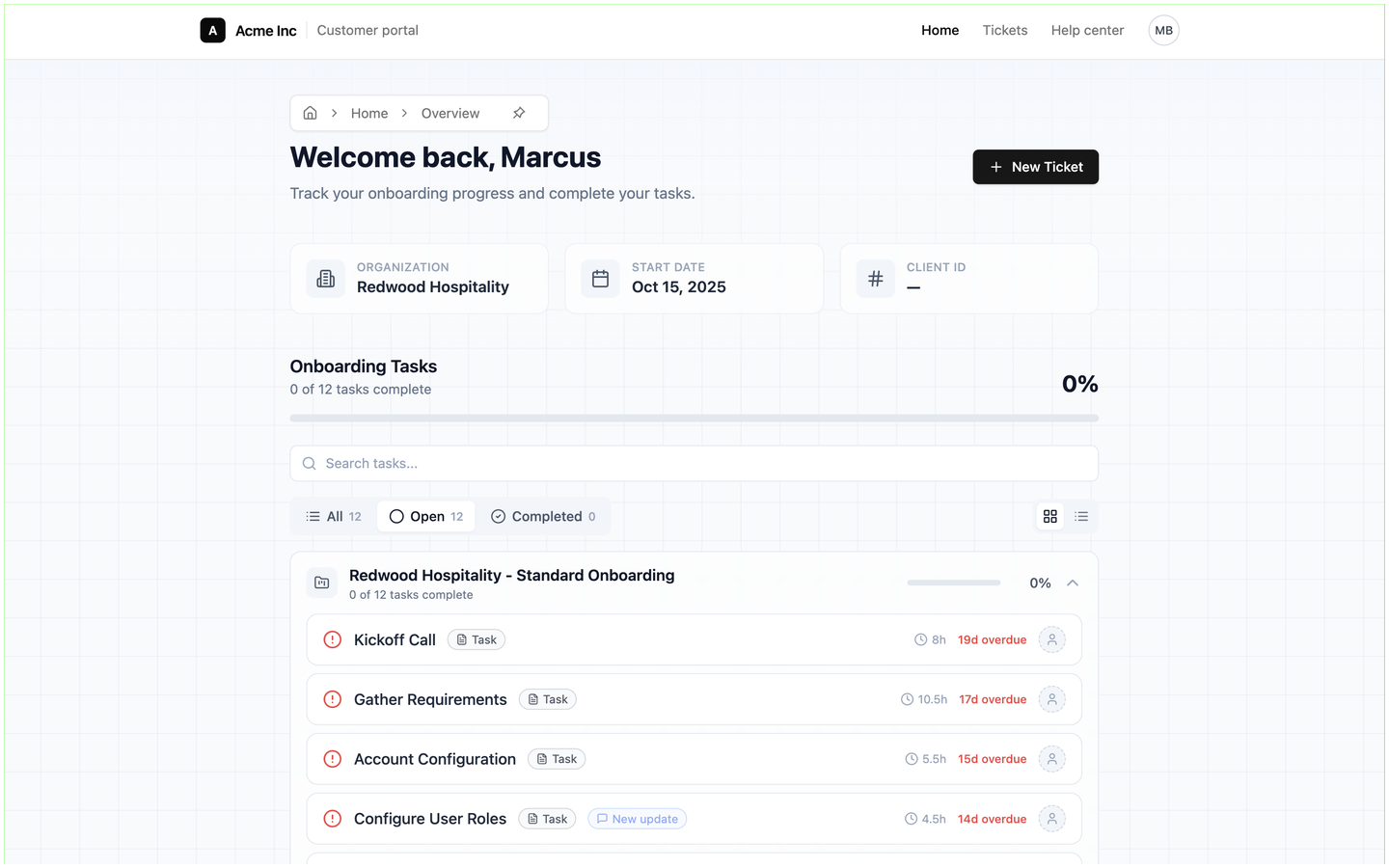
Home, and the task pages that open from it, use the portal's own header: your name with Customer portal beside it, then Home, Tickets, Help center and the customer's avatar. The page greets the customer by first name (Welcome back, Marcus) under the line Track your onboarding progress and complete your tasks., with a New Ticket button on the right.
- Three cards show the Organization (the customer record the user is linked to), the Start date and the Client ID from that record.
- Onboarding Tasks adds up every task you have published to this customer, from every board that belongs to the customer record: 0 of 12 tasks complete and a percentage bar.
- Search tasks... finds a task by name. The All, Open and Completed pills filter by portal status and show a count each. The two buttons on the right switch between tasks grouped by project, where each board is a collapsible card with its own progress bar, and one flat list.
- Each task row shows a status icon (a red alert for an overdue task, a green tick for a completed one), the task name, a type chip, the time estimate such as 8h, and the due date: 19d overdue, Today, or the date of an upcoming task. A New update chip marks a task that is In Progress. The avatar at the end of the row is an Assign member picker, which lets the customer hand the task to another portal user from their company.
With nothing published yet, the page reads No tasks yet; filters that match nothing read No tasks match your filters.
How the customer completes a task
The chip on each row comes from the task's type on the board, and the type decides whether the row opens anything:
| Type on the board | In the portal |
|---|---|
| Acknowledge | Chip Acknowledgement. Opens a page headed with the task name and Please Read and Confirm the Following: above the task description, with an Acknowledge & Complete Task button. |
| Form | Chip Form. Opens the form you attached to the task; the customer's answers stay with the task, where your team can view them from the board. |
| Upload | Chip Upload. Opens a page where the customer uploads the files you asked for and then marks the task complete. |
| Information, Download, Link | Chip Task. The row is read-only: it informs the customer but there is nothing to open or tick off. |
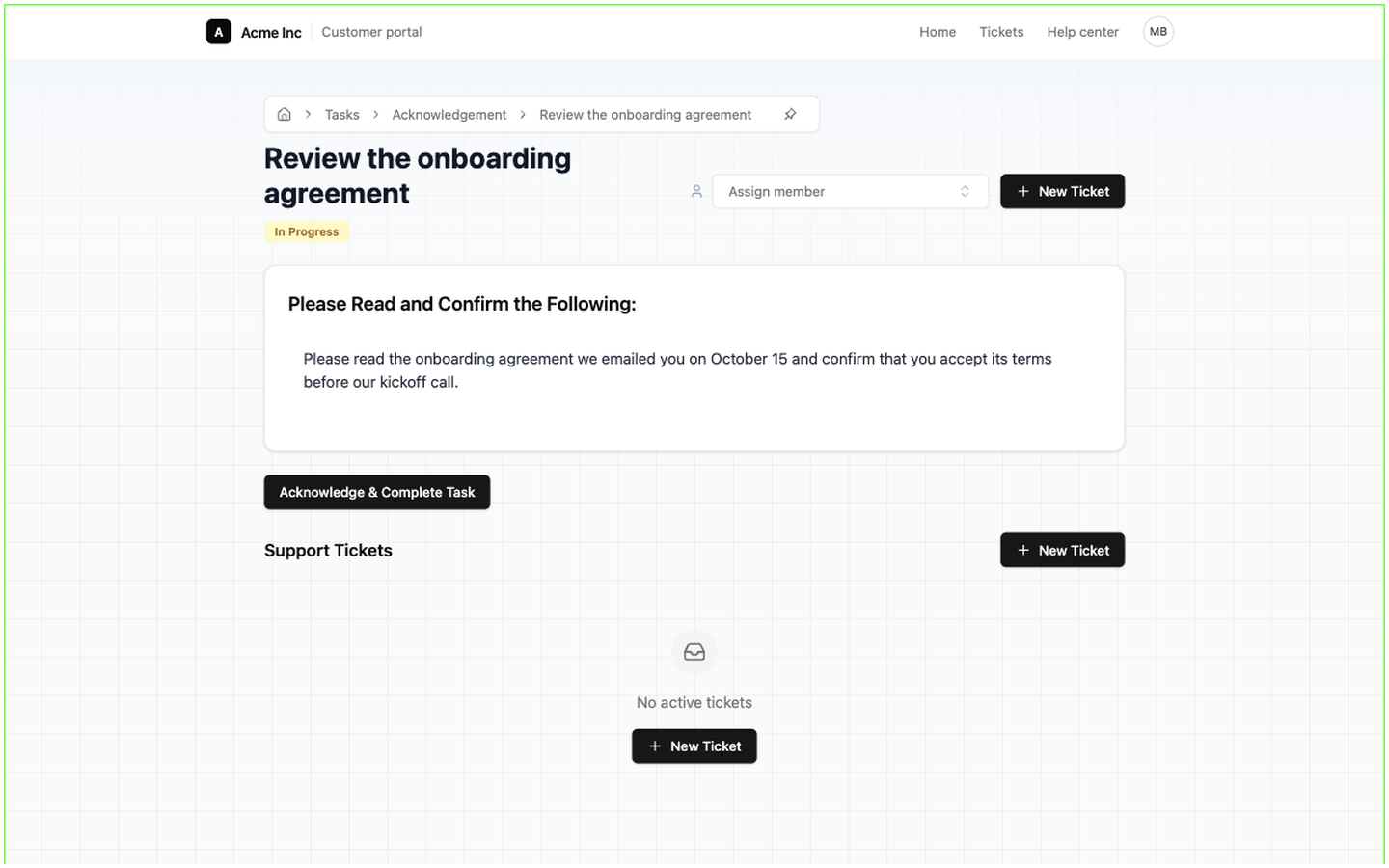
A task page has a breadcrumb (Home › Tasks › Acknowledgement › the task name), the task's portal status badge, the Assign member picker, a New Ticket button and, under the task, a Support Tickets shortcut. Opening a task moves its portal status from Not Started to In Progress, and completing it sets Complete. Both are visible to you on the board, and while a task is In Progress its row on Home carries the New update chip.
What you publish from a board
Nothing reaches the portal until you publish it.
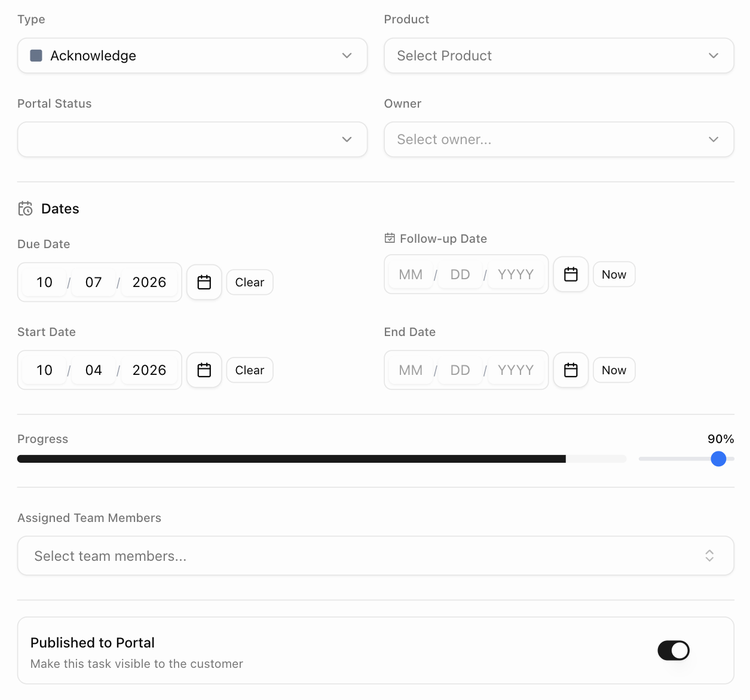
- Open the task and switch on Published to Portal (Make this task visible to the customer). The task table has a Published column for the same switch, and publishing a parent task publishes its subtasks.
- Portal Status (Not Started, In Progress, Complete) is the customer's progress on the task. You can set it by hand if the customer completed the step some other way.
- Portal Assignee names the customer contact responsible for the task.
- Automations can react to the portal: the trigger The customer completes an item in the portal fires when the customer ticks a task off, the action Publish to the portal shows or hides items, and the email action can include an Open the portal link.
The Boards guides cover task types, the board page and automations in detail.