
The Portal users page
For anyone who needs to see who has portal access across all customers. The Portal users page is the directory of every portal account and pending invitation in your workspace.
Open the page
Open Support → Portal users. The page is headed Portal users, with a Directory entry on the left and a Self sign-up link that jumps to the help center settings, because sign-up rules are set per help center rather than here.
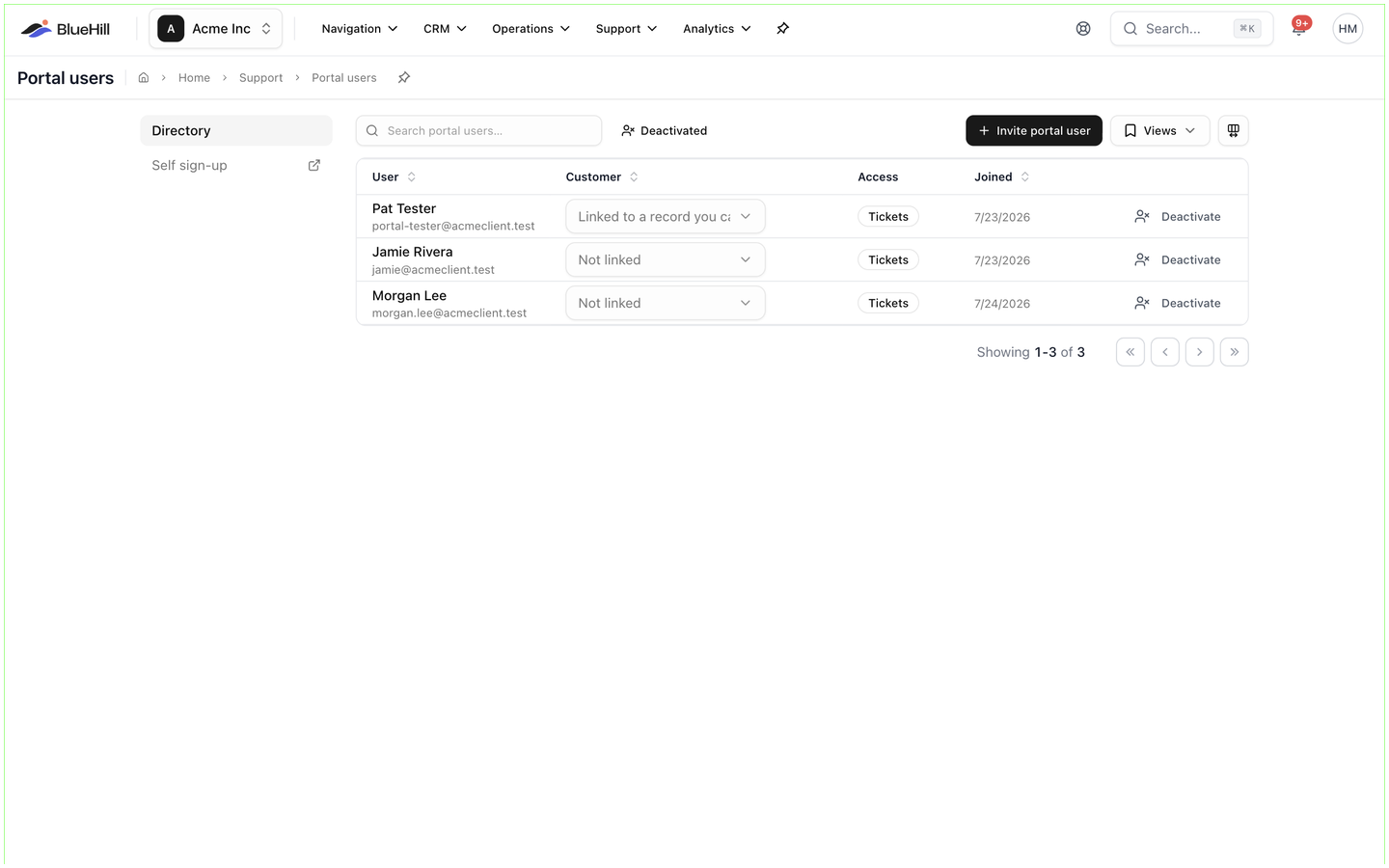
The toolbar
| Control | What it does |
|---|---|
| Search portal users… | Filters the list by name or email as you type. |
| Deactivated | Includes accounts that have been switched off. They are hidden by default. |
| Invite portal user | Opens the invitation dialog. See Invite customers to the portal. |
| Views | Saves the current search and columns under a name so you can reapply them later. |
| Columns | Shows, hides and reorders columns. |
Pending invites
When invitations are outstanding, a Pending invites box sits above the table. Each row shows the invited email address and the customer it will be linked to, with Resend and Revoke buttons. An accepted invitation disappears from this box and the person appears in the table.
The table
| Column | Shows |
|---|---|
| User | The person's name and email address. A Deactivated badge marks accounts that have been switched off. |
| Customer | The customer record the user is linked to, or Not linked. Click it to change the link. If the linked record has been deleted or is outside your view, the cell reads Linked to a record you can't view. |
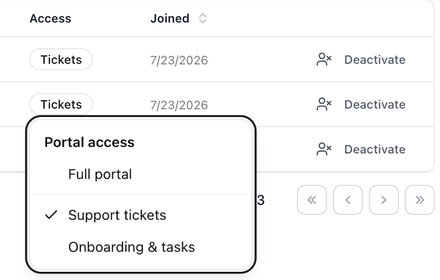
| Access | Full portal, Tickets, Onboarding or No access. Click the badge to change it. |
| Joined | The date the account was created. |
| Actions | Deactivate, or Reactivate for a deactivated account. |
The list is paged; the footer shows Showing 1-3 of 3 style counts with first, previous, next and last page buttons.
When the list is empty
A workspace with no portal users shows No portal users yet, with the hint to invite customers from this page or to turn on self sign-up so they can create their own accounts from your help center. A search with no match shows No portal users match "…".
The same information elsewhere
- Customers → a customer → Support → Portal access lists only that customer's portal users and invitations. See Invite from the customer's Support tab.
- Customers → a customer → Contacts shows, in its Portal column, whether each contact has been invited or already has access.
- In the mobile app, Settings → Portal users shows the same directory with a Show deactivated switch and a Pending invites section.