
How customers sign in and manage their profile
For anyone who supports customers using the portal and wants to see what they see: the sign-in page, the code email, the user menu and the My Profile page.
Sign in with a code
Portal sign-in is passwordless. Each time a customer signs in, BlueHill emails them a six-digit code and a magic link.
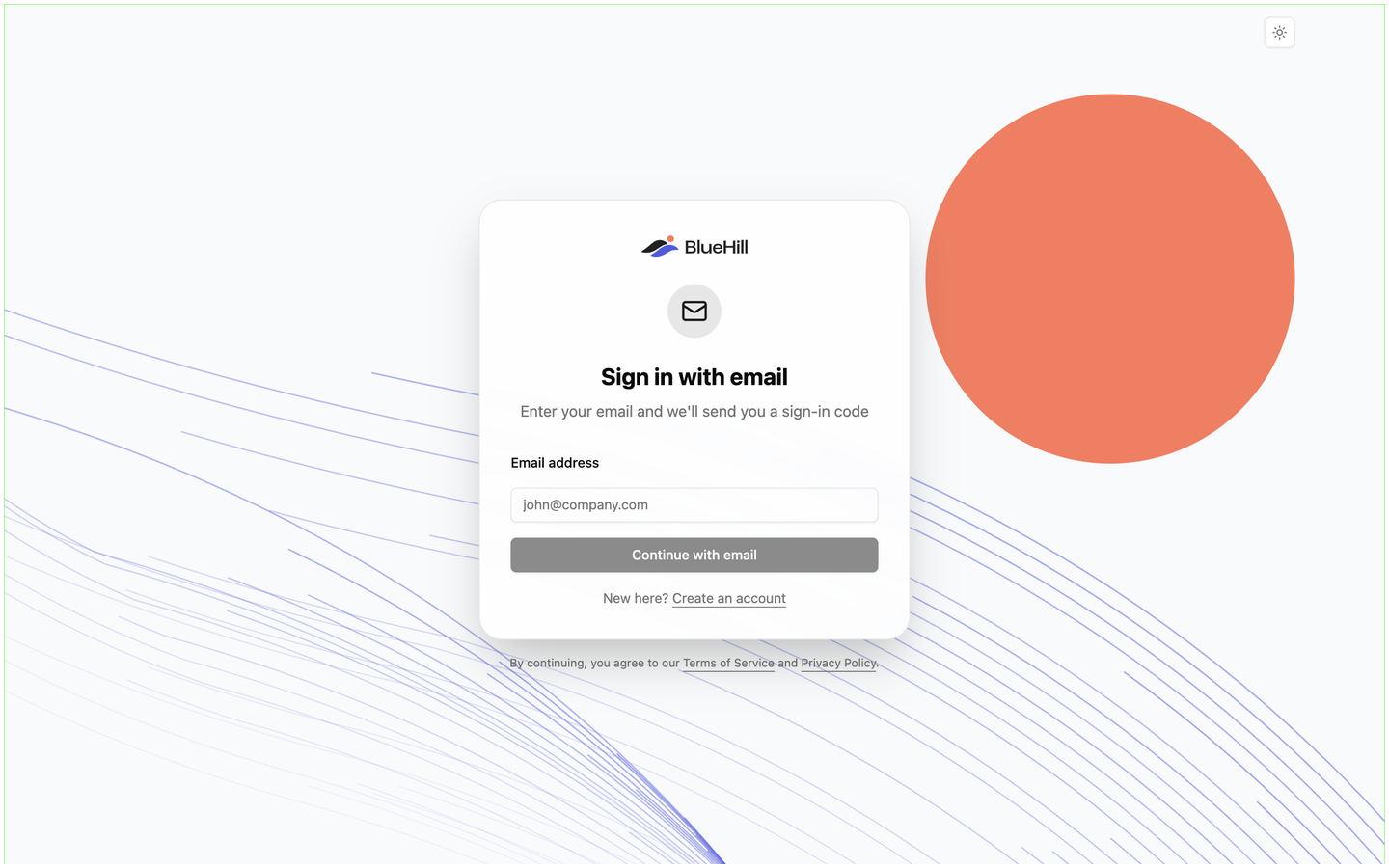
- The customer clicks Sign in in the help center header, or follows a ticket link from an email. The sign-in page is headed Sign in with email.
- They enter their Email address and click Continue with email.
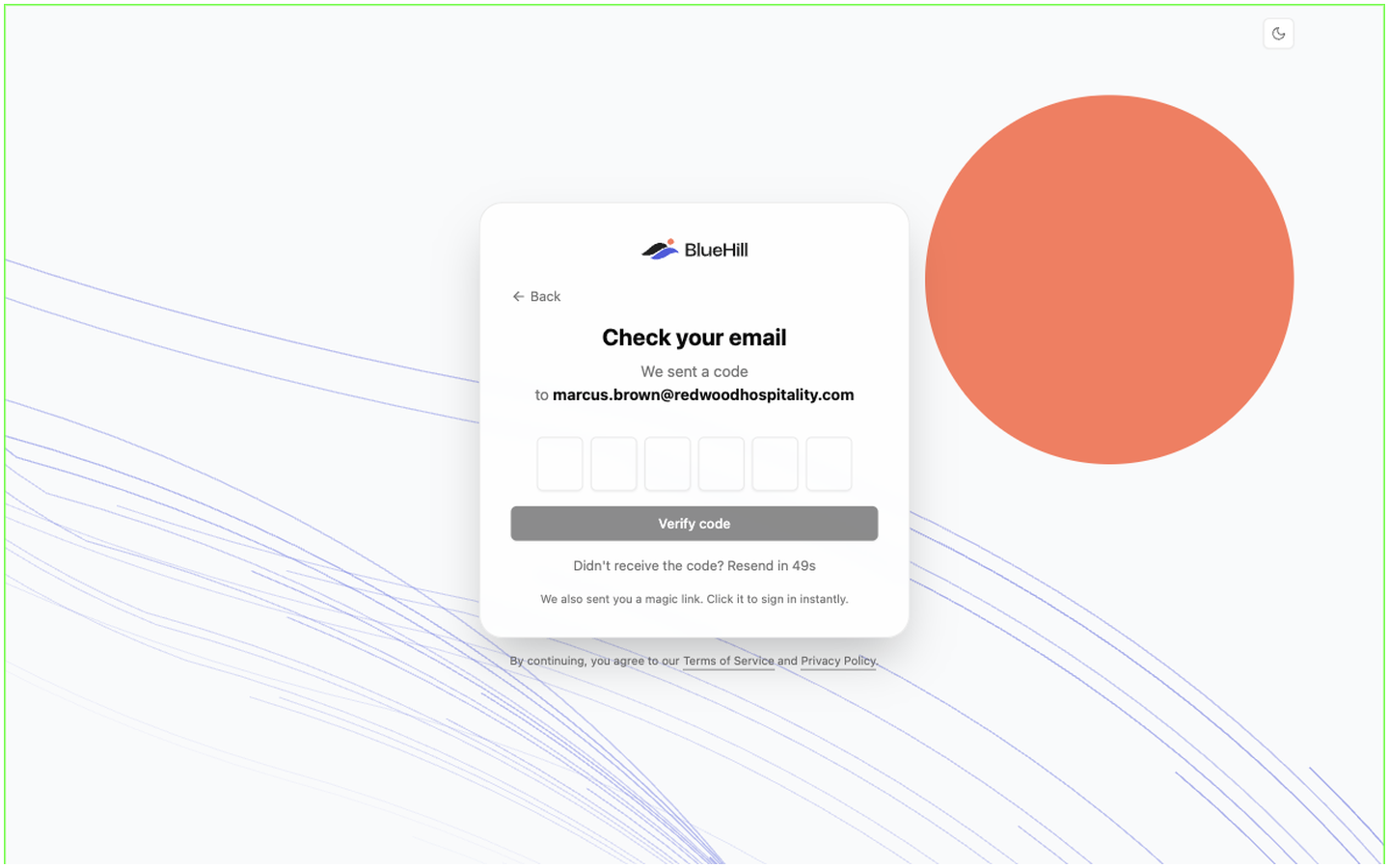
- The page changes to Check your email (We sent a code to …) with six boxes for the code and a Verify code button. The email, from BlueHill, has the subject Your sign in code for BlueHill followed by the code. Typing or pasting the code and clicking Verify code signs them in; so does clicking the magic link in the same email. Back returns to the email step.
- If their address belongs to more than one workspace, Choose your workspace asks which one to enter.
Things worth knowing when a customer asks:
- The code and link work for 10 minutes. Requesting a new code cancels the old one.
- The page counts down (Didn't receive the code? Resend in 58s) and then offers Resend code, 60 seconds after the last email.
- Too many wrong codes in a row stop the sign-in; the customer requests a fresh code.
- A customer stays signed in for about a week on that browser before being asked for a new code.
- An address with no portal account is told to ask you for a sign-up link, or, when the help center allows self sign-up, is sent to create an account. A member of your own team is told to sign in to the main app instead.
The sign-in page always shows the BlueHill logo rather than your branding; your name, logo and colours appear as soon as the customer is in.
After signing in
A customer linked to a customer record with onboarding access lands on Home; everyone else lands on Support tickets. On help center pages, including the tickets pages, the header gains Tickets (and Home when it applies) and an avatar with the customer's initials on the right. Home, task pages and My Profile use the portal's own header instead: your name with Customer portal beside it, then Home, Tickets, Help center and the same avatar.
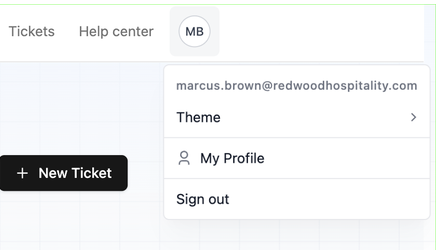
The avatar opens the user menu:
| Item | What it does |
|---|---|
| The email address | Shows which account is signed in. |
| Theme | Light, Dark or System. By default the portal follows the device setting. |
| My Profile | Opens the profile page below. |
| Sign out | Signs out and returns to the help center. |
The My Profile page
My Profile is headed Manage your personal information and account settings.
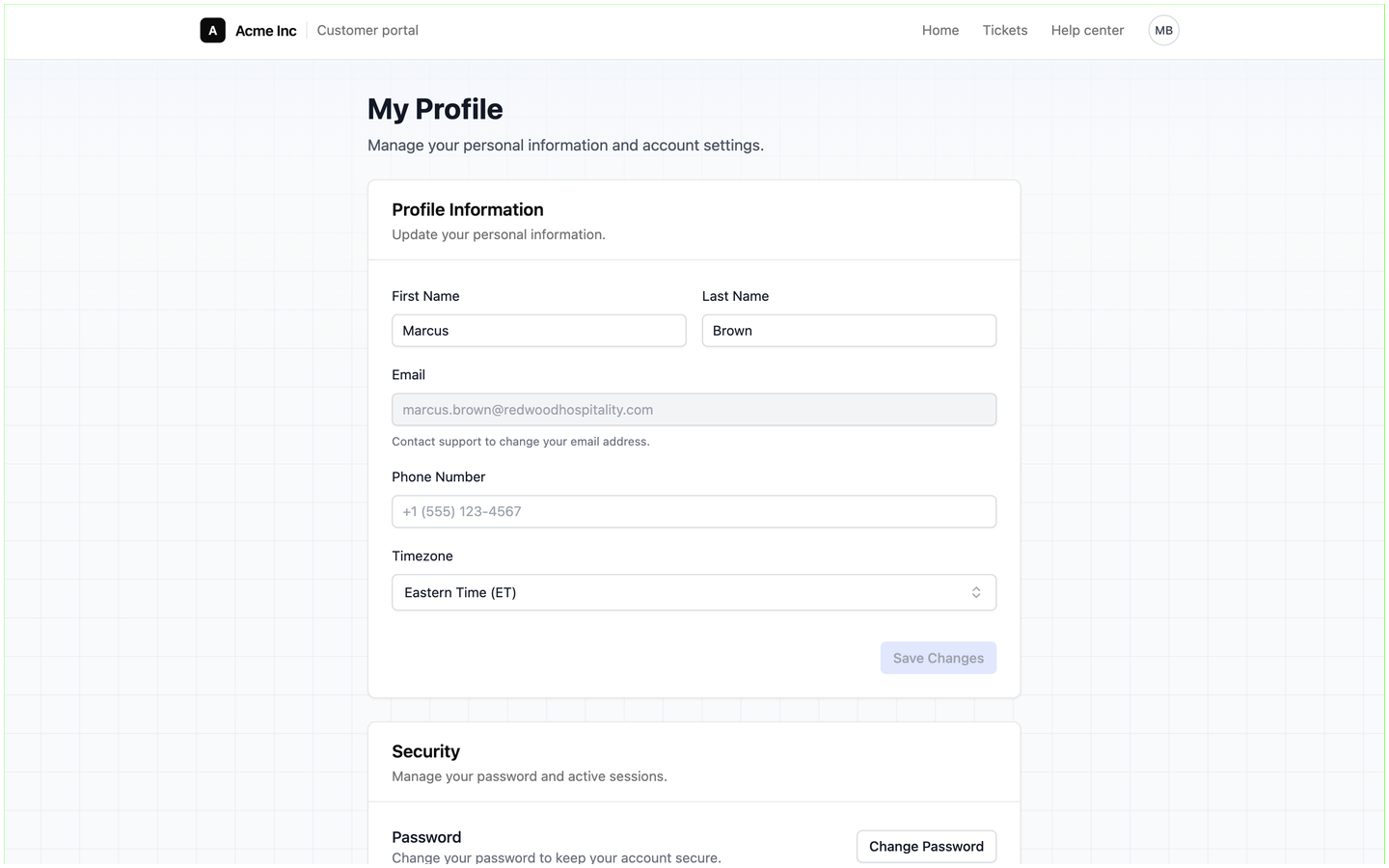
- Profile Information: First Name, Last Name, Phone Number and Timezone, saved with Save Changes. The Email field is read-only and tells the customer to contact support to change it; see When a contact's email changes.
- Security: a Change Password button and an Active Sessions list showing each signed-in device and when it was last active, the current one marked Current, with Revoke on the others and Sign Out All when there is more than one. Sign-in works with the emailed code whether or not a password has been set.
Changes a customer makes to their name or phone number here update their portal account; they do not change the contact record in your Customers module.
Next: Tickets in the portal.