
Link customers, set access and deactivate
For anyone who looks after portal accounts after the invitation has been accepted: who sees which tickets, what each person can open, and how to switch an account off.
All of this happens on Support → Portal users. The same controls are in the mobile app under Settings → Portal users.
Link a portal user to a customer
The Customer column decides whose tickets and tasks a portal user sees.
- Find the person and click the value in the Customer column (Not linked for a user without a customer).
- Type in Search by name or company… or pick the customer from the list. Each entry shows the company and its primary contact; prospects are marked.
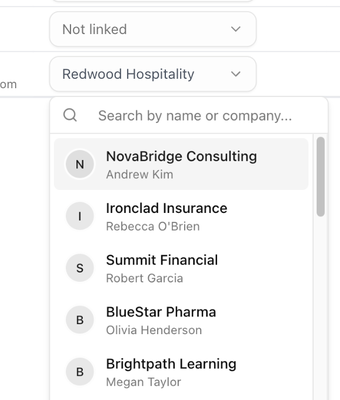
A toast confirms Customer linked and says how many of the person's existing tickets were moved to the customer. To remove the link, open the picker again and click the customer that is already ticked; the toast reads Customer unlinked.
| Linked to a customer | Not linked | |
|---|---|---|
| Tickets | Every ticket of that customer, whoever opened it. | Only requests they submitted themselves. The portal shows the note Showing requests you've submitted. |
| New tickets | Attached to the customer automatically. | Attached to the customer only if the requester's email matches one. |
| Home (onboarding) | The customer's published tasks, if the user has onboarding access. | Not shown. |
A portal user can be linked to one customer at a time, and a customer can have any number of portal users.
Tip: Invitations sent from a customer's Contacts tab or Support tab are linked already. Check the link when the invitation was sent from the Portal users page without a customer, or when a self sign-up could not be matched to a customer automatically.
Set what a portal user can open
Click the badge in the Access column to open the Portal access menu and tick what the person may use:
| Option | What it opens |
|---|---|
| Full portal | Everything below. This is the default for invited users. |
| Support tickets | The Tickets page: opening and following support requests. |
| Onboarding & tasks | The Home dashboard with published tasks, projects and forms. It only has content for a user linked to a customer. |
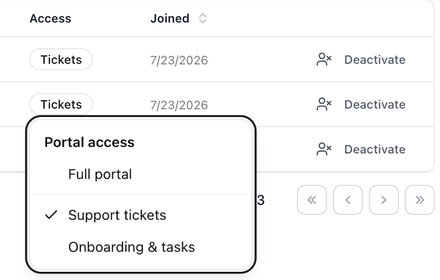
The options are tick boxes, so more than one can be on at once. The column then shows Full portal, or one badge per ticked option (Tickets, Onboarding), or No access with nothing ticked. A user with no access can still sign in but sees nothing beyond the public help center. A toast confirms Access updated.
Self sign-ups start with the access you chose under What self-signups can access for that help center; invited users start with the full portal. See Let customers sign up themselves.
Deactivate or reactivate
- Click Deactivate on the person's row.
- Your browser asks Deactivate email? They lose portal access immediately. Confirm to go ahead.
A deactivated account is hidden from the list until you switch on Deactivated in the toolbar. Reactivate restores it with the same customer link and access. If a deactivated person tries to sign up again from your help center, they are told their access was deactivated and to contact you.
The customer's Contacts tab shows Deactivated in the Portal column for the same person. There is no way to delete a portal account; deactivating is how you take access away.
When a contact's email changes
A portal account belongs to the email address the person signs in with. Changing a contact's email in BlueHill does not move the portal account to the new address. Invite the new address if the person should keep using the portal, then deactivate the old account.