
Invite customers to the portal
For anyone who gives a customer contact their first portal account. There are three places to send an invitation from; they all send the same email and end in the same place.
Before you start
- Sending invitations needs the Owner, Admin or Manager role. Other roles can see who has been invited but not invite.
- The person needs an email address. A contact without one, or one that belongs to a team member of your own workspace, cannot be invited.
- Decide whether to link the person to a customer. A linked user sees every ticket of that customer and its published onboarding tasks; an unlinked user sees only the requests they submit themselves. You can change the link at any time on the Portal users page.
Invite from the Portal users page
- Open Support → Portal users and click Invite portal user.
- Enter the person's Email.
- Optionally pick a customer under Link a customer (optional).
- Click Send invite.
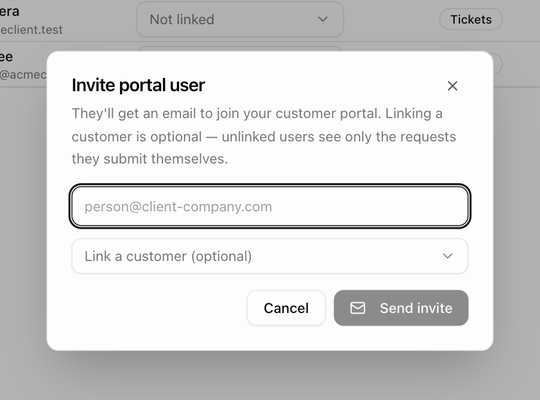
The dialog explains the choice: They'll get an email to join your customer portal. Linking a customer is optional — unlinked users see only the requests they submit themselves. A toast confirms Invite sent, and the address appears under Pending invites until the person accepts.
Invite from a customer's Contacts tab
The quickest route when the person is already a contact.
- Open the customer and choose Contacts.
- In the Portal column, click Invite next to the contact. The invitation is linked to the contact's own customer.
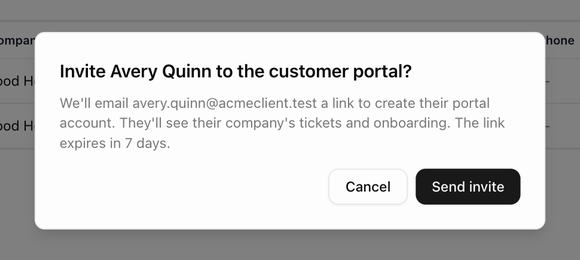
- Confirm Invite name to the customer portal? with Send invite. The confirmation explains that the person will be emailed a link to create their portal account, that they will see their company's tickets and onboarding, and that the link expires in 7 days.
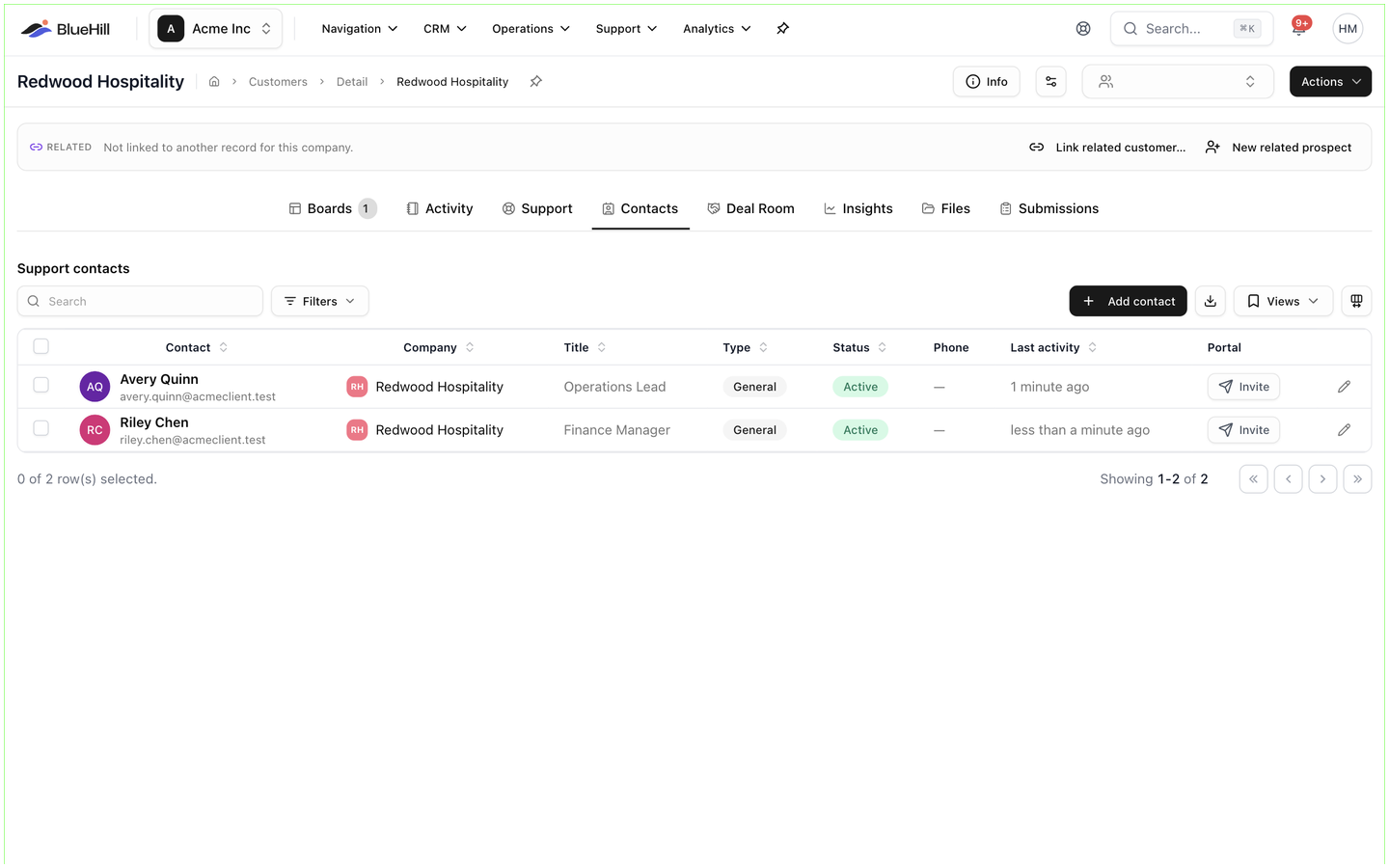
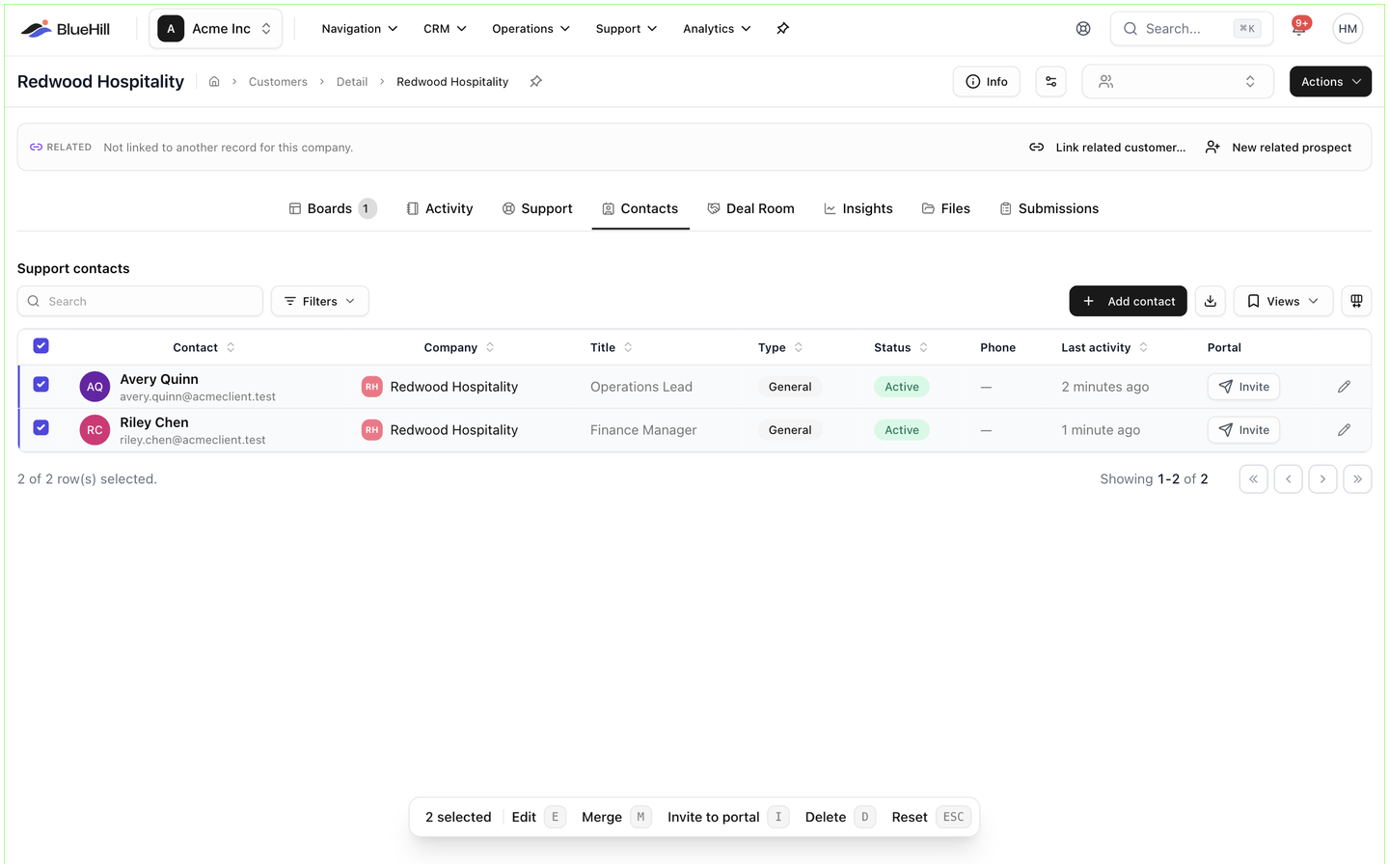
To invite several people at once, tick them and choose Invite to portal from the selection bar. The confirmation says how many invitations will go out and how many contacts will be skipped because they are already invited, already have access or have no usable email.
What the Portal column shows
| Value | Meaning |
|---|---|
| Invite | No invitation has been sent yet. Click to send one. Not invited appears instead when you cannot send invitations. |
| Invited | An invitation is out. Hover for when it was sent and when it expires; open the menu to Resend invite or Revoke invite. |
| Re-invite / Invite expired | The invitation is older than 7 days. Click to send a new one. |
| Has access | The person has a portal account and can sign in. |
| Deactivated | The account has been switched off. Reactivate it on the Portal users page. |
| Team member | The person is on your own team and uses the main app, not the portal. |
Invite from the customer's Support tab
- Open the customer, choose Support, then switch to Portal access. The pane is headed Customer Portal Users and lists this customer's portal accounts, with its invitations in a second table underneath.
- Click Invite above the invitations table (or Invite Portal User when the customer has no portal users yet).
- In Invite Portal User, enter the Email Address. The Role is always Customer Portal User, and the dialog reminds you that this role is linked to a customer.
- Click Send Invite.
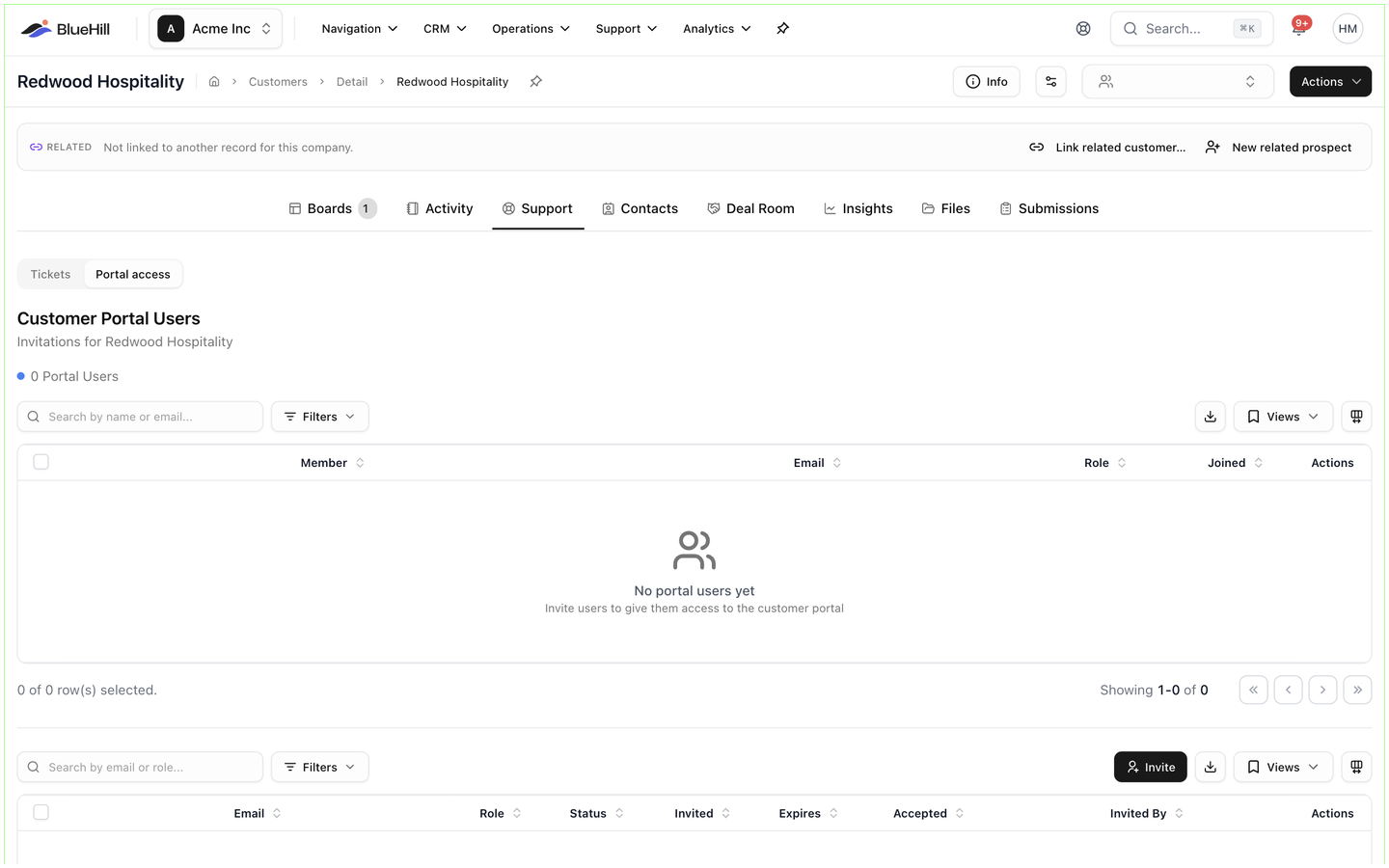
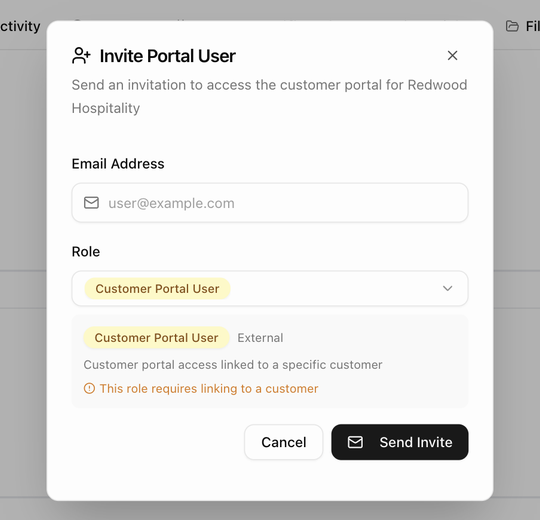
Invitations sent here are linked to this customer. The invitations table shows each one's Status (Pending, Accepted, Declined, Expired or Revoked), when it was Invited, when it Expires, when it was Accepted and who it was Invited By.
What the invitation says
The email comes from BlueHill, not from your help center's branding. Its subject is You're invited to join Your workspace on BlueHill, it names the team member who sent it, and it carries one button that opens the portal's invitation page. The link works for 7 days.
What the invitee does
- They click the link in the email and land on a page headed Join Your workspace, with Invited by and your name.
- A new person fills in First name and Last name (the email is fixed to the invited address) and clicks Create account & Join. Someone who already has a BlueHill portal account clicks Send sign-in code, enters the code from their email and then Accept Invite.
- They are taken into the portal, signed in.
If they open the link after it has expired, or after you revoked it, the page says Invite Not Available and explains why. If they are signed in to the portal with a different address, it reports an Email Mismatch and offers to sign in with the right account.
Resend or revoke
- Resend sends the same email again and gives the invitation a fresh 7 days. You can resend from Pending invites on the Portal users page or from the Invited menu in the Contacts tab.
- Revoke stops the link working. The confirmation reads Revoke portal invite?; you can invite the person again later.
- An invitation to an address that already has a pending invitation, or that already has a portal account, is refused.