
Build the quote
For anyone pricing a deal. The Quote card is the top of the deal room and holds the line items, discounts, tax, memo and totals the customer will see.
The Quote card
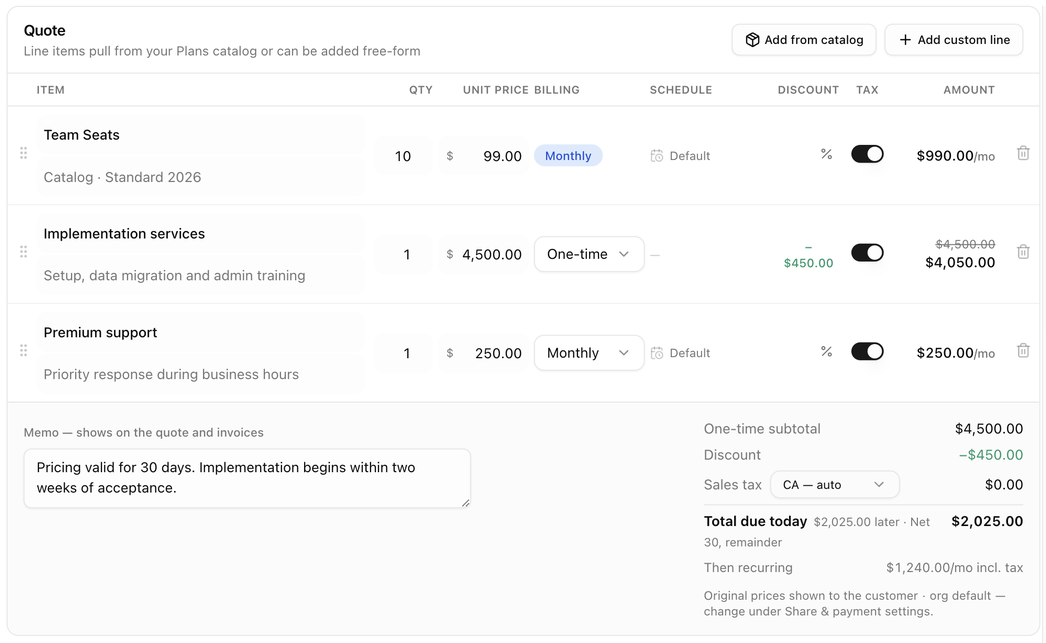
The card header shows Quote and a version chip such as v2 once the quote has been sent. Under it, a line tells you where the quote stands: Line items pull from your Plans catalog or can be added free-form on a new quote, Version 2 · edited Oct 14 after edits, or Locked since it was accepted with the signer's name, date and IP address once the customer has accepted.
Two buttons add lines: Add from catalog and Add custom line. Remember to click Save changes in the header when you are done; see Save your changes.
Add a line from the catalog
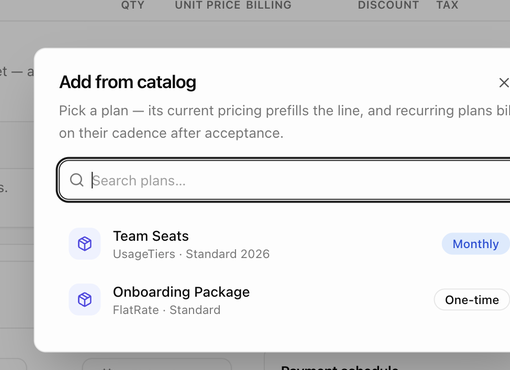
- Click Add from catalog.
- Search plans by name. Each row shows the plan's name, its type and pricing name, and whether it is One-time or bills Monthly, Quarterly or Yearly.
- Click a plan. It is added as a line at the plan's current price, with the description Catalog · pricing name. Catalog lines keep their cadence; change the quantity, price, discount and tax as you like.
If the dialog says No active plans in the catalog yet, create plans under Financial → Pricing first.
Add a custom line
- Click Add custom line. An empty row appears.
- Enter the Item name and an optional Description.
- Set the Qty (default 1) and the Unit price.
- Choose the Billing: One-time, Monthly, Quarterly or Yearly.
The line item columns
| Column | What it is for |
|---|---|
| Item | The name and description shown to the customer. |
| Qty | How many. The amount is quantity times unit price. |
| Unit price | The price of one, in US dollars. |
| Billing | One-time or the recurring cadence. Catalog lines show it as a badge; custom lines as a dropdown. |
| Schedule | Shown only when a line is recurring. Which day the line bills, such as 1st of month or Default, and whether the first period is prorated. Click it to change it for this line. |
| At signing | Shown only when the agreement starts in the future. Tick it to bill the line when the customer accepts instead of on the start date. |
| Discount | The % button opens the line discount. An active discount shows the amount taken off in green. |
| Tax | A switch that makes the line taxable. New lines are taxable by default. |
| Amount | The line total after the discount, with /mo, /qtr or /yr for recurring lines. When discounted, the full price shows struck through above it. |
The handle at the left of a row drags it to a new position; the bin icon removes it.
Set when a recurring line bills
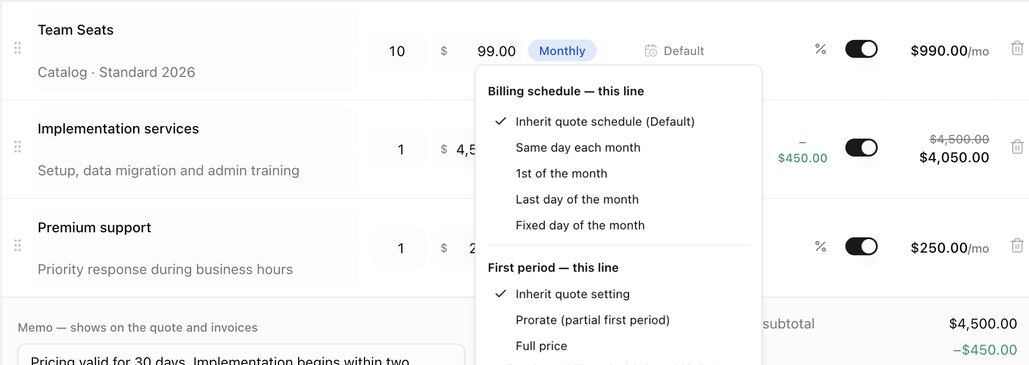
Most recurring lines follow the billing schedule set in the Payment terms card. To give one line its own schedule, click its Schedule cell:
- Billing schedule — this line: Inherit quote schedule, Same day each month, 1st of the month, Last day of the month or Fixed day of the month with a Day from 1 to 31.
- First period — this line: Inherit quote setting, Prorate (partial first period) or Full price.
A dot on the cell marks a line with its own schedule. See Billing schedule for recurring lines.
Give a discount

Discounts are set per line:
- Click the % button on the line.
- Choose Percent or Amount $ and enter the value, or None to remove the discount.
The line's amount updates, a Discount row appears in the totals, and the customer sees the list price struck through with a Discount line on the pay page, invoices and PDFs. If you would rather customers only ever see the discounted price, switch off Show original prices to customers, either for this deal in the Share & payment card or for everyone in settings. A note under the totals tells you which applies.
Large discounts may need approval before the quote can be sent. See Approvals.
Sales tax
- Each line has a Tax switch. Switch it off for lines that are not taxable.
- The Sales tax row in the totals chooses the rate: the customer's rate worked out from their address (for example CA — auto), Custom rate… with a percentage you type, or No tax.
- The customer's rate comes from the address on their record. If the totals show no rate, refresh the address on the customer page, then re-link the customer.
The memo
Memo — shows on the quote and invoices is free text under the line items: pricing validity, payment context, discount reasons or anything the customer should read. It appears on the pay page, on invoices and in the PDFs.
Read the totals
The totals block under the memo is worked out as you edit:
| Row | Meaning |
|---|---|
| One-time subtotal | The one-time lines before discounts and tax. |
| Discount | The total taken off, shown only when a discount is set. |
| Sales tax | The tax on taxable lines at the chosen rate. |
| First recurring payment | Shown when the first recurring period is invoiced at acceptance. prorated first period appears when the schedule prorates it. |
| Total due today | What the customer pays when they accept. A note next to it explains any later amounts, such as $1,500.00 later · Net 30 or due at signing for a future start. |
| Then recurring | The recurring amount per cadence including tax, such as $199.00/mo. With a future start date this reads From date instead. |
A line such as Bills on the 1st each month · first period prorated summarizes the billing schedule, and Recurring ends date appears when the agreement has an end date. Totals are in US dollars.
Edit a quote after sending it
While the room is Sent or Viewed you can keep editing. Saved edits go live on the customer's pay link immediately; the header shows Edited since last send and the activity logs Quote revised after send. Click Resend quote so the customer gets an email about the change. Once the customer accepts, the quote is locked.
Version history
Click the version chip (for example v2) in the Quote card header, or View history, to open Version history. A version is recorded every time the quote is sent, with the date, who it went to, the totals, the number of lines and who sent it. Expand a version to see its lines and memo; Resent (no changes) marks a resend that changed nothing.
To go back to an earlier version, click Restore this version and confirm Restore vN?. The current content is replaced, every version is kept, totals are recomputed with the customer's current tax rate, and the next send records the restored content as a new version. Accepted quotes cannot be restored.
Next: Payment terms and schedule.