
Documents and signature
For anyone attaching a master agreement or statement of work to a deal, asking the customer to sign it, or sending the executed agreement afterwards.
The Documents & signature card
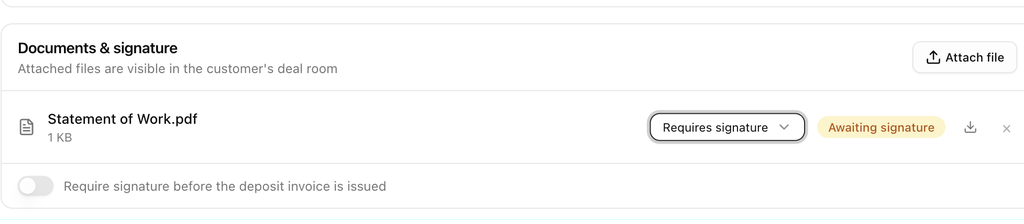
The card sits under the payment terms. Every file attached here is visible to the customer on the pay link, where they can download it and, when required, sign it. The empty card reads No documents yet — attach an MSA or statement of work.
Attach a document
- Click Attach file and choose a PDF, PNG, JPG, DOC or DOCX file of up to 10 MB.
- The file appears in the list with its size and is attached as Reference only.
- If the customer must sign it, change the dropdown on the row to Requires signature.
Attaching a file is logged in the room's activity as Attached filename.
Reference only or Requires signature
| Setting | What the customer sees |
|---|---|
| Reference only | The document is listed with a download icon and the label Reference. |
| Requires signature | The document is listed with Requires signature and a Sign button. The customer types their full name to sign. |
A document that needs a signature shows Awaiting signature on the card until it is signed, then Signed date. Once signed, the dropdown is locked.
Hold invoices until the documents are signed
Switch on Require signature before the deposit invoice is issued at the bottom of the card. When the customer accepts the quote, invoicing waits until every document marked Requires signature is signed; the card shows an amber Holding invoices badge and the activity logs Invoicing held — awaiting required document signature. The customer's pay page shows Almost there until they sign.
Remove a document
Click the × on the row and confirm Remove name?. The file is detached from the room and from the customer's view; the upload itself is kept in your files.
The agreement PDF
The quote itself is also available as a PDF:
- ⋯ → Download agreement (PDF) in the room header downloads it for you.
- On the pay page, the customer's Download agreement button gives them the same document. It is available once the quote has been sent.
Before acceptance the PDF is the proposed agreement. After acceptance it becomes the executed agreement, recording the accepted line items, payment terms, who accepted, when, from which IP address, and the typed or drawn signature.
Require a signature to accept
Separately from signing documents, you can require the customer to sign the quote itself when they accept. Switch on Require signature in settings for the organization, a sales group, or just this deal under Customize for this deal in the Share & payment card. The customer then chooses Type or Draw on the pay page and the signature is printed on the executed agreement. See Accept the quote.
Send the executed agreement
Once the quote is accepted, open ⋯ → Send executed agreement…. The dialog confirms the address the PDF goes to; click Send agreement. The customer receives the Executed agreement email with the PDF attached. If the room has no email on file, link a customer with an email first.