
Send the quote and share the pay link
For anyone ready to put a quote in front of the customer: previewing, sending, resending, getting approval, sharing the link and recording an acceptance made outside BlueHill.
Before you send
Check four things:
- A customer is linked and has an email address (or a Billing contact is chosen). A quote cannot be sent without one.
- The quote has its lines, discounts and memo, and the payment terms are set.
- Any documents the customer must read or sign are attached.
- Your approval policy is not tripped, or you have time for an approver to release the send. See Approvals.
Preview as customer
Choose Preview as customer from the arrow next to Send quote, or from the ⋯ menu. The pay page opens in a new tab with an amber Preview banner and every action disabled, so you can check the wording, totals and documents exactly as the customer will see them. See What the customer sees.
Send the quote
- Click Send quote. Unsaved edits are saved first.
- The customer receives the Quote sent email with a View quote button that opens the pay link. You see Quote sent to the customer, the room moves to Sent, and a version is recorded in Version history.
- The activity logs Quote sent to email (v1), and Quote viewed by the customer once the link is opened.
If the room has no customer, BlueHill asks you to link one first.
Resend after changes
Edits made after sending go live on the pay link straight away, but the customer is not told. Click Resend quote to email them again; the version chip goes up by one and the Edited since last send pill clears. Resending without changes records a version marked Resent (no changes).
Approvals
Your organization can require approval for sends that trip a threshold: a line discount above a percentage, a total discount above an amount, or a quote total above an amount. See Approval policy.
- When you click Send quote on such a quote, you see Approval requested — the quote sends once it's approved. The room's Approvals card lists the reason, for example Line discount 25% exceeds the 20% policy, with Awaiting approval.
- Approvers see Approve and Reject on the card. Approving sends the quote; the card shows Approved · date. Rejecting leaves the room in Draft with Rejected · date.
- Sends that stay within policy show Auto-approved · within policy.
- The Policy link in the card header opens the settings. On the Deal rooms page, the Approval column and the Needs attention → Pending approval filter find rooms that are waiting.
The same hold applies when you mark a quote accepted by hand.
The Share & payment card
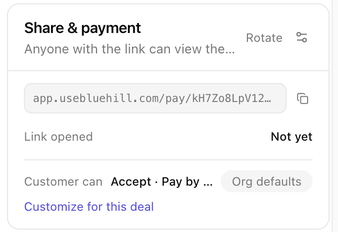
This card in the right column is the home of the pay link.
- The link is shown with a copy button. Anyone with the link can view the quote. Until the quote is sent or the link copied, the card says A pay link is created when you send the quote (or copy it from the header).
- Rotate replaces the link. The old one stops working immediately, which is the right move if a link went to the wrong person. Confirm Rotate the pay link?.
- Link opened shows Not yet or how many times and when the customer last opened it. View history lists each open; repeat opens within an hour are collapsed into one entry.
- Sales group moves the room to another group. See Move a room to another sales group.
- Customer can summarizes what the link allows, such as Accept · Pay by Card, ACH or View only. An Org defaults badge means nothing is overridden for this deal.
The gear icon in the card header opens Deal room settings.
Customize for this deal
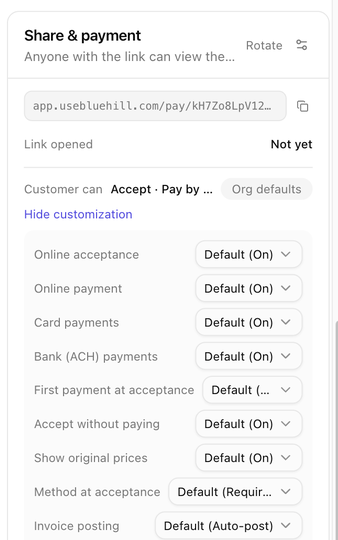
Click Customize for this deal to override the organization or sales group policy for this room only. Each row offers Default (the inherited value, shown in brackets), On or Off:
| Setting | What it controls |
|---|---|
| Online acceptance | Whether the customer can accept from the link. Off shows them a Review your quote card and you finalize acceptance yourself. |
| Online payment | Whether the customer can pay from the link. Off tells them payments are handled offline. |
| Card payments, Bank (ACH) payments | Which payment methods the link accepts. |
| First payment at acceptance | Whether the first recurring period is invoiced when the quote is accepted rather than on the next billing date. |
| Accept without paying | Whether the customer may accept now and pay later when an amount is due at acceptance. |
| Show original prices | Whether discounted lines show the list price struck through. |
| Method at acceptance | Require, Optional or Don't ask: whether the customer must give a card or bank account when they accept. |
| Invoice posting | Auto-post (email), Auto-charge or Manual (hold): what happens when a recurring invoice is generated. See Invoice posting policies. |
Changes save immediately. Hide customization collapses the rows again.
Other ways to share the link
- Copy pay link in the room header or in the row menu on the Deal rooms page copies the link without emailing anyone. Paste it into your own email or chat.
- In a support ticket reply, Send deal inserts a View and pay block for a linked deal room. A Draft quote becomes Sent when the reply is emailed. See the Support guides for the ticket side.
- Preview as customer uses a staff-only preview link; do not send that one to the customer.
Track opens
The room moves to Viewed the first time the customer opens the link, and the activity logs Pay link opened for later visits. On the Deal rooms page, the Last viewed column and the Needs attention → Sent, never opened filter show which quotes are waiting for attention.
Record an offline acceptance
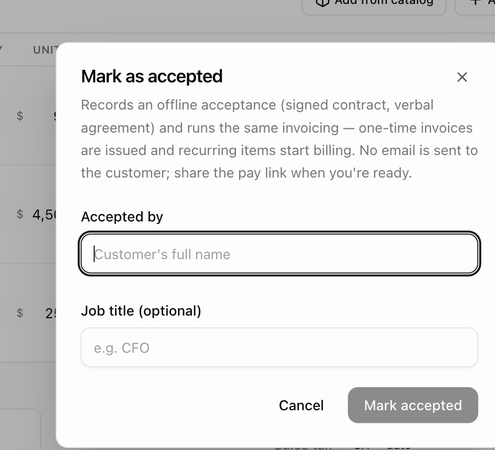
If the customer signed a paper contract or agreed by phone, record it instead of waiting for the pay link:
- Open ⋯ → Mark as accepted….
- Enter Accepted by (the customer's full name) and an optional Job title.
- If a payment method is on file and an amount is due now, you can tick Charge the card on file now to collect it immediately.
- Click Mark accepted.
The same invoicing runs as for an online acceptance: one-time invoices are issued and recurring lines start billing. No email is sent to the customer; share the pay link when you are ready. The activity logs Marked accepted on behalf of name — recorded internally.
Next: What the customer sees.