
The Deal rooms page at a glance
For anyone opening CRM → Deal Rooms for the first time. This guide walks through the layout so the rest of the guides make sense.
Open the Deal rooms page
- In the top navigation, open CRM and choose Deal Rooms.
- The page lists every active deal room you have access to, with the most recently active rooms first.
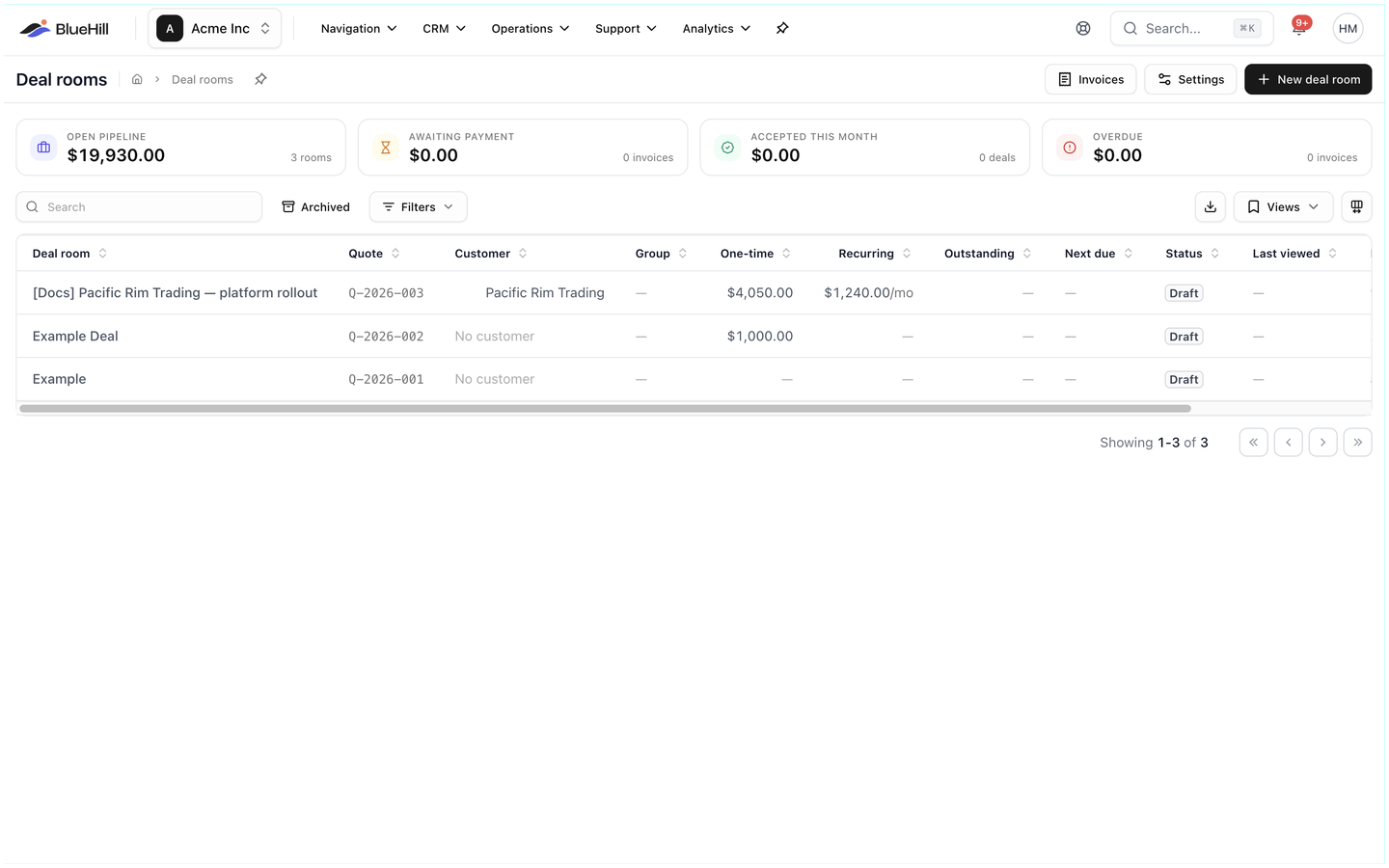
The header
From left to right, the header holds:
- The page title and breadcrumb (Home › Deal rooms).
- Invoices, which opens the Invoices page listing every invoice across all rooms. See The Invoices page.
- Settings, which opens Deal room settings. See Settings and sales groups.
- New deal room. See Create a deal room.
The summary cards

Four cards sum up the rooms you can see:
| Card | What it shows |
|---|---|
| Open pipeline | The value of every room whose quote is still Draft, Sent or Viewed, and how many rooms that is. A room's value is its one-time total plus twelve months of its recurring total. |
| Awaiting payment | The amount outstanding on Pending invoices and how many there are. The corner note shows the average time customers took to pay over the last 90 days. |
| Accepted this month | The value of quotes accepted since the first of the month, with the change against last month. |
| Overdue | The amount outstanding on Overdue invoices. The corner note names the oldest overdue invoice's due date and customer. The amount turns red when it is above zero. |
The toolbar
Above the table sit the Search box, the Archived toggle (which includes archived rooms in the list) and Filters on the left, and the Export CSV icon, Views and the Columns button on the right. All of them are covered in Find, filter and organize deal rooms.
The table
Each row is one deal room. Click anywhere on the row to open it. The table scrolls sideways when the window is narrow; the row's ⋯ menu sits at its far right end. By default you see these columns:
| Column | Shows |
|---|---|
| Deal room | The room's name. This column is always shown. |
| Quote | The quote reference, such as Q-2026-003. |
| Customer | The customer or prospect the deal is billed to, or No customer. |
| Group | The sales group the room belongs to, if any. |
| Owner | The team member who created the room. |
| One-time | The one-time total of the quote. |
| Recurring | The recurring total per month, such as $199.00/mo. |
| Outstanding | What the customer still owes. It turns red with overdue ×N when invoices are past due. |
| Next due | The due date of the next unpaid invoice. |
| Status | The room's status badge (see below). Archived rooms carry an extra Archived tag. |
| Last viewed | How long ago the customer last opened the pay link. Hover to see the exact time and how many times it has been opened. |
| Last activity | How long ago anything last happened in the room. |
Empty cells show a dash. More columns, such as Paid to date, Autopay, Method on file, Terms, Sent, Accepted and the agreement dates, can be switched on with Columns. See Choose columns.
Status badges
A room's status follows the quote and its invoices:
| Status | Meaning |
|---|---|
| Draft | The quote has not been sent yet. You can edit everything. |
| Sent | The quote has been emailed to the customer. Edits still go live on the pay link. |
| Viewed | The customer has opened the pay link at least once. |
| Accepted | The customer accepted the quote on the pay link, or you recorded an acceptance by hand. The quote is now locked. |
| Invoiced | Invoices have been issued from the accepted quote. |
| Paid | No invoice from the quote is still pending or overdue. |
Overdue invoices do not change the room's status. They show in the Outstanding column as overdue ×N, on the Overdue summary card, and under the Needs attention → Overdue filter.
The row menu
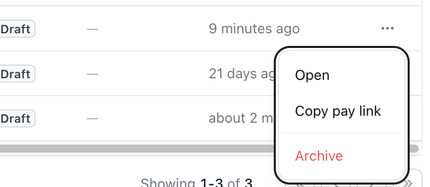
The ⋯ button at the end of a row opens its menu:
| Item | What it does |
|---|---|
| Open | Opens the deal room. |
| Copy pay link | Copies the customer's pay link to your clipboard. Creating the link does not email anyone. |
| Archive | Removes the room from the list and stops its pay link working. You are asked to confirm. See Archive a deal room. |
When the page is empty
A workspace with no deal rooms shows No deal rooms yet with a New deal room button. The same message appears when your filters match nothing, so clear the filters before assuming a room is gone.