
Find, filter and organize deal rooms
For anyone who works from the Deal rooms page every day and needs to get to the right room quickly, or to see which deals need a nudge.
Search
Type in the Search box above the table to narrow the list by room name, quote reference or customer. The list updates as you type.
Filters
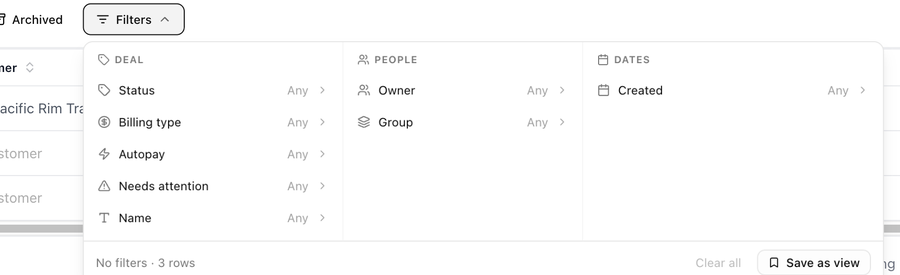
Click Filters to open the panel. Filters are grouped in three sections and combine with each other.
Deal
| Filter | Options |
|---|---|
| Status | Draft, Sent, Viewed, Accepted, Invoiced, Paid, Overdue. Pick one or more. |
| Billing type | One-time, Recurring or Mixed (the quote has both one-time and recurring lines). |
| Autopay | On or Off, using the setting that actually applies to the room, whether it was set on the room, its sales group or the organization. |
| Needs attention | Shortcuts for deals that need a human: Overdue, Awaiting payment (anything outstanding), Pending approval, Revised since send and Sent, never opened. A room matches if any ticked option applies. |
| Name | Rooms whose name contains the text you enter. |
People
| Filter | Options |
|---|---|
| Owner | Unassigned or any team member. |
| Group | Ungrouped or any sales group. |
Dates
| Filter | Options |
|---|---|
| Created | Quick ranges such as Today, This week, Last 7 days, This month, Last month and Last 30 days, or a custom range. |
The panel's footer shows how many rows match (No filters · 3 rows), Clear all removes every filter, and Save as view keeps the combination for later. Each column header also offers its own filter.
Sort
Click a column header to sort by it, and again to reverse the order. Every column except Terms and Method on file can be sorted. The default order is by last activity, newest first.
Choose columns
The Columns button at the right end of the toolbar shows, hides and reorders columns. Deal room is always first. The optional columns are:
| Column | Shows |
|---|---|
| Paid to date | What the customer has paid so far. |
| Overdue $ | The overdue amount, in red. |
| Autopay | On when the room charges the saved payment method automatically. A solid badge means it was set on this room; an outline badge means it is inherited, and hovering tells you whether from the group or the organization. |
| Method on file | The saved payment method, such as Card ····4242 or ACH ····6789. |
| Terms | A summary such as Net 30 · deposit · late fee. |
| Sent, Viewed, Last opened, Accepted | When each happened. Viewed adds the number of opens; Accepted adds who accepted and their job title. |
| Agreement start, Agreement end | The agreement term set on the quote. |
| Created | When the room was created. |
| Approval | A Pending badge while a send is waiting for an approver. |
| Revised | A Since send badge when the quote was edited after it was last sent. |
Saved views
Views saves the current filters, sort and columns under a name so you can reapply them with one click.
- Choose Save current view..., enter a View Name and save.
- Pick a saved view from the list to apply it. Reset to default returns to the standard layout.
- Set as default for your workspace makes a view open automatically for you. Arrange your views changes their order.
Date filters in a saved view are re-evaluated when you apply the view, so This month always means the current month.
Show archived rooms
Archived rooms are hidden by default. Switch on Archived in the toolbar to include them; each one carries an Archived tag next to its status. An archived room can still be opened and read.
Archive a deal room
- Open the room's ⋯ menu on the Deal rooms page, or the ⋯ menu in the room's header.
- Choose Archive. The dialog Archive "room name"? explains that the room disappears from the list and its pay link stops resolving.
- Click Archive.
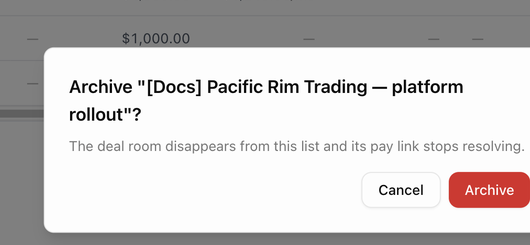
Archiving does not void invoices or stop an accepted agreement. To end recurring billing, use Expire agreement… instead. See End an agreement early.
Export to CSV
The Export CSV icon in the toolbar downloads the rooms you can see as a spreadsheet, with the name, quote reference, customer, group, status, totals, next due date, autopay, sent and accepted dates, agreement dates, link opens, approval state and last activity.
Who can see which rooms
- Deal rooms are open to anyone with permission to view invoices. Creating rooms, sending quotes and issuing invoices need permission to create invoices. Ask an admin if a button is missing.
- A room in a sales group is visible only to that group's members, admins and the room's owner. Rooms with no group are visible to everyone. See Sales groups.
Next: Create a deal room.