
Settings and sales groups
For admins setting up Deal Rooms for the organization: what pay links allow by default, who approves big discounts, how customer emails look, where deal events are sent, and how sales groups divide the work.
Open Deal room settings
Open CRM → Settings, or click Settings on the Deal rooms page, or the gear icon in a room's Share & payment card. The page has two tabs, Organization and Sales groups. Anyone who can view deal rooms can read the settings; only admins can save them.
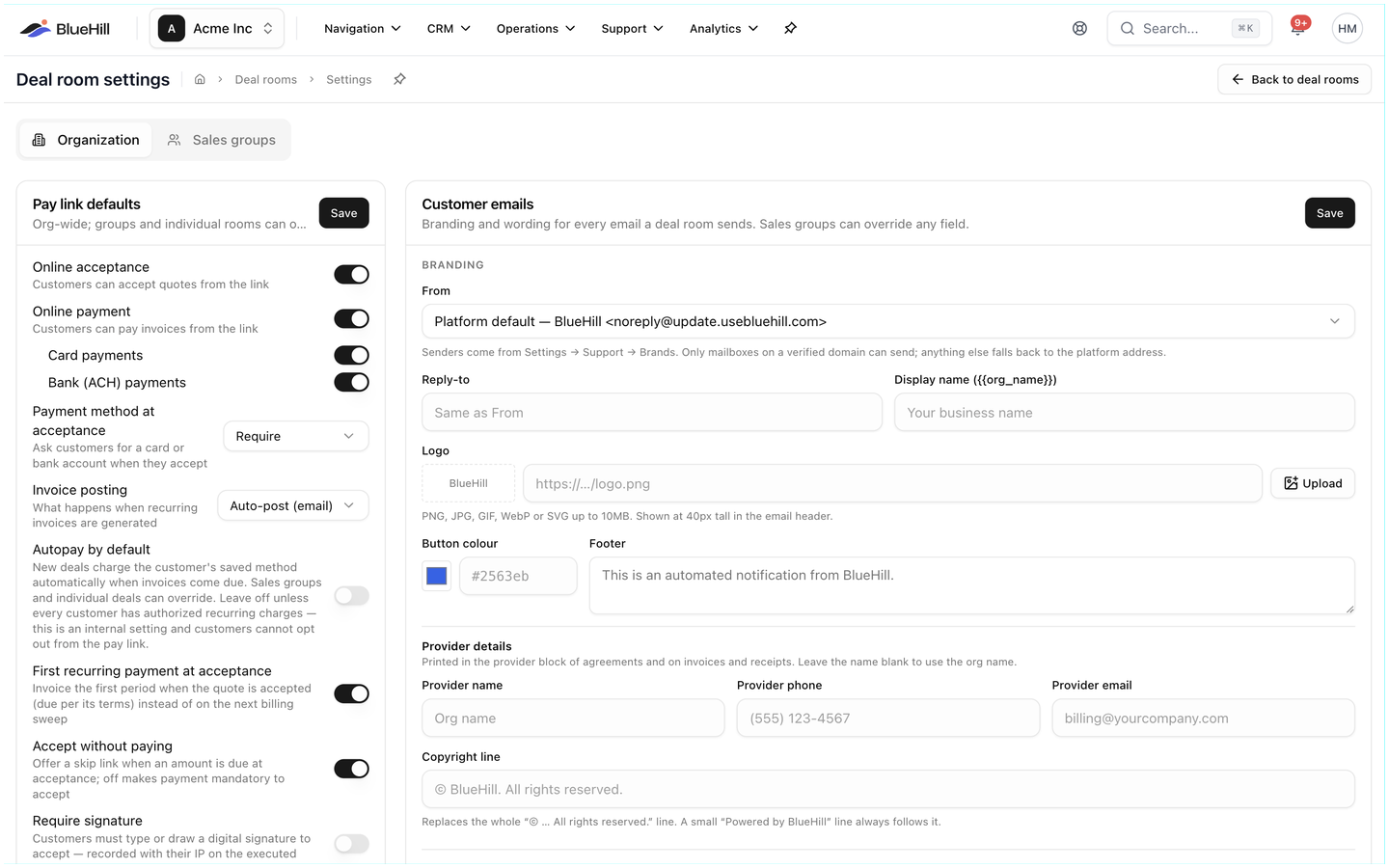
Pay link defaults
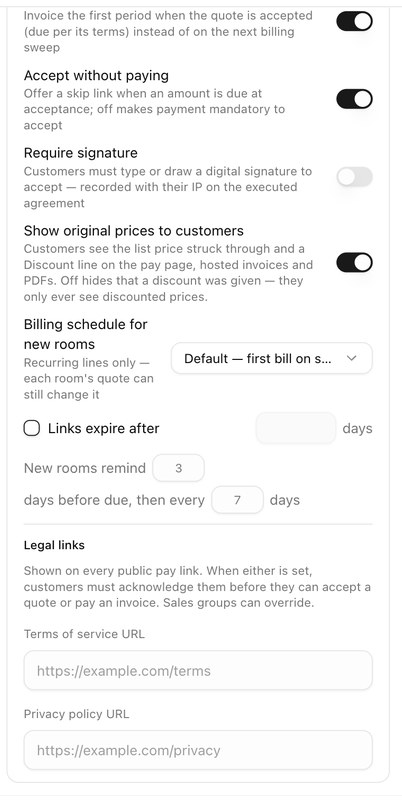
These apply to every room unless a sales group or an individual room overrides them. Click Save after changing them.
| Setting | Default | What it does |
|---|---|---|
| Online acceptance | On | Customers can accept quotes from the link. |
| Online payment | On | Customers can pay invoices from the link. Card payments and Bank (ACH) payments underneath choose the methods. |
| Payment method at acceptance | Require | Whether customers are asked for a card or bank account when they accept: Require, Optional or Don't ask. |
| Invoice posting | Auto-post (email) | What happens when recurring invoices are generated. See Invoice posting policies. |
| Autopay by default | Off | New deals charge the saved method automatically when invoices come due. Leave it off unless every customer has authorized recurring charges; customers cannot opt out from the pay link. |
| First recurring payment at acceptance | On | The first recurring period is invoiced when the quote is accepted instead of on the next billing date. |
| Accept without paying | On | Customers may accept now and pay later when an amount is due at acceptance. Off makes payment mandatory to accept. |
| Require signature | Off | Customers must type or draw a signature to accept. It is recorded with their IP address on the executed agreement. |
| Show original prices to customers | On | Discounted lines show the list price struck through and a Discount line. Off hides that a discount was given. |
| Billing schedule for new rooms | Default | The recurring billing schedule new rooms start with, plus Day of month for a fixed day and Prorate first period. Each room can still change it. |
| Links expire after | Off (never) | Tick it and enter a number of days to make pay links stop working after that time. |
| New rooms remind … days before due, then every … days | 3 and 7 | The reminder schedule new rooms start with. |
Legal links at the bottom of the card hold your Terms of service URL and Privacy policy URL. When either is set, customers must tick an acknowledgement before they can accept a quote or pay an invoice.
Approval policy
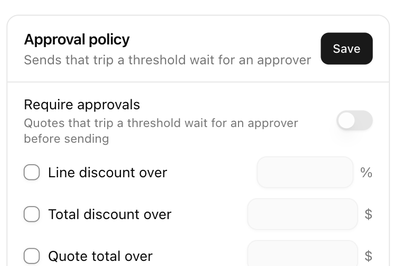
Switch on Require approvals to make quotes that trip a threshold wait for an approver before they are sent, then tick the thresholds you want:
- Line discount over a percentage.
- Total discount over a dollar amount.
- Quote total over a dollar amount.
Tick the Approvers who may release a send and click Save. How approvals look inside a room is described in Approvals.
Customer emails
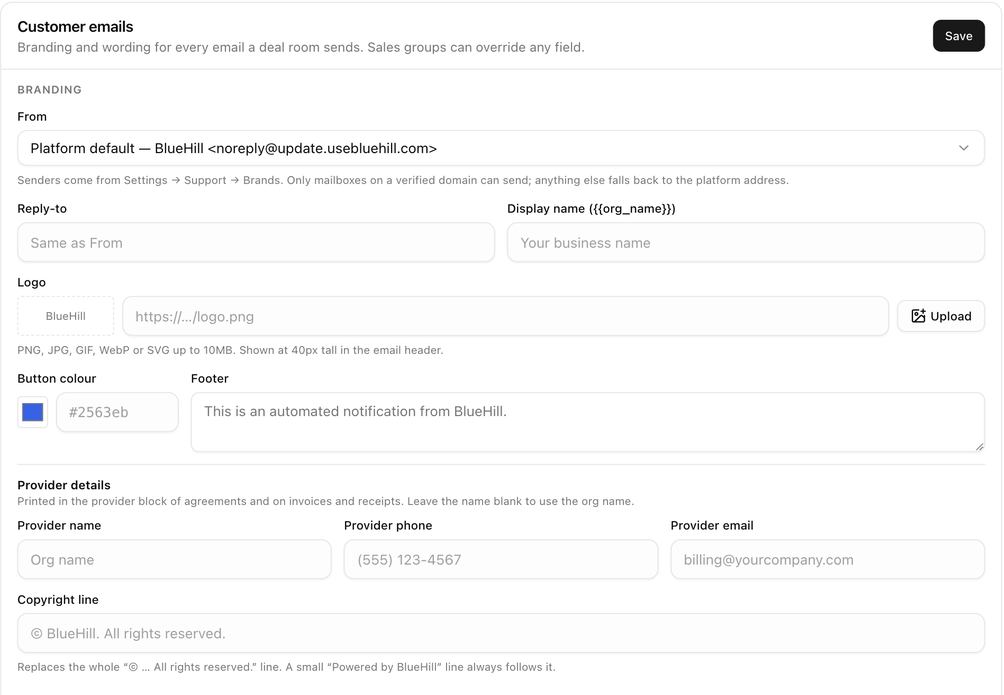
The Customer emails card controls the branding and wording of every email a deal room sends.
Branding
| Field | What it is for |
|---|---|
| From | The sender mailbox. Platform default — BlueHill uses BlueHill's address; your own mailboxes come from your support brands and must be on a verified domain. |
| Reply-to | Where replies go, if not the From address. |
| Display name | Your business name as it appears in emails. |
| Logo | A PNG, JPG, GIF, WebP or SVG up to 10 MB, shown in the email header. Paste a URL or Upload a file. |
| Button colour | The colour of the email buttons. |
| Footer | A line printed at the bottom of every email. |
| Provider details | The name, phone and email printed in the provider block of agreements, invoices and receipts. |
| Copyright line | Replaces the standard copyright line. |
Wording
Expand an email type to change its Subject, Heading, Message and Button. Leave a field blank to keep the built-in text. Click a variable button, such as Customer name or Amount due, to insert a placeholder that is filled in per email; Default resets a field. The preview on the right shows the result, and Send me a test emails it to you.
The email types are Quote sent, Quote accepted (confirmation), Executed agreement, New invoice, Invoice reminder (due soon), Invoice past due, Payment receipt and Automatic payment failed.
Webhooks
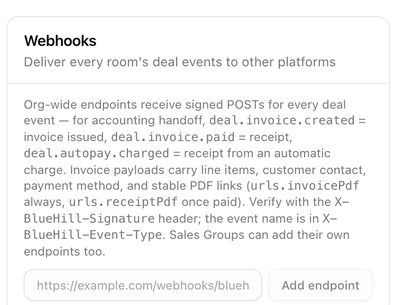
Webhooks send every deal event, such as a quote being accepted or an invoice being paid, to another system, for example your accounting software. Enter the endpoint's URL and click Add endpoint. The signing secret is shown once; copy it straight away. Each endpoint can be limited to certain events, paused, tested with Send test, given a new secret with Rotate secret, or deleted. Webhooks start delivering once your business is verified.
This card is for the developer or integration partner connecting to BlueHill. Ask your BlueHill contact for the Deal Rooms webhooks integration notes, which describe the payloads and the signature check.
Sales groups
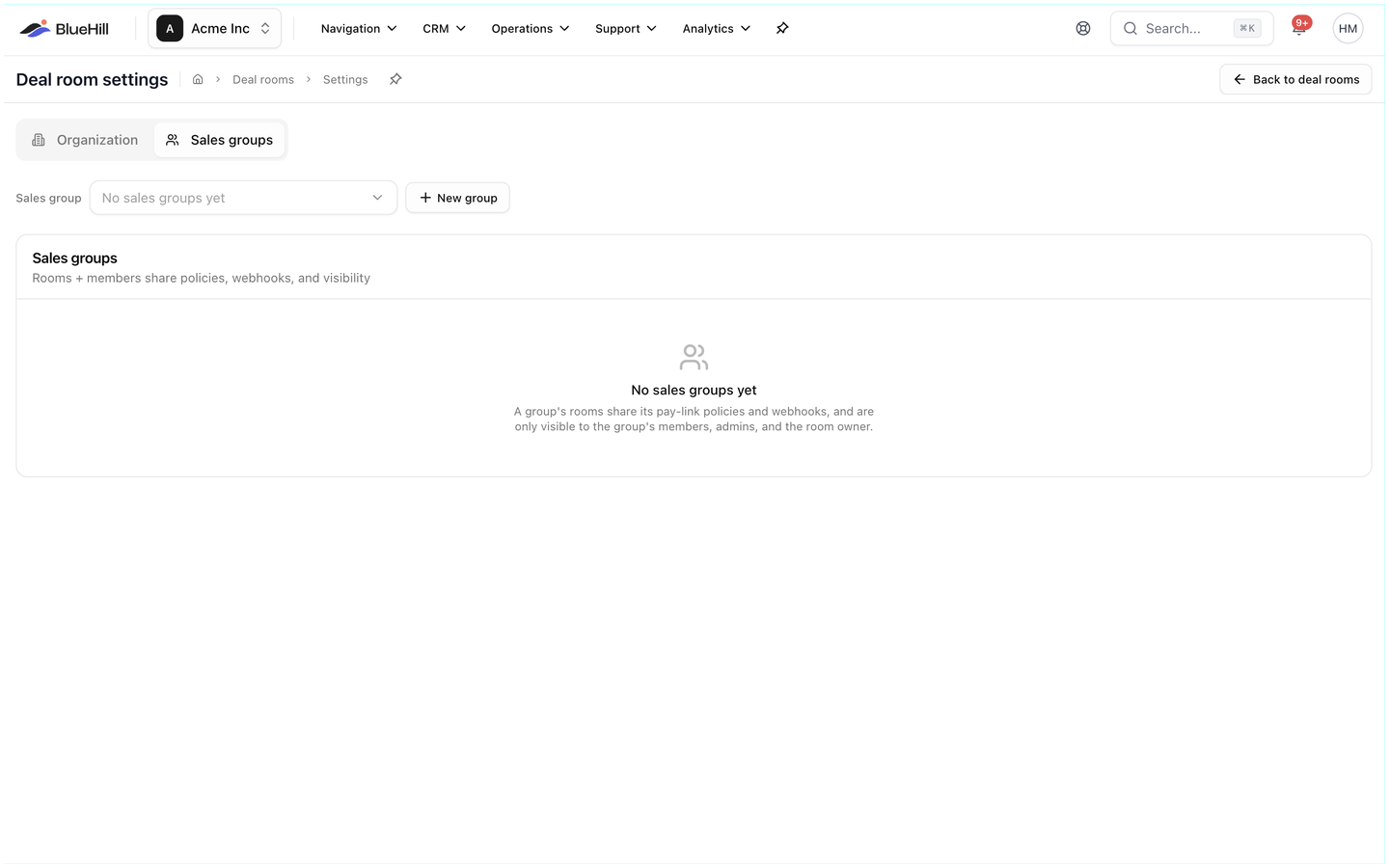
The tab opens with a Sales group picker, New group and, once a group is selected, Delete group and Save group. A sales group bundles members, policies, email wording, legal links and webhooks for part of your business, for example an enterprise team and a self-serve team. Rooms in a group are visible only to its members, admins and the room's owner.
Create a group
- Open the Sales groups tab and click New group.
- Enter a Name and a Description.
- Switch on Default for new rooms if new rooms should land in this group unless another is picked.
- Tick the Members. They see the group's rooms and receive its deal notifications.
- Click Save group.
What a group can override
| Section | What it does |
|---|---|
| Policies | Each pay-link setting offers Inherit org default, On or Off, including Autopay, Method at acceptance, Invoice posting, First payment at acceptance, Accept without paying, Require signature and Show original prices to customers. Pause recurring invoicing stops recurring invoices being created for the group's rooms. |
| Billing schedule — new rooms | The schedule and proration new rooms in the group start with. |
| Deal naming — new rooms | A template that suggests a name in the New deal room dialog, built from placeholders such as Customer name, Provider (your company), Sales group and Date. The preview shows an example; leave it blank to always require a typed name. |
| Legal | Terms of service and privacy policy URLs for the group's pay links. Blank inherits the organization's. |
| Webhooks | Endpoints that receive only this group's events. |
| Customer emails | Branding and wording overrides. Blank fields inherit the organization's values; Inherit resets a field. |
Delete a group
Pick the group, click Delete group and confirm. Its rooms become ungrouped and visible to everyone again, and its members and webhooks are removed.
Next: FAQ and troubleshooting.