
Actions
For anyone choosing what a rule should do. This is the reference for every action under 3 · Then, with the settings each one asks for.
Add and order actions
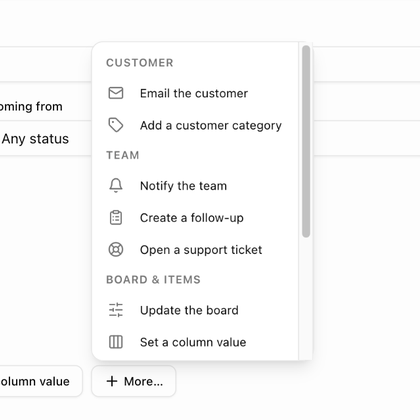
When a rule has no actions yet, the most common ones are offered as buttons (for example Email the customer, Notify the team, Update the board and Set a column value) with More… for the rest. Once an action is in place, use Add action to add another. The menu is grouped into Customer, Team, Board & items and Integrations, and only lists the actions the chosen trigger allows.
Each action becomes a numbered card headed with its label and a short summary. Use Move up, Move down and Remove action on the card. Actions run in order, so put the action that creates something (a board, a customer record) before the actions that use it. A rule can hold up to ten actions.
Everything an action changes is credited to Automation · rule name: in an item's change history, on notes it writes, on tickets it opens and in the bell notification it sends.
Customer actions
| Action | Settings |
|---|---|
| Email the customer | Send to (Primary contact or All customer contacts), Subject, Message, an optional button, and a live preview. See Email the customer. Boards without a customer skip this action. |
| Add a customer category | Category. Add-only: the category is never removed by an automation. |
| Create a board from a template | Template, Board name (default {{customer_name}} — {{template_name}}) and Board members (optional). The board is built for the customer behind the trigger, and the template's own rules then apply to it. |
| Assign the customer owner | Owner, and Only when the record has no owner. With it on, A record somebody already owns is left alone; off, the action Replaces the current owner, if any. |
| Set the pipeline stage | Stage. Only prospects have a pipeline stage, so the action is skipped for customers. The reserved Lost stage cannot be set by an automation. |
| Create or merge a customer from the submission | Creates (Follow the block, A prospect or A customer), Owner, Merge by email and Categories to add. Form rules only; one per rule, and it must come before any action that uses the record. |
Team actions
| Action | Settings |
|---|---|
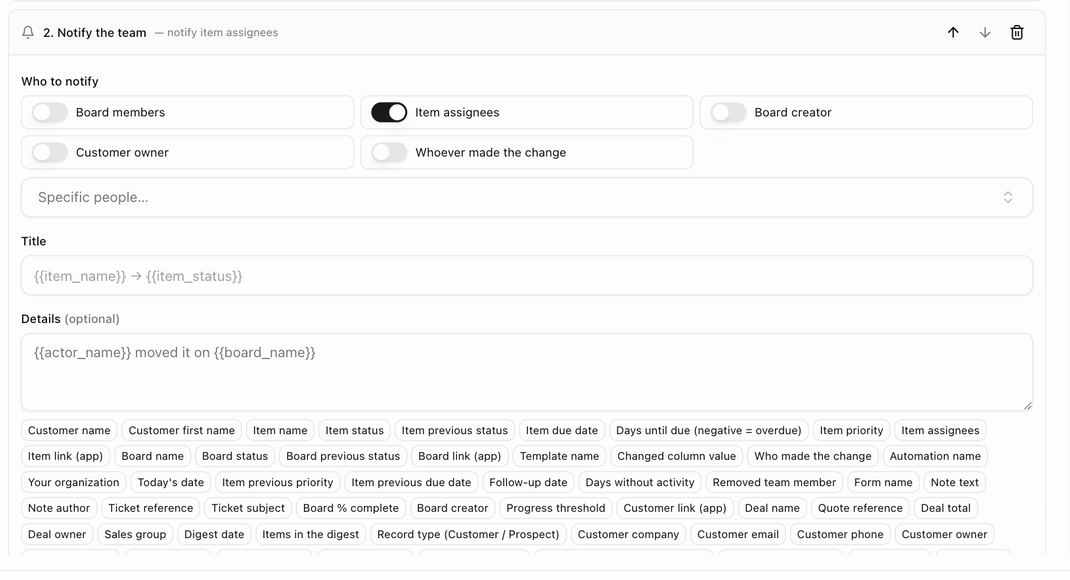
| Notify the team | Who to notify: Board members, Item assignees, Board creator, Customer owner, Whoever made the change (shown as Whoever created the record on customer triggers) and Specific people…. Then a Title, optional Details, and Also send an email copy. Recipients get a bell notification that links to the board, deal room or customer; with the email copy on, they also get an email with an Open in BlueHill button. For prospects, people whose teams are hidden from prospects are never notified. |
| Create a follow-up | Follow up in N day(s) and a Note. The follow-up appears under Follow-ups on the customer. |
| Open a support ticket | Subject, Description (optional), Priority (Default, low, medium, high or urgent), Assign to (Routing rules decide by default), Brand and Link the ticket to the item. The ticket is created for the board's customer as Automation · rule name and goes through your routing rules and SLAs. |
| Send the digest email | The only action on digest triggers. See Scheduled digests. |
| Start the review chain | Form rules only. Moves the submission to the first review step and to In review. Review must be turned on for the form first. |
Board & items actions
| Action | Settings |
|---|---|
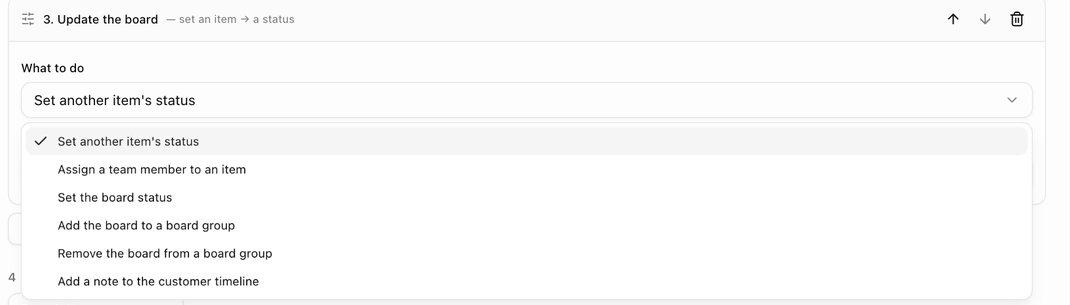
| Update the board | What to do: Set another item's status (Item, Set status to), Assign a team member to an item (Item, Assign), Set the board status (Set the board status to; the board switches to manual status mode so the automatic status does not overwrite it), Add the board to a board group or Remove the board from a board group (pick the group; boards already in the group are left as they are), or Add a note to the customer timeline (Note; on a board with no customer the note lands on the board only). |
| Set a column value | Item, Column and Value. The value control matches the column type; checkboxes offer Checked and Unchecked. |
| Set priority | Item and Set priority to. |
| Set the due date | Item and Due date: Days from today, Days from its current due date or Clear the due date. Items without a due date are skipped by the second option. |
| Publish to the portal | Item and a Visibility switch: Show in the customer portal or Hide from the customer portal. |
| Archive the board | No settings. Archives the board, forcing its status to Complete like the Archive button, and cancels the board's pending automations. Not allowed on A board is created. |
Wherever an action asks for an Item, item triggers offer This item (the one that triggered the rule); template and board rules can also pick a named item. Organization rules can only use this item.
Integrations
| Action | Settings |
|---|---|
| Send a webhook | Endpoint and Event type (optional). Posts a signed JSON message with the board, item, customer, deal and trigger facts to an endpoint set up on the Webhooks tab. See Webhooks. |
Which actions each trigger allows
- Item and board triggers: every customer, team and board action except the form-only ones, plus Send a webhook.
- A deal / quote is accepted: Email the customer, Notify the team, Create a follow-up, Open a support ticket, Add a customer category, Create a board from a template and Send a webhook.
- A customer or prospect is created: the deal set plus Assign the customer owner and Set the pipeline stage. A prospect is converted to a customer adds Assign the customer owner only.
- Form triggers: the customer set plus Set the pipeline stage, Create or merge a customer from the submission and Start the review chain. A review step is overdue cannot create a customer or start the review again.
- Digests: Send the digest email only.
Next: Email the customer.