
Timing, business hours and digests
For anyone who wants a rule to wait before it runs, to stay inside working hours, to fire only once per item, or to send a scheduled digest.
The Timing block
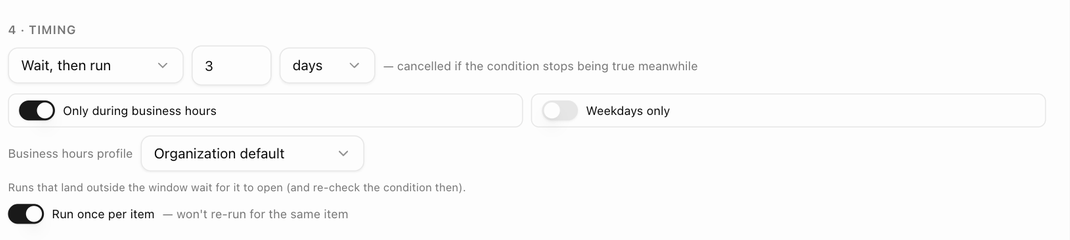
Section 4 · Timing of the rule editor has four settings.
| Setting | What it does |
|---|---|
| Run right away / Wait, then run | Run as soon as the trigger fires, or wait a number of hours or days first (up to 30 days). A waiting run is cancelled if the condition stops being true meanwhile. |
| Only during business hours | Hold the run until the next open slot of a Business hours profile. Pick a profile or leave Organization default, which uses the profile set on the Defaults tab. If you have no profiles yet, the editor says Set up business hours in Support settings → SLA first. |
| Weekdays only | Hold a run that lands on a weekend until the next weekday morning. |
| Run once per item | Never fire again for the same item. On other triggers it reads Run once per board, per deal, per customer or per submission. |
With either window switched on, the editor reminds you: Runs that land outside the window wait for it to open (and re-check the condition then). Held runs appear in the run log as Scheduled with the reason waiting out the delay, waiting for business hours or waiting for a weekday. See Check the run log.
Triggers that run on their own schedule (due dates, follow-up dates, inactivity, review overdue and digests) show This trigger already runs on its own schedule instead of the delay picker, and always run once per item.
Delays in practice
- An item enters a status → Wait, then run 3 days → Email the customer: a gentle chase that is cancelled automatically if the item moves on in the meantime.
- The board reaches 100 % complete → wait 7 days → Archive the board: tidy up a week after go-live.
- A prospect is created → Create a follow-up in 2 days: no delay needed, because the follow-up itself carries the date.
Run once per item
When Run once per item is on, the rule remembers every item (or board, deal, customer) it has handled and ignores repeat events for it. Use it for welcome emails, go-live congratulations and anything else that should only happen once. To let the rule fire again for items it already handled, choose Clear run-once history from the rule's ⋮ menu.
Scheduled digests
A digest is a rule whose trigger is Scheduled: overdue items digest or Scheduled: customer progress report. Digest rules have no If or Timing sections; instead the editor notes that Digests run on their cadence; each recipient gets at most one per day.
- Choose the trigger and its cadence: Every day, Every weekday or Once a week with a weekday, then the hour.
- Add the only action available, Send the digest email, and pick a Format:
- Each assignee gets their overdue items: one email per team member listing their overdue items across the boards in scope.
- Each board creator gets a per-board summary: one email per board, sent to whoever created it.
- Customer progress report: one email per board to the customer's primary contact, with a progress bar, X% complete · A of B items done, and the sections Recently completed, Coming up this week and Past due. Only published items are listed.
- Optionally set a Subject and Intro. Without them, BlueHill uses defaults such as 3 overdue items need your attention or Progress update: Onboarding is 60% complete.
- Choose whether to Also notify in-app (bell) (overdue digests) and whether to Send even when there is nothing to report. By default, an empty digest is not sent.
The Preview pane renders a real report when you pick a sample board, and Send me a test sends it to your own address.
Digest rules show Runs on schedule in the rules list, and each run appears in the run log with the reason scheduled digest. A customer whose Automated emails switch is off never receives a progress report.
The Defaults tab
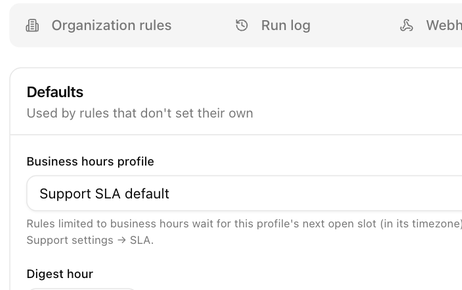
Operations → Automations → Defaults holds two settings that rules use when they do not set their own:
| Setting | What it does |
|---|---|
| Business hours profile | The profile used by rules whose business-hours window is set to Organization default. Rules limited to business hours wait for this profile's next open slot (in its timezone). Profiles live in Support settings → SLA. |
| Digest hour | Suggested send time for new digest rules, in your organization's timezone. The default is 8:00 am. |
Click Save defaults after a change. Existing digest rules keep the hour they were created with.
Next: Check the run log.