
Conditions
For anyone who wants a rule to run only for some items or boards, for example high-priority items, boards built from one template, or customers in a category.
How conditions combine

Conditions live under 2 · If. With none, the section reads No conditions — runs for every matching item (or board, record, deal) and the rule fires for every occurrence of its trigger.
- Click Add condition. A row appears with three parts: a field (Item status to begin with), an operator and one or more values. The row starts with If. Pick the field first, then the operator, then click the value box to tick one or more values.
- Click + and to add another row to the same group. Rows in a group start with and, and every row must match.
- Click Add an OR group to start a second group. The rule then runs when any group matches. The first group is headed Match any of these groups and each further group is introduced by — or —.
- Click the × at the end of a row to remove it.
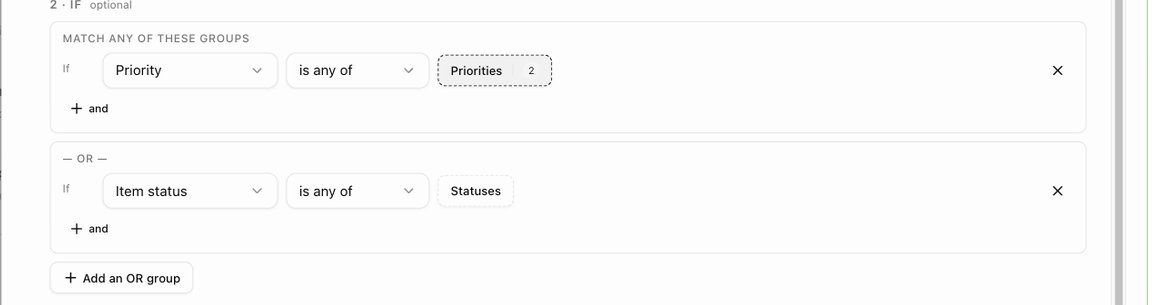
A rule can have up to ten groups with up to ten conditions each, and up to 50 values in one condition.
A few triggers have no conditions at all, for example the two digests; the section then reads This trigger has no conditions — it fires for every occurrence.
Operators
| Operator | Meaning |
|---|---|
| is any of | The value is one of those you picked. |
| is none of | The value is not one of those you picked. |
| is empty / is set | The field has no value / has a value. |
| contains / doesn't contain | For text, such as the item name. Enter several words separated by commas to match any of them. |
| is between / is less than / is more than | For numbers, such as Days until due. |
| yes / no | For yes-or-no fields, such as Has a linked customer. |
Fields for item triggers
| Field | What it tests |
|---|---|
| Item | A specific item on the board. Offered on template and board rules only; organization rules cannot pick a specific item. |
| Item status | The item's current status. |
| Previous status | The status the item came from (An item enters a status only). |
| Priority | Low, Medium, High or Critical. New priority and Previous priority are offered on An item's priority changes. |
| Assigned to | One or more team members. |
| Team member (the one added/removed) | The person the assignee trigger fired for. |
| Parent item | is empty for top-level items only; is set for subitems only. |
| Select column | The value of a select column on the item. Pick the column, then the option. |
| Days until due | A number of days from today; negative numbers are overdue. |
| Item name | Words in the item's name. |
| Changed by | A team member, The customer (portal) or An automation (note, priority and due-date triggers). |
| Note source | Item note, Board note or Customer timeline (A note is added only). |
| Form | Which linked form was submitted. |
Item triggers also offer every board field below.
Fields for board triggers
| Field | What it tests |
|---|---|
| Board status | The board's status, such as On Track or Stalled. |
| Board template | The template the board was built from. |
| Board group | A board group the board belongs to. |
| Customer category | A category on the board's customer. |
| Has a linked customer | yes or no. |
Fields for customer, deal and form triggers
| Field | Available on | What it tests |
|---|---|---|
| Customer category | Customer, deal and form triggers | A category on the record. |
| Has a linked customer | Deal and form triggers | Whether the deal or submission is attached to a customer record. |
| Sales group | A deal / quote is accepted | The sales group of the deal. |
| Customer owner | Customer triggers | The team member who owns the record. |
| Prospect source | Customer triggers | Where the prospect came from, such as Referral or Website form. |
| Pipeline stage | Customer triggers | The prospect's stage in your pipeline. |
| Created / converted via | Customer triggers | Created in the app, Created through the API, Captured from a booking, Converted by a won deal or Created by a platform integration. |
| Submission source | Form triggers | Public link, Customer link, In-app, Task form (portal) or Booking. |
| Answer | Form triggers | The answer to one question on the form. Pick the question, then the value. yes / no only apply to checkbox and switch questions. |
| Previous review stage | A submission's review stage changes | The stage the submission came from. |
When a condition is checked
Conditions are checked when the trigger fires. If the rule waits (a delay, business hours or weekdays), they are checked again just before it runs, and the run is cancelled with the condition stopped being true before it ran if they no longer hold.
Next: Actions.