
Where rules live
For anyone deciding whether a rule belongs to the whole organization, to a template, to one board or to a form, and for anyone who wants to pause inherited rules on a single board.
The four scopes
| Scope | Where to manage it | Runs on |
|---|---|---|
| Organization | Operations → Automations → Organization rules | Every board in the organization, whatever its template. Also the only place for customer, prospect and deal triggers. |
| Template | Operations → Board Templates → template → Automations tab (or Automations in the template card's ⋮ menu) | Every board created from that template, now and in the future. |
| Board | Board header ⋮ → Automations, or the Automations tab of the Edit Board panel | That board only. |
| Form | Operations → Forms → form → Workflow tab | Submissions of that form. |
Choose the narrowest scope that does the job. A welcome email that every onboarding should send belongs on the onboarding template. A one-off reminder for a tricky account belongs on that board. A rule that reacts to every new customer, or to any accepted quote, can only be an organization rule.
A template, board, form or organization can hold up to 50 automations.
Which triggers each scope offers
- Item, board and digest triggers are available on templates, boards and the organization.
- Customers & deals triggers (A customer or prospect is created, A prospect is converted to a customer, A deal / quote is accepted) are organization-only.
- Forms triggers (A form submission is received, A submission's review stage changes, A review step is overdue) are available on a form's Workflow tab and as organization rules. An organization rule asks which Form it applies to.
See Triggers for the full list.
A board's Automations tab
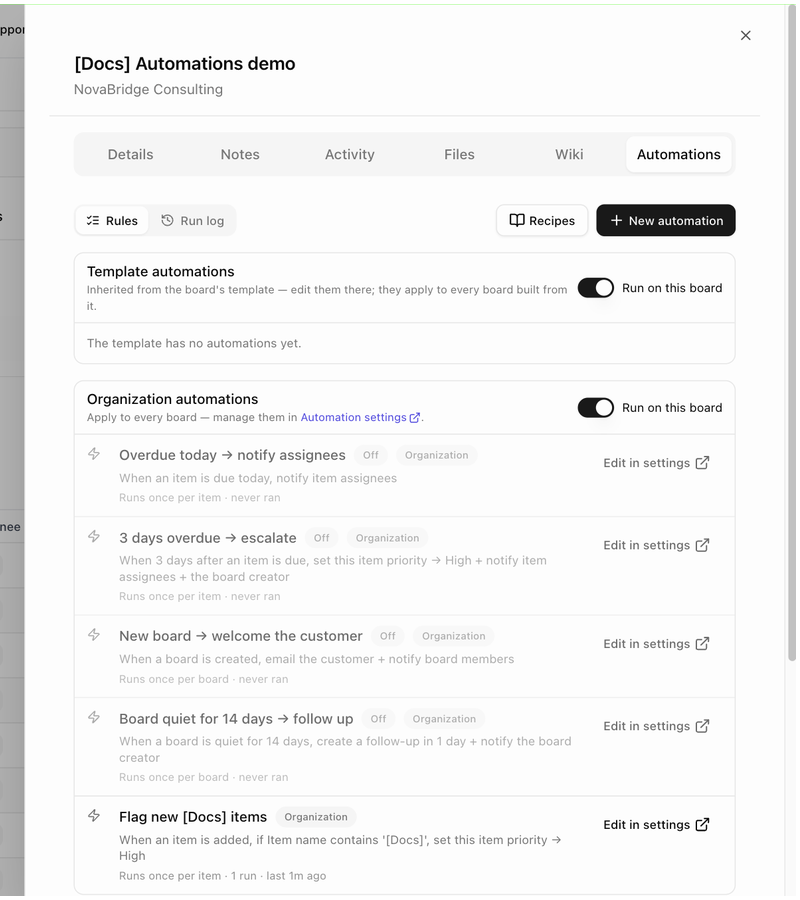
Open a board, click ⋮ in the header and choose Automations. The tab has a Rules / Run log toggle, a Recipes button and New automation, and lists up to three groups of rules:
- Template automations: Inherited from the board's template — edit them there; they apply to every board built from it. When the template has none, the group reads The template has no automations yet.
- Organization automations: Apply to every board — manage them in Automation settings. This group only appears once your organization has at least one organization rule.
- Board-only automations: Rules that apply only to this board. This is where New automation on a board puts its rules.
Inherited rows show a From template or Organization badge and a link (Edit on template, Edit in settings) instead of a switch, because the rule is shared with other boards.
If the board has no linked customer and any rule emails the customer, the tab warns: This board has no customer — customer emails are skipped.
Pause inherited rules on one board
Each inherited group has a Run on this board switch. Turn it off to stop template or organization rules firing on this board without touching the template or the organization. The group then reads Paused on this board — template rules won't fire here (or organization rules won't fire here). Runs that were already waiting are cancelled, and the run log records the reason as template automations are paused on this board or organization automations are paused on this board.
Turn the switch back on at any time. Rules resume for new events; they do not catch up on events that happened while they were paused.
A template's Automations tab
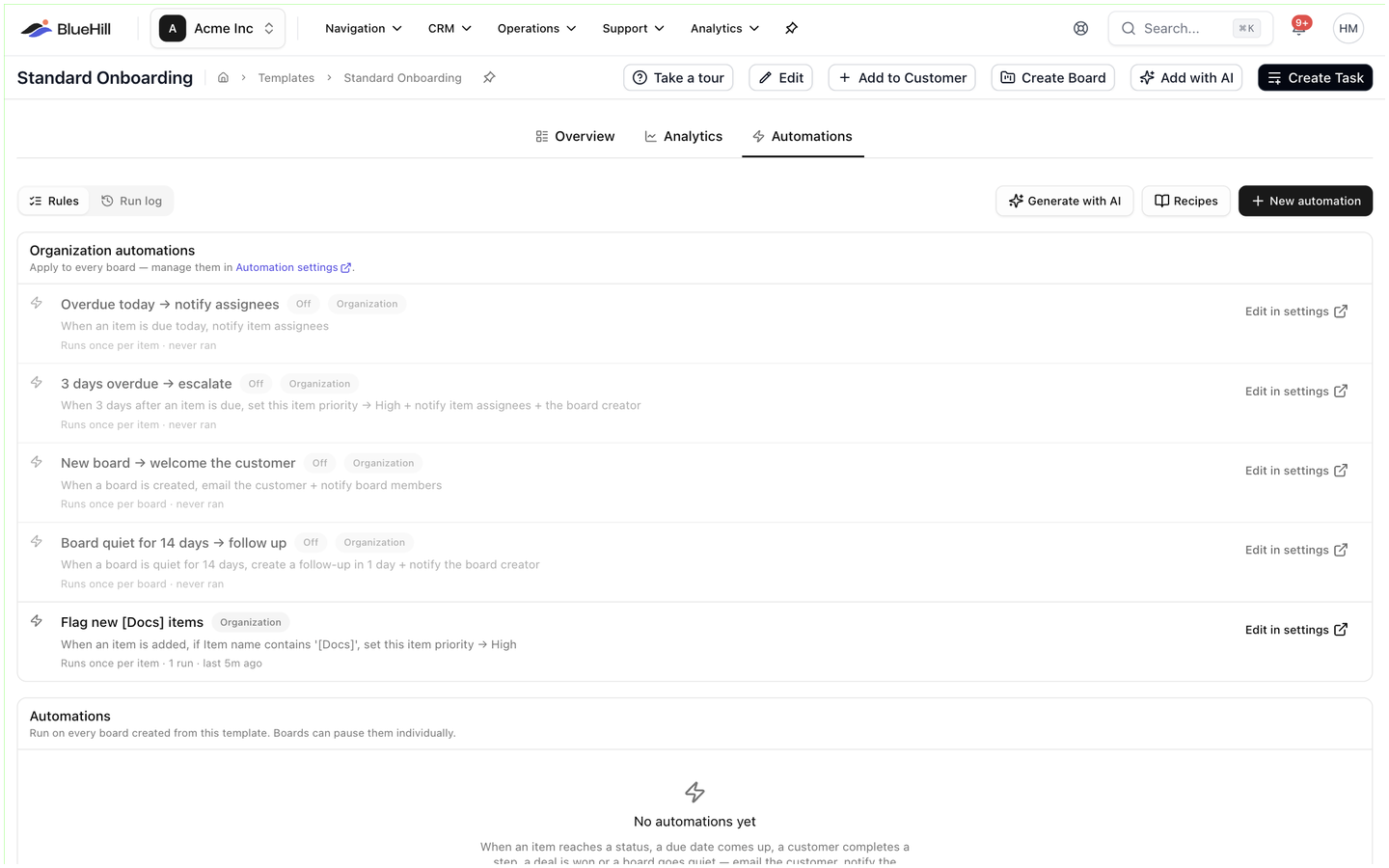
A template's rules are listed under Automations with the note Run on every board created from this template. Boards can pause them individually. Above them, an Organization automations group lists the organization's rules with Edit in settings links, just as on a board. The template tab adds a Generate with AI button next to Recipes and New automation: paste a process description and BlueHill drafts rules from sentences such as when the kickoff call is done, email the customer. Drafted rules are added switched off so you can review each one.
Changing a template rule changes it for every board built from the template, including boards that already exist. If a board stops using the template, waiting runs are cancelled with the reason the board no longer uses this template.
A form's Workflow tab
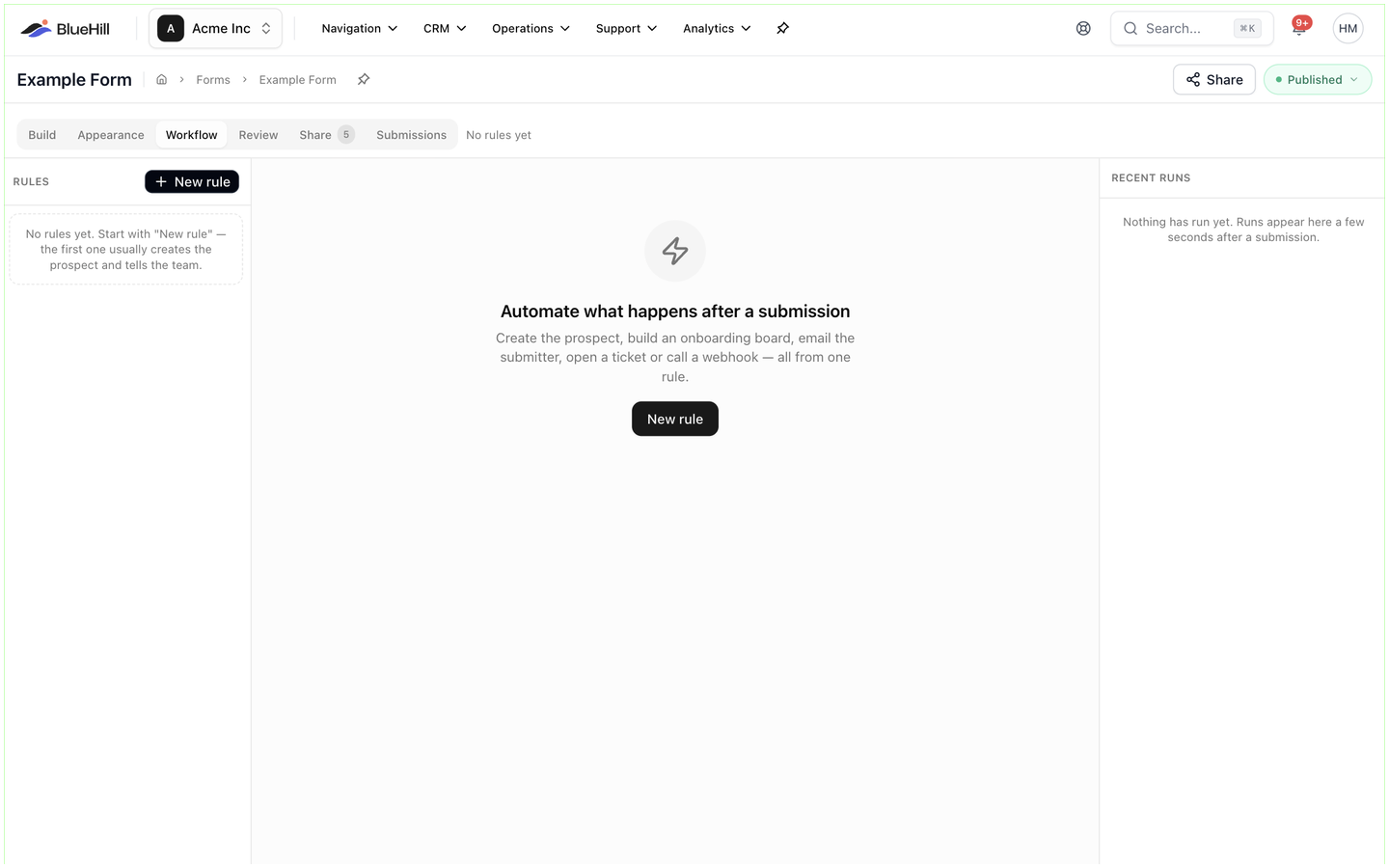
A form's Workflow tab uses the same rule editor with the form triggers. The left rail lists the form's Rules with a New rule button and a dot that shows whether each rule is Enabled or Paused; organization rules that also apply to the form are listed under Also applies (organization). The editor has an Enabled switch and Test with last submission, which evaluates the rule against the latest submission without running anything. The right rail shows Recent runs.
Next: Create and manage a rule.