
Email the customer
For anyone writing the emails an automation sends to customers: who receives them, how to use merge fields, how to preview and test, and why an email is sometimes skipped.
Set up the action
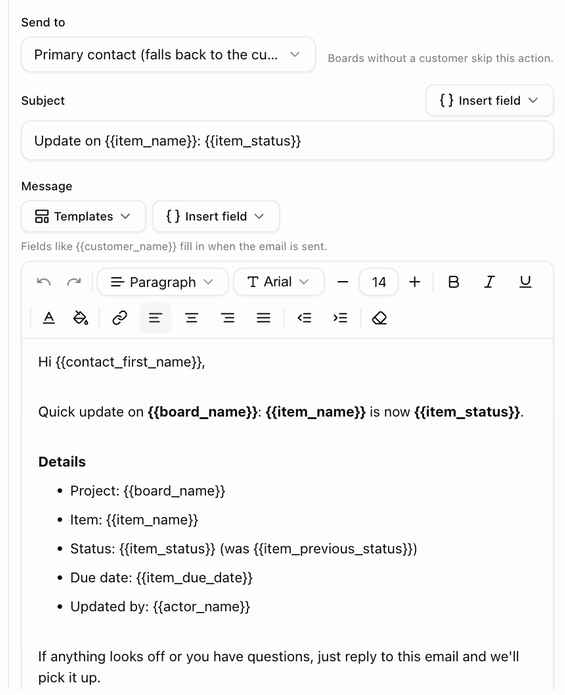
- Under 3 · Then, choose Email the customer.
- Pick Send to: Primary contact (falls back to the customer's email) or All customer contacts. The primary contact is the contact marked primary on the customer record, otherwise the oldest contact with an email, otherwise the email on the record itself. All customer contacts sends one email to every active contact with an address, plus the record's own address.
- Write the Subject. The action starts with Update on {{item_name}}: {{item_status}}; click Insert field to add a merge field such as {{board_name}}.
- Write the Message. It starts with the Status update (detailed) template, which greets the recipient and lists the project, item, status, due date and who made the change. Edit it, or pick Short note, Due-date reminder or Start blank from the Templates menu; choosing one replaces the current text after you confirm with Replace message.
- Optionally click + Add a button and enter Button text (for example Open the portal) and a Button link. The link must be https:// or a link merge field such as {{portal_link}}.
Boards without a customer skip this action, and the editor says so when you add it to a board that has no linked customer.
Merge fields
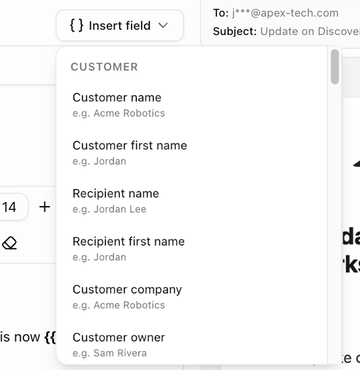
Merge fields are filled in when the email is sent. The Insert field menu groups them under Customer, Item, Board and Other, and shows an example value for each. The ones most often used in customer emails:
| Field | Fills in |
|---|---|
| {{customer_name}}, {{customer_first_name}} | The customer's name. |
| {{contact_name}}, {{contact_first_name}} | The name of the person receiving the email. |
| {{customer_company}}, {{customer_owner_name}} | The company, and the team member who owns the record. |
| {{item_name}}, {{item_status}}, {{item_previous_status}} | The item and its status. |
| {{item_due_date}}, {{due_in_days}}, {{item_priority}}, {{item_assignees}} | Item details. The due date reads not set when empty. |
| {{board_name}}, {{board_status}}, {{board_progress}}, {{template_name}} | Board details. |
| {{portal_link}} | A link to the customer portal. Use it as the button link. |
| {{actor_name}} | Who made the change, or Automation when nobody did. |
| {{org_name}}, {{today}} | Your organization's name and today's date. |
| {{deal_name}}, {{quote_ref}}, {{deal_total}} | Deal details, on deal triggers. |
| {{form_name}}, {{ticket_ref}}, {{ticket_subject}} | Form and ticket details, on the matching triggers. |
A misspelled field stops the rule saving with Unknown merge field {{x}}.
Preview and send a test
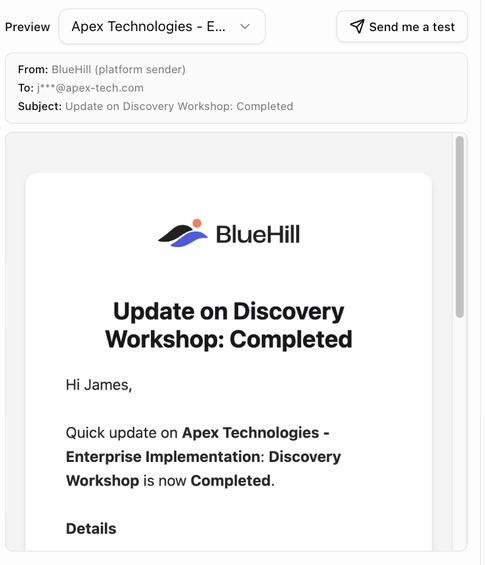
The Preview pane next to the editor renders the email as the customer will see it. Choose Sample values or a real board from the picker to fill the merge fields; the pane shows From, To and Subject above the message. When nobody would receive the email, To reads nobody — reason, which is the same reason the run log would show.
Click Send me a test to send the rendered email to your own address only. BlueHill confirms with Test email sent to your address.
What the customer receives
The email carries your organization's branding from the deal-email settings: logo, brand colour, footer and reply-to address, sent from your verified sender when you have one. The optional button is labelled View details unless you set your own text. The footer reads Powered by BlueHill.
Replies go to your reply-to address; they do not change the item or board.
When an email is skipped
The run log and the preview give the reason when an email cannot go out:
| Reason | What to do |
|---|---|
| the board has no linked customer | Link a customer to the board, or move the rule to a template whose boards have customers. |
| the customer has no email address | Add an email to the customer record or a contact. |
| automated emails are paused for this customer | The customer's Automated emails switch is off. See below. |
| the contact opted out of email | The primary contact has email switched off on their contact record. Choose All customer contacts to reach the others. |
| the address is on the suppression list (bounced or unsubscribed) | The address bounced or unsubscribed earlier. Check Support settings → Suppressions. |
| the address is on your Do-Not-Mail list | The address is on your organization's Do-Not-Mail list. |
| automatic emails reach only your own addresses until your business is verified | Complete business verification; until then automation emails go to internal addresses only. |
Pause automated emails for one customer
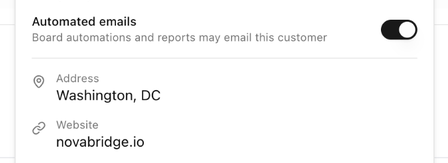
- Open the customer record and click Info in the header.
- In the Customer Information popover, find Automated emails under the email and phone.
- Switch it off. The help text changes from Board automations and reports may email this customer to Paused — board automations and reports skip this customer, and the customer header shows a No automated emails badge.
Rules keep running for the customer's boards; only the email steps are skipped, and digests skip the customer too. You need permission to edit customers to change the switch.