
Automations
For managers who want BlueHill to send reminders, update boards and create follow-ups automatically. Automations are rules: when something happens, if certain conditions hold, then do one or more actions.
Where automations live
| Scope | Where | Runs on |
|---|---|---|
| One board | Board menu ⋮ → Automations, or the Automations tab of the Edit Board panel | That board only. |
| A template | Operations → Board Templates → template → Automations | Every board created from the template. |
| The organization | Operations → Automations | Every board, plus customer, deal and form events. |
A form's Workflow tab holds rules that react to form submissions in the same way.
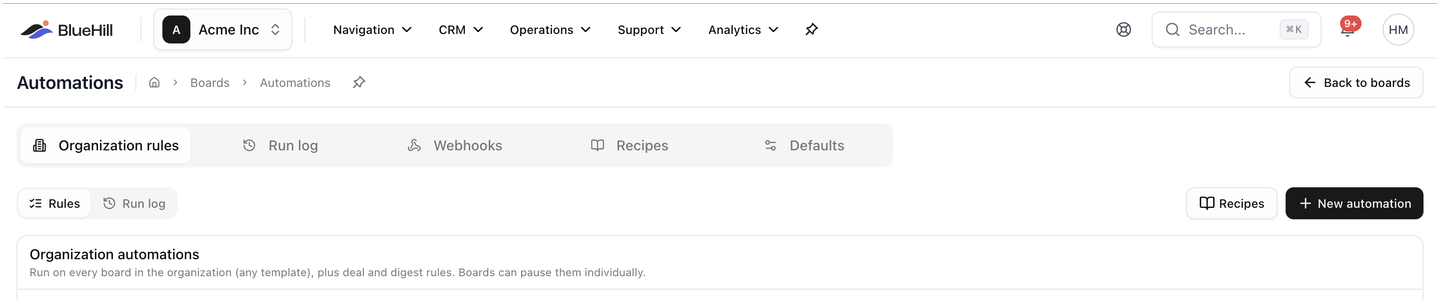
Operations → Automations has five tabs: Organization rules, Run log, Webhooks, Recipes and Defaults. The Organization automations list on the first tab runs on every board in the organization, whatever its template, plus deal and digest rules; individual boards can pause them. Back to boards returns you to the Boards page.
Anatomy of a rule
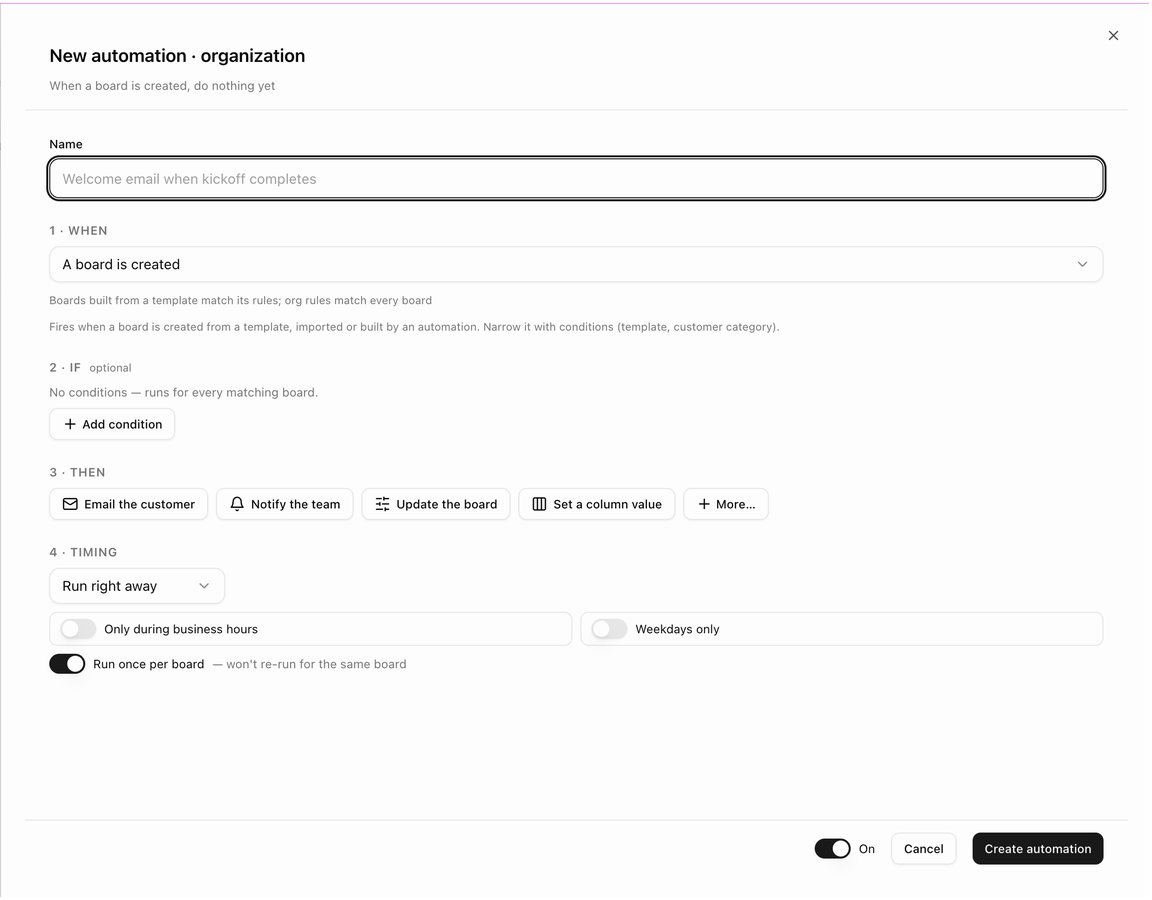
Every rule has a Name and the same four numbered parts. As you fill them in, the editor's subtitle reads the rule back to you, for example When a board is created, do nothing yet.
- When: the trigger, such as A board is created or An item enters a status. A short note under the trigger explains when it fires and how to narrow it.
- If (optional): conditions that must be true, such as the item's priority or the board's template. Click Add condition. Conditions are grouped; a rule runs when any group matches, and every condition inside a group must match. With no conditions, the rule runs for every matching board or item.
- Then: one or more actions, run in order. The most common ones are offered as buttons (Email the customer, Notify the team, Update the board, Set a column value); More... lists the rest. Drag to reorder them.
- Timing: Run right away or Wait, then run after a delay; Only during business hours; Weekdays only; and Run once per board (or per item), which stops the rule re-running for the same board or item.
The On switch next to Create automation (or Save changes) turns the rule on or off without deleting it.
Triggers
Items (tasks)
- An item enters a status
- An item's due date is near or past
- An item's due date changes
- An assignee is added to or removed from an item
- A select column changes
- An item is added to a board
- The customer completes an item in the portal
- A note is added
- An item's priority changes
- A linked support ticket is resolved
- An item has had no activity for N days
- An item's follow-up date arrives
Boards
- The board's status changes
- A board is created
- The board reaches a % complete
- A board has had no activity for N days
- A board follow-up date arrives
Customers and deals (organization rules)
- A customer or prospect is created
- A prospect is converted to a customer
- A deal or quote is accepted
Forms
- A form linked to an item is submitted
- A form submission is received
- A submission's review stage changes
- A review step is overdue
Scheduled digests
- Scheduled: overdue items digest
- Scheduled: customer progress report
Actions
Customer
- Email the customer, with merge fields such as the customer name, board name and task name. Preview the email and send yourself a test before switching the rule on.
- Add a customer category, Assign the customer owner, Set the pipeline stage
- Create or merge a customer from the submission (form rules)
Team
- Notify the team (in-app notification and email to chosen teammates, the board members, the customer owner or the record creator)
- Open a support ticket
- Create a follow-up
Board and items
- Update the board (for example change its status, or add it to a board group)
- Set a column value, Set priority, Set the due date
- Publish to the portal
- Archive the board
- Create a board from a template
- Start the review chain (forms)
- Send the digest email
Integrations
- Send a webhook to an endpoint you have set up on the Webhooks tab.
Start from a recipe
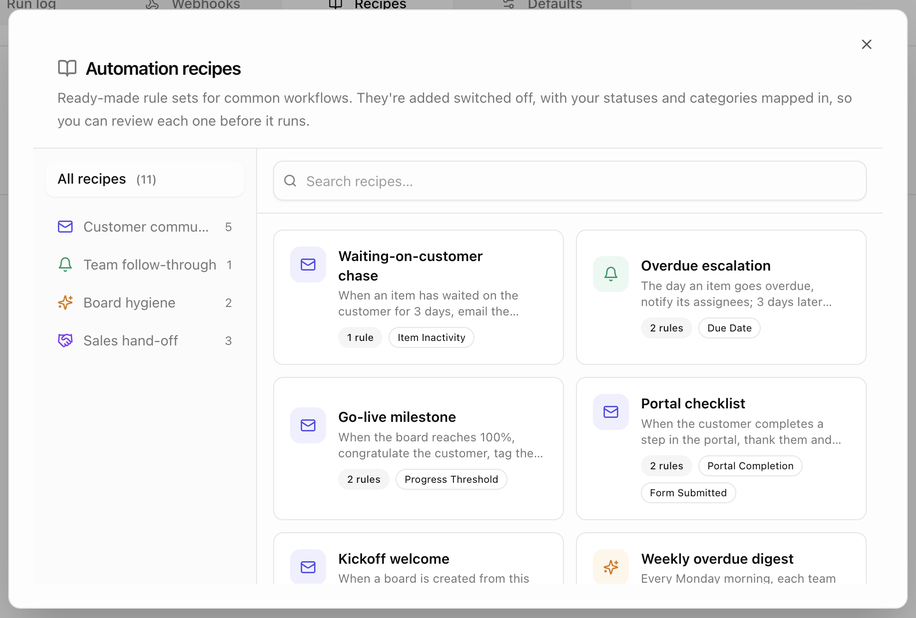
The Recipes button (and the Recipes tab on the organization page) opens Automation recipes: ready-made rule sets for common workflows, grouped into Customer communication, Team follow-through, Board hygiene and Sales hand-off. Examples include Waiting-on-customer chase, Overdue escalation, Go-live milestone, Portal checklist, Kickoff welcome and Weekly overdue digest. Each card says how many rules it adds and what triggers them.
- Open Recipes, browse a category or search, and pick a recipe.
- Review the rules it will add. Your own statuses and categories are mapped in automatically.
- Add it. Recipes are added switched off, so nothing runs until you review each rule and turn it on.
Create a rule for one board
- Open the board, click ⋮ in the header and choose Automations.
- Click New automation.
- Choose the trigger under When.
- Optional: add conditions under If.
- Add actions under Then and fill in their settings.
- Set the Timing.
- Switch the rule On and click Create automation.
Each rule row shows whether it runs once per item or every time, and has a switch to pause it, plus Edit, Duplicate, Clear run-once history and Delete.
Template and organization rules on a board
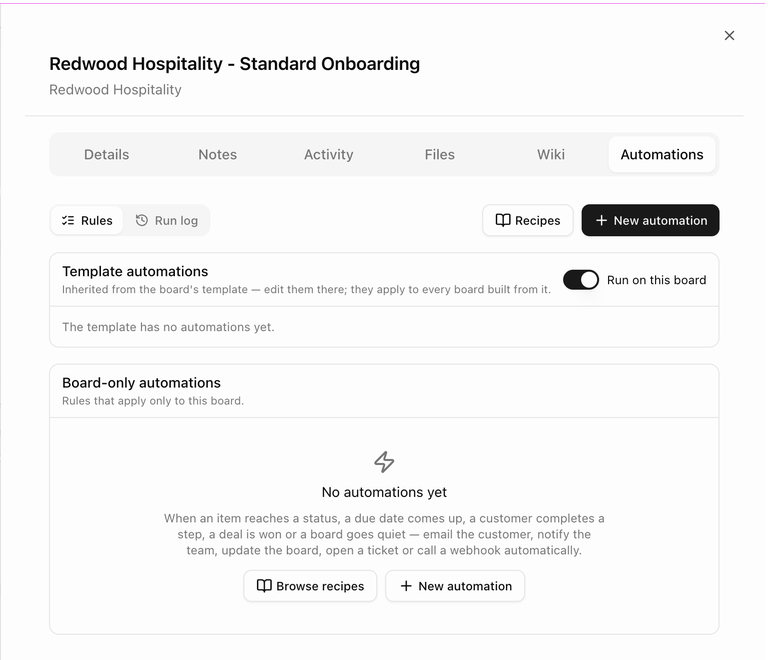
A board's Automations tab has a Rules / Run log toggle, a Recipes button and New automation, and shows up to three groups of rules:
- Template automations, inherited from the board's template. Edit them on the template; they apply to every board built from it.
- Organization automations, inherited from Operations → Automations (shown when your organization has rules).
- Board-only automations, which apply only to this board. Until you add one, the section shows No automations yet with Browse recipes and New automation buttons.
Each inherited group has a Run on this board switch. Turn it off to pause those rules on this board without touching the template or the organization. The tab then says Paused on this board.
If the board has no customer, actions that email the customer are skipped and the tab says so.
Check the run log
Switch from Rules to Run log on any Automations tab (or open the Run log tab under Operations → Automations) to see every time a rule fired. Each run shows its status (queued, pending, done, failed, skipped or cancelled) and what each action did. Open a run to Cancel a pending run or Retry failed steps.
Webhooks and Defaults
- Webhooks: add the endpoints that the Send a webhook action can call, send a test ping, and manage signing secrets.
- Defaults: set the Business hours profile used by Only during business hours, and the Digest hour at which scheduled digests are sent.
To stop automation emails to one customer, open the customer record and switch off Automated emails.
Next: FAQ and troubleshooting.