
Statuses, priority and progress
For anyone who wants to know what the status chips, priority labels and progress bars are telling them. Your administrator can rename, recolour and add statuses, so your workspace may differ from the defaults shown here.
Task statuses and the progress they set
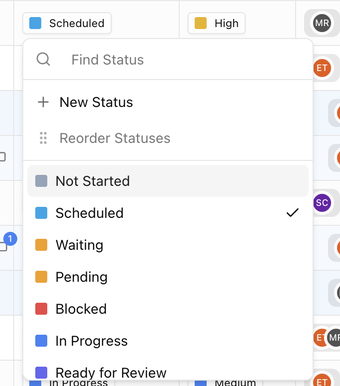
Every task has one status. Picking a status also sets the task's progress percentage, so you rarely need to move the slider yourself. The default statuses are:
| Status | Progress it sets |
|---|---|
| Not Started | 0% |
| Scheduled | 10% |
| Waiting | 25% |
| Pending | 25% |
| Blocked | 25% |
| In Progress | 50% |
| Ready for Review | 75% |
| Approved | 90% |
| Completed | 100% |
| Declined | 100% |
| Canceled | 100% |
| Archived | 100% |
Completed, Declined, Canceled and Archived all count as finished for board progress.
Portal status
A task that is Published to Portal also has a Portal Status, which tracks what the customer has done with it:
| Portal status | Meaning |
|---|---|
| Not Started | The customer has not opened the task. |
| In Progress | The customer has started it. |
| Pending Confirmation | The customer has marked it done and your team should confirm. |
| Complete | Confirmed. |
The Owner column shows the portal status for published tasks.
Priority
Each task has a priority of Low, Medium, High or Critical. Priority does not change progress or dates; it is there to help people choose what to do next, and automations can react to it (for example, notify the team when a task becomes Critical).
Task progress and Weight
- Progress is a percentage from 0 to 100. Choosing a status sets it; you can fine-tune it with the slider in the task panel.
- A parent task's progress is worked out from its subtasks. If you override it by hand, choose Reset to subtask progress in the Progress cell to go back to the calculated value.
- Weight controls how much a task counts towards the board's progress. All tasks start with the same weight. Give a task a higher weight when it represents more of the work.
How board progress is calculated
The board's progress bar and the N of M tasks done count on each card come from its tasks: every task contributes its progress, scaled by its weight. A board with no tasks shows No tasks yet.
Board statuses
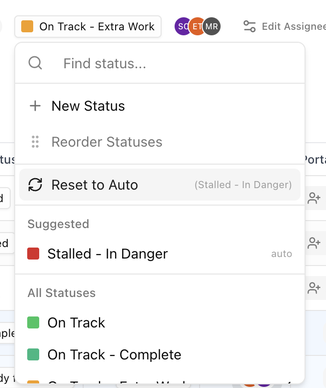
A board's status summarises how the whole board is going. The defaults are:
| Status | Use |
|---|---|
| On Track | Work is going to plan. |
| On Track - Complete | Finished as planned. |
| On Track - Extra Work | Going to plan, with extra work added. |
| On Track - Slow | Going to plan but behind the ideal pace. |
| Complete | Finished. Archiving a board in progress also marks it Complete. |
| On Hold | Paused by agreement. |
| Paused | Paused for now. |
| Stalled | No progress for a while. |
| Stalled - Complete | Finished after a stall. |
| Stalled - In Danger | Stalled and at risk. |
| Watching | Needs attention but not yet stalled. |
Automatic vs manual board status
By default BlueHill works out the board status for you from task progress and recent activity, and keeps it up to date (the status chip's tooltip says Auto-computed based on task progress).
To set a status by hand:
- Click the board status chip in the board header, on a card or in the Edit Board panel.
- Use Find status to search, then pick a status. The board is now in manual mode and keeps that status until you change it. The tooltip reads Manual override, and shows the status BlueHill would suggest.
- To go back to automatic, open the picker and choose Reset to Auto.
The picker also offers New Status to add a status, Reorder Statuses to change the order, and a Suggested status based on the board's current progress. Statuses can be limited to certain board groups; a status with no groups is available on every board.
If your organization has set Board status mode to Manual, every board uses manual status and the chip's tooltip says Organization requires manual board statuses.
Overdue, Due and Follow Up indicators
- A red Overdue icon appears next to a task whose due date has passed and which is not finished.
- On board cards, overdue due dates in Up next are red and today's dates are orange.
- Follow Up is a separate date for when someone should check in on the task. The Boards page filters and sort can use it, and automations can fire when it arrives.