
The Boards page at a glance
For anyone opening Operations → Boards for the first time. This guide walks through the layout so the rest of the guides make sense.
Open the Boards page
- In the top navigation, open Operations and choose Boards. (If Boards is your home page, it is already open when you sign in.)
- The page lists every board in your workspace. By default you see active boards of every type, in Cards view, sorted by the date they were created with the newest first.
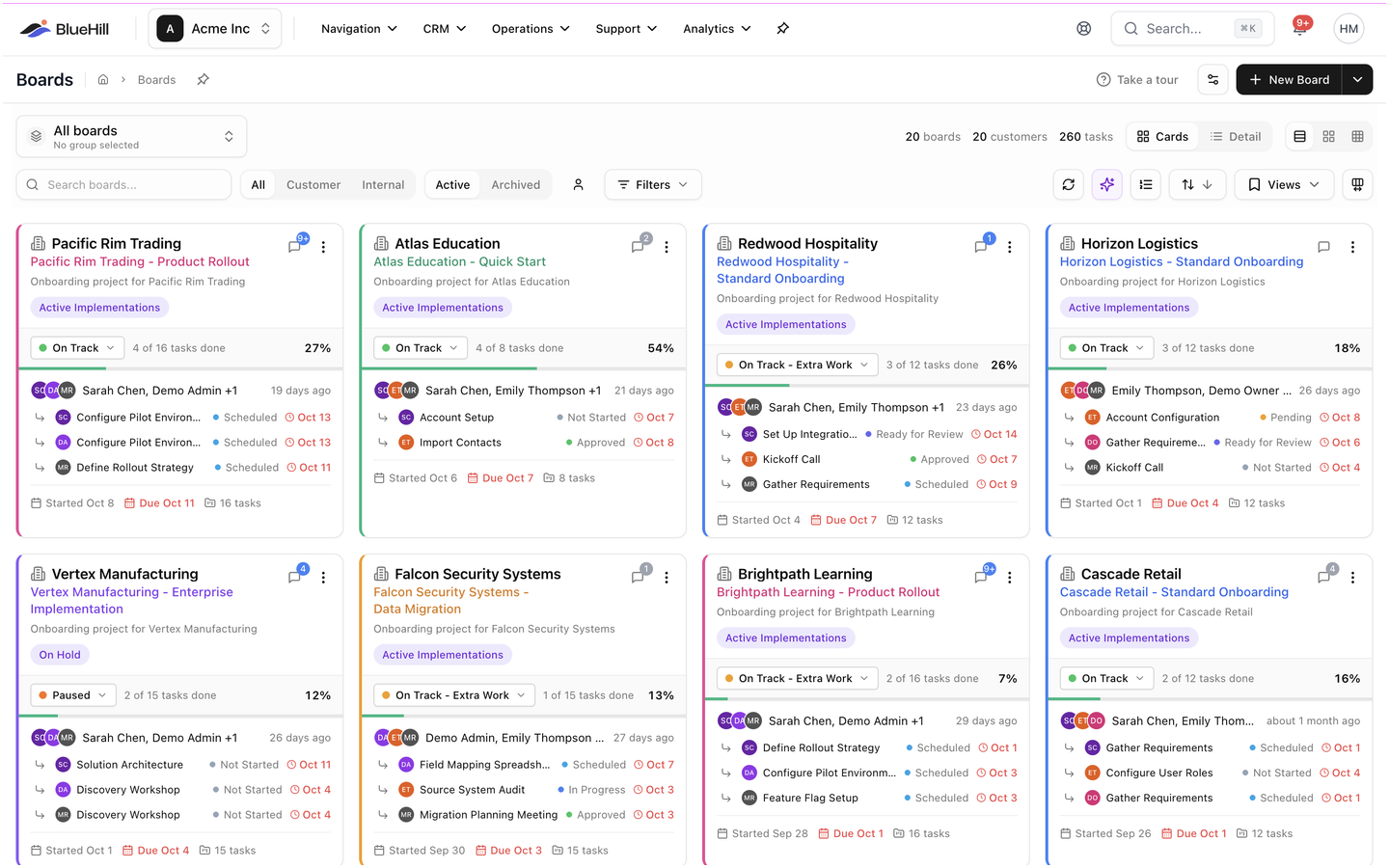
The header
From left to right, the header holds:
- The page title and breadcrumb (Home › Boards).
- Avatars of teammates who are viewing the Boards page right now.
- Take a tour, a short guided walk-through of the page. Open it any time.
- The Custom fields button (gear icon). It chooses which customer fields appear on board cards and rows, and lets you manage those field definitions.
- New Board. Click the button to create a blank board. Click the arrow next to it for From Template, Template Library, Import from Monday and Download Template. See Create a board.
The toolbar
The toolbar has two rows.
Row one
- The board group switcher on the left. It starts on All boards. Pick a group to show only the boards in it, or create and manage groups. See Board groups.
- Totals for what you are looking at, such as 20 boards · 20 customers · 260 tasks (shown on wide screens).
- The Display toggle: Cards or Detail.
- Card density (Cards view only): three icons for Comfortable, Compact or Dense. This controls how many cards fit per row and is remembered for you.
Row two
- The Search boards... box.
- Board type (All, Customer, Internal) and Active or Archived.
- The Mine toggle, which keeps only boards you are a member of.
- Filters, Refresh, AI Portfolio Summary, Assignment Queue, Sort, Views and Columns.
Every control in row two is covered in Find, filter and organize boards.
Cards view: reading a board card
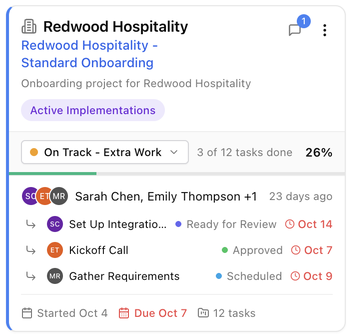
Each card is a summary of one board:
- Customer name at the top (with a building icon), then the board name. The board name is coloured to match the template the board was created from.
- The board description, trimmed to two lines.
- Small badges for linked wiki pages and for the number of notes and activity entries.
- Board group chips and the customer's time zone, when set.
- The status band: the board status chip, N of M tasks done, the progress percentage and a progress bar. Click the status chip to change the board's status without opening it. A board with no tasks shows No tasks yet.
- Assignee avatars and how long ago the board was created.
- Up next: the next task for each assignee, with its status dot and due date. Overdue dates are red and today's dates are orange. If more than three assignees have work queued you see +N more up next.
- The dates line: when the board starts (or started, or was created), when it is due, and how many tasks it has.
- Pinned customer fields, shown as chips. Choose these with the Custom fields button in the header.
Click the board name to open the board. By default it opens in the same tab; you can change this to a new tab under your profile settings (Board links).
The card menu
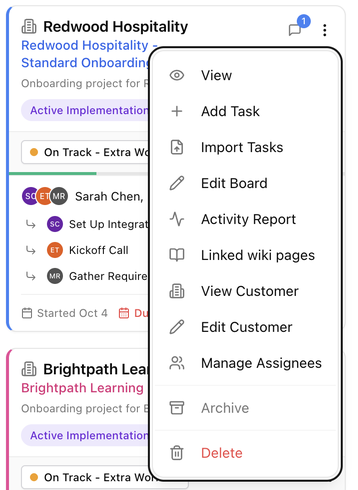
The ⋮ button on a card opens its menu:
| Item | What it does |
|---|---|
| View | Opens the board. |
| Add Task | Opens the Add Task form for this board. |
| Import Tasks | Imports tasks from a spreadsheet. |
| Edit Board | Opens the Edit Board panel (details, notes, activity, files, wiki, automations). |
| Activity Report | Shows a report of activity on the board over time. |
| Linked wiki pages | Attaches wiki pages to the board. Pages attached here are visible on every task in the board. |
| View Customer / Edit Customer | Opens or edits the linked customer (customer boards only). |
| Manage Assignees | Adds or removes board members. |
| Archive / Restore | Archives an active board, or restores an archived one. |
| Delete | Permanently deletes the board and all its tasks. |
Each of these is explained in Edit, share, archive and delete a board.
Detail view: board rows
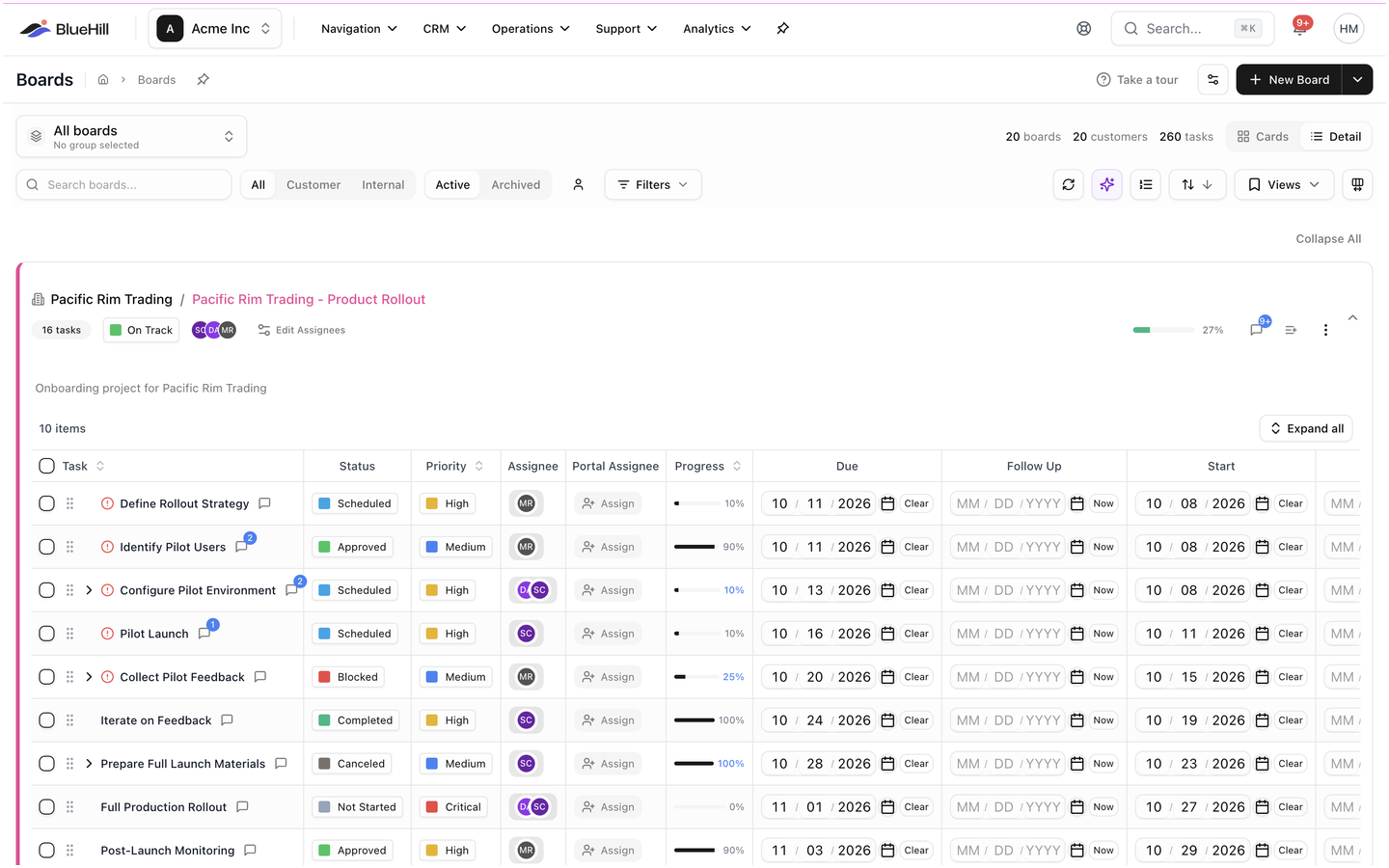
Switch Display to Detail to see boards as expandable rows instead of cards.
- Use the Expand All / Collapse All link above the list to open or close every board at once, or the chevron at the right of a row for one board. Which boards you have expanded is remembered.
- Each row header shows the customer and board name, the task count, the board status, member avatars and Edit Assignees (or Assign Members on a board with no members), then the progress bar, the activity icon, the Quick add tasks icon and the row's ⋮ menu.
- Below the header sit the board description and the item count. Expand a row to see the board's full task table, exactly as it appears on the board page, with its own Expand all control for subtasks. You can edit tasks here without leaving the Boards page. See Work inside a board.
- The row's ⋮ menu has the same items as the card menu.
- Right-click a row header to open the board in a new tab.
Choose a card density
In Cards view, use the Card density control to pick Comfortable, Compact or Dense. Denser settings fit more cards per row and shorten the status band. Your choice is saved to your profile and applies on every device.
Empty states
- No boards match your filters: your filters, search or Mine toggle exclude every board. Click Clear Filters to start again.
- No archived boards: you are on the Archived tab and nothing has been archived yet.
- No boards yet: the workspace has no boards. Click Create Board to add the first one.
Open a board
- Click a board name on a card or row, or choose View from its menu.
- A customer board opens inside the customer record, on the customer's Boards tab, so the customer's details stay one click away.
- An internal board opens on its own page.