
Work inside a board
For anyone who opens a board to see and update its tasks. The board page is where most day-to-day work happens.
Open a board
- From Operations → Boards, click a board name or choose View from its ⋮ menu.
- From a customer record, open the Boards tab. A customer's board always opens here, with the customer's details one click away.
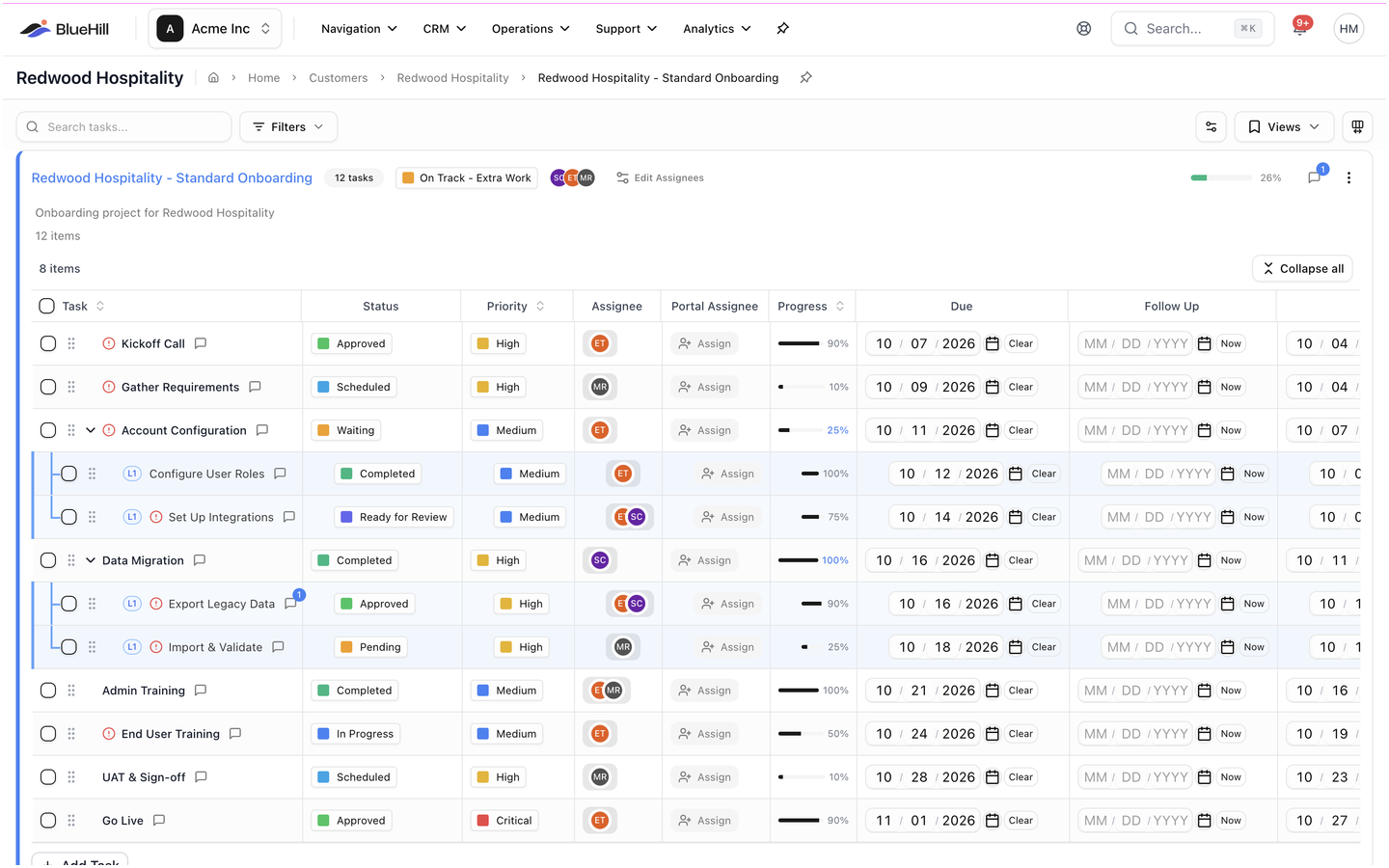
The board header
The header shows, from left to right:
- The board name (and, for a customer board, the customer name in the page title and breadcrumb).
- Pinned customer fields and the task count.
- The board status chip. Click it to see or change the status. See Automatic vs manual board status.
- Member avatars, with Edit Assignees (or Assign Members when the board has none).
- Avatars of teammates viewing the board right now.
- The progress bar with its percentage, and the activity icon, which opens the board's notes and activity.
Below the header you will find the board description and the total number of items on the board (tasks and subtasks together). Just above the table, a second count shows the top-level tasks, next to Expand all / Collapse all for subtasks.
The board menu
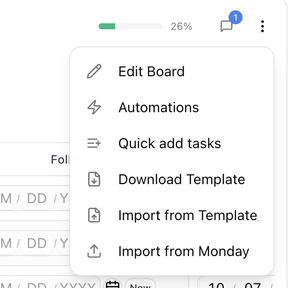
The ⋮ button in the header opens the board menu:
| Item | What it does |
|---|---|
| Edit Board | Opens the Edit Board panel. See Edit, share, archive and delete a board. |
| Automations | Opens the board's automation rules. See Automations. |
| Quick add tasks | Adds several tasks at once in a simple grid. |
| Download Template | Downloads a blank task spreadsheet. |
| Import from Template | Imports tasks from a filled-in spreadsheet (.xlsx). |
| Import from Monday | Imports tasks from a Monday.com export. |
Archiving and deleting are done from the Boards page or the customer's Boards tab, not from this menu.
Search and filter tasks
Once a board has at least one task, a toolbar sits above the table and stays in view while you scroll.
- Search tasks... matches the task name, status and type.
- Filters: Owner (Customer or Internal), Assignee, Portal assignee, Unassigned, Overdue, Published, Status, Priority, Type, task Progress, Product, and the four date filters (Due, Follow up, Start, End) with the same presets as the Boards page.
- The toolbar shows X of Y tasks while filters are active.
Columns and views
- Columns shows, hides and reorders columns. The Task column is always first and Actions always last.
- Views saves the current filters, sort and columns under a name so you can reapply them later. Views are shared with the Boards page and the customer's Boards tab.
- The Custom fields button adds your organization's custom fields as columns.
Task table columns
| Column | Shows |
|---|---|
| Task | The task name. Subtasks are nested underneath their parent. |
| Status | The task status. Picking a status also sets the task's progress. |
| Priority | Low, Medium, High or Critical. |
| Assignee | The team members responsible for the task. |
| Portal Assignee | The customer contact responsible for the task in the portal. |
| Progress | 0 to 100 per cent. A parent task's progress is worked out from its subtasks. |
| Due, Follow Up, Start, End | The task's dates. |
| Est. | The time estimate (hidden by default). |
| Weight | How much the task counts towards board progress (hidden by default). |
| Owner | Customer or Internal; for published tasks, the customer's portal status (hidden by default). |
| Type | Information, Form, Acknowledge, Upload, Download or Link (hidden by default). |
| Product | The product the task relates to. |
| Published | Whether the task is visible to the customer in the portal. |
| Quick Add | One-click shortcuts to log a note, email, call, meeting or other activity against the task. |
| Wiki | Wiki pages linked to the task. |
| Custom fields | One column per custom field. |
| Actions | The task's ⋮ menu. |
Edit a task inline
Click a cell to change it. Changes save straight away; a small Saving… indicator appears while they do.
- Status, Priority, Assignee, Portal Assignee, Type, Product and custom fields open a picker.
- Progress opens a slider. On a parent task you can Reset to subtask progress.
- Due, Follow Up, Start and End are typed straight into the cell (MM / DD / YYYY) or picked from the calendar icon, with Clear and Now shortcuts. If your organization requires a reason for due-date changes, a dialog asks for it. See Change a due date.
- Changing Product on a parent task also changes its subtasks.
- Switching Published on a parent task also publishes its subtasks and resets their portal status to Not Started.
- Est., Weight and Owner are shown here but edited in the task panel or the Edit Task form.
For a fuller editor, open the task panel: Task details, notes, activity and files.
Subtasks
- Subtasks nest under a parent task, up to two levels deep. Each subtask row carries an L1 or L2 badge and sits inside a coloured bracket under its parent.
- Use the arrow on a parent row to expand or collapse its subtasks, or Expand all subtasks / Collapse all subtasks for the whole board.
- A parent task's Start and End dates and its progress roll up from its subtasks.
- Overdue tasks show a red Overdue icon next to their date.
To add a subtask, use Add Subtask in a task's menu or the Quick Add column. See Add a subtask.
Reorder or nest by dragging
- Make sure no column sort is active. Dragging is only available in the board's own order; click a sorted column header until the sort clears.
- Press and hold the drag handle at the left of a row.
- Drop the task above or below another task to reorder it, or drop it onto a task to make it a subtask of that task.
Clicking the Task, Priority or Progress header sorts by that column.
Act on several tasks at once
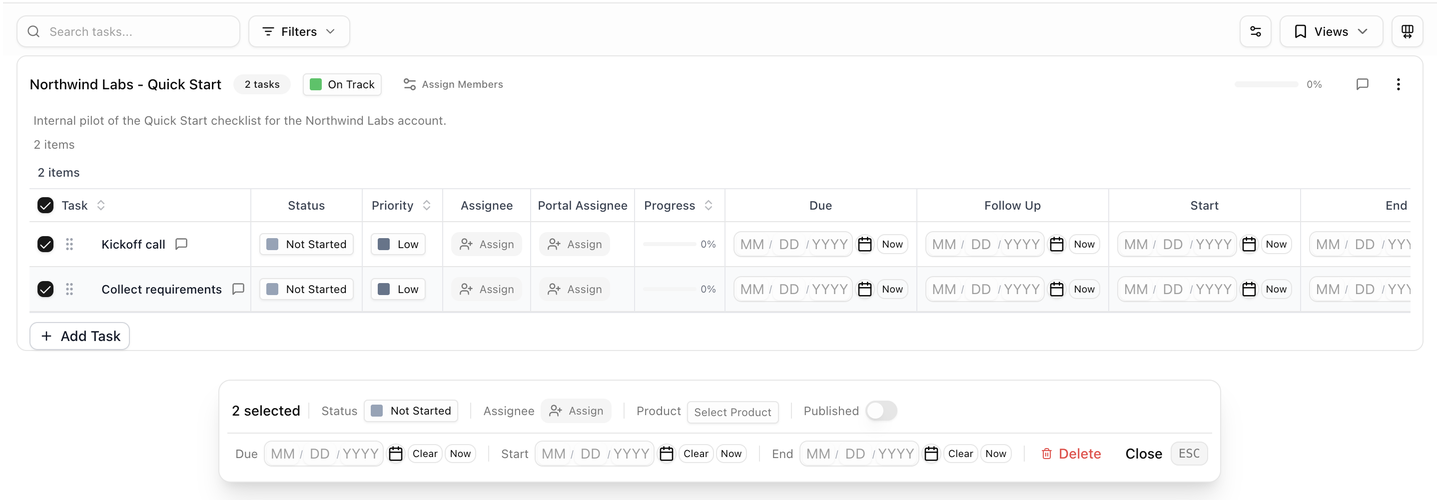
- Tick the checkbox on each task you want to change. A bar appears showing N selected.
- Choose an action: Status, Assignee, Product, Published, Due, Start or End to set that value on every selected task, or Delete to remove them.
- Press Esc or click Close to clear the selection.
Delete asks you to confirm (Delete N Tasks?). Deleted tasks cannot be recovered.
The Assignee action opens a searchable list of team members; tick one or more and close the list to apply. When you assign other people in bulk, BlueHill asks Send Assignment Notification?. Choose Assign Only to make the change quietly, or Assign & Notify to send each person one email listing their new tasks. Assigning tasks to yourself never sends an email.
Export and import tasks
- Download Template (board menu) gives you a blank spreadsheet in the format BlueHill expects.
- Import from Template (board menu) opens Import tasks from spreadsheet. Drop your .xlsx file there or click to browse. Each row becomes a task on the board.
- Import from Monday (board menu) imports tasks from a Monday.com export file.
Next: Add and manage tasks.