
Board templates
For managers who standardise onboarding or project plans so that every new board starts the same way. Templates live under Operations → Board Templates.
Open Board Templates
Open Operations → Board Templates. The page lists every template in your workspace as a table: a colour swatch and Name, the Description, the Board Groups new boards are filed into (click — click to add to set them), and the number of Tasks. View opens a template, and the ⋮ button next to it holds the template's actions. Switch between Active and Archived templates, search, filter, and use Views and Columns just as on the Boards page.
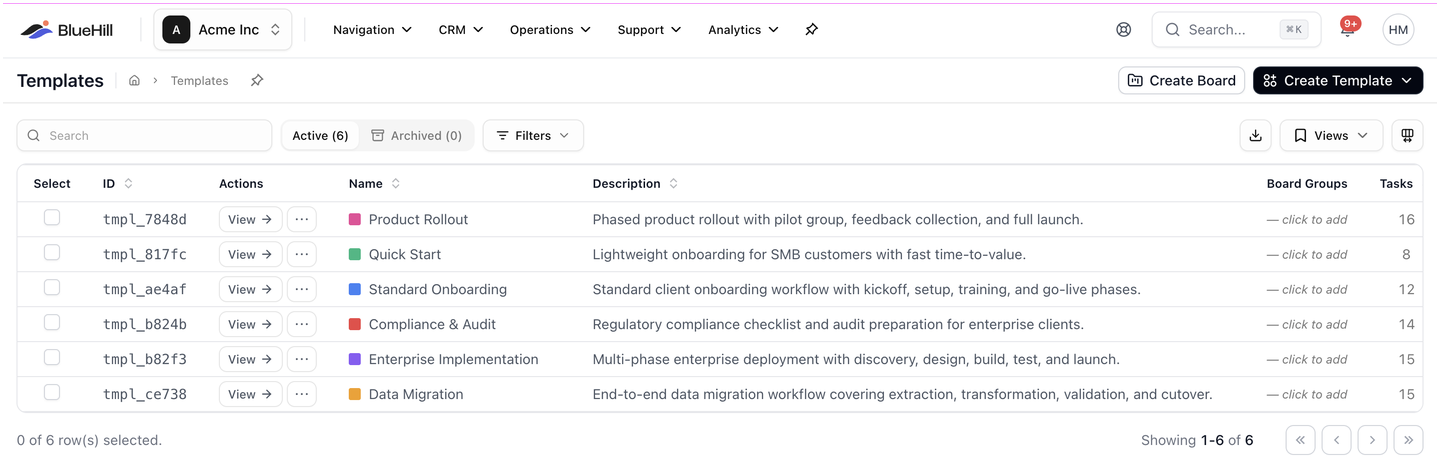
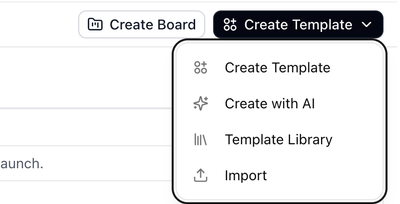
The header has two buttons: Create Board, which creates a board from any template, and Create Template, which opens a menu of ways to start a new template.
Create a template
The Create Template menu offers four ways to start:
Create Template
- Choose Create Template.
- Enter a Template Name and Description.
- Save, then add tasks on the template page.
Create with AI
If you already have the process written down, let BlueHill draft the template from it.
- Choose Create with AI. The Create a template with AI dialog opens.
- Paste the text of your process, or drop a .docx, .txt or .md file onto the dialog.
- Under What to generate, tick Steps and, if you want, Automations.
- Click to draft. On the review screen you can:
- Edit the template name and description.
- Adjust each step's priority, owner type and due-date offset.
- Match any owners named in the text to teammates.
- Review drafted automations. They are added switched off so nothing runs until you check them. Anything the AI could not turn into a rule is listed under Skipped automations.
- Apply. Nothing is saved until you do. Then choose Open template or Review automations.
On an existing template, Add with AI drafts more steps and rules into that template.
Template Library
Choose Template Library to copy a ready-made template into your workspace. Templates are grouped by category and list their Stages. See Start from the Template Library.
Import from Monday.com
Choose Import to build a template from a Monday.com export.
The template page
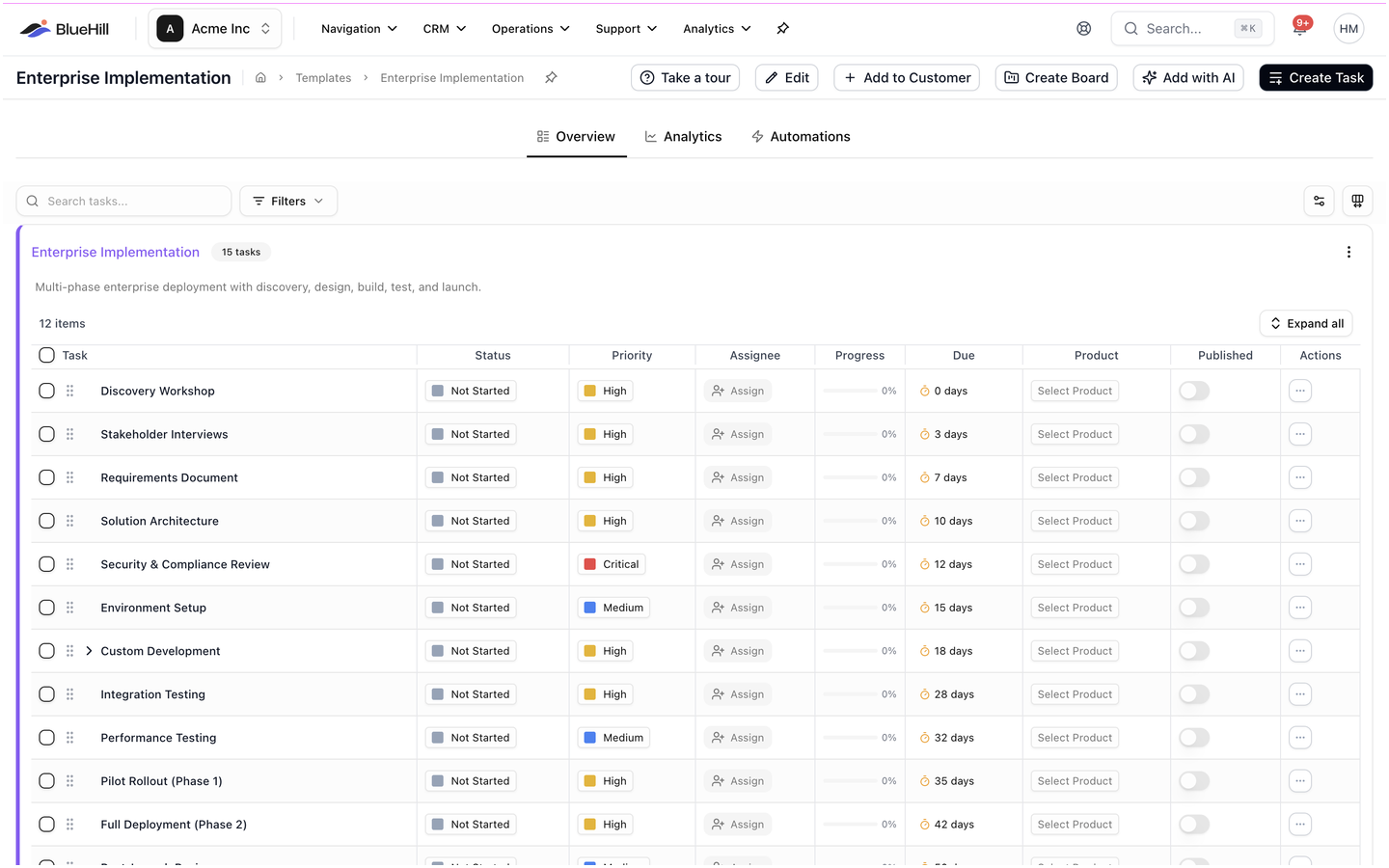
Click View on a template to open it. The page has three tabs:
- Overview: the template's tasks, with search, Filters and Columns, and the template's custom fields (gear icon). The task list works like a board's: expand subtasks with Expand all, and the Due column shows each task's offset, such as 3 days or 7 days, rather than a calendar date.
- Analytics: how the boards created from this template are performing.
- Automations: rules that run on every board created from this template. See Automations.
The header buttons are Take a tour, Edit, Add to Customer, Create Board, Add with AI and Create Task. The ⋮ menu on the task card adds Download Template (a spreadsheet of the tasks) and Import Tasks.
Add tasks to a template
- On the Overview tab, click Create Task or + Add Task.
- Fill in the task:
| Field | Notes |
|---|---|
| Task Name and Description | Shown on every board created from the template. |
| Status and Priority | The values each new board starts with. |
| Type | Information, Form, Acknowledge, Upload, Download or Link. See Task types. |
| Product | The product the task relates to. |
| Owner | Internal, Customer or External. |
| Team Member | The default assignee on new boards. Members chosen when creating the board are assigned as well. |
| Form | The form to use for a Form task. |
| Due date mode | Fixed Date (the same calendar date on every board), Delayed (an Amount of Days, Weeks or Months after the board is created, which is what most templates use), or Manual (set the date on each board). |
- Save. Add subtasks from a task's menu, just as on a board.
Templates can also have Custom Fields, which every board created from the template inherits.
Edit template settings
Click Edit in the template header to change:
- Name and Description.
- Color. Boards created from the template show their name in this colour on the Boards page.
- Customer category, to suggest the template for customers in that category.
- Default Board Groups. Every board created from the template is added to these groups automatically. See Board groups.
Create boards from a template
- Create Board on the template page opens Create Board from Template. Choose a customer, or leave it empty for an internal board.
- Add to Customer creates a board from this template for several customers at once. Pick the customers and confirm.
- New Board → From Template on the Boards page does the same from the other direction. See Create a board from a template.
Changing a template later does not change boards already created from it.
Save an existing board as a template
Open the customer's Boards tab, open the board's ⋮ menu and choose Save as Template. See Save a board as a template.
Template analytics
The Analytics tab reports on the boards created from the template, so you can see which steps take longest and where boards tend to stall.
Template automations
Rules on the Automations tab run on every board created from the template, unless a board switches them off with Run on this board. See Automations.
Next: Automations.