
Find, filter and organize boards
For team members and managers who want only their own boards, or one slice of the portfolio, on screen. Everything here lives in the toolbar of Operations → Boards.
Search boards
Type in Search boards... to narrow the list as you type. Search matches the board name, its description, and the linked customer's company or contact name. Clear the box to see every board again.
Board type, Active or Archived, and Mine
- All / Customer / Internal limits the list to customer boards, internal boards, or both.
- Active / Archived switches between boards in use and boards you have archived. Archived boards can be restored from the Archived tab. See Archive and restore a board.
- Mine shows only boards you are a member of. Switch it off to see everyone's boards again.
Use the Filters panel
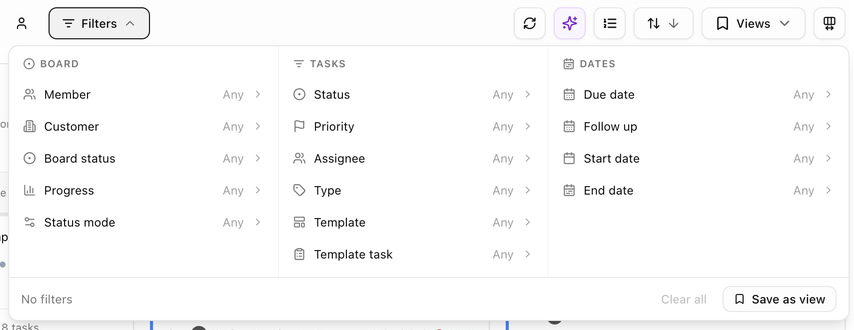
Click Filters to open the panel. Filters are grouped in three sections. Pick as many as you need; the list updates as you go and shows Showing X of Y boards.
Board filters
| Filter | What it matches |
|---|---|
| Member | Boards where the chosen people are members. Switch the mode to Board (board members only), Task (task assignees only) or Both. Tick Include inactive members to list people who have left the team. |
| Customer | Boards linked to the chosen customers. Hidden when the board type is Internal. |
| Team | Boards with members from a team. Shown when your workspace uses teams. |
| Board status | Boards in the chosen statuses, such as On Track or Stalled. |
| Progress % | Boards whose progress falls inside a range. |
| Status mode | Boards whose status is worked out automatically (Auto) or set by hand (Manual). |
Task filters
| Filter | What it matches |
|---|---|
| Status, Priority, Type | Boards that contain at least one task with that value. |
| Product | Boards with a task for that product. Shown when your workspace uses products. |
| Assignee | Boards with a task assigned to the chosen people. Tick Include inactive to list people who have left. |
| Template | Boards created from the chosen templates. |
| Template task | Boards that contain a specific task from a template. |
As soon as you choose a task filter, a Whole board / Matching tasks switch appears. Matching tasks (the default) hides tasks that do not match inside each board, so you see only the work you asked for. Whole board keeps every task visible.
Date filters
Due date, Follow up, Start date and End date each take a date range or a quick preset:
| Filter | Presets |
|---|---|
| Due date | Overdue, Due Today, Future, Previous, This Week, This Month, Next Month, No Due Date |
| Follow up | Overdue, Today, Future, Previous, This Week, This Month, Next Month, No Follow Up |
| Start date | Started, Starts Today, Future, Previous, This Week, This Month, Next Month, No Start Date |
| End date | Past End, Ends Today, Future, Previous, This Week, This Month, Next Month, No End Date |
Clear everything
The footer of the panel shows which filters are active (or No filters). Clear all removes them. The × button that appears next to the Filters button on the toolbar goes further: it also resets the board type, the Mine toggle, the search box and the sort order.
Sort boards
Open Sort and choose a field. The default is Date created, newest first. Other choices:
- Customer, Name, Last updated, Progress, Task count.
- In the Dates group: first or last start date, end date, due date and follow-up across the board's tasks.
Boards without a customer always sort after boards that have one.
Save and reuse a view
A view is a saved combination of filters, sort and columns.
- Set up the filters, sort and columns you want.
- Click Save as view in the footer of the Filters panel, or open Views on the toolbar and save the current setup with a name.
- Pick the view from the Views menu whenever you need it. Views you save here are also available on board pages and on each customer's Boards tab.
Choose columns (Detail view)
In Detail view, open Columns to show, hide and reorder the columns of the task tables. The Task column always stays first and Actions always stays last.
Board groups
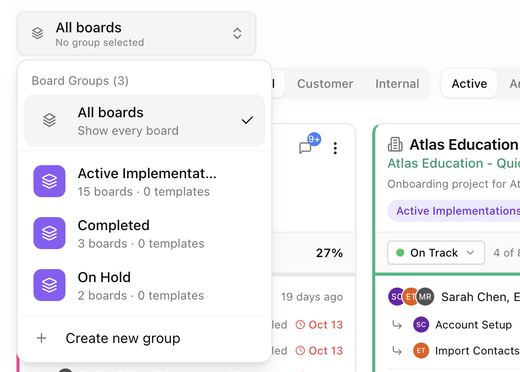
Board groups collect related boards, for example Active Implementations, Completed and On Hold. The switcher at the left of the toolbar controls which group you are working in.
Switch groups
- Click the switcher (it starts on All boards). The menu lists every group with how many boards and templates belong to it.
- Choose a group. The page now shows only boards in that group.
- Choose All boards to show every board again.
Create a group
- Open the switcher and choose Create new group.
- Enter a Name and an optional Description.
- Pick a Color and an Icon so the group is easy to spot at a glance.
- Save. The new group appears in the switcher.
Manage a group
Click the gear next to a group in the switcher to rename it, change its colour or icon, and choose which templates and board statuses belong to it.
Put a board in a group
Open the board's Edit Board panel and use the Board Groups field on the Details tab. A board can belong to several groups. Templates can also add every board they create to default groups. See Edit template settings.
AI Portfolio Summary
Click the sparkle icon (AI Portfolio Summary) to get a written summary of the boards you are looking at. It reports the number of boards, average progress, task counts, completed, blocked and overdue tasks, then lists Highlights, Concerns and Suggested Next Steps. Managers also see a Team Workload section. The summary respects your current filters, so filter first to summarise one customer or one group.
Refresh
Click Refresh to reload the list after a teammate makes changes. Boards also update on their own when you return to the page.
Next: Create a board.