
Edit, share, archive and delete a board
For board owners and managers who maintain a board after it is created.
Open Edit Board
The Edit Board panel is the home for everything about the board itself. Open it from:
- A board card's ⋮ menu on the Boards page (Edit Board).
- A board row's ⋮ menu in Detail view.
- The ⋮ menu in the board page header.
- The activity icon on a card, row or board header, which opens the same panel on its Activity tab.
The panel has six tabs: Details, Notes, Activity, Files, Wiki and Automations.
Details tab
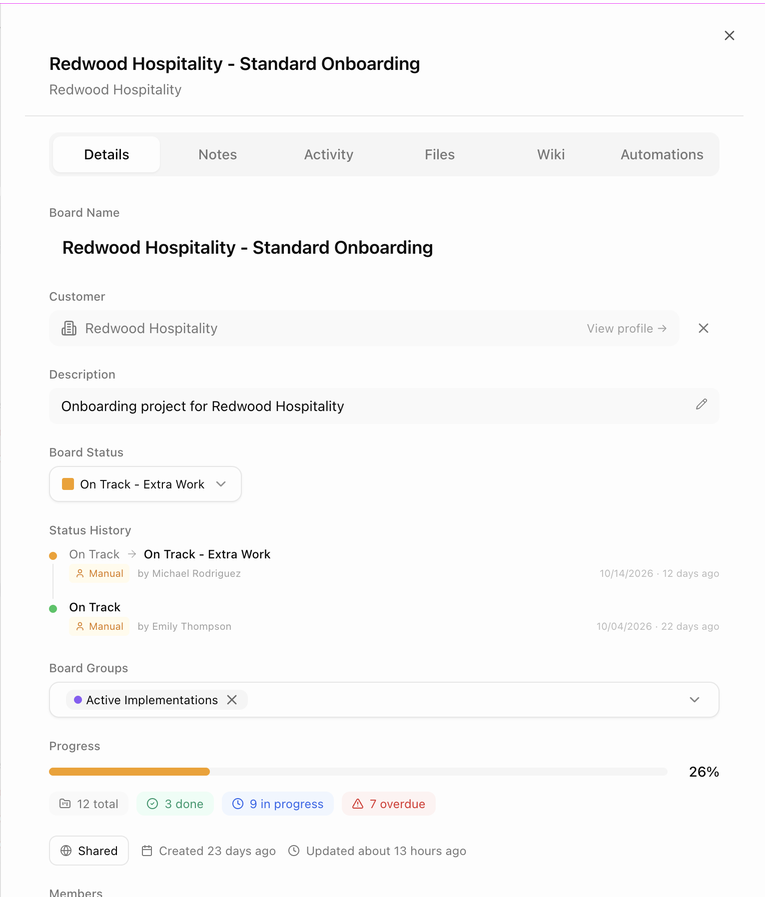
| Field | Notes |
|---|---|
| Board Name | Edit, then click Save (or Cancel). |
| Customer | The linked customer, with a View profile link. Click the × to remove the link and turn the board into an internal board; BlueHill asks you to confirm. |
| Description | Click the pencil (or Click to add a description... when empty) to edit it, then Save. |
| Board Status | Pick a status or Reset to Auto. See Automatic vs manual board status. |
| Status History | A timeline of every status the board has had, who set it and when. Statuses set by hand carry a Manual badge. |
| Board Groups | Add the board to one or more groups. See Board groups. |
| Progress | The percentage plus chips for total, done, in-progress and overdue tasks. |
| Visibility | A Shared or Private button. Click it to toggle. See Private or Shared. |
| Created / Updated | When the board was made and last changed. |
| Members | Who has access to the board. |
| Custom Fields | Values for your organization's board-level custom fields. |
Apart from the name and description, every change on this tab saves straight away.
Notes, Activity, Files and Wiki tabs
These tabs work the same way as the matching tabs on a task, but for the board as a whole:
- Notes holds internal notes about the board. Write one, optionally pick teammates to notify, and save. Use the search box to find older notes.
- Activity is the board's timeline. Filter it by type (Note, Internal Update, Call, Email, Meeting, Worked On, Imported) and use Log activity to record something that happened outside BlueHill.
- Files lists files attached to the board. Each file can carry comments tagged Customer or Team.
- Wiki lists wiki pages attached to the board. Pages attached here are visible on every task in the board.
See Task details, notes, activity and files for how notes, activity and files behave.
Members and assignees
- Board members can see and work on the board. Add or remove them with Manage Assignees in a board card's menu, or Edit Assignees (shown as Assign Members when the board has none) in the board header and on Detail-view rows.
- Task assignees are set per task. Assigning someone to a task does not add them as a board member, and a board member is not automatically assigned to every task. Use the bulk Assignee action to assign many tasks at once. See Act on several tasks at once.
- Adding a board member sends them an in-app notification and an email so they know where to find the board.
- The Assignment Queue can suggest who should take the board. See Fill members with the Assignment Queue.
Private or Shared
- A Shared board is visible to everyone in your organization.
- A Private board is visible only to its creator and its members.
Toggle it in the Visibility field on the Details tab, or choose it when creating the board.
Show customer fields on cards
Click the Custom fields gear in the Boards page header to open the Customer Fields panel. Pin the customer fields you want to see on board cards and rows (for example a plan tier or a go-live date). Pinned fields appear as chips on every customer board. You can also manage the field definitions from here.
Activity Report
Choose Activity Report from a board card's or row's ⋮ menu to see how active the board has been over time.
- Search within the report.
- Set the Frequency (Daily, Weekly, Biweekly, Monthly, Quarterly or Yearly) and the date Range.
- Toggle the heatmap to see activity by day.
Save a board as a template
If a board turned out well and you want to reuse its tasks, open the customer's Boards tab, open the board's ⋮ menu and choose Save as Template. Give the template a Template Name and Description. The board's tasks are copied into a new template under Operations → Board Templates. See Board templates.
Archive and restore a board
Archive a board when the work is finished or on indefinite hold and you want it out of the active list.
- Open the board's ⋮ menu on the Boards page or the customer's Boards tab and choose Archive.
- Read the confirmation. Boards still in progress will be marked Complete, and archived boards can be restored later from the Archived tab.
- Confirm.
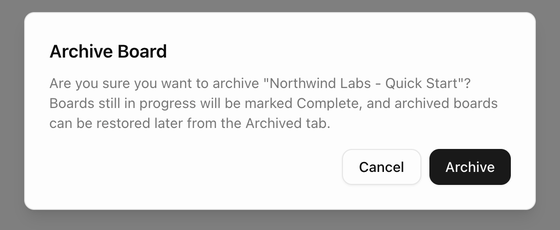
To bring a board back, switch the Boards page to Archived, then choose Restore from the board's menu (or click the Restore button on the board). The board returns to the active list with its tasks intact.
Automations can archive boards for you, for example a week after a board reaches Complete. See Automations.
Delete a board
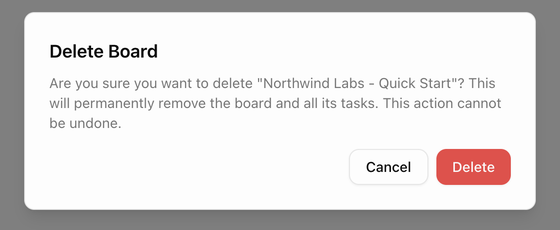
Deleting is permanent. It removes the board and all of its tasks, notes and files, and cannot be undone. If you only want it out of the way, archive it instead.
- Open the board's ⋮ menu and choose Delete.
- Read the confirmation and click Delete.
Next: Board templates.