
Create a board
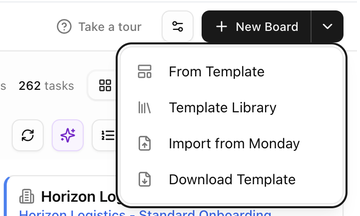
For anyone who starts a new customer onboarding or an internal project. There are four ways to create a board, all from the New Board button on Operations → Boards.
Before you start
Decide two things:
- Customer or internal? Link the board to a customer when the work is for that customer. The board then appears on the customer's Boards tab, and customer-owned tasks can be published to the customer portal. Leave the customer empty for internal work.
- Blank or from a template? A blank board starts with no tasks (or with tasks suggested by AI). A board from a template starts with that template's tasks already in place. For repeatable work such as onboarding, a template keeps every board consistent. See Board templates.
Create a blank board
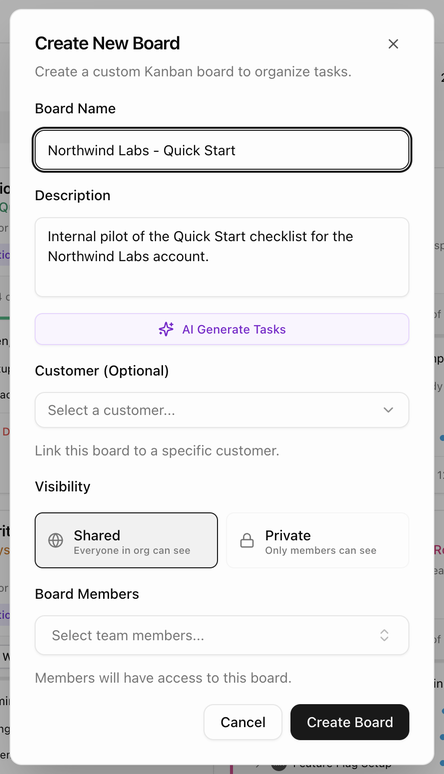
- Click New Board. The Create New Board dialog opens.
- Enter a Board Name (for example Q1 Onboarding) and an optional Description.
- Optional: click AI Generate Tasks to let BlueHill suggest tasks and subtasks from the name and description. Edit or remove any suggestion before you continue, or click Regenerate Tasks for a new set. If nothing can be generated, try a more descriptive name or description.
- Optional: choose a Customer to link the board to a customer record.
- Choose the Visibility: Shared (everyone in the organization can see the board) or Private (only board members can see it).
- Add Board Members. Members get access to the board.
- Click Create Board (or Create Board with N Tasks when AI tasks are included).
A customer board opens on the customer's Boards tab. An internal board opens on its own page.
Create a board from a template
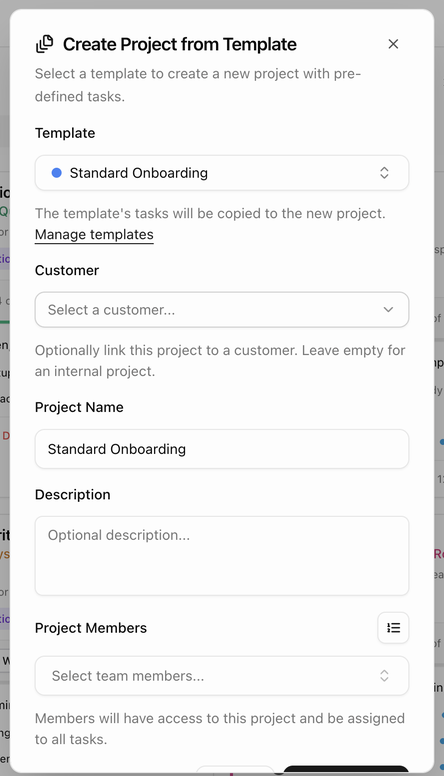
- Click the arrow next to New Board and choose From Template. The Create Project from Template dialog opens. (This dialog uses the word project; the result is a board like any other.)
- Choose a Template. Start typing to search. The template's tasks will be copied to the new board. The Manage templates link takes you to Board Templates if you need to change one first.
- Choose a Customer, or leave it empty for an internal board.
- The Project Name is filled in from the template name. Change it if you like, and add a Description.
- Add Project Members. They get access to the board and are assigned to all of its tasks. Click the Assignment Queue icon next to the field to get suggestions. See Fill members with the Assignment Queue.
- Click Create Project.
Start from the Template Library
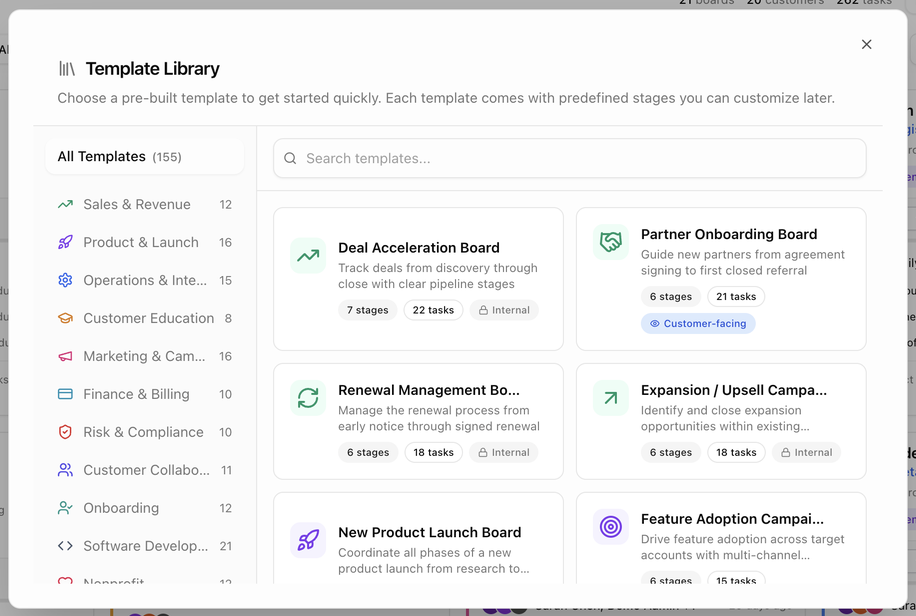
The Template Library holds more than 150 ready-made templates for common workflows, grouped by category: Sales & Revenue, Product & Launch, Operations & Internal, Customer Education, Marketing & Campaigns, Finance & Billing, Risk & Compliance, Customer Collaboration, Onboarding, Software Development, Nonprofit and Association. Each card shows how many stages and tasks the template contains and whether it is Internal or Customer-facing.
- Click the arrow next to New Board and choose Template Library.
- Browse by category or search, then pick a template.
- BlueHill saves a copy of it to your Board Templates, then opens the Create Project from Template dialog with that template selected.
- Finish the dialog as described above.
Import a board from Monday
If your team is moving from Monday.com:
- Click the arrow next to New Board and choose Import from Monday.
- Pick the Template the imported tasks should map to.
- Upload your Monday.com Export File.
- Match any custom fields and choose the customer the board belongs to.
- Start the import. The results screen reports boards created, tasks updated, notes imported, interactions and members assigned.
Fill members with the Assignment Queue
The Assignment Queue suggests who should take the next board. It is available from the Boards page toolbar and from the From Template dialog, and offers three methods:
- Least Busy suggests the team member with the fewest open tasks.
- Round Robin takes turns through the team.
- Template Match suggests people who usually work on boards from this template.
Download Template
Download Template in the New Board menu gives you a blank task spreadsheet. Fill it in and import it into an existing board with Import from Template on the board page, or with Import Tasks in a board card's menu. See Export and import tasks.
What to do next
- Add tasks and subtasks: Add and manage tasks.
- Add or change members: Members and assignees.
- Check which automations will run on the board: Automations.