
Activity, notes and follow-ups
For anyone who talks to customers and wants the whole team to know what was said, what was agreed and what happens next.
The Activity tab
Open a customer and choose Activity. The tab has three parts:
- The composer at the top, where you log a note, call, email or meeting.
- The feed below it: everything that has happened with the customer, newest first, grouped by day.
- The rail on the right with Follow-ups, Email logging and Pinned context cards.
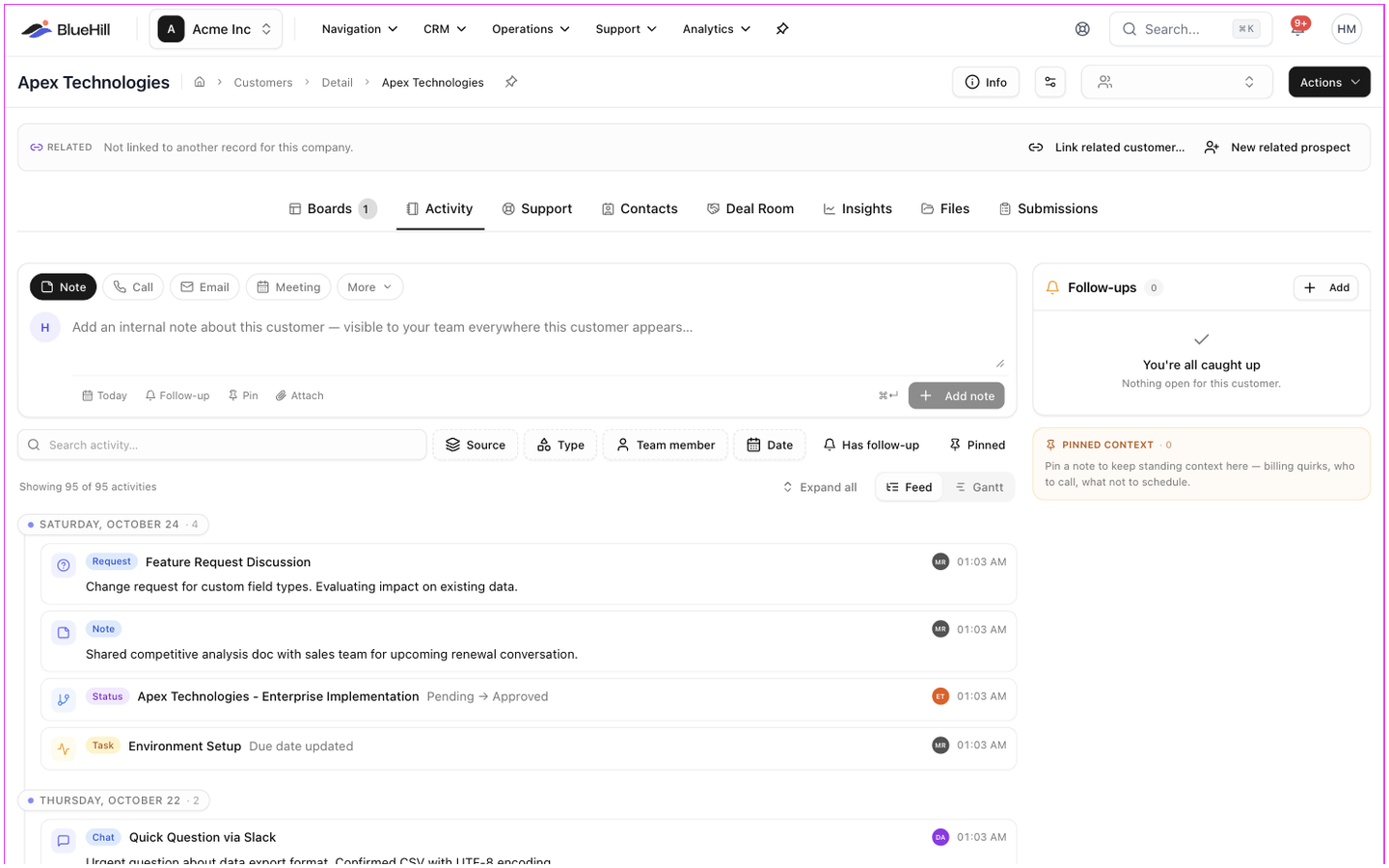
A Feed / Gantt switch at the top swaps the feed for a timeline of the customer's boards. BlueHill remembers which you used last.
Log a note, call, email or meeting
- Pick the type: Note, Call, Email or Meeting. More lists further types such as Training / Demo, Check-In, Customer Request, Issue / Escalation and Team Handoff.
- For anything but a note, give it a short title.
- Write what happened. Notes are internal and show everywhere the customer appears; they are never visible to the customer.
- Use the chips under the text:
- Today sets when it happened, if it was not today.
- Follow-up attaches a reminder. See Follow-ups.
- Pin keeps the entry in the Pinned context card.
- Attach adds up to 5 files.
- Click Add note or Log call (or press ⌘↵). A toast confirms Note added or Call logged.
Anything you have typed but not logged is kept as a draft, even if you leave the page.
Read the feed
Each entry shows a badge for what it is (Note, Call, Meeting, Status for a board status change, Task for a task change, Portal for something the customer did in the portal, Email · in or Email · out), its title, who logged it and when, and a follow-up chip if one is attached. Click an entry to expand it; Expand all / Collapse all work on the whole feed.
Narrow the feed with the toolbar above it:
- Search activity… looks through titles and text.
- Source limits it to Interactions, Emails · inbound, Emails · outbound, Status changes, Task activity or Portal activity, each with a count.
- Type and Team member filter by activity type and author.
- Date offers Last 7 days, Last 30 days and Last 90 days.
- Has follow-up and Pinned keep only entries with a follow-up, or pinned ones.
The feed shows the newest 200 entries; filter to reach older ones.
Edit or delete an entry
Hover an entry you logged to see its actions: Set follow-up (or Reschedule), Pin / Unpin, Edit and a bin icon. Deleting asks Delete this activity? and removes it, with any follow-up on it, everywhere the customer appears. Board status changes and other system entries cannot be edited.
Logged email
When a support brand has Email logging switched on, email between that brand and the customer appears in the feed as threads marked Email · in or Email · out, with the subject, the number of messages and a link to the ticket.
- Expand a thread to read it. Reply sends a short reply from the ticket's mailbox without leaving the page; for formatting or attachments, use Open in mailbox.
- Don't log removes a thread from this customer's timeline. The email stays in its ticket.
- The Email logging card in the rail pauses logging for this one customer: existing threads are hidden and new mail is not shown, while the brand's setting stays on. The Brand setting link opens the setting in Support settings.
Follow-ups
A follow-up is a dated reminder. It can sit on an activity, on a support ticket or on a contact, and all of them for a customer gather in the Follow-ups card on the right of the Activity tab, grouped into Overdue, Due today and Upcoming.
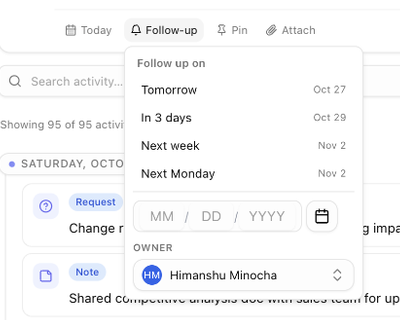
- Add one: click + Add in the card (or the Follow-up chip in the composer), type what needs following up, pick a date from the presets (Tomorrow, In 3 days, Next week, Next Monday) or the calendar, optionally choose an Owner, and click Add follow-up.
- Resolve one: click the circle at the left of the row. A toast offers Undo for 10 seconds. Resolved follow-ups are listed under Resolved · N, where Reopen brings one back.
- Postpone one: click the clock icon and pick a new date.
- Reassign one: click the owner avatar on the row.
- Edit the text: click it, change it, and click Save.
Follow-ups also show on the Customers page in the Follow-ups column, so the Follow-ups due view is a to-do list across every customer. If Resolve follow-ups when the customer replies is on in Support settings, a follow-up attached to a ticket closes itself when the customer answers.
Pinned context
Pin a note to keep standing context at the top of the rail: a billing quirk, who to call, what not to schedule. The Pinned context card lists pinned entries with an Unpin button on each.
Log from the Customers page
The Quick log column on CRM → Customers has Add note, Log call, Log email and Log meeting buttons on every row. Each opens the same composer in a small popover, with an Activity ↗ link to the full tab, so you can log a call without opening the customer. The buttons show how many of each type have been logged and light up when one was logged in the last 10 days.
The Log Activity dialog
Add note and Log activity in a customer's Actions menu open the Log Activity dialog, a fuller form for the same thing:
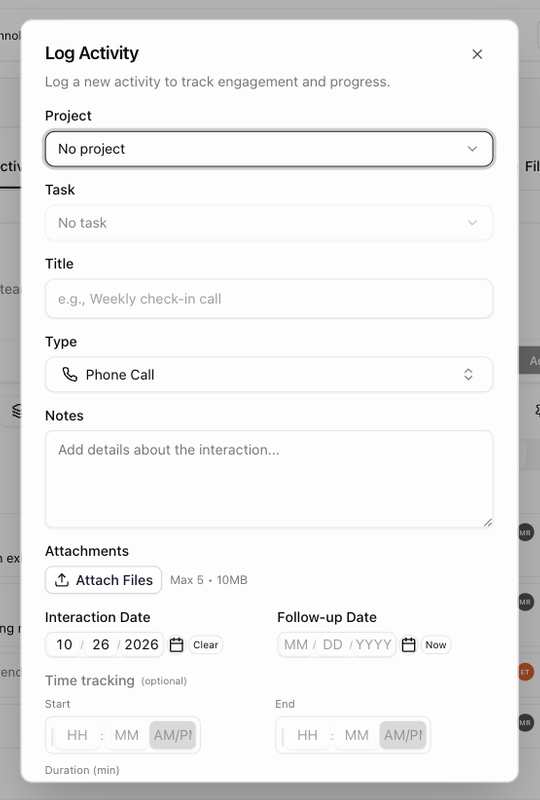
| Field | What it is for |
|---|---|
| Project and Task | Attach the activity to one of the customer's boards and, optionally, a task on it. |
| Title and Type | A short summary and the kind of activity. The type starts as Phone Call when you open the dialog from Log activity, and as a note from Add note. |
| Notes and Attachments | What happened, with files. |
| Notify Team Members | For a note on a task: teammates to email about it. |
| Interaction Date and Follow-up Date | When it happened (now, by default) and when to follow up. |
| Time tracking | Start, End and Duration in minutes, for time spent. |
Click Log Activity to save. Closing with unsaved changes asks Discard unsaved changes?.
Next: Customer health and insights.