
Create a customer or prospect
For anyone adding a new account or a new sales opportunity. Both start from the Create Customer button on CRM → Customers.
Before you start
Decide one thing: is this company already a customer, or are you still selling to it?
- Choose Customer for an active account. Billing, boards and portal access all apply from day one.
- Choose Prospect for a company you are still working. A prospect sits in a pipeline stage, can have an owner, an expected value and a close date, and converts to a customer with one click later. Contacts and support tickets attach to a prospect exactly as they do to a customer.
You can change your mind later: a customer can be marked as a prospect and a prospect converted to a customer at any time. See Prospects and the sales pipeline.
Create a customer
- On CRM → Customers, click Create Customer. (The arrow next to it offers the same New customer choice and New prospect.)
- Under General Information, leave Record type on Customer and enter the Company name. Add the main contact as Representative First Name, Representative Last Name and Representative Job Title, with the company's Email, Phone # and Website. Internal ID is for a reference number from another system. Notes are internal and never shown to the customer.
- Under Address, enter the Street, City, State and Zip Code used for billing and correspondence.
- Under Categorization, tick the categories the customer belongs to, or click Add Category to create one.
- Click Save in the Unsaved changes bar at the bottom of the page. The bar reads Saving, then Changes Saved, and you are returned to the Customers page.
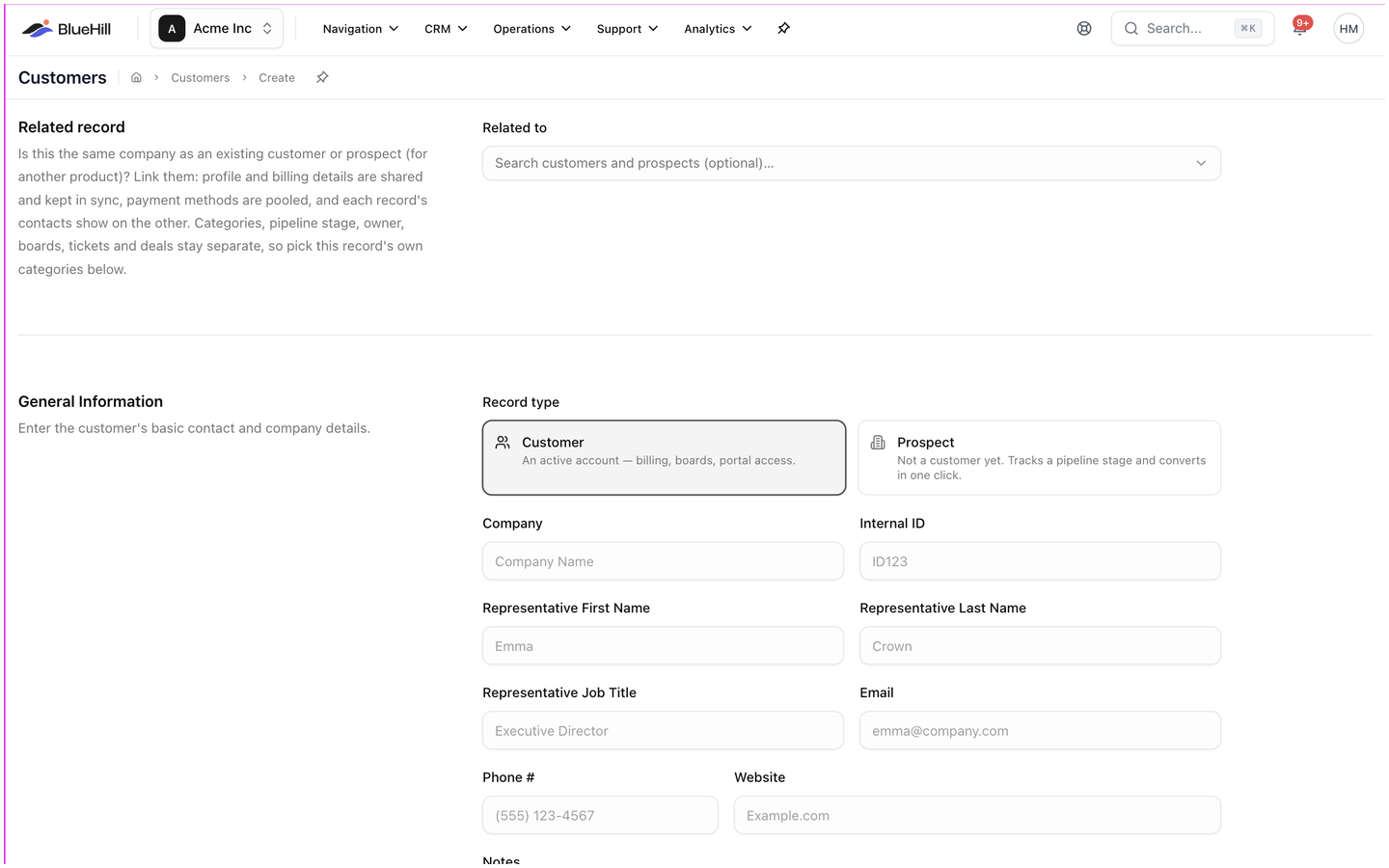
No field is compulsory, but a company name and an email address make the record far more useful: the email domain gives the company its logo, and the representative becomes the record's primary contact.
Create a prospect
- Click the arrow next to Create Customer and choose New prospect, or switch Record type to Prospect on the Create Customer page. The page title changes to New prospect.
- Fill in General Information and Address as for a customer.
- A Pipeline section appears. Pick the Stage, the Owner, the Expected value in dollars, the Expected close date and the Source (where the lead came from, for example Website form, Referral or Event / conference). Everything here is optional and can be changed later.
- Add categories and click Save. You are returned to the Customers page with the Prospects scope selected.
Create a prospect from the pipeline board
The fastest way to add a prospect is straight into a stage on the pipeline board:
- On CRM → Customers, choose Prospects, then Board.
- Click the + at the top of the stage column the prospect belongs in. The New prospect dialog opens with that stage chosen and you as the owner.
- Enter the Company or the person's First name and Last name (one or the other is required), plus their Job title, Email, Phone and Website. With an email address, the person is saved as the prospect's first contact; without one, only the name and phone are kept on the prospect itself.
- Optional: choose a Parent customer if the prospect is the same company as an existing record. See Related records.
- Adjust the Pipeline fields and click Create prospect.
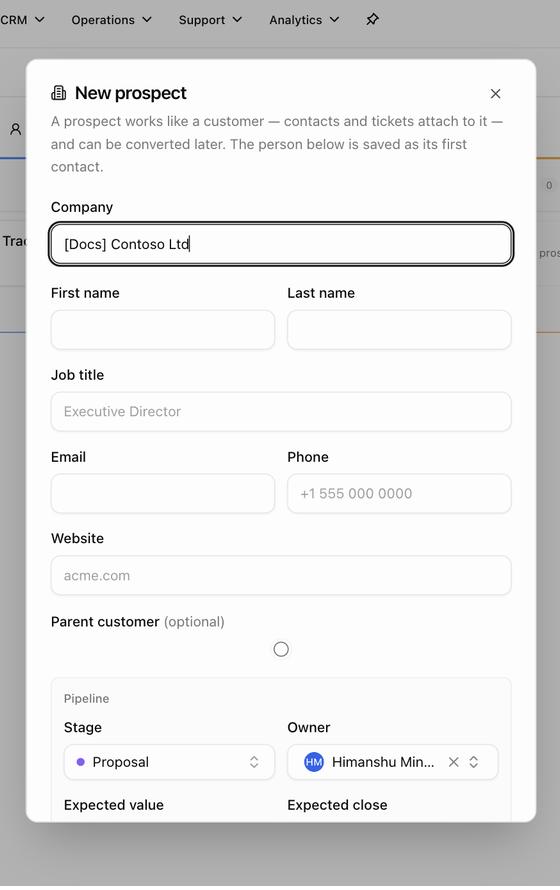
The same dialog opens from New related prospect on a customer's page.
Link the new record to an existing one
If the company already has a record (for example a customer for one product who is now a prospect for another), use the Related record section at the top of the Create Customer page:
- In Related to, search for the existing customer or prospect.
- Choose the Primary record: the existing record (recommended, its details are copied onto the new one) or This new record (what you enter overwrites the existing record's shared fields).
- Leave the Share boxes ticked to share Profile, Billing and Contacts between the two records, or untick what should stay separate.
Categories, pipeline stage, owner, boards, tickets and deals are never shared, so still pick the new record's own categories. See Related records and merging duplicates.
Other ways customers get created
- A support agent can create a prospect straight from a ticket, so a new company that writes in never falls through the cracks.
- Import from Freshdesk in Support settings can create a customer for each Freshdesk company it cannot match.
- There is no spreadsheet import for customers. Your BlueHill contact can arrange a bulk load if you are migrating a large list.
What to do next
- Add the people you deal with: Contacts and portal access.
- Start onboarding: create a board on the customer's Boards tab. See the Boards guides.
- Log the first call or note: Activity, notes and follow-ups.