
Work inside a customer record
For anyone who opens a customer to see what is going on with the account. The customer page gathers everything about one company.
Open a customer
- From CRM → Customers, click a company name or View → on its row.
- Press ⌘K (or Ctrl+K), type the company name and pick it.
- From a support ticket, a board or a deal room, follow the customer link in its side panel or header.
Once you are on a customer page, the customer switcher (the icon next to Actions) jumps to another customer without going back to the list. Start typing a name or company.
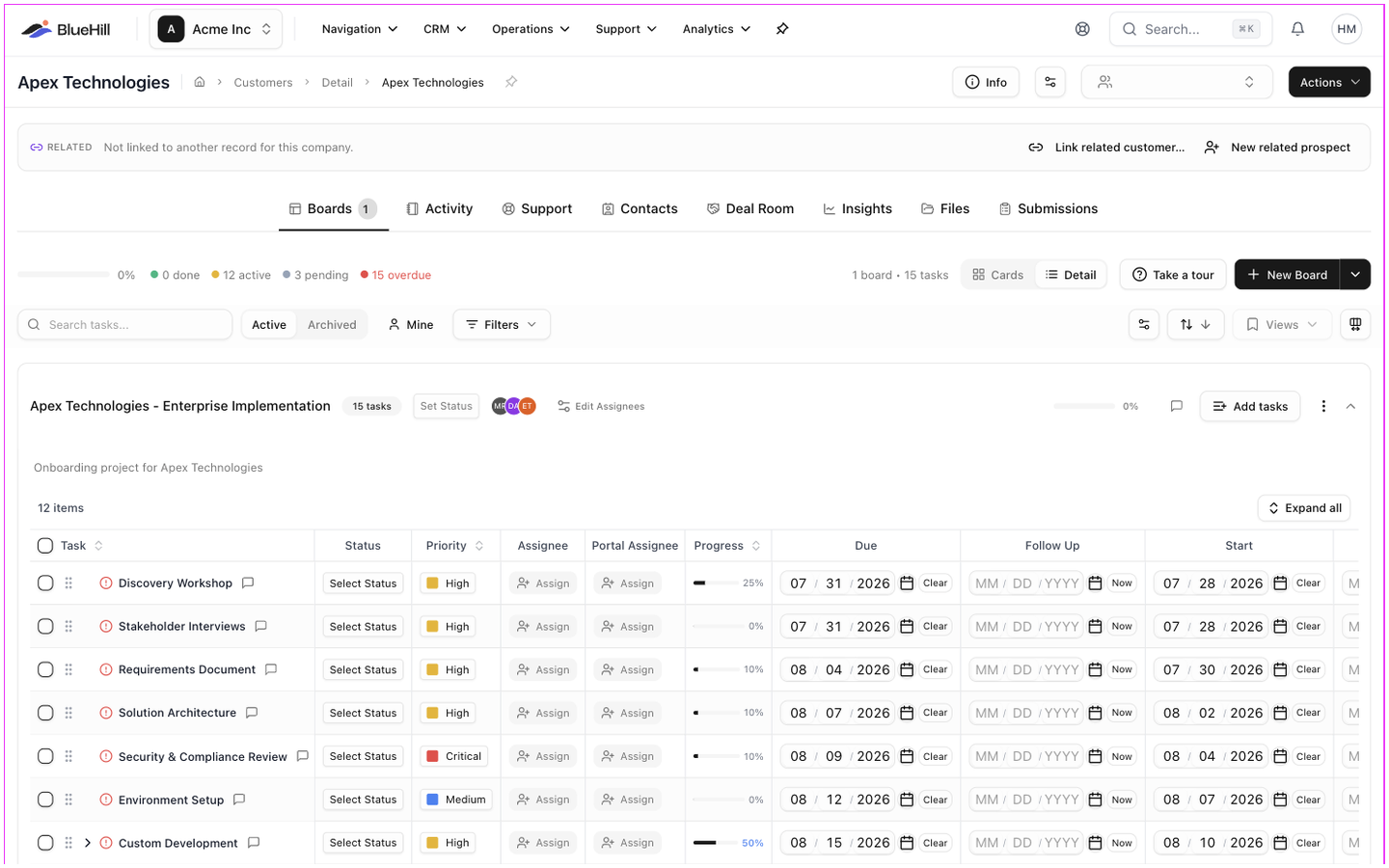
The header
From left to right, the header shows:
- The company name (or the representative's name when there is no company) and the breadcrumb Customers › Detail › name.
- Avatars of teammates viewing the record right now.
- The customer's time zone, for example Eastern Time (UTC-5).
- Badges for custom fields you have chosen to Show in header.
- Status pills when they apply: Archived, No automated emails, Prospect with its stage, and Primary or Linked for a record in a related group.
- Info, which opens the Customer Information popover.
- The Custom fields gear. See Custom fields.
- The customer switcher and the Actions button.
The Info popover
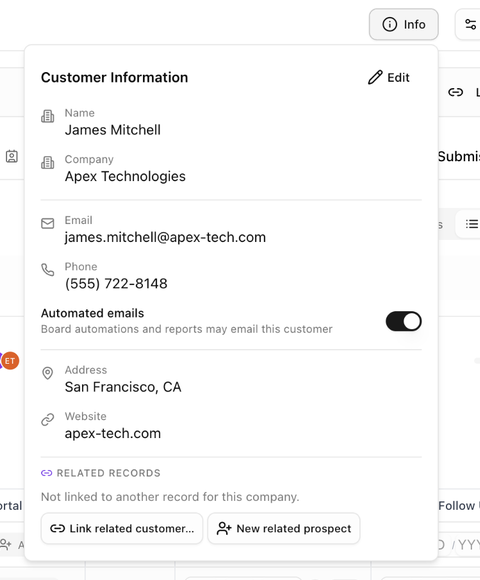
Info shows the record's essentials without leaving the tab you are on: Name, Company, Internal ID, Email, Phone, Address, Time Zone, Website and the custom fields you have not hidden. Edit opens the edit form. See Edit customer details and custom fields.
The popover also holds the Automated emails switch and a Related records section with Manage, Link related customer… and New related prospect.
The Actions menu
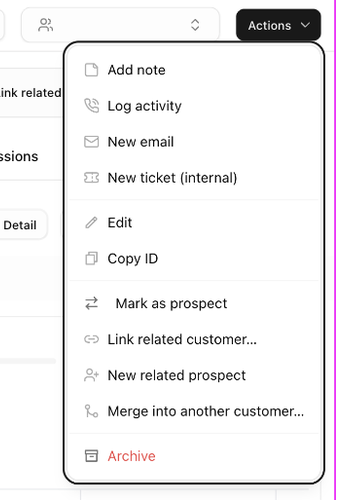
| Item | What it does |
|---|---|
| Add note | Opens the Log Activity dialog with the type set to a note. |
| Log activity | Opens the same dialog for a call, meeting or other interaction. See Activity, notes and follow-ups. |
| New email | Starts an email to the customer from your support inbox. |
| New ticket (internal) | Opens an internal ticket about the customer; nothing is emailed. |
| Edit | Opens the full edit page. |
| Copy ID | Copies the record's ID to the clipboard for use in other systems. |
| Convert to customer / Mark as prospect | Switches the record type. See Prospects and the sales pipeline. |
| Link related customer… | Links this record to another record for the same company. |
| New related prospect | Creates a prospect linked to this record. |
| Merge into another customer… | Merges this record into another one. See Related records and merging duplicates. |
| Archive / Restore | Takes the record out of the active list, or brings it back. |
The tabs
Which tabs you see depends on your permissions and on the features your workspace uses. The page opens on the first tab you can see, which is Boards in a workspace without billing.
| Tab | What it holds |
|---|---|
| Overview | Profile, plans, taxes, payment methods, metrics and transaction history, with the Billing Timeline on the right. Shown when your workspace bills through BlueHill and you have financial access. See Plans, payment methods and billing. |
| Boards | The customer's boards, with a count on the tab. |
| Activity | The timeline of notes, calls, meetings, logged emails and system events, plus follow-ups. See Activity, notes and follow-ups. |
| Support | The customer's support tickets, and who has portal access. |
| Contacts | The people at the company. See Contacts and portal access. |
| Deal Room | Quotes, agreements and pay links for the customer. |
| Insights | Health score, stalled-project alerts, an activity heatmap and project history. See Customer health and insights. |
| Files | Files uploaded by the customer or sent by your team. |
| Submissions | Forms the customer has filled in. |
Above the tabs you may also see a banner: a notice that the customer pays by check, a Possible duplicate hint, the pipeline strip on a prospect, or the Related row listing the other records in its group.
Boards tab
The Boards tab is the customer's own Boards page: a New Board button (with From Template in its menu), Active / Archived, Mine, filters, sort and the cards or detail layout. A customer's board always opens here, with the customer one click away. The Boards guides describe everything on it.
Support tab
The Support tab has two panes, Tickets and Portal access.
- Tickets lists the customer's support tickets with a summary (2 awaiting reply · 1 unassigned), a Drafts list of unsent emails to this customer, a search box, Open / All scopes and filters for status, priority, assignee, tag, category, SLA, brand, requester, channel and dates. New email starts a conversation with the customer; New ticket records something internal without sending an email. Click a ticket to open it in the inbox, or Preview to read it in a side panel.
- Portal access lists the people who can sign in to the customer portal for this company and the invitations you have sent. See Portal access.
Deal Room tab
Each deal room is a card showing its status, when it was sent, viewed and accepted, the one-time and recurring amounts, what has been paid, what is outstanding and the next due date. Open deal room goes to the deal room itself; New deal room starts one for this customer. The tab is shown to people with permission to view invoices.
Files tab
A folder tree of the customer's files. Filter by From (From customer or Sent by us), Upload files for the customer, or create a New folder. Files a customer uploads through a portal task land here too.
Submissions tab
Every form the customer has submitted, with Total Submissions and Forms Completed counts, a search by form name and the date of each submission. Open a submission to read the answers.
Archive and restore a customer
Archiving hides a record from the active list without deleting anything.
- Open the customer and choose Archive from the Actions menu. The record is archived straight away and an Archived badge appears in the header.
- To bring it back, open the record (search for it with ⌘K, or follow a link to it) and choose Restore.
There is no delete for a customer record. To fold a duplicate into another record, use Merge instead. See Merge duplicate records.
If you cannot open a record
- Customer not found means the record no longer exists, usually because it was merged into another record. Follow the link again; a merged record redirects to the record that was kept.
- Customer Access Restricted means your role does not include viewing customer details. Ask an administrator.
- Overview Access Restricted means the Overview tab needs billing access and admin or financial viewing permission; the other tabs still work.