
Edit customer details and custom fields
For anyone keeping a customer's details current: contact information, address, categories, the automated-emails switch and the custom fields your organization has added.
Two ways to edit
- Quick edit: click Info in the header, then Edit. The Edit Customer Information dialog covers the fields you change most.
- Full edit: choose Edit from the Actions menu. The edit page adds Notes, the prospect pipeline fields and custom-field values.
Neither form has required fields. Changes to a record in a related group also update the records that share those fields; the form tells you when that applies. See Related records.
The Edit Customer Information dialog
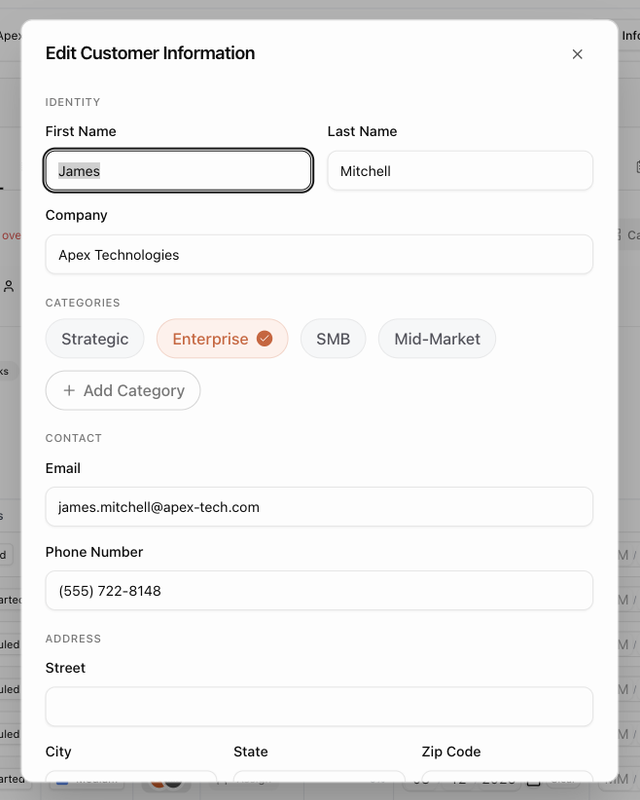
| Section | Fields |
|---|---|
| Identity | First Name, Last Name and Company. |
| Categories | Tick and untick categories, or create one. |
| Contact | Email and Phone Number. |
| Address | Street, City, State, Zip Code and Website. |
| Additional | Internal ID (a reference from another system) and Time Zone. Start typing a city or region to find the zone; the list is grouped by North America, South America, Europe, Asia & Pacific and Other. |
| Custom Fields | Values for your organization's customer fields, when any are defined. |
Click Save Changes to apply, or Cancel.
The edit page
The edit page mirrors the Create Customer page:
- General Information: first name, last name, Company, Internal ID, Email, Phone #, Website and Notes. Notes are internal and never shown to the customer.
- Address: Street, City, State and Zip Code.
- Pipeline (prospects only): Owner, Expected value, Expected close and Source. The stage itself is changed from the prospect's page or the pipeline board. See Move a prospect to another stage.
- Categorization: the customer's categories.
- Custom Fields: one input per field defined for your organization. Values are unique to this customer.
As soon as you change something, an Unsaved changes bar appears at the bottom with Reset and Save. Click Save; the bar reads Saving, then Changes Saved.
The record type (customer or prospect) is not on either form. Change it with Convert to customer or Mark as prospect instead.
Categories
Categories are the labels you filter and report by. On the customer page you can change them in three places: the Categories row of the Customer Information card on the Overview tab, the edit dialog, and the edit page. Pick from the existing categories or type a new name to create one.
Categories are never shared between related records. A prospect's page can show its parent customer's categories as dashed chips for context; to change those, open the parent.
Pause automated emails for a customer
Board automations and scheduled reports can email a customer, for example a reminder about an overdue onboarding task. To stop that for one customer without changing any automation:
- Click Info in the header.
- Switch Automated emails off. The description changes to Paused — board automations and reports skip this customer, and the header shows a No automated emails badge.
Switch it back on when the customer should receive automated email again. Email your team sends by hand is not affected.
Custom fields
Custom fields let your organization record things BlueHill does not have a field for, such as a contract renewal date, an account tier or a region. Definitions are shared by every customer; values are stored per customer.
Define a field
- Click the Custom fields gear in the header of the Customers page or a customer page, or open Customer Custom Fields on the Organization tab of Settings.
- Under Manage definitions, click Add Custom Field.
- Enter the Field name and choose the Type: Text, Number, Currency, Date, Dropdown (with a list of options), Checkbox, Long Text, Email or URL. Tick Required if every customer should have a value.
- Click Add Field.
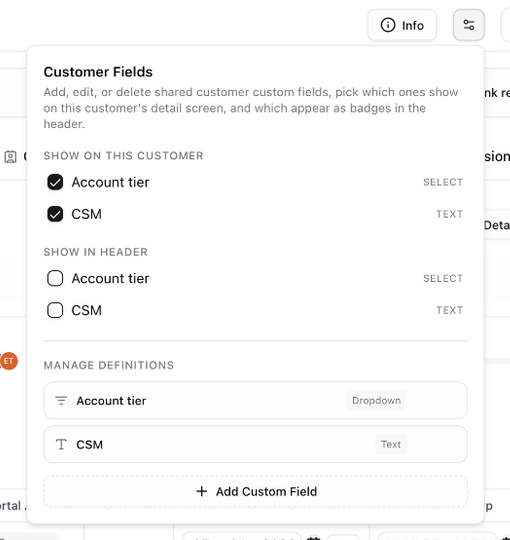
Existing fields can be renamed inline. Deleting a field removes its values from every customer and cannot be undone; BlueHill asks you to confirm.
Choose where a field shows
The same gear popover controls what you, personally, see:
- On the Customers page, Show as columns adds the ticked fields as table columns.
- On a customer page, Show on this customer decides which fields appear in the Info popover and the Overview tab's Custom Fields card (all are shown unless you untick them), and Show in header turns a field into a badge next to the customer's name.
These choices follow you across every customer; they do not change what teammates see.
Fill in a value
Enter values in the Custom Fields section of the edit dialog or the edit page. On the Customers page, custom-field columns show — when a value is empty and Yes / No for checkboxes.
Next: Contacts and portal access.