
Find, filter and organize customers
For anyone who needs to find one customer quickly, build a working list such as "my prospects closing this month", or do the same thing to many customers at once.
Search customers
Type in the Search box above the table. The search matches text in any column that is shown, so a company name, an email address, a phone number or a category name all work. Clear the box to see everything again.
To find a customer from anywhere in BlueHill, press ⌘K (or Ctrl+K) and type the name. Type c: before the name to search only customers.
Record type and Mine
- All, Customers and Prospects switch between record types. The Prospects option shows the count.
- Mine keeps only the records you own. It is the same as picking Me in the Owner filter.
Use the Filters panel
Click Filters to open the panel. It is arranged in three columns: Details, Pipeline and Insights. Pick values, and the table updates as you go. The footer shows 3 filters · 12 of 60 rows and has Clear all and Save as view buttons.
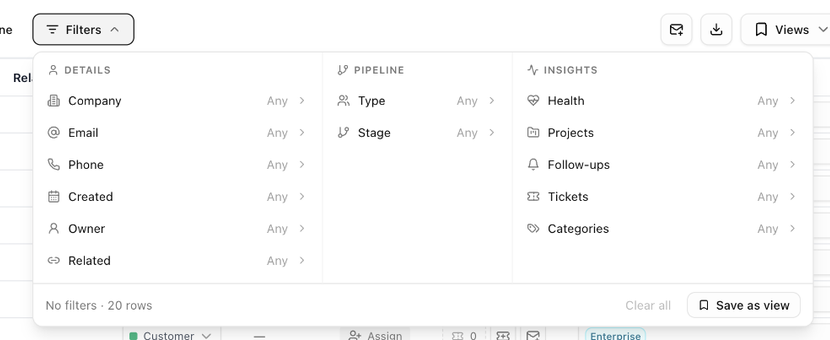
Details
| Filter | Options |
|---|---|
| Company, Email, Phone | Text with an operator: contains, equals, starts with, excludes, isn't or ends with. |
| Created | A date: on, between, after or before. |
| Owner | Me, Unassigned, or any team member. |
| Related | Primary of a group, Linked record or Standalone. |
Pipeline
| Filter | Options |
|---|---|
| Type | Customer or Prospect. |
| Stage | Your pipeline stages, for example Lead, Qualified, Proposal, Negotiation and Lost. |
Insights
| Filter | Options |
|---|---|
| Health | Excellent (85+), Healthy (70-84), Good (55-69), Fair (40-54), Needs Attention (25-39), At Risk (10-24) or Critical (<10). |
| Projects | Has Projects, Has Active Projects, Has Completed Projects, All Projects Completed or No Projects. |
| Follow-ups | Overdue, Due today, Tomorrow, This week, Next 7 days, Has any, No follow-ups, or a date range. |
| Tickets | Has open tickets or No open tickets. |
| Categories | Pick one or more categories. Switch Any (has at least one of them) to All (has every one of them). |
Applied filters appear as chips next to the Filters button. Click the × on a chip to remove that filter, or the × after the chips to clear everything. A filter is only offered while its column is visible, so turn on a column first if you cannot find its filter.
Sort the table
Click a column header to sort by it, click again to reverse, and a third time to clear the sort. Hold Shift and click another header to sort by up to three columns. Owner and custom-field columns cannot be sorted.
Choose columns
The Columns button (the grid icon at the right of the toolbar) opens a list of every column. Tick to show or hide, and drag (or press Alt+↑ / Alt+↓) to reorder. Show all and Reset are at the bottom. The View → column is always first.
To add a custom field as a column, use the Custom fields gear in the header and tick the field under Show as columns.
Save and reuse a view
A view is a saved combination of filters, sort, columns, record type and the Table / Board, Lost, Condensed and Parent categories settings.
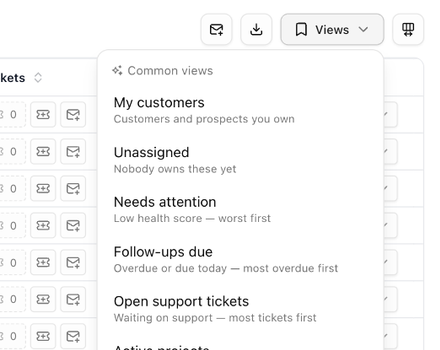
Common views are built in and cannot be changed:
| View | What it shows |
|---|---|
| My customers | Customers and prospects you own. |
| Unassigned | Records nobody owns yet. |
| Needs attention | Records with a low health score, worst first. |
| Follow-ups due | Overdue or due today, most overdue first. |
| Open support tickets | Customers waiting on support, most tickets first. |
| Active projects | Customers with a board in progress. |
| Prospect pipeline | Prospects by stage, with their value and close date. |
| Recently added | Newest records first. |
To save your own:
- Set up the filters, sort and columns you want.
- Open Views and choose Save current view... (or Save as view in the Filters panel). The Save View dialog opens.
- Enter a View Name. Tick Share with organization to let teammates use it, and Set as my default view to open the Customers page in this view.
- Click Save View.
Saved views are listed under My Views and Shared Views; a star marks your default. With a saved view active, the menu offers Update "name", Rename view..., Set as default and Delete view. Arrange views... changes the order of the list, and Reset to default returns to the plain table. Only the owner of a shared view, or an admin, can update or rename it.
Categories
Categories are labels you give customers so you can filter and group them, for example Enterprise, Nonprofit or Partner. They are the same records that Analytics calls segments.
- To add one, click the Categories cell on a row, search or type a new name, and pick it. Changes apply straight away.
- The same picker is on the customer page and in the create and edit forms.
- Filter by category in the Filters panel, or export the column with the CSV.
- A support brand can add a category automatically to every customer its agents link to a ticket. See Customer category on the brand's Identity tab in Support settings.
Act on several customers at once

- Tick the checkbox on each row (or click the row). A bar appears showing N selected, with Select all N to include every matching row, even on other pages. Ticks stay when you change pages.
- Choose an action: Draft email, Convert to customer or Merge.
- Press Esc or click Reset to clear the selection.
- Convert to customer turns the ticked prospects into customers. See Convert a prospect to a customer.
- Merge combines the ticked records into one. See Merge duplicate records.
- Draft email is described below.
Draft one email to many customers
Available when your workspace uses support ticketing. It writes one email and saves it as a separate draft ticket for each customer. Nothing is sent until you open the drafts in the support inbox and send them.
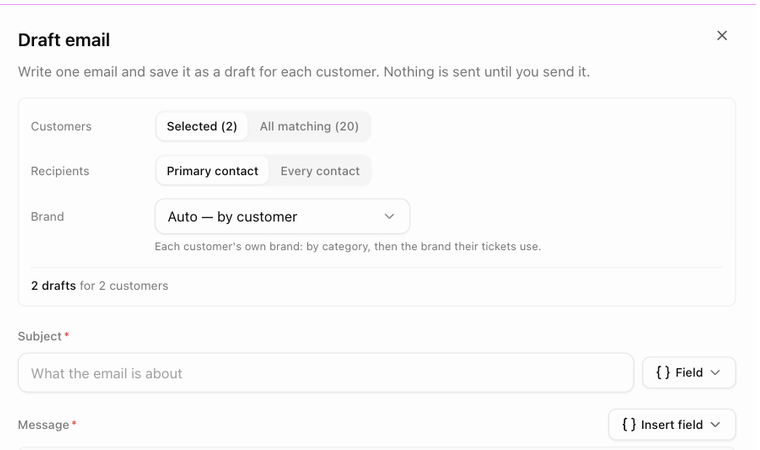
- Tick the customers, then choose Draft email from the selection bar, or click the envelope icon in the toolbar to use every customer that matches the current search and filters.
- On the Compose step, choose the Customers (Selected or All matching), the Recipients (Primary contact or Every contact) and the Brand the email comes from (Auto — by customer uses each customer's own brand). A summary line tells you how many drafts will be created and how many customers cannot be emailed.
- Enter a Subject and write the Message. Use the Field menu to insert {first_name}, {full_name} or {customer_name}; they are filled in for each recipient. Each brand shows its From sender and its signature. You can attach up to 5 files (10 MB in total) and insert canned responses.
- Set the ticket details the drafts should carry: Assignee (you, by default), Ticket status once sent, Priority and Tags.
- Click Review. The Review step lists how many drafts each brand will get, who will be skipped and why (no contact or email address, a bounced or blocked address, or someone on your Do-Not-Mail list), and lets you step through a preview for each recipient. If a merge field is empty for some recipients, type a fallback word for it here.
- Click Create N drafts. A progress bar shows Saving drafts… 3 of 12. Keep the tab open; Stop keeps what has been saved so far and lets you Resume later.
- When it finishes, click Review and send to open the inbox's Drafts view, or Close.
Closing the panel before any draft is saved asks Discard this email?.
Export to CSV
The Export CSV icon in the toolbar downloads customers.csv containing the rows that match your current search and filters and the columns that are currently shown. Use the Prospects scope and the Prospect pipeline view, for example, to export your pipeline.