
The Customers page at a glance
For anyone opening CRM → Customers for the first time. This guide walks through the layout so the rest of the guides make sense.
Open the Customers page
- In the top navigation, open CRM and choose Customers. (If Customers is your home page, it is already open when you sign in.)
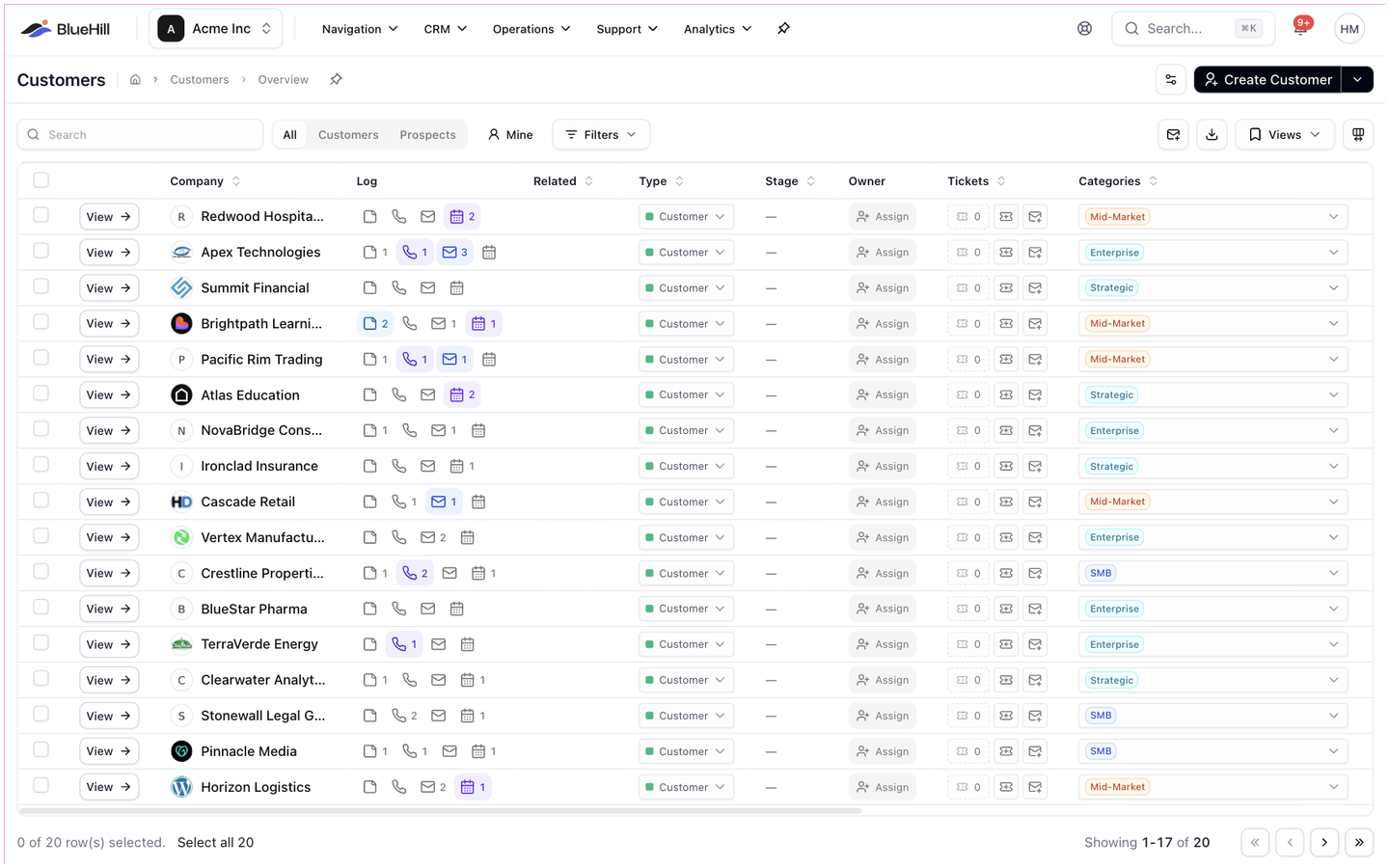
- The page lists every customer and prospect in your workspace in one table, 25 rows at a time. By default you see All record types with the default columns.
The header
From left to right, the header holds:
- The page title and breadcrumb (Customers › Overview).
- The Custom fields button (gear icon). It chooses which customer custom fields appear as columns, and lets you manage the field definitions. See Custom fields.
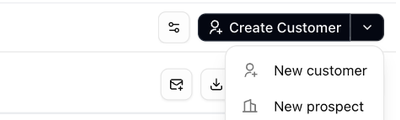
- Create Customer. Click the button to open the Create Customer page. Click the arrow next to it for New customer or New prospect. See Create a customer or prospect.
The toolbar
- The Search box matches text in any visible column.
- The record type switch: All, Customers or Prospects. The Prospects option shows how many prospects there are.
- Mine shows only records you own.
- Condensed and Parent categories appear once you have related records. See Related records on the Customers page.
- In the Prospects scope only: a Table / Board switch, a Lost toggle and a Stages button. See Prospects and the sales pipeline.
- Filters, with applied filters shown as chips next to it.
- The Draft email icon (an envelope), which writes one draft email per customer shown. See Draft one email to many customers.
- The Export CSV icon (a download arrow), which downloads the rows and columns you are looking at.
- Views, and the Columns button (grid icon) at the far right. See Find, filter and organize customers.
The table
Each row is one customer or prospect. Click View → at the left of a row, or the company name, to open the record. Clicking anywhere else on the row ticks its checkbox; see Act on several customers at once.
| Column | Shows |
|---|---|
| Company | The company name with a logo worked out from its email domain. Sample records carry an Example badge. |
| Quick log | Four small buttons: Add note, Log call, Log email and Log meeting. Each shows how many of that kind you have logged, and lights up when one was logged in the last 10 days. See Log from the Customers page. |
| Related | +N related on the primary record of a related group, or the primary's name on a linked record. On a record that stands alone the column looks empty until you point at the row, when a dashed Related button appears. |
| Type | Customer or Prospect. Click it to convert a prospect or mark a customer as a prospect. |
| Stage | A prospect's pipeline stage, or Set stage when it has none. A customer that was converted shows Converted. |
| Owner | The team member responsible for the record, or Assign. Click it to change the owner. |
| Open tickets | How many support tickets are open for the customer, with shortcuts to start a New ticket or a New email. Shown when your workspace uses support ticketing. |
| Categories | The customer's categories as coloured chips, or a dashed + Category. Click to add or remove categories. |
| Health | A coloured dot and the health score. Hover for the breakdown. See Customer health and insights. |
| Projects | How many boards the customer has and their average progress, for example 3 (64%). |
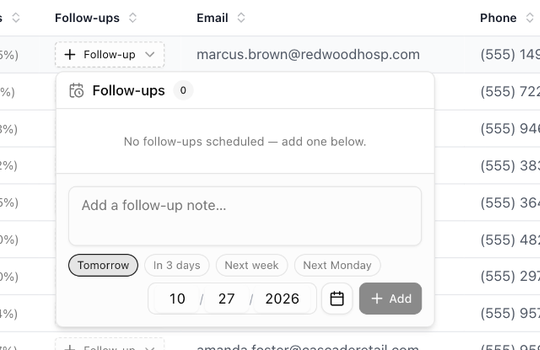
| Follow-ups | Open follow-ups, with a count of overdue ones. Click to see, resolve, postpone or add follow-ups. |
| Email, Phone | The record's main contact details. |
| Created | When the record was added. |
| Hidden by default | Expected value, Expected close, Source and Converted (prospect fields), plus ID, First Name, Last Name, Street, City, State, Zip and Internal ID. Turn them on with Columns. |
| Custom fields | One column per custom field you have chosen to show. |

The insight cells
Four cells on each row are small pop-ups rather than plain values:
- Health. Hover to see the Customer Health card: the level, the score out of 100, whether it is Improving, Stable or Declining, and bars for Engagement, Projects and Support. A record with no score yet shows --.
- Projects. Hover to see each board with its x/y tasks and progress, and the totals for Completed, In Progress and Not Started.
- Follow-ups. Click to open the list of open follow-ups. Each one shows when it is due (Overdue by 3 days, Due today, Due in 5 days), who added it and any ticket it belongs to. Resolve closes it, the clock icon postpones it, and the box at the bottom adds a new one.
- Categories. Click to open a search-or-create list. Ticking and unticking applies immediately.
Paging and counts
The bottom of the table shows Showing 1-25 of 60 with first, previous, next and last buttons. Once you tick a row the left side reads 1 of 60 row(s) selected with Select all 60 and Clear links. The page size starts at 25 and grows to fit your screen.
Mobile
On a phone-width screen the same list is shown as cards, with the same search, type switch and filters. The BlueHill mobile app has its own Customers tab with the list, the pipeline board and the customer pages.