
Plans, payment methods and billing
For finance and account staff in workspaces that bill customers through BlueHill. Covers the customer's Overview tab: profile, plans, taxes, payment methods, charges and transaction history.
Who sees the Overview tab
The Overview tab appears when your workspace has billing switched on and your role includes financial access. Everyone else starts on the Boards tab and sees Overview Access Restricted if they open the tab directly. The pricing plans themselves are managed under Financial → Pricing, and trials under Financial → Trials.
Customer Information
The first card repeats the record's profile: Customer ID, Internal ID, Company, Categories, Name, Email, Phone #, Address, Website, Time Zone and Default Payment Method. Each text value has a copy button, and Edit opens the edit dialog. See Edit customer details and custom fields.
Payment History
A chart of monthly payments, Monthly sales · first month to last month, with tiles for Total revenue, Avg / active month, Months active and Last month. A new customer shows No payment history available.
Plans
The Plans table lists what the customer subscribes to:
| Column | Shows |
|---|---|
| Plan Name | The pricing plan or custom line item. |
| Trial | The trial attached to the plan, if any. |
| Amount and Discount | What the customer pays and any discount applied. |
| Active? | Active, Ongoing, One-Time or Expired. |
| Start Date and End Date | The subscription period. Ongoing means no end date. |
| Cadence | Monthly, Yearly or One-Time. |
The pencil on a row opens the plan's own page; the bin removes the plan from the customer straight away, so check before you click. Edit All makes the name, amount, discount, cadence, dates and memo editable in place; save with the Unsaved changes bar.
Add plans
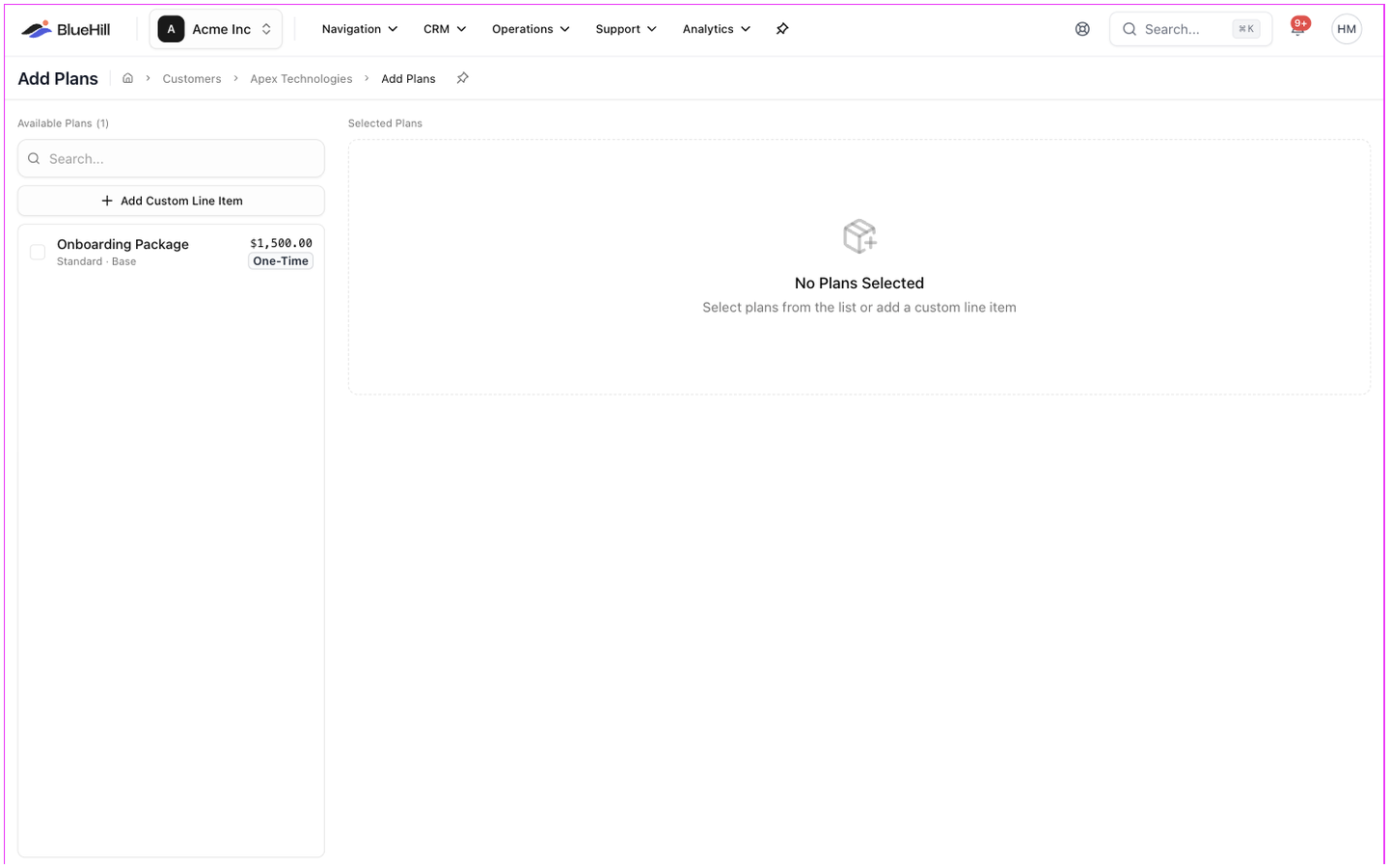
- Click Add Plans. The Add Plans page opens with Available Plans on the left and Selected Plans on the right.
- Search or scroll the available plans and click each one to select it.
- For each selected plan, set the Start Date, an optional End Date, adjust the Amount, tick Pro Rate to charge only the remainder of the first period, and pick a Trial if one applies.
- For something not on your price list, click Add Custom Line Item and give it a Name (Setup Fee, Consulting), an Amount, a Cadence (One-Time, Monthly or Yearly) and dates.
- Save. You are returned to the customer.
Edit a plan
Open a plan with the pencil in the Plans table. The page is headed Edit Subscription:
- Plan Details: the plan's ID and name (fixed), its Amount, Discount and Billing Cadence (Monthly, Yearly or Once).
- Model Information: the pricing model, for reference.
- Trial Information: the Trial, whether it Should Trial Recur, and Pro Rate.
- Subscription Period: Start Date, End Date and Bill Up Front.
- Additional Information: an internal Memo.
Save with the Unsaved changes bar.
Taxes
The Taxes card shows the customer's tax position: Total Amount, Tax Enabled, Tax Exempt and Last Updated, with the rates that apply to its address (Zip Code, State, City, County, Additional and Total).
Payment Methods
- Add Payment Method opens Create Payment Method to save a card or bank account.
- Enable Pay By Check marks the customer as paying by check. From then on the button reads Pay By Check Enabled and a banner at the top of the page reminds everyone that charges will not be billed to the customer's card automatically.
- Deleting a saved method asks Delete this payment method?. If the method is shared with a related record, the dialog says so; it is removed there too.
The Default Payment Method row of the Customer Information card shows which method charges use, for example **** 1234, Check or No payment method.
Billing Timeline and charges
The right-hand column of the Overview tab is the Billing Timeline: every charge due or taken for this customer, newest first, within the chosen date range (the last 30 days by default; use Pick a date range to widen it).
Each entry shows the amount, the date, Paid or Pending, its line items and Due date, and the buttons that apply:
- Charge on a pending entry takes the payment now with the customer's default method. The arrow next to it lets you Choose Processor (for example Stripe or Intelligent Routing). The charge is made as soon as you click, without a further confirmation, and a toast reports Successful Charge or the error.
- View on a paid entry opens the transaction. Recharge charges it again, for example after a failed payment was resolved.
When the customer has deal rooms, an All billing / Deal rooms switch separates ordinary charges from Deal room billing, which is invoiced and charged by the deal room itself. Exclude deal rooms hides deal-room entries from the combined view.
Metrics
The Metrics card records numbers you track per customer, such as seats or locations. Pick a metric with Select Metric, enter the Metric Value and click Save. The metric definitions come from Financial → Metrics.
Transaction History
The last card lists every transaction for the customer with its date, amount, status and method. Open a transaction for its details and receipt.