
Customer health and insights
For account managers who want to know which customers need attention before the customer tells them. Explains the health score and the Insights tab.
The health score
Every customer has a health score from 0 to 100. It appears in the Health column of the Customers page and on the customer's Insights tab.
| Level | Score |
|---|---|
| Excellent | 85 and above |
| Healthy | 70 to 84 |
| Good | 55 to 69 |
| Fair | 40 to 54 |
| Needs Attention | 25 to 39 |
| At Risk | 10 to 24 |
| Critical | below 10 |
The levels are fixed; there is nothing to configure. The Health filter and the Needs attention view on the Customers page use the same bands. A record whose score has not been calculated yet shows --.
How the score is worked out
The score combines two things:
- Engagement: how recently and how often your team has logged activity with the customer (notes, calls, meetings, logged email). A customer nobody has spoken to in weeks drifts down.
- Projects: how the customer's boards are going: progress, overdue tasks and stalled work.
Projects carry most of the weight for an established customer with boards. A customer with no boards is scored mainly on engagement, and a brand-new account is given some leeway while onboarding gets going. Support activity is shown in the breakdown but does not change the score.
The practical reading: a low score means either nobody has talked to the customer lately, or its onboarding has stalled, or both. Logging a call or clearing overdue tasks moves it.
Read the health card
Hover the Health cell on the Customers page, or open the Customer Health card on the Insights tab, to see:
- The level and the score /100.
- The trend: Improving, Stable or Declining, with the change over the last 7 days.
- A Health Breakdown with bars for Engagement, Project Health and Support.
- On the Insights tab, a Health Score Trend chart and Last calculated. The refresh icon recalculates now; Log Activity jumps straight to logging something.
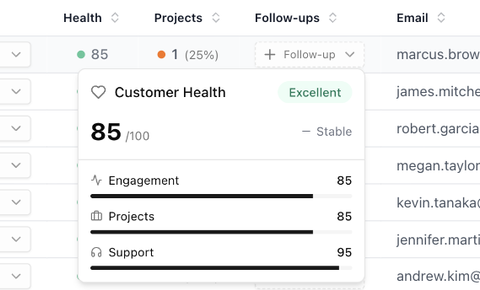
When a customer drops to a low level, the card shows Attention Needed. Click Acknowledge once you have looked into it, so the alert stops appearing for the team.
The Insights tab
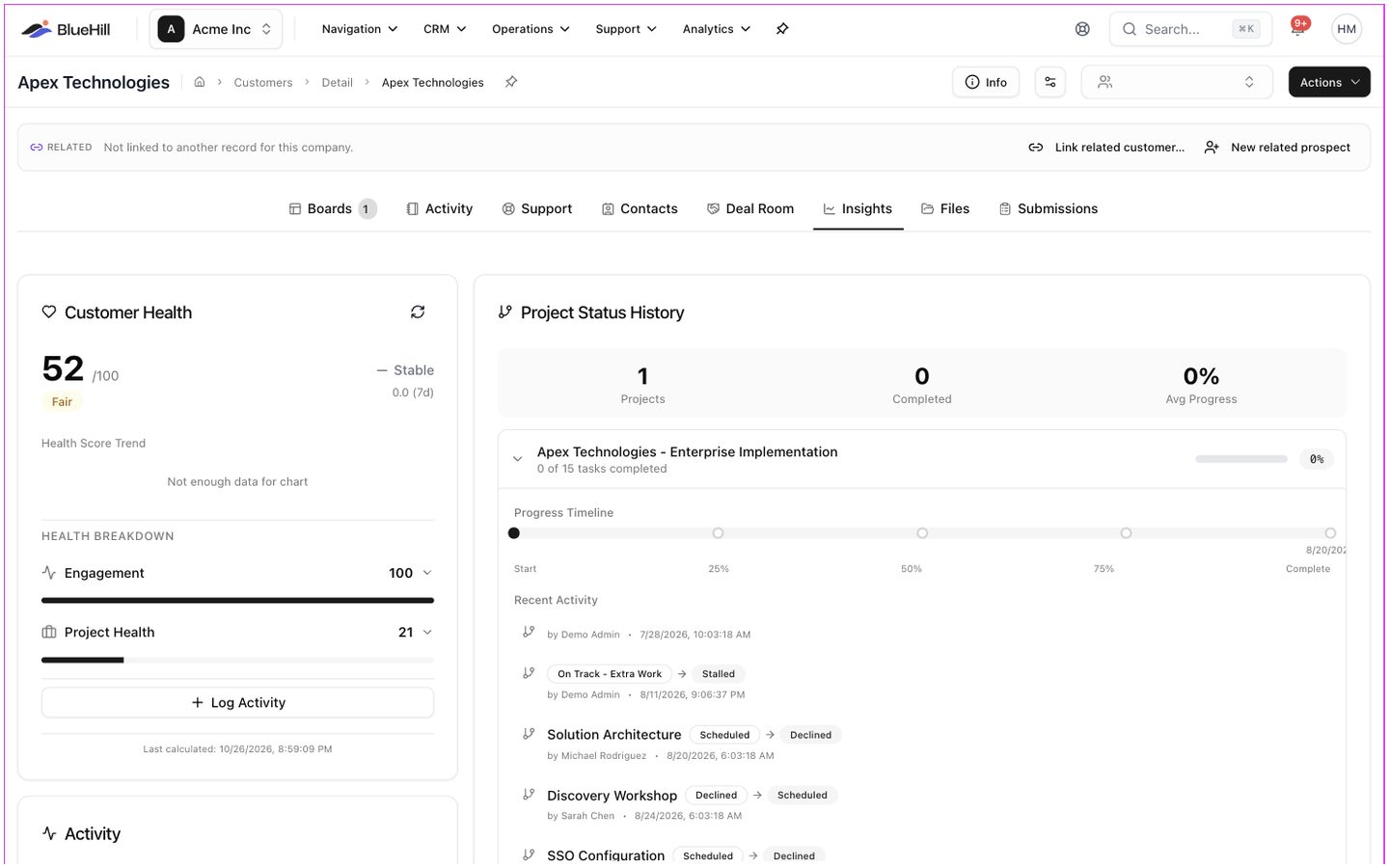
Open a customer and choose Insights. The Customer Health card sits on the left, Project Status History on the right, and the Activity heatmap below them.
Stalled Projects appears at the top only when one of the customer's boards needs attention. Each alert is graded Needs Attention, Stalled or Critical and shows how many days the board has been inactive, how many tasks are overdue or blocked, and its progress. Below the numbers is a short summary with Suggested next steps. Acknowledge marks that you have seen it; the × resolves it.
Customer Health is the card described above. Opening the Insights tab calculates the score if it has not been calculated yet.
Activity is a heatmap of the last 6 months: one square per day, darker for days with more logged activity. Hover a square for the count.
Project Status History lists each of the customer's boards with x of y tasks completed and its progress, under a summary of Projects, Completed and Avg Progress. Expand a board to see its Progress Timeline from start to completion and its Recent Activity.
The Projects column
The Projects column on the Customers page is the same information in one cell: the number of boards and their average progress, with a dot that is green when progress is high and grey when nothing has started. Hover it for each board's x/y tasks and the counts of Completed, In Progress and Not Started boards. A board counts as completed when every task is done.
Put insights to work
- Open the Needs attention view every morning to see the customers whose score fell, worst first.
- Combine the Projects filter (Has Active Projects) with Follow-ups (No follow-ups) to find onboarding customers nobody has scheduled time with.
- Sort by Health to plan check-in calls, and log each call so the engagement part of the score recovers.