
Contacts and portal access
For anyone who keeps track of the people at a customer, and for anyone who invites those people to the customer portal.
The Contacts tab
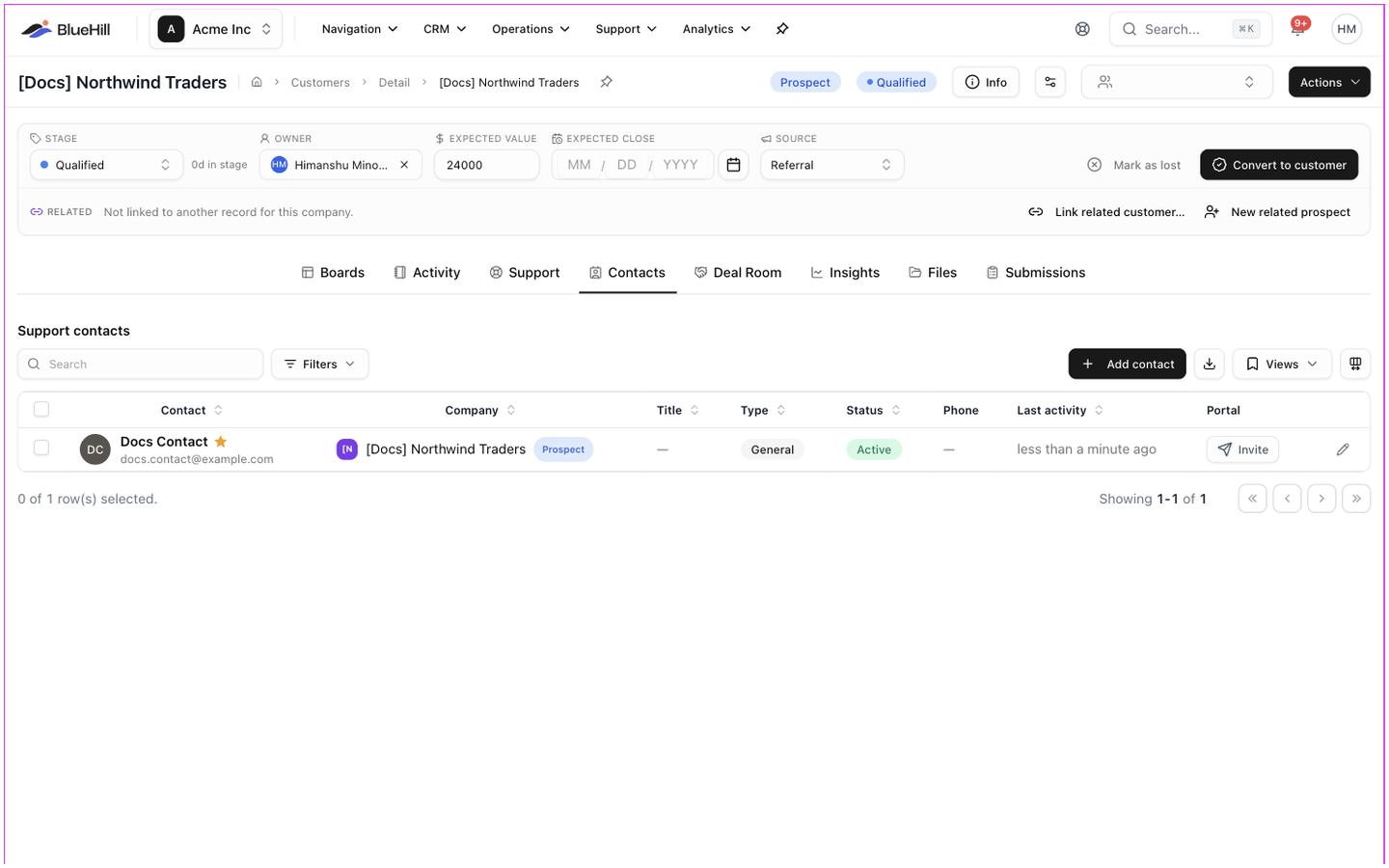
Open a customer and choose Contacts. The tab is headed Support contacts and lists everyone at the company.
| Column | Shows |
|---|---|
| Contact | The person's name and email address. An amber star marks the primary contact. A contact that belongs to a related record shows via name. |
| Company | The customer the contact belongs to. |
| Title | Their job title. |
| Type | General, Billing, Technical, Executive, Support, Sales, Legal or Other. |
| Status | Active or Inactive. |
| Phone | Their phone number. |
| Last activity | When you last logged something with this person. |
| Portal | Whether they can sign in to the customer portal. See Portal access. |
Filter the list by Type and by Primary / Not Primary. Click a row, or its pencil icon, to edit the contact.
Every contact across all customers is also listed on Support → Contacts, where the Company column links back to the customer.
Add a contact
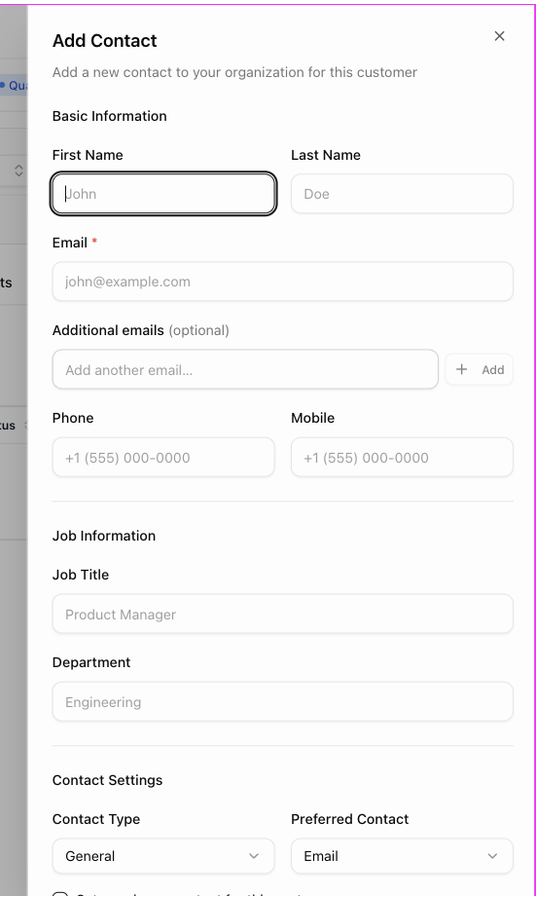
- On the Contacts tab, click Add contact. The Add Contact panel slides in.
- Under Basic Information, enter the First Name, Last Name and Email (the only required field), plus any Additional emails, Phone and Mobile.
- Under Job Information, enter the Job Title and Department.
- Under Contact Settings, choose the Contact Type and Preferred Contact method. Tick Set as primary contact for this customer if this is the main person you deal with, and Opted in to receive email communications if they have agreed to receive email from you.
- Under Additional Information, add a LinkedIn URL and Notes. If your organization has defined custom fields for contacts, they appear under Custom Fields.
- Click Create Contact.
The representative you enter when creating a customer becomes its first contact automatically. A prospect created from the pipeline board with an email address gets that person as its first contact too.
The primary contact
The primary contact is who BlueHill emails on the customer's behalf: the Primary contact option when drafting email to many customers, and the default recipient when you start a new email from the customer. Each customer has one. To change it, edit the contact that should be primary and tick Set as primary contact for this customer.
Edit, merge or delete contacts
- Click a contact to open Edit Contact, the same form as above.
- Tick several contacts to use the selection bar: Edit changes a field on all of them, Merge combines duplicates into one contact, Invite to portal sends portal invitations, and Delete removes them after you confirm Delete N contact(s)?. Deleting cannot be undone.
Portal access
The customer portal is where your customers see their own onboarding tasks and support tickets. A contact needs a portal account to sign in.
Invite a contact
- On the Contacts tab, find the contact. The Portal column shows Not invited, with an Invite button if you are an owner, admin or manager.
- Click Invite. BlueHill asks Invite name to the customer portal? and explains that it will email the contact a link to create their account, which expires in 7 days.
- Click Send invite.
To invite several people at once, tick them and choose Invite to portal from the selection bar.
What the Portal column shows
| Value | Meaning |
|---|---|
| Not invited | No invitation has been sent. |
| Invited | An invitation is out. Use the menu to Resend invite or Revoke invite. |
| Invite expired | The link is older than 7 days. Click Re-invite. |
| Has access | The person has a portal account and can sign in. |
| Deactivated | The person's portal account has been switched off. |
| Team member | The person is a member of your own team, not a portal user. |
Revoking asks Revoke portal invite?; the link stops working and you can invite the person again later.
The Portal access pane
The customer's Support tab has a Portal access pane that shows the same information from the account side: the portal users linked to this customer, and Customer Portal Invites with each invitation's status (Pending, Accepted, Declined, Expired or Revoked). Invite Portal User here sends an invitation to any email address, with a Role, without first creating a contact.
Across all customers, Support → Portal users lists every portal account with its Access level (Full portal, Support tickets or Onboarding & tasks) and pending invites, and lets you deactivate accounts.
What the customer sees in the portal
After accepting the invitation (Join Acme Inc, then Accept Invite) the person signs in with an emailed code or a password. In the portal they see:
- Home: a welcome message and the onboarding tasks you have published to the portal, grouped by project, with Open and Completed tabs. Form, acknowledgement and upload tasks are completed right there.
- Tickets: their company's support tickets, and a New support ticket form.
- My Profile: their name, phone number and time zone.
The portal carries your help center's branding. Self sign-up, under the Help center section of Support settings, lets people from allowed email domains create their own portal accounts without an invitation.