
Knowledge base analytics
For anyone who wants to know whether the help center is working: what visitors read, what they search for and cannot find, how helpful the articles are, and what the AI assistant is asked.
Open the analytics
- Analytics → Knowledge base in the main navigation, or Analytics in the wiki sidebar toolkit, opens the Knowledge base analytics page.
- Support → Support settings → KB analytics shows a short Knowledge base impact summary (deflection rate, article views, self-serve tickets, articles resolved via) with a link to the full page.
- Each live article's details rail carries a Help center · 30 days block. See The details rail.
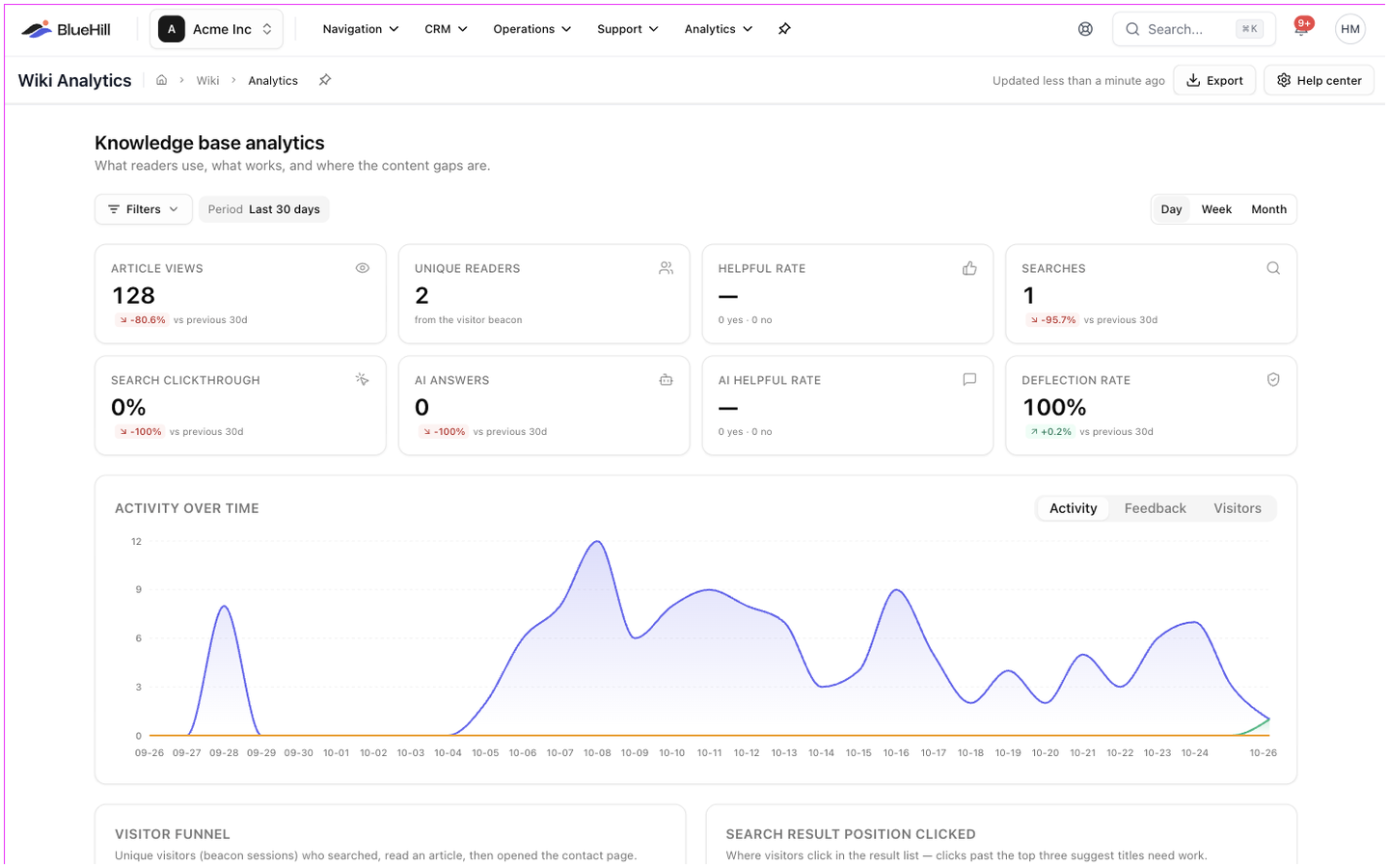
Filters
The filter bar at the top applies to the whole page and is kept in the address, so you can share a filtered view.
| Filter | Options |
|---|---|
| Period | Last 7 days, Last 30 days (default), Last 90 days, Last 12 months, This month, Last month or a custom range. |
| Content | Site, Knowledge base, Category, Status and Tag. |
| Traffic | Page type (Home, Category, Article, Search, Contact), Search source (search box or contact-form deflection) and AI answer (answered or unanswered). |
A day / week / month toggle sets the granularity of the charts. Content filters scope the article-keyed numbers (views, readers, votes, search clicks, agent links, resolved tickets and AI citations); searches, AI questions and the funnel are always site-wide.
Until the help center has received visits, the page shows No help-center activity yet with buttons for the help center settings and the wiki.
The numbers at the top
| Card | What it counts |
|---|---|
| Article views | Article reads, with the number of AI-agent fetches below. |
| Unique readers | Distinct visitor sessions. |
| Helpful rate | Yes votes as a share of all votes, with the counts. |
| Searches | Searches made, with how many found nothing. |
| Search clickthrough | Searches that led to a result click. |
| AI answers | Questions asked, with the share that were answered. |
| AI chat messages | Messages in Ask AI chats, with the share answered and the number of conversations. Shown once chat has been used. |
| AI helpful rate or Self-serve tickets | Ratings of AI answers once there are some; otherwise tickets opened from the portal. |
| Deflection rate | Views compared with self-serve tickets, with how many tickets credit an article. |
Each card compares with the previous period. A Since date badge marks a metric that is only recorded from that date onward.
Panels
- Activity over time charts views, searches, AI answers and chat messages, with Feedback and Visitors tabs.
- Visitor funnel: visitors who searched, read an article, then opened the contact page.
- Search result position clicked: clicks past the top three suggest titles need work.
- Breakdowns by knowledge base, category, page type, source, device, browser and country.
- Top searches, each with the average number of results, clicks and clickthrough rate.
- Searches with no results: the content gaps.
- Traffic sources: external referrers.
- Busiest hours: views and searches by weekday and hour in your local time.
The article scorecard
Article scorecard lists every article with activity. Search it, sort any column, and page through it with Rows per page.
| Column | Meaning |
|---|---|
| Views | Article reads. |
| Uniques | Distinct visitor sessions. |
| Helpful | Share of helpful votes. Shown in red below 50%. |
| Search clicks | Opened from a search result. |
| AI fetches | The markdown version fetched by AI agents and crawlers. |
| Agent links | Times agents linked the article into tickets. |
| Resolved via | Tickets marked resolved with this article. |
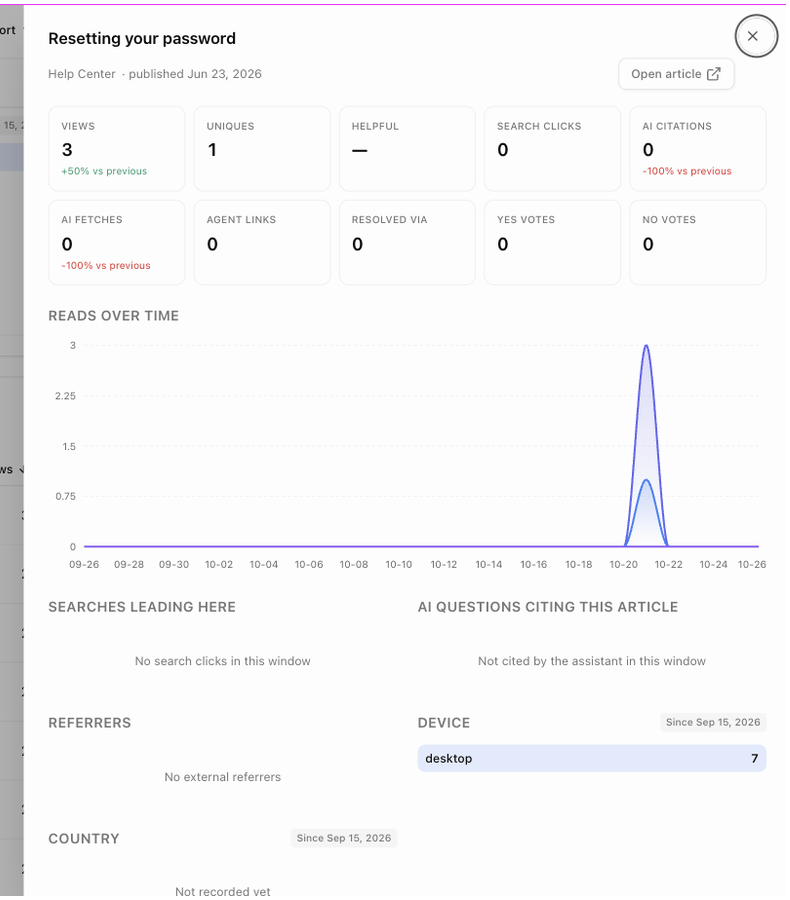
Click a row to open the article's drawer: Open article, the mini numbers with their change against the previous period, Reads over time, Feedback over time, Searches leading here, AI questions citing this article, Referrers and the breakdowns.
AI assistant
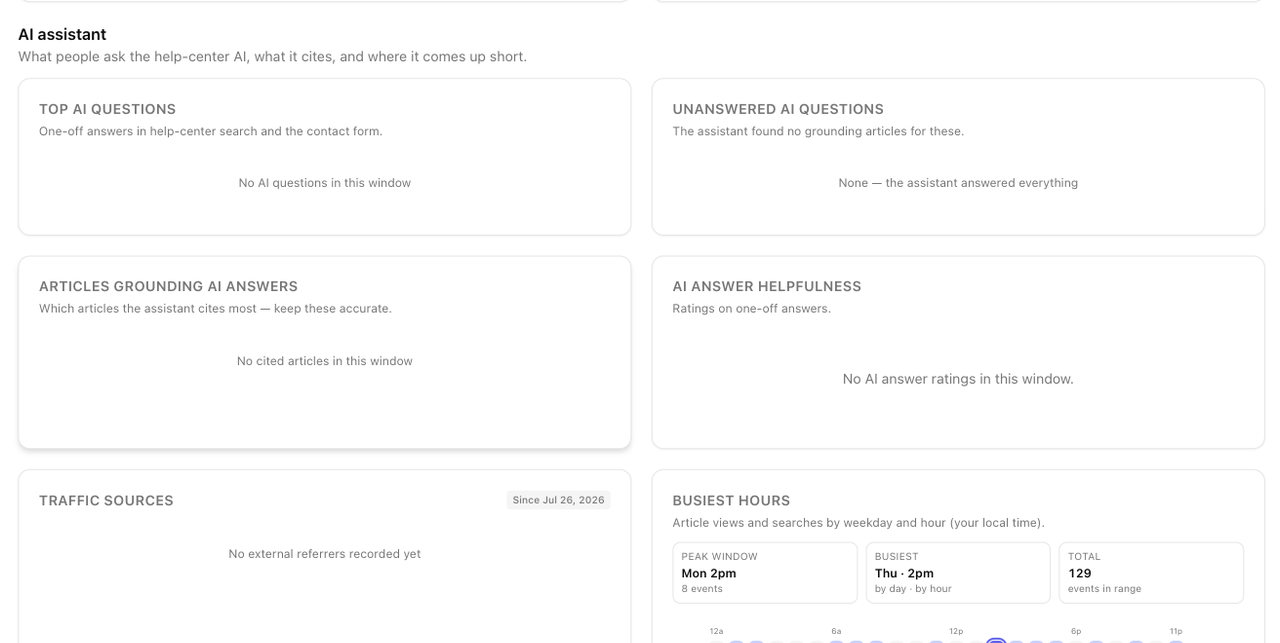
The AI assistant section shows what people ask the help-center AI and where it falls short:
- Top AI questions and Unanswered AI questions.
- Articles grounding AI answers, by number of citations.
- AI answer helpfulness, from the ratings under answers.
- Once chat has been used, a Both / Search answers / Chat switch, Chats by topic (each conversation counted under the category of the article it cited most) and Chat at a glance.
- Chat conversations: the list of Ask AI conversations with the person, topic, number of answers, how many were not grounded in an article and the rating. Click one to read the transcript. Only admins can see this list and open transcripts; conversations a customer deleted are not shown.
Export
Export in the page header downloads a CSV for the current filters: Article scorecard (top 500), Searches + content gaps, AI questions or Breakdowns. The Help center button next to it opens the help center settings.
Next: FAQ and troubleshooting.