
Search engines, SEO health and search appearance
For the admin who wants customers to find articles through Google, Bing and AI assistants, and for writers who want to word an article's search listing themselves. Nothing here is required: titles, descriptions, the sitemap and structured data are generated for you.
Search & AI visibility
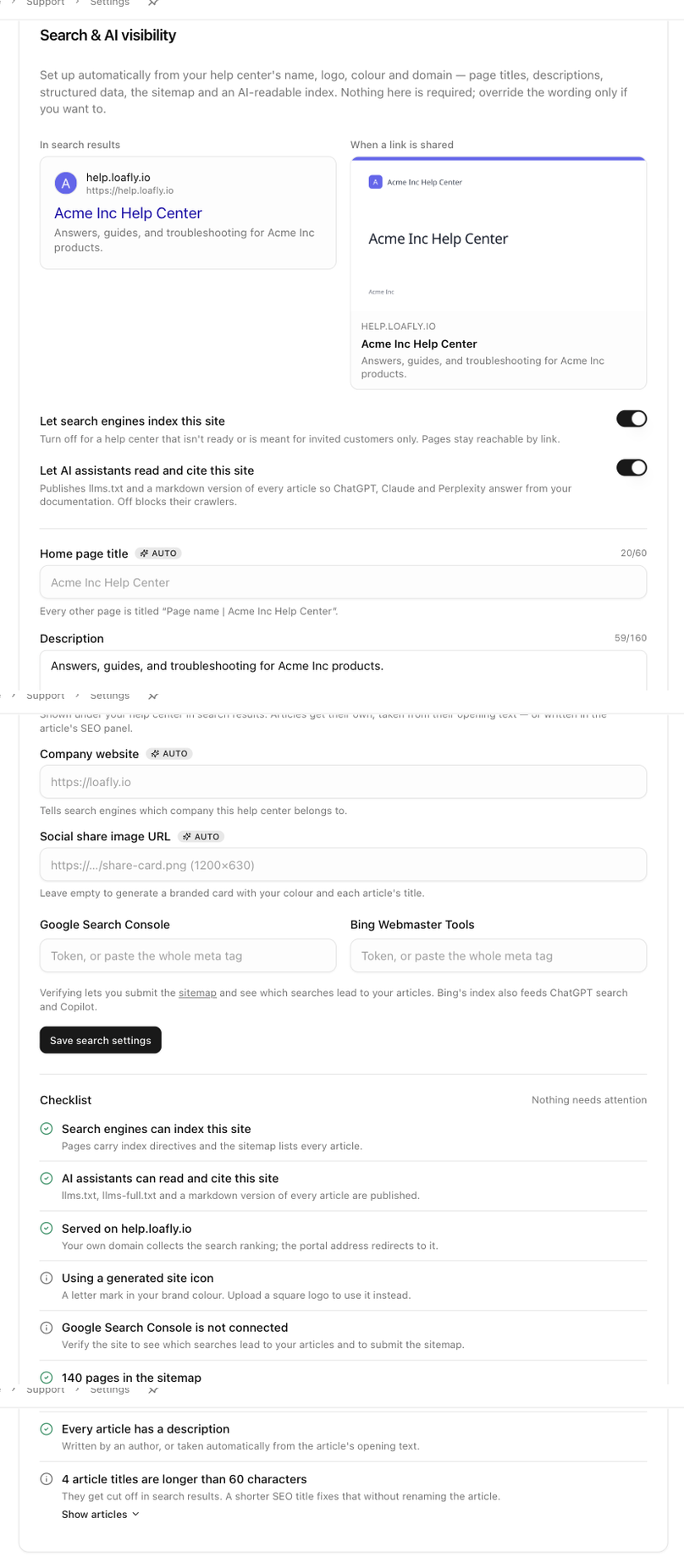
Open Support → Support settings → Help center, pick the site, and scroll to Search & AI visibility. Two previews show how the home page appears In search results and When a link is shared.
Two switches, saved immediately:
- Let search engines index this site is on by default. Turn it off for a help center that is not ready or is meant for invited customers only; pages stay reachable by link. Turning it off asks you to confirm, because pages already in search results drop out over the following days and can take weeks to regain their ranking.
- Let AI assistants read and cite this site publishes a machine-readable index and a markdown version of every article so assistants such as ChatGPT, Claude and Perplexity answer from your documentation. Off blocks their crawlers.
The fields below are overrides. A field left empty shows AUTO and uses the generated value.
| Field | What it does |
|---|---|
| Home page title | The browser tab and search-result title of the home page. Every other page is titled Page name | Help center name. Keep it under 60 characters. |
| Description | The line under the home page in search results. Articles get their own, taken from their opening text or written in the article's SEO panel. Keep it under 160 characters. |
| Company website | Tells search engines which company the help center belongs to. |
| Social share image URL | A 1200×630 image for shared links. Leave it empty to generate a branded card with your colour and each article's title. |
| Google Search Console / Bing Webmaster Tools | Paste the verification token or the whole meta tag. Verifying lets you submit the sitemap and see which searches lead to your articles. |
Click Save search settings.
The Checklist under the card summarizes the same checks as the SEO health page: Nothing needs attention or N to look at.
SEO health
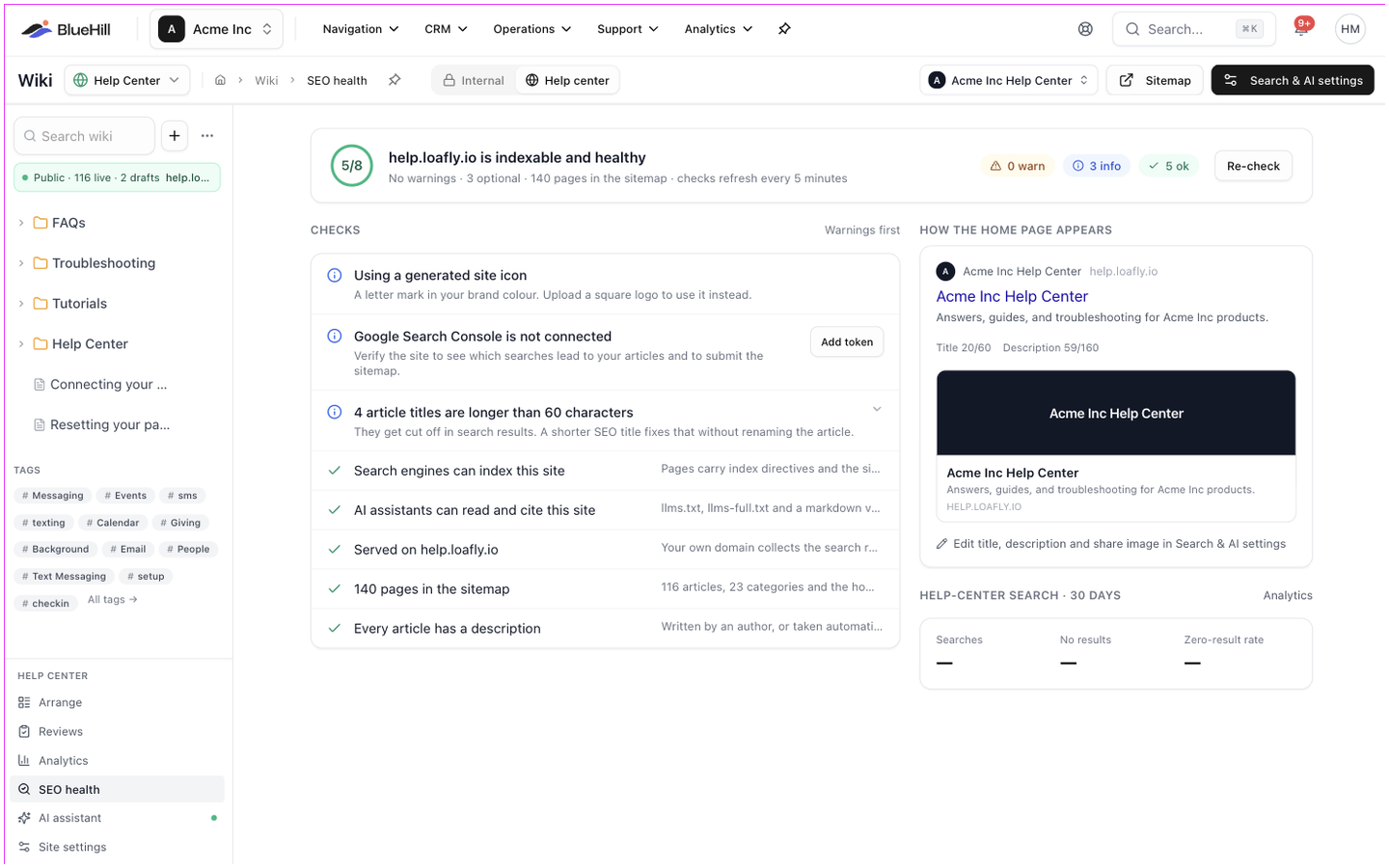
SEO health in the wiki sidebar toolkit opens a report for the site. The header has the site switcher, Sitemap (opens the generated sitemap) and Search & AI settings.
The summary card scores the checks (for example 5/8), tells you whether the site is indexable and healthy, how many warnings cost traffic today, how many pages the sitemap lists, and when the checks last ran; they refresh every five minutes, or click Re-check.
Checks lists warnings first. Each check is warn (costs traffic), info (optional) or ok:
| Check | Warning or note |
|---|---|
| Indexing | Search indexing is turned off. |
| AI access | AI assistants are blocked. |
| Domain | No custom domain yet. |
| Icon | Using a generated site icon until a square logo is set. |
| Search Console | Google Search Console is not connected, with Add token. |
| Sitemap | No published articles yet, otherwise the number of pages in the sitemap. |
| Descriptions | N articles have no usable description, with a sample list. Each has Edit and Suggest, which writes a description with AI for you to review. |
| Duplicate titles | N articles share a title with another. |
| Long titles | N article titles are longer than 60 characters. |
How the home page appears previews the search listing and share card with the title and description lengths. Help-center search · 30 days shows searches, no-result searches and the zero-result rate, with the top three queries that found nothing and a Write button for each.
Search appearance for one article
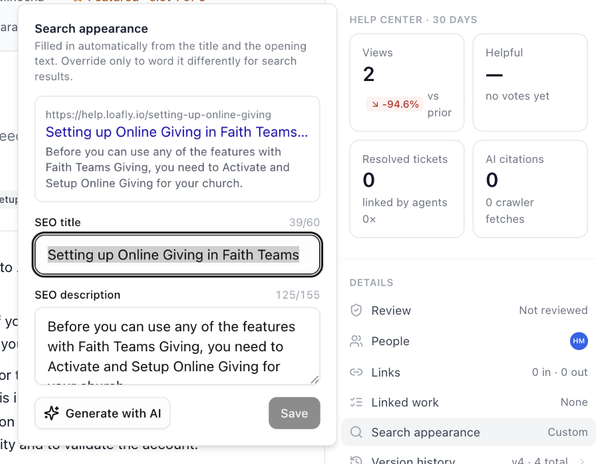
Open an article in a public knowledge base and click Search appearance in the details rail. The panel previews the Google listing and offers:
- SEO title, counted against 60 characters. The placeholder is the article's title.
- SEO description, counted against 155 characters. The placeholder is the text taken from the article's opening paragraph.
Counters turn amber when you go over, but saving is not blocked. Generate with AI fills both fields for you to review; Save stores them. The rail then shows Search appearance: Custom, and the publish bar says the same.
Indexing is decided for the whole site; there is no per-article way to hide a page from search engines. Unpublish it instead.
Next: Knowledge base analytics.
Search & AI visibility
Open Support → Support settings → Help center, pick the site, and scroll to Search & AI visibility. Two previews show how the home page appears In search results and When a link is shared.
Two switches, saved immediately:
- Let search engines index this site is on by default. Turn it off for a help center that is not ready or is meant for invited customers only; pages stay reachable by link. Turning it off asks you to confirm, because pages already in search results drop out over the following days and can take weeks to regain their ranking.
- Let AI assistants read and cite this site publishes a machine-readable index and a markdown version of every article so assistants such as ChatGPT, Claude and Perplexity answer from your documentation. Off blocks their crawlers.
The fields below are overrides. A field left empty shows AUTO and uses the generated value.
| Field | What it does |
|---|---|
| Home page title | The browser tab and search-result title of the home page. Every other page is titled Page name | Help center name. Keep it under 60 characters. |
| Description | The line under the home page in search results. Articles get their own, taken from their opening text or written in the article's SEO panel. Keep it under 160 characters. |
| Company website | Tells search engines which company the help center belongs to. |
| Social share image URL | A 1200×630 image for shared links. Leave it empty to generate a branded card with your colour and each article's title. |
| Google Search Console / Bing Webmaster Tools | Paste the verification token or the whole meta tag. Verifying lets you submit the sitemap and see which searches lead to your articles. |
Click Save search settings.
The Checklist under the card summarizes the same checks as the SEO health page: Nothing needs attention or N to look at.
SEO health
SEO health in the wiki sidebar toolkit opens a report for the site. The header has the site switcher, Sitemap (opens the generated sitemap) and Search & AI settings.
The summary card scores the checks (for example 5/8), tells you whether the site is indexable and healthy, how many warnings cost traffic today, how many pages the sitemap lists, and when the checks last ran; they refresh every five minutes, or click Re-check.
Checks lists warnings first. Each check is warn (costs traffic), info (optional) or ok:
| Check | Warning or note |
|---|---|
| Indexing | Search indexing is turned off. |
| AI access | AI assistants are blocked. |
| Domain | No custom domain yet. |
| Icon | Using a generated site icon until a square logo is set. |
| Search Console | Google Search Console is not connected, with Add token. |
| Sitemap | No published articles yet, otherwise the number of pages in the sitemap. |
| Descriptions | N articles have no usable description, with a sample list. Each has Edit and Suggest, which writes a description with AI for you to review. |
| Duplicate titles | N articles share a title with another. |
| Long titles | N article titles are longer than 60 characters. |
How the home page appears previews the search listing and share card with the title and description lengths. Help-center search · 30 days shows searches, no-result searches and the zero-result rate, with the top three queries that found nothing and a Write button for each.
Search appearance for one article
Open an article in a public knowledge base and click Search appearance in the details rail. The panel previews the Google listing and offers:
- SEO title, counted against 60 characters. The placeholder is the article's title.
- SEO description, counted against 155 characters. The placeholder is the text taken from the article's opening paragraph.
Counters turn amber when you go over, but saving is not blocked. Generate with AI fills both fields for you to review; Save stores them. The rail then shows Search appearance: Custom, and the publish bar says the same.
Indexing is decided for the whole site; there is no per-article way to hide a page from search engines. Unpublish it instead.
Next: Knowledge base analytics.