
Branding, contact channels and self sign-up
For the admin who sets how the help center looks, how visitors can reach you, and whether they can create their own portal accounts.
All of these live in Support → Support settings → Help center. With more than one site, pick the site with the pills at the top first; every card below applies to that site only.
Branding
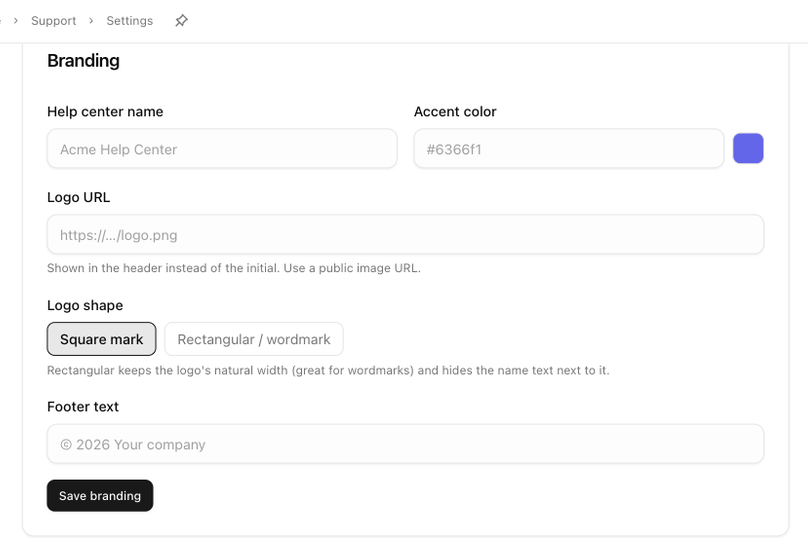
| Field | What it does |
|---|---|
| Help center name | The name in the header, the browser tab and search results. Defaults to your workspace name. |
| Accent color | A hex colour used for links, buttons and the lettermark. |
| Logo URL | A public image address. Shown in the header instead of the initial. |
| Logo shape | Square mark (the default) or Rectangular / wordmark. A rectangular logo keeps its natural width and hides the name text next to it. |
| Footer text | A short line for the footer, such as © 2026 Your company. |
Click Save branding. A brand site starts with its brand's name, logo and colour until you change them here.
Features
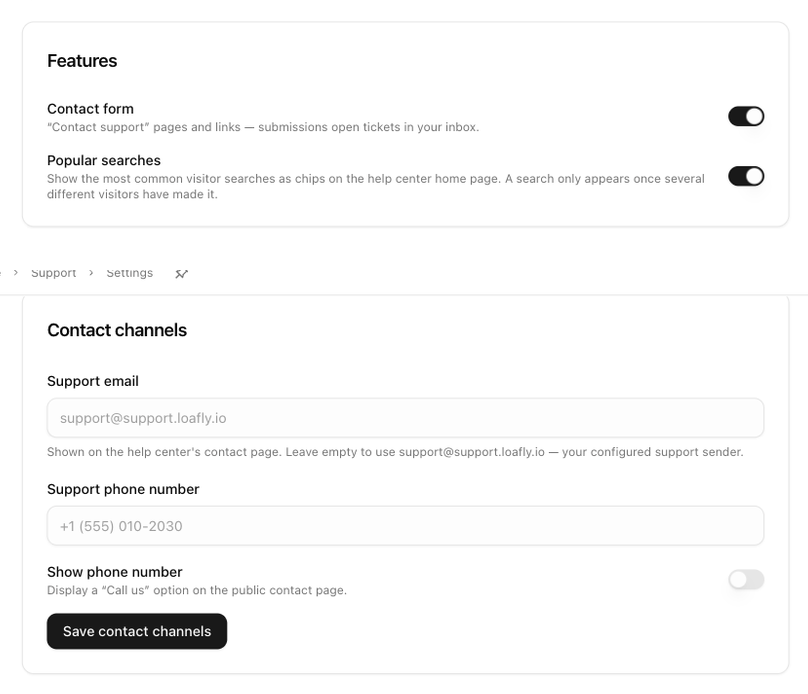
Two switches, saved as soon as you flip them:
- Contact form: the Contact support pages and links. Submissions open tickets in your inbox. Switching it off also removes the Still need help? Contact us link from AI answers.
- Popular searches: the Popular: chips on the home page, made from what visitors search for. A search only appears once several different visitors have made it.
Contact channels
- Support email is shown on the contact page as Email us. Leave it empty to use your configured support sender for this site, or enter a different public address.
- Support phone number and Show phone number add a Call us option to the contact page. The phone is hidden until the switch is on.
Click Save contact channels.
Self sign-up
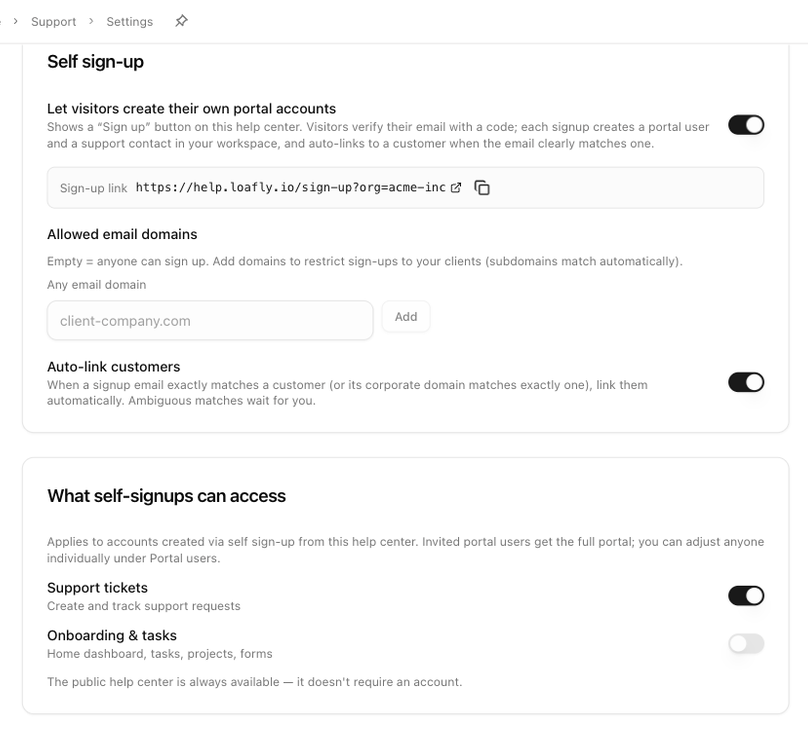
Visitors never need an account to read the help center. Self sign-up is for customers who should be able to open and track tickets in the portal without waiting for an invitation.
- Let visitors create their own portal accounts adds a Sign up button to the help center. Visitors verify their email with a code; each sign-up creates a portal user and a support contact in your workspace. When it is on, a Sign-up link appears for you to copy.
- Allowed email domains restricts sign-ups to your clients. Empty means anyone can sign up; subdomains match automatically.
- Auto-link customers links a new account to a customer when the email exactly matches one, or its company domain matches exactly one customer. Ambiguous matches wait for you.
What self-signups can access chooses what those accounts see in the portal: Support tickets and Onboarding & tasks. Invited portal users always get the full portal; you can adjust anyone individually under Support → Portal users.
A brand site follows the default site's sign-up settings until you change something here, at which point it keeps its own policy. Use default settings puts it back.
Next: Use your own domain.