
Write, publish and unpublish articles
For anyone who writes help articles. Articles are wiki pages, so this guide covers only what is different once the page lives in a public knowledge base.
Start a new article
- On the Help center tab, click New article. The page is created in the site's first public knowledge base.
- On a category page, click New article here to put it straight into that category.
- From Searches with no results on the Help center tab (or on the SEO health page), click Write article to start a page titled with the search visitors made.
New pages start as drafts. Write in the editor as you would any wiki page: headings become the article's On this page list, and the first paragraph becomes its search description unless you write your own.
Publish
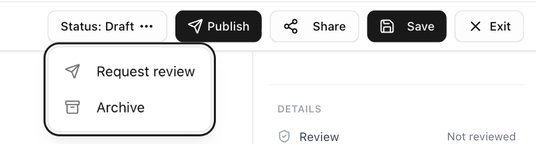
In the editor, the status button shows the page's state, and Publish makes it live:
| State | Status button | What you can do |
|---|---|---|
| Draft | Status: Draft | Publish, or open the menu for Request review and Archive. |
| Published | Status: Published | Open the menu for Save as Draft, Request review and Archive. |
| Archived | an archived tag | Publish to bring it back. |
If Publish is greyed out, hover it: the tooltip says why, for example This knowledge base needs an approved review before publishing — request one first. See Reviews before publishing.
Publishing is immediate. The help center's navigation refreshes within about five minutes.
The publish bar
Above every article in a public knowledge base, the viewer shows a publish bar with the article's public state.

- Live on your domain, the public path, the version and when it was last updated, and Approved until date when a review is current.
- Feature on home or Featured · slot N of 6 toggles the article's place in the home page's featured cards.
- The category, the article's position in it, and hidden from home if the category is hidden.
- Search appearance: auto or custom, from the article's SEO panel.
- Arrange opens the Arrange page for this site.
- Unpublish takes a live article down. You are asked to confirm: the article goes back to a draft and visitors with the link get a not-found page until it is published again.

A draft shows Not live · publishes to site name, its category, Search appearance: auto and a Preview on help center button, which opens the draft on the public site exactly as visitors would see it. The preview link is signed and expires after 24 hours, so you can share it with a reviewer who has no BlueHill account. An archived article shows Archived · not on your domain.
Share and visibility
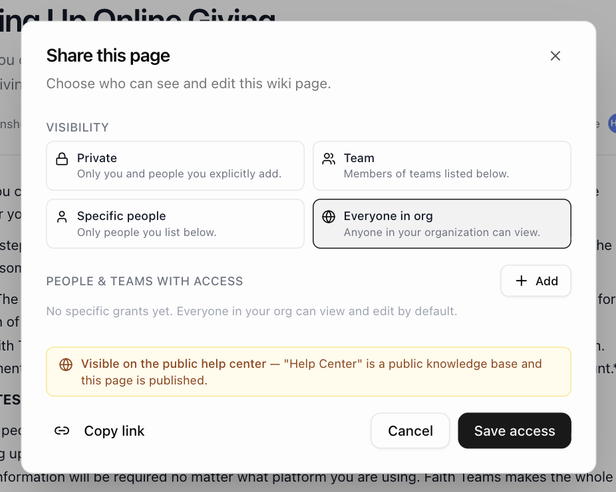
Click Share to open Share this page. The Visibility options are Private, Team, Specific people and Everyone in org (the default). Only pages set to Everyone in org can appear on the help center.
For pages in a public knowledge base the dialog ends with a plain readout: Visible on the public help center when the page is published and open to everyone, or Hidden from the public help center with the reason (it is a draft, it is archived, or its visibility is restricted).
Open and copy the public page
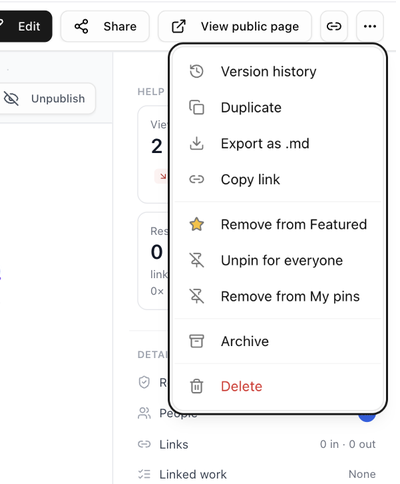
When an article is live, the viewer header shows View public page and a copy icon, Copy help center link. The copied link pastes as the article's title, ready for a reply or an email.
The ⋮ menu holds the rest:
| Item | What it does |
|---|---|
| Version history | Every saved version, with the option to compare and restore. |
| Duplicate | Copies the page as a new draft. |
| Export as .md | Downloads the page as markdown. |
| Copy link | Copies the internal wiki link. |
| Feature on home / Remove from Featured | Adds or removes the article from the home page's featured cards. |
| Pin for everyone / Add to My pins | Internal pins for the wiki's Internal tab. They do not affect the help center. |
| Archive / Restore to draft | Takes the page off the site and keeps it, or brings an archived page back as a draft. |
| Move to KB | Moves the page to another knowledge base. Moving it to an internal knowledge base takes it off the help center. |
| Delete | Moves the page to the trash. |
The details rail
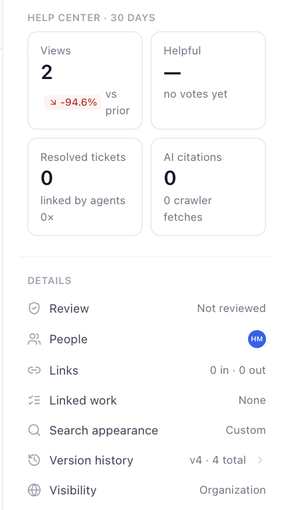
The rail on the right of a live article adds a Help center · 30 days block with Views, Helpful rate, Resolved tickets and AI citations, plus the top search terms that led visitors here. Below it, the Review row shows the review state, Search appearance shows Auto or Custom, and Visibility shows who can see the page inside your workspace. See Knowledge base analytics and Search appearance for one article.
Tags and categories
A page inherits the category tags of the folder it is created in. Tags are shown on the folder page's articles table and can be edited inline there. See Category tags.
Next: Reviews before publishing.