
What your visitors see
For anyone writing or organizing articles who wants to know how the public help center presents them. Nothing here needs setting up; it is what every help center looks like out of the box.
The address
Your default help center lives on the customer portal at an address that ends in /help/ followed by your workspace's short name. A brand site adds a tilde and the brand's short name. The exact address is on the Your help center card in Support → Support settings → Help center, and the Open help center button in the wiki's Help center tab takes you there.
Once you verify a custom domain and make it primary, the site answers at that domain with clean addresses: the home page at the root, an article at /article-name, a category at /c/category-name, plus /search, /contact and /chat. The portal address then redirects to the domain. See Use your own domain.
The header and footer
Every page shares the same frame:
- Your logo (or a lettermark in your accent colour), the help center name and the words Help center.
- A search field in the middle on wide screens, with the placeholder Search or ask a question… when AI answers are on, or Search articles… otherwise. The ⌘K hint (Ctrl K on Windows) opens the same search from anywhere.
- Ask AI when the chat is on, All articles, and a Contact support button when the contact form is on.
- For signed-out visitors, a light/dark theme toggle, Sign in and, if you allow self sign-up, Sign up. Signed-in portal users see Home and Tickets too, and an avatar menu.
The footer shows your footer text (or © year Help center name), Help center, Contact support and Powered by BlueHill.
The site follows each visitor's light or dark system setting. Links use your accent colour.
Home page
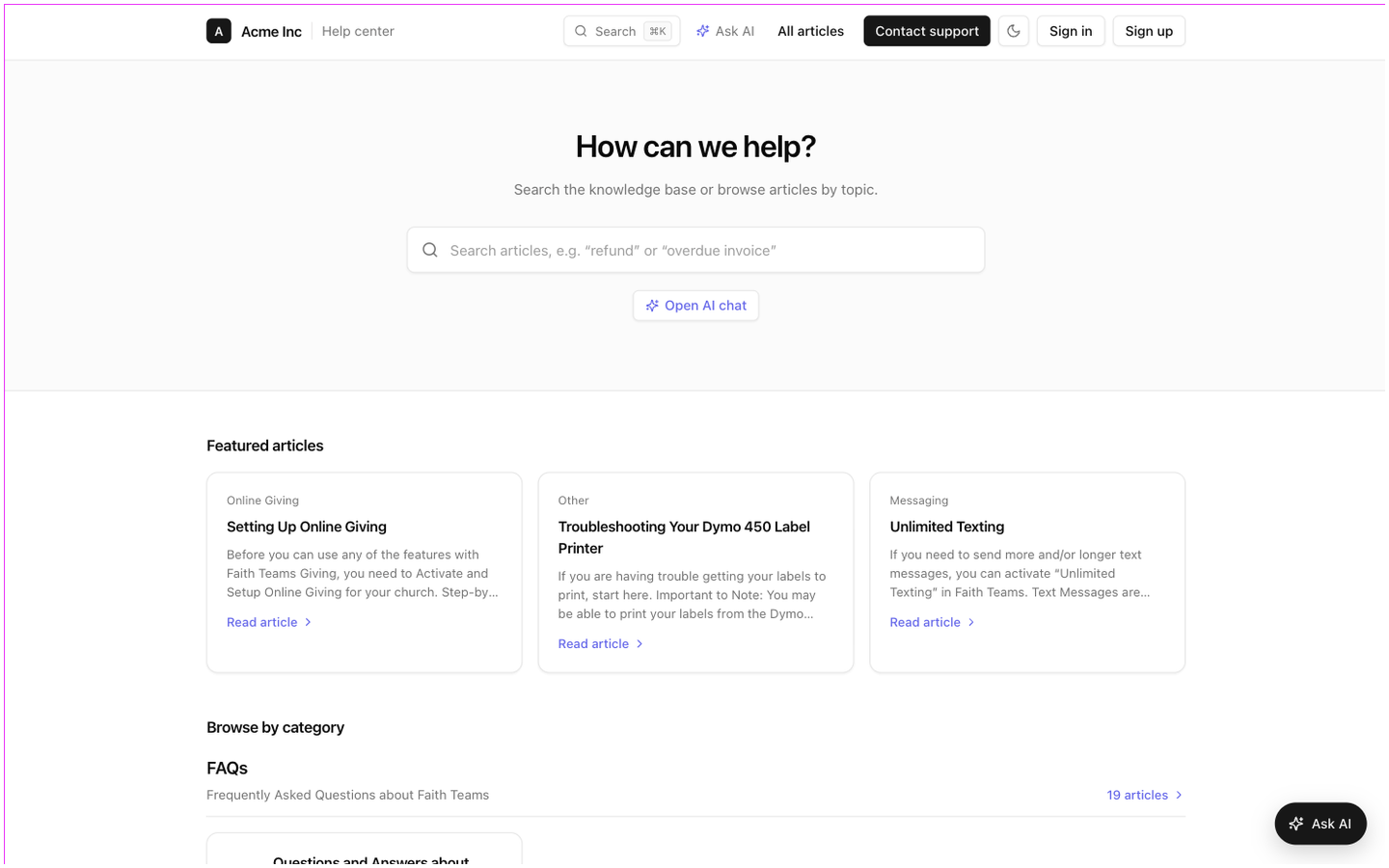
From top to bottom:
- How can we help? with a search box. After two characters a dropdown suggests up to five articles with their categories, ending with See all results for "…".
- Popular: chips with the searches other visitors make most. A search only appears once several different visitors have tried it. You can turn these off; see Features.
- Ask the assistant: chips with your starter questions, each of which opens search with an instant AI answer, and an Open AI chat button when the chat is on.
- Recently viewed: the last five articles this visitor opened on your site, kept in their browser.
- Featured articles: up to six cards with the category, title, a short excerpt and Read article. You choose these on the Arrange page.
- Browse by category: one section per top-level category, in the same order as your wiki. Each section has the category name, its description and N articles, then a card per subcategory listing its first three entries and View all N articles. Categories you hide from home are left out, as are empty ones. With four or more top-level categories, a row of jump chips sits above the sections.
- A closing strip, Can't find what you need?, with a Contact support button when the contact form is on.
Category pages
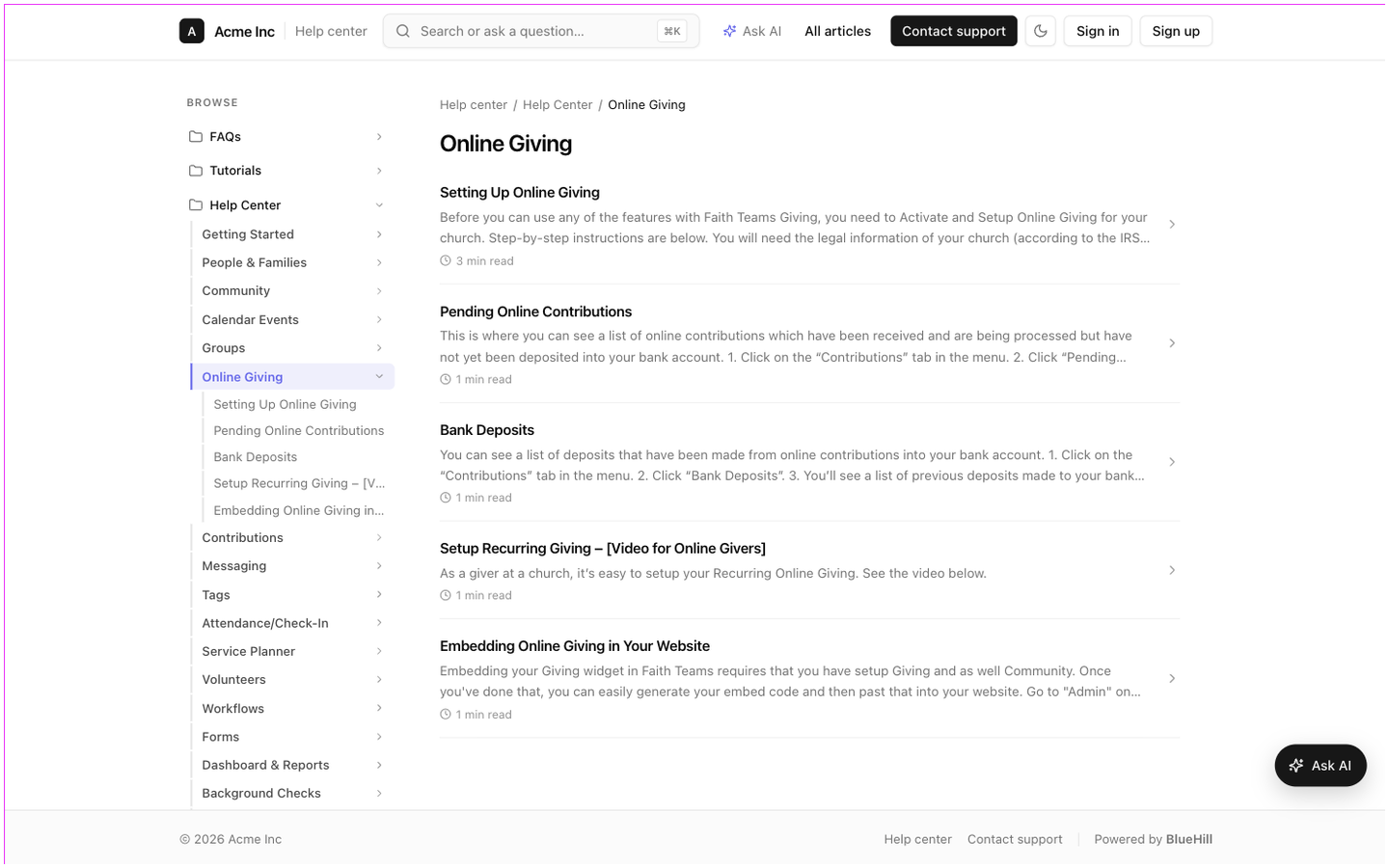
A category page shows a Browse tree on the left (on screens wider than a tablet), a breadcrumb starting at Help center, the category name and description, cards for its subcategories, and its articles with a two-line excerpt and reading time. An empty category reads No articles here yet.
Article pages
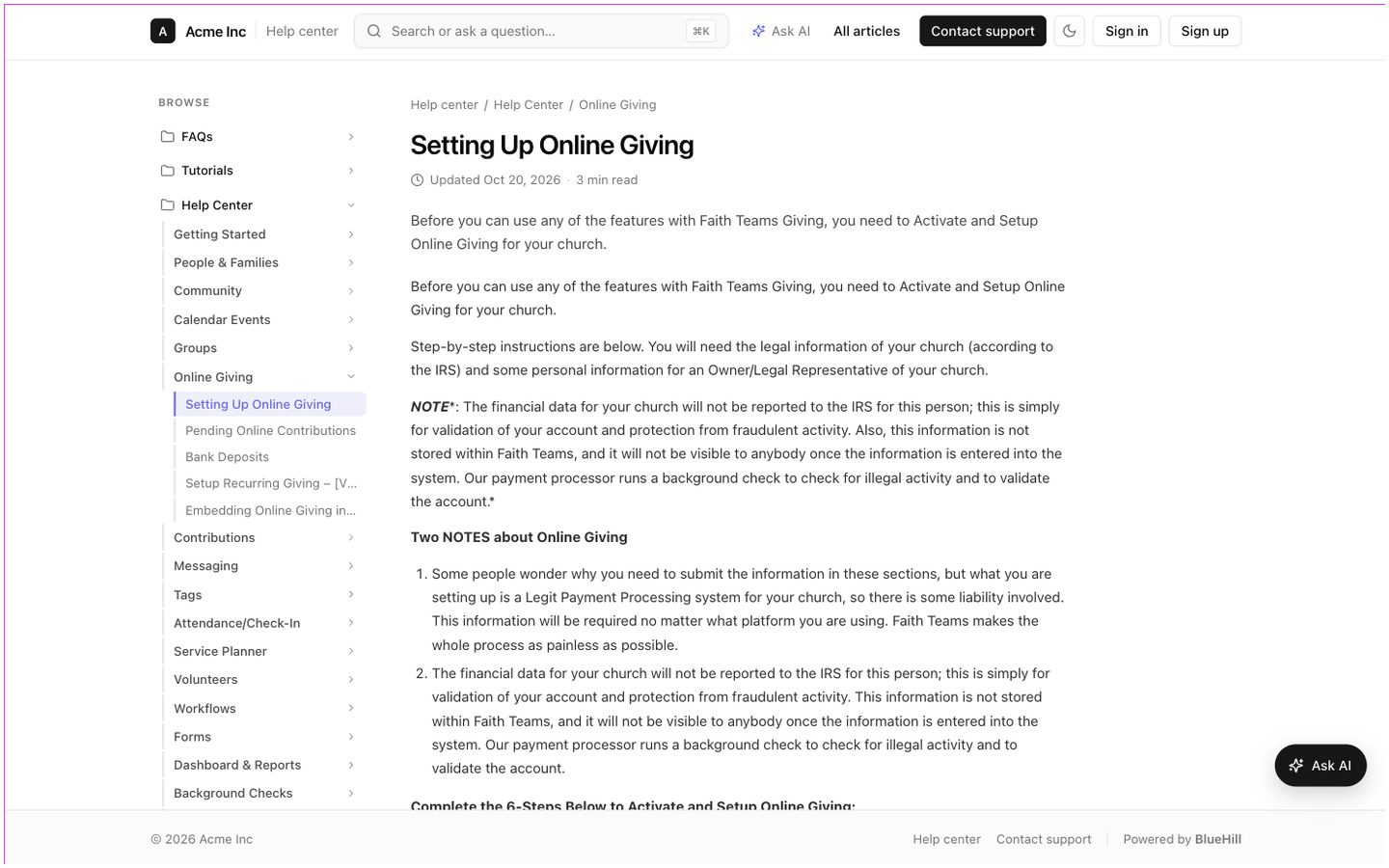
An article page has three columns on wide screens: the Browse tree, the article, and On this page, a table of contents built from the article's headings that highlights the section being read.
The article shows its title, Updated date and reading time, its description as a lead paragraph, then the body. Images open in a zoomed view on click. Below the body:
- Was this article helpful? with Yes and No. A No vote shows Sorry this didn't help. Contact support and we'll get you an answer. Votes feed the helpful rate in analytics.
- Linked articles and Linked from: pages this article links to, and pages that link to it.
- Related articles.
- Previous and Next cards that follow the category's order.
If you rename an article, its old address keeps working and redirects to the new one.
Search
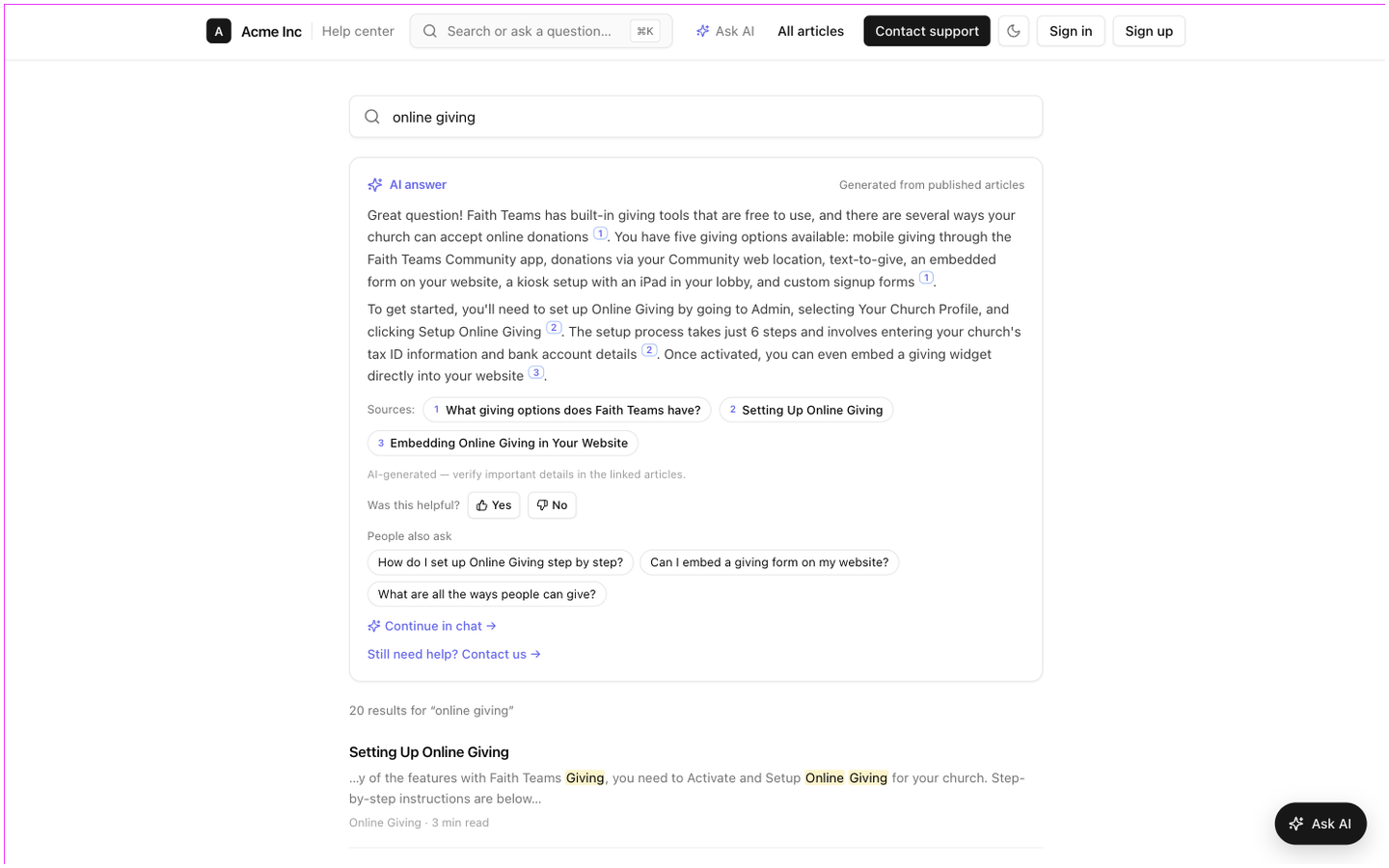
The search page updates as the visitor types and shows N results for "…", each with the title, an excerpt with the matched words highlighted, the category and the reading time. With AI answers on, an AI answer card sits above the results. See What visitors get.
No results shows No articles match your search, with Ask the assistant (when AI is on) and Contact support, which opens the contact form with the search already typed in.
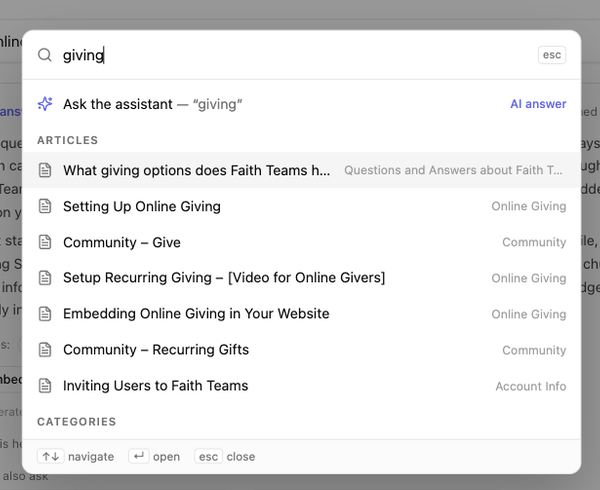
Pressing ⌘K opens a palette on any page with the placeholder Search the help center. Before typing it offers Recent articles, your Ask the assistant starter questions when you have set some, and Browse categories. While typing it lists an Ask the assistant row that produces an AI answer in place, then Articles and Categories, and ends with See all results.
Contact form
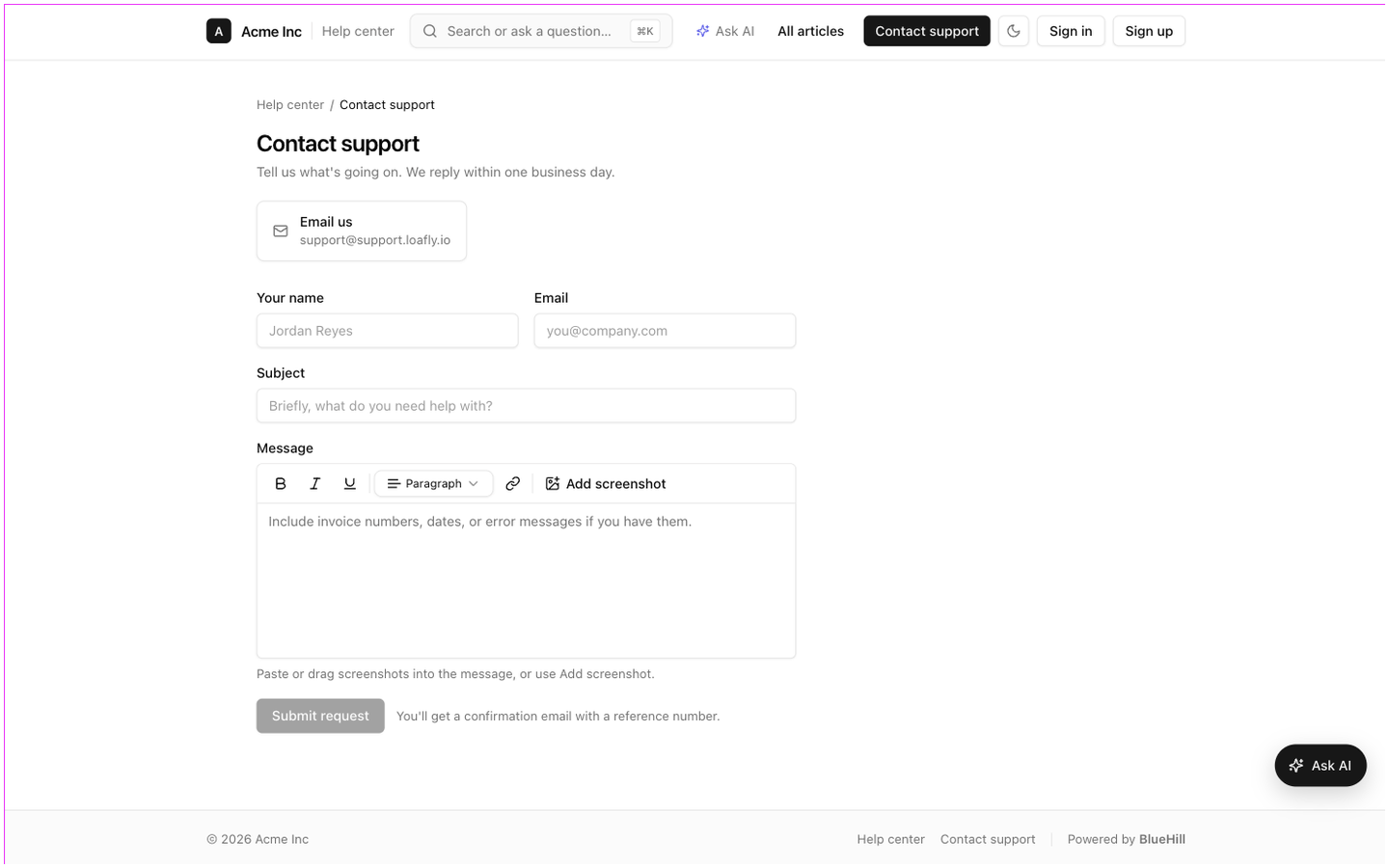
Contact support opens a form with Your name, Email, Subject and a Message editor. Visitors can paste or drag up to six screenshots into the message. The Submit request button stays disabled until the four fields are filled. Signed-in visitors get their name and email filled in; visitors arriving from an AI answer's Contact us link get the subject and message filled in with their question.
As the visitor types, a Before you submit panel appears beside the form with up to three articles that match the draft and, when AI answers are on, a Get an instant answer button.
After submitting, the visitor sees Request received with the ticket reference and a note that a confirmation email is on its way. The request becomes a ticket in your support inbox. On a brand site it is filed under that brand's desk.
The contact page also shows your support email as Email us and, if you turn it on, Call us with your phone number. See Contact channels.
Page not found
A missing or unpublished article shows a branded 404 page: We couldn't find that page, a search box, Popular articles (your featured ones) and Back to the help center.
Sign in and sign up
Visitors do not need an account to read the help center. Sign in takes customer-portal users to their tickets and tasks on the same site. If you turn on self sign-up, Sign up lets a visitor create a portal account with a verification code. See Self sign-up.