
Reviews before publishing
For teams that want a second pair of eyes on an article before customers see it. Reviews are optional; switch them on per knowledge base.
Require a review before publishing
- Open the knowledge base switcher in the wiki and choose Manage knowledge bases.
- Click Edit on the knowledge base.
- Tick Require an approved review before publishing and set Review validity (days). The default is 365.
- Click Save.
From then on, pages in that knowledge base cannot be published until a review has been approved and has not expired. Owners and admins can still publish without one. The knowledge base shows a review required chip in the dialog, and the Help center tab's Knowledge bases table shows Required · 365 days under Review gate.
Request a review
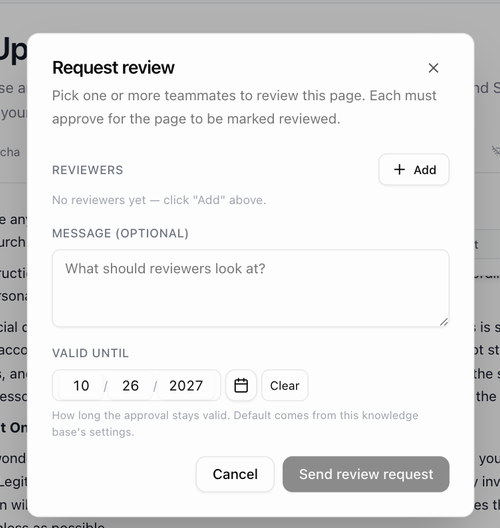
- In the editor, open the Status menu and choose Request review. In the viewer, click the Review row in the details rail and choose Request.
- Pick one or more Reviewers. Each must approve for the page to count as reviewed.
- Add a Message if you like and check Valid until, which defaults to the knowledge base's review validity.
- Click Send review request.
The reviewers are notified. The page's Review row in the details rail changes to In review.
Review states
| State | Meaning |
|---|---|
| Approved · date | The review is current. The publish bar shows Approved until date. |
| Awaiting review / In review | A request is open. |
| Expired · N d | The approval has lapsed. The page stays live until you unpublish it, but it is listed under Stale or expired reviews. |
| Edited since approval | The page changed after it was approved. A banner on the page says so. |
| Not reviewed | No review has been requested. |
When publishing is blocked, the Publish button explains why on hover: the review is still in progress, the last review has expired, the page was edited after approval, or blocking change requests are open.
Change requests
A change request is a comment anchored to a passage that asks for a fix. Select text in the viewer or editor and choose Request change. Each request has a type (Factual error, Outdated, Missing info, Wording or Compliance), a severity (Blocking, Should fix or Nice to have) and, optionally, a suggested replacement that the author can apply with one click.
- A Blocking request stops the page from being published until it is resolved. The status button in the editor shows how many requests are open.
- A reviewer can Waive a blocking request.
- When a request is addressed, it is marked Addressed in v N; the requester then Accepts it.
The Reviews page
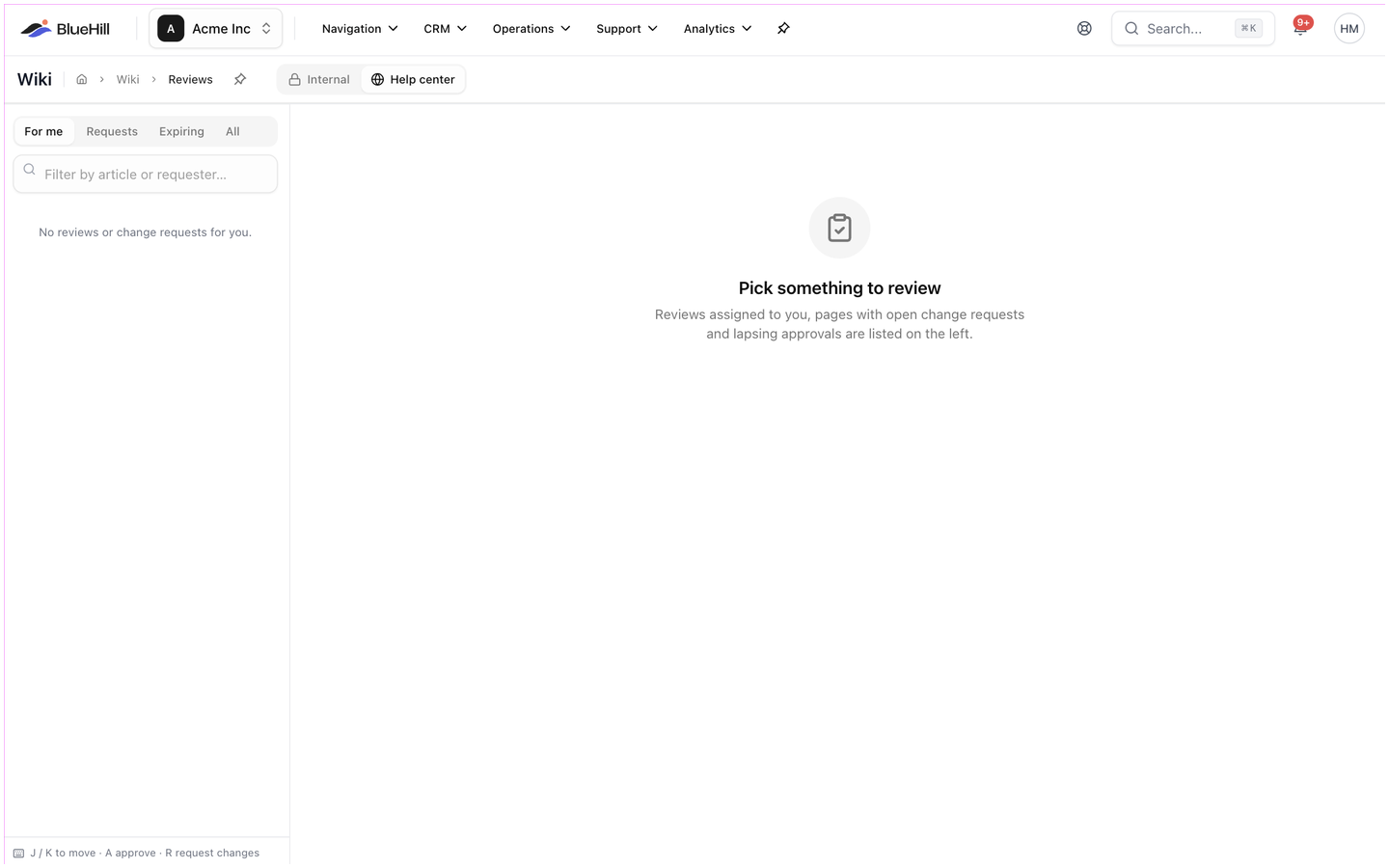
Reviews in the sidebar toolkit opens a three-pane page: the queue on the left, the article in the middle and the discussion on the right. The queue has four tabs:
| Tab | Shows |
|---|---|
| For me | Reviews assigned to you and change requests pointed at you. |
| Requests | Pages with open change requests. |
| Expiring | Approvals that lapse soon or have expired. |
| All | Everything above. |
Approve or decline from the right pane, or use the keyboard: J and K move through the queue, A approves and R requests changes. If blocking requests are still open when you approve, BlueHill asks Approve anyway? before accepting.
The Help center tab's Reviews waiting on you and Stale or expired reviews tiles are shortcuts to this page.