
Use your own domain
For the admin who wants the help center at an address like help.yourcompany.com instead of the portal address. You will need access to your company's DNS, or someone who has it.
Before you start
Custom domains need the custom domain plan feature. If the Custom domain card says Custom domains require the custom_domain plan feature, contact us to enable it.
Choose a subdomain you are not using for anything else, such as help.yourcompany.com or support.yourcompany.com. A verified domain serves the help center and the customer portal: sign-in, tickets and tasks all work on it too.
Add the domain
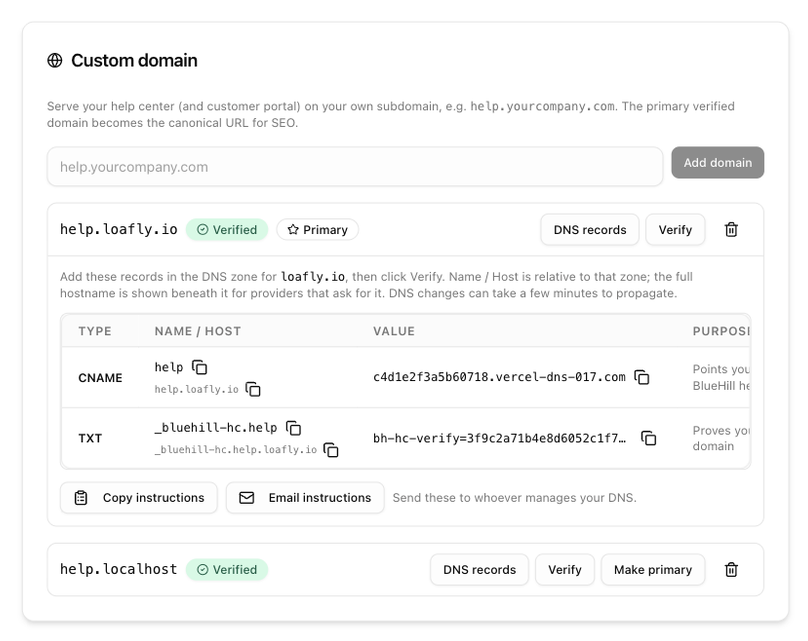
- Open Support → Support settings → Help center and pick the site if you have several. Domains added to a brand site serve that brand's help center only.
- Scroll to Custom domain, type the hostname and click Add domain.
- The domain appears with a Pending DNS badge. Click DNS records to expand it.
Create the DNS records
The expanded row lists the records to create, with Type, Name / Host, Value and Purpose columns and a copy button on each. Name / Host is relative to your DNS zone; the full hostname is shown beneath it for providers that ask for it.
- Copy instructions copies the records and the steps as text, ready to paste into an email or chat.
- Email instructions opens a mail draft with the subject DNS records to set up domain, so you can send them to whoever manages your DNS.
Create the records with your DNS provider. Changes can take a few minutes to propagate.
Verify and make it primary
- Click Verify on the domain. If the records are not visible yet, you will see Not verified yet — DNS can take a few minutes; try again later.
- Once the badge reads Verified, click Make primary.
The primary domain becomes the canonical address: search engines are told to index the site there, the portal address redirects to it, and the wiki's Open button and every View on help center link use it. The Help center tab's site card shows domain · custom domain verified.
What the domain serves
On your domain the help center uses clean addresses: the home page at the root, articles at /article-name, categories at /c/category-name, plus /search, /contact and /chat. Trailing slashes are removed automatically.
If you moved from Freshdesk, old links of the form /support/solutions/articles/… on the same domain redirect to the matching article, and old search, login and ticket links go to the right pages.
Remove a domain
Click the trash icon on the domain. BlueHill asks you to confirm because the help center stops serving on it immediately. Update any links you have shared before you remove a primary domain.
Next: AI answers and Ask AI chat.