
Comments, mentions and change requests
For anyone who wants to discuss a page without editing it: ask a question about a paragraph, pull a teammate in, or ask the author for a specific fix.
Comment on a passage

- Select some text, in the reading view or in the editor of a saved page. Two buttons appear above the selection: Request change and Comment.
- Click Comment. The composer opens with the passage quoted under Commenting on:. Click the × on that quote (Comment on the page instead) if the comment is about the whole page rather than the passage.
- Write your comment and click Post.
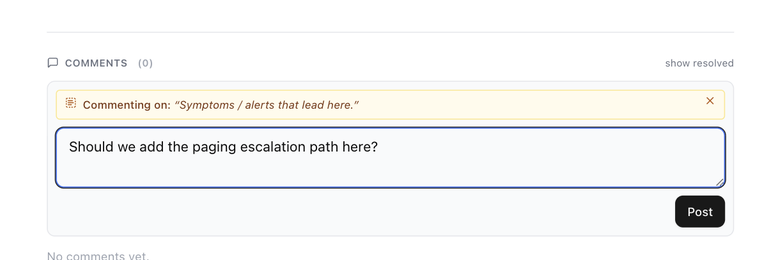
Anyone who can view a page can comment on it; edit access is not needed. In the editor, the toolbar's Comment on selection button does the same as the floating Comment button.
Mention a teammate
Type @ in a comment or a reply and pick a teammate from the list. Their name is inserted as a chip, and when you post they get a notification in BlueHill and an email, Name mentioned you on Page title, with a View comment button that opens the page. Mentions of you are highlighted in the thread.
Nobody is notified by a comment that mentions no one, not even the page's owners, so mention the person you want to hear from.
Where comments appear
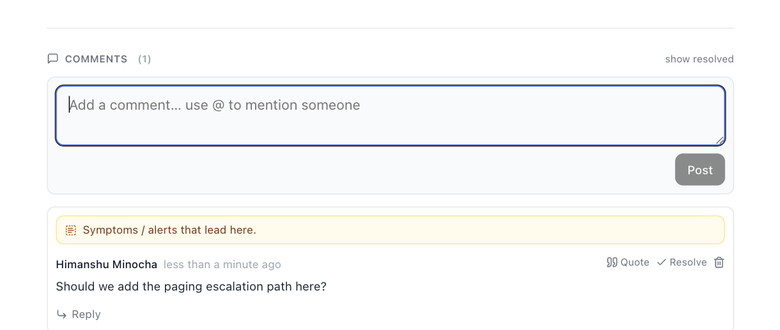
- In the reading view, comments live at the end of the article under Comments (N): a box for a new comment first, then the threads. Resolved threads are hidden; click show resolved to see them, and hide resolved to tuck them away again. A page without comments says No comments yet.
- In the editor on a wide window, each thread sits in the margin beside its highlighted passage. Comments about the whole page collect in a box, N comments on the page. The Show comments / Hide comments button in the editor header toggles the margin and shows how many threads are open; clicking a highlight opens them too.
- In the editor on a narrower window, the same button opens a Comments panel on the right.
Reply, resolve and delete
Each thread starts with the quoted passage, followed by the author, when they wrote it and the comment itself. Click the passage (Jump to this text) to scroll to the highlight; if the text has since been edited, the quote is struck through and marked original text changed. In the editor the passage is underlined in yellow.
| Action | What it does |
|---|---|
| Reply | Opens a reply box (Reply… use @ to mention someone) under the thread. |
| Quote | Starts a reply with the comment quoted. Quoting strips any mention from the quoted text, so nobody is notified twice. |
| Resolve / Reopen | Marks the thread as dealt with, or brings it back. Anyone can resolve or reopen a thread. A resolved thread no longer accepts replies and loses its margin card in the editor. |
| Delete (trash icon) | Removes the thread. Only the comment's author sees this button. The confirmation, Delete comment thread?, warns that Replies will be removed too. This can't be undone. |
Request a change
A change request is a comment that asks for a specific fix and is tracked until it is dealt with. Select text and click Request change (or leave the selection empty for a request About the whole page). The New request card asks for:
- The type: Factual error, Outdated, Missing info, Wording or Compliance.
- What needs to change, where you can @mention anyone who should know.
- A Suggested replacement (optional), which the author can apply with one click.
- The severity: Blocking, Should fix or Nice to have. A blocking request stops the page from being published until it is resolved or waived.
- Assign to and Due. The assignee is notified.
Requests are listed above the ordinary comments with a status: Open, Addressed in vN, Accepted or Waived. In the editor, an author with edit access can click Apply suggestion to replace the passage with the suggested text (then Save to keep it) and Mark addressed; the requester then Accepts the change or Reopens the request. Reviewers can Waive a blocking request. The review side of this, including the Reviews page, is described in the Help Center guides.
Who is notified
| When | Who hears about it |
|---|---|
| A comment or reply mentions someone with @ | The mentioned teammate (in BlueHill and by email). |
| A comment or reply mentions no one | Nobody. |
| A change request is filed | The person it is assigned to, plus anyone mentioned in it. |
| A change request is marked addressed | The person who filed it. |
| A review is requested, approved, declined, withdrawn or about to expire | The reviewers, the requester or the page's owners, as described in the Help Center guides. |
| A page is shared, pinned, restored or linked to a task | Nobody. |
Next: Version history and restore.