
Publish, pin, archive, move and delete a page
For anyone who looks after a page once it is written: reading it, changing its status, pinning it, moving it somewhere else and, eventually, deleting it.
Read a page
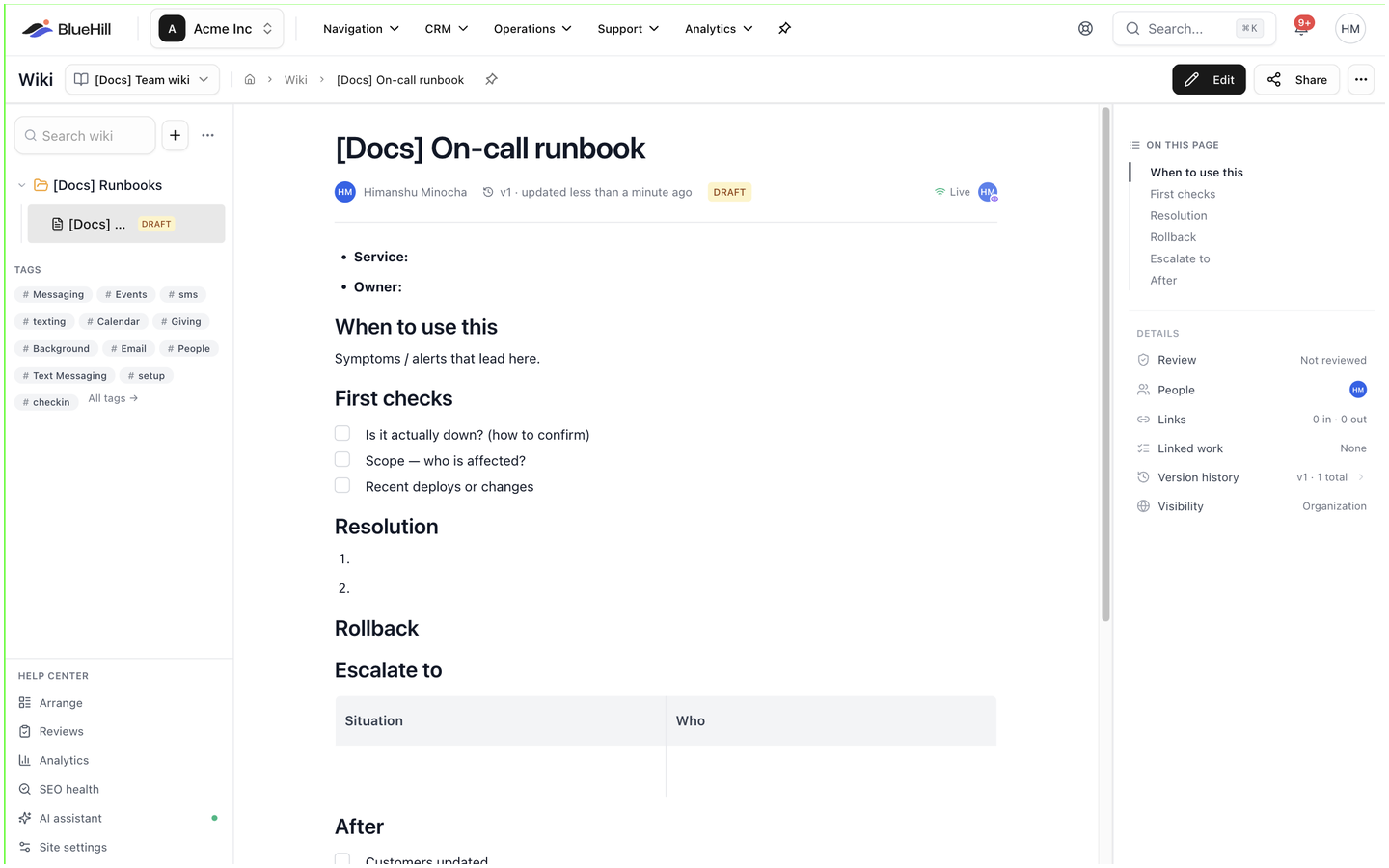
Open a page from the sidebar tree, the page list or a search result. The reading view shows:
- The title and description, the page's owners (two names are joined with &; more read name & N others; a page without owners shows its contributors instead), a review badge when the page has been reviewed, and a version link such as v4 · updated 2 days ago that opens the history.
- A draft or archived chip when the page is not published, a visibility chip when it is not visible to everyone, the page's tags, and the avatars of teammates reading or editing it right now.
- The header buttons Edit, Share and the ⋯ menu.
- On this page, a table of contents built from the headings, shown when the page has at least two. The current section is highlighted as you scroll.
- The Details rail, described below.
- The page's comments, at the end of the article, with a box for adding one. See Comments, mentions and change requests.
Links on a page open in a new tab. Anyone with edit access can tick a checklist box straight from the reading view.
The Details rail
| Row | Shows |
|---|---|
| Review | Not reviewed, In review, Approved, Expired or Edited since approval. Click it to request a review. See Ask for a review. |
| People | The page's owners. Click it for the Owners and Contributors panels. See Owners. |
| Links | N in · N out: how many pages link here and how many this page links to. Click it for the lists. |
| Linked work | The tasks and boards this page is attached to. See See what links to a page. |
| Version history | vN · N total. Click it to open the history. |
| Visibility | Organization, Team or Private. Change it from Share. |
Pages in a public knowledge base also show a Search appearance row and a help center performance card; see the Help Center guides.
Draft, published or archived
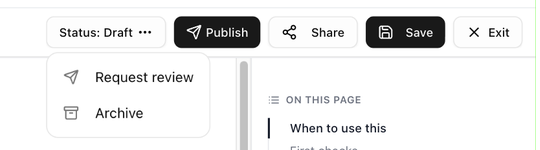
Every page is a draft, published or archived. In the editor, the Status button shows the current state and opens the actions:
| State | Status button | What you can do |
|---|---|---|
| Draft | Status: Draft | Click Publish to publish it, or open the menu for Request review and Archive. |
| Published | Status: Published | Open the menu for Save as Draft, Request review and Archive. |
| Archived | an archived chip | Click Publish to bring it back. In the reading view, Restore to draft in the ⋯ menu brings it back as a draft. |
- A draft is a page that is still being worked on. It is listed with a draft chip, and it can be read by anyone the page is shared with.
- A published page is finished. For an internal knowledge base this is simply a signal to your team; for a public knowledge base it is what puts the article on the help center.
- An archived page is kept out of the way: it drops to the Archived group at the bottom of the sidebar tree and off the help center, but stays searchable and keeps its history. Archive asks for no confirmation.
If Publish is greyed out, hover it. The tooltip explains why: the knowledge base requires an approved review, a review is still in progress or has expired, the page was edited after its approval, or a blocking change request is open. Owners and admins can publish regardless of reviews.
Ask for a review
Any page can be reviewed, in an internal knowledge base as much as a public one. Click Review in the Details rail and choose Request, or pick Request review from the Status menu in the editor.
- In the Request review dialog, Add one or more Reviewers. Each must approve for the page to count as reviewed.
- Add a Message (optional) and check Valid until, which defaults to the knowledge base's review validity.
- Click Send review request. The reviewers are notified, and the rail row changes to In review.
Review states, change requests and the Reviews page are described in detail in the Help Center guides.
The page menu
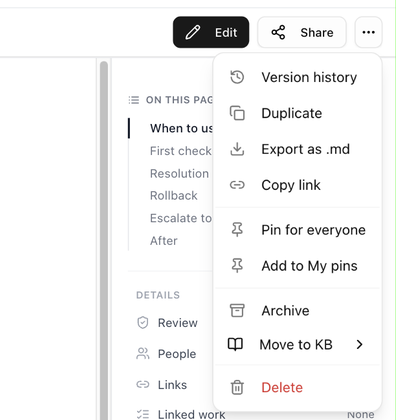
The ⋯ button in the page header opens:
| Item | What it does |
|---|---|
| Version history | Opens every saved version. See Version history and restore. |
| Duplicate | Copies the page as a new draft and opens it. |
| Export as .md | Downloads the page as a markdown file. |
| Copy link | Copies a link to the page. It pastes as the page's title in rich text and as the address in plain text. |
| Pin for everyone / Unpin for everyone | Pins the page in the Pinned section of the Wiki page for the whole workspace. Needs edit access. |
| Add to My pins / Remove from My pins | Pins the page for you only. |
| Archive / Restore to draft | Archives the page, or brings an archived page back as a draft. Needs edit access. |
| Move to KB | Moves the page to another knowledge base, chosen from the submenu. Moving a live article to an internal knowledge base takes it off the help center. |
| Delete | Moves the page to the trash. See Delete a page. |
Pages in a public knowledge base add View public page, Copy help center link and Feature on home, described in the Help Center guides.
Pin a page
Use Add to My pins for a page you come back to often; it appears under My pins on the Wiki page and nobody else sees it. Use Pin for everyone for a page the whole team should find at once, such as an on-call runbook; it appears under Pinned for everyone. See Pins.
Move a page
- Into a folder: in the sidebar tree, open the page's ⋮ menu, choose Move to folder… and pick a folder or Root. Or drag the page onto the folder. See Drag and drop.
- Under another page: open the page in the editor and, in the rail under Settings, click the Parent page button. Type in Find a page… and pick the parent, or choose No parent (root page) to move it back to the top level. Dragging a page onto another page in the tree does the same.
- To another knowledge base: choose Move to KB from the ⋯ menu.
Delete a page
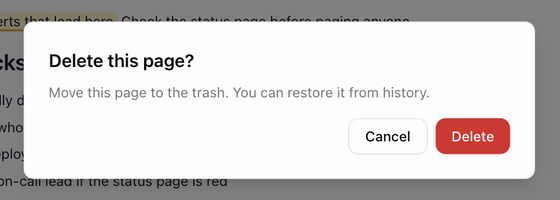
Choose Delete from the page's ⋯ menu, or from its ⋮ menu in the sidebar tree. The confirmation, Delete this page?, explains that the page is moved to the trash. It disappears from the tree, the page list and search, and links to it show as broken until it is restored. The dialog in the tree reads Move "title" to trash? and confirms with Move to trash.
If you only want a page out of the way, archive it instead; archived pages keep their place in search and their history.