
Write and format a page
For anyone writing in the editor. Headings, lists, tables, images, videos, code, links to the web and to other wiki pages, and the markdown source view.
Open the editor
Open a page and click Edit. If the button is greyed out with You have view-only access to this page, ask one of the page's owners for edit access; see Share a page and manage access.
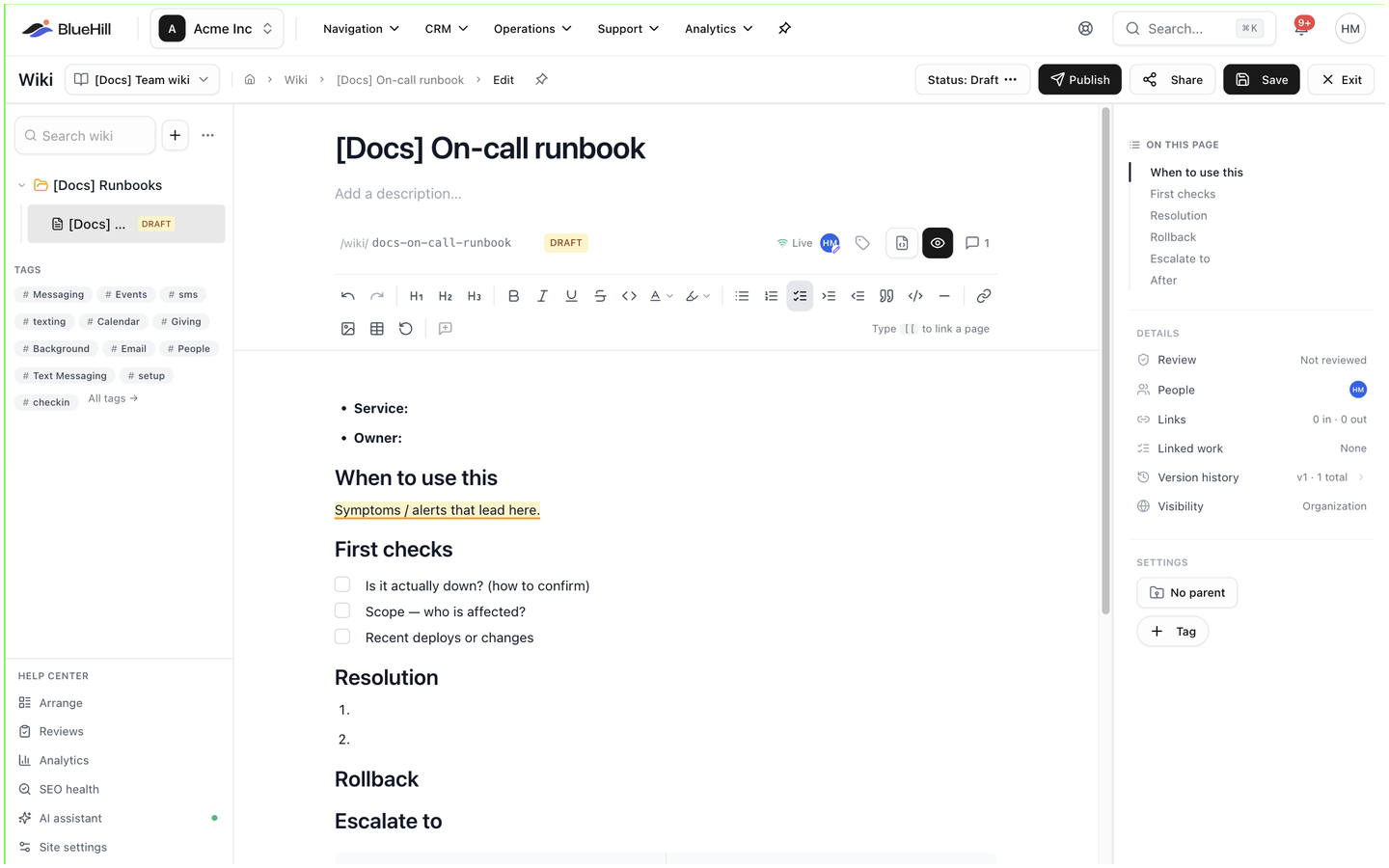
The editor has the page header (title, description, address chip, status chip and tags), a toolbar that stays in view as you scroll, the body, and a rail on the right with On this page, Details and Settings (parent page and tags). The header's right-hand side holds Status, Publish, Share, Save and Exit; these are described in Publish, pin, archive, move and delete a page.
Saving and working together
- Save stores a new version of the page and returns you to the reading view. The editor does not save on its own, and Exit leaves without asking, so save before you go.
- Several people can edit the same page at once. The presence indicator in the header reads Live while you are connected (Connecting… or Offline otherwise) and shows up to five teammates' avatars: a pencil badge for someone editing, an eye for someone reading. Their cursors appear in the text with their names, and your edits merge with theirs as you type. Each person's Save still creates a version of their own.
- Show comments / Hide comments opens the margin comments on a saved page. See Comments, mentions and change requests.
The toolbar

| Button | What it does |
|---|---|
| Undo, Redo | ⌘Z and ⌘⇧Z. |
| Heading 1, Heading 2, Heading 3 | Turns the current line into a heading. Headings build the On this page list in the reading view. |
| Bold, Italic, Underline, Strikethrough, Inline code | Text styles. ⌘B, ⌘I and ⌘U for the first three. |
| Text color, Highlight | Colour the selected text or its background. See Colours. |
| Bullet list, Numbered list, To-do list | Lists. See Lists and checklists. |
| Indent, Outdent | Nest a list item (Tab) or un-nest it (Shift+Tab). |
| Quote | A block quotation. |
| Code block | A multi-line code block. See Code. |
| Divider | A horizontal rule. |
| Link | Adds or edits a web link (⌘K). See Links. |
| Insert image | Uploads an image. See Images. |
| Insert table | Inserts a 3×3 table with a header row. Inside a table the button becomes Table with the table options. See Tables. |
| Clear formatting | Removes styles from the selection. |
| Comment on selection | Starts a comment on the selected text (saved pages only). |
The hint at the right end of the toolbar, Type [[ to link a page, is the quickest way to link wiki pages to each other.
Blocks from the slash menu
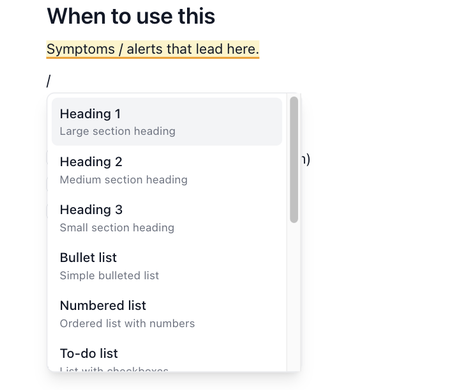
Type / at the start of a line (or after a space) to insert a block without leaving the keyboard. Use ↑ and ↓ to choose, Enter to insert and Esc to close.
| Command | Inserts |
|---|---|
| Heading 1, Heading 2, Heading 3 | A large, medium or small section heading. |
| Bullet list, Numbered list, To-do list | A list; the to-do list has checkboxes. |
| Video | An embedded video. See Videos. |
| Quote | A block quotation. |
| Code block | Multi-line code with highlighting. |
| Divider | A horizontal rule. |
| Table | A 3×3 table with a header row. |
| Image | Uploads and inserts an image. |
Lists and checklists
- Bullet list and Numbered list work as you would expect. Press Tab to nest an item and Shift+Tab to bring it back.
- To-do list items have a checkbox. Anyone with edit access can tick or untick a box while reading the page, without opening the editor; a small Checklist updated confirmation appears.
Tables
Insert table adds a 3×3 table whose first row is a header. While your cursor is in a table, the toolbar shows a Table button with three groups of options: Columns (Insert left, Insert right, Delete column, Toggle header col), Rows (Insert above, Insert below, Delete row, Toggle header row) and Reorder (Move row up, Move row down, Move col left, Move col right), followed by Delete table. Hovering the table also shows drag handles on each row and column and + buttons to Add row below and Add column to the right.
Images
Add an image with Insert image in the toolbar, /Image, by pasting it, or by dragging a file into the editor. PNG, JPEG, GIF, WebP and SVG files up to 10 MB are accepted. Pasted content from a web page or a document keeps its images.
Videos
Type /Video, paste the video's address when asked for a Video URL, and the player is embedded in the page. YouTube, Vimeo, Loom and Wistia links are supported; other hosts are refused with Only YouTube, Vimeo, Loom, and Wistia videos can be embedded.
Code
Inline code marks a word or two inside a sentence. Code block (or /Code block) makes a multi-line block with syntax highlighting for common languages. To name the language, switch to Source view and write it after the opening fence, for example ```python.
Colours
Text color and Highlight each offer the same swatches: Default, Gray, Red, Orange, Yellow, Green, Blue, Purple and Pink. Default removes the colour. Clear formatting removes colours along with every other style.
Links
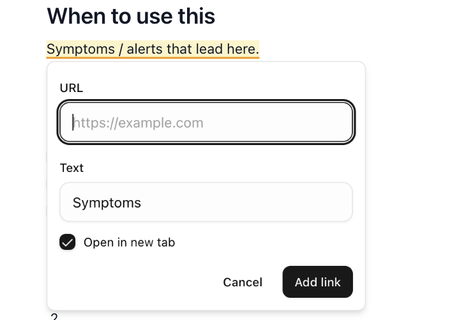
- Select the text and press ⌘K (or click Link).
- Enter the URL and, if you like, change the Text. Open in new tab is ticked by default.
- Click Add link.
Click an existing link to change it; the same box offers Save and Remove. Right-clicking a link offers Open link in new tab, Copy link address, Edit link and Remove link. When a page is read, every link opens in a new tab.
Link to another wiki page
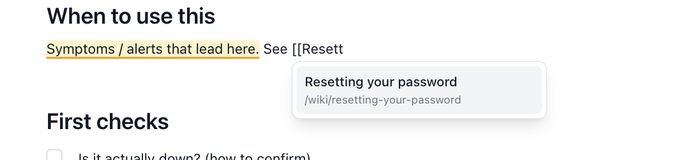
- Type [[ anywhere in a sentence and keep typing the page's title. Up to eight matching pages are suggested, each with its address.
- Pick one with ↑, ↓ and Enter. The link shows the page's title and takes readers to the page.
If nothing matches, the suggestion list offers Link to a new page with the text you typed; the link stays red with a dotted underline until a page with that address exists. Pasting a wiki page's address, or a link copied with Copy link, also turns into a page link. Every page link counts as a backlink on the page it points to; see See what links to a page.
Paste from other apps
- Text pasted from Word, Google Docs or a web page keeps its headings, bold and italic, lists, links, tables, code, quotes and images. Fonts, sizes and colours from the source are dropped so the page matches the rest of the wiki.
- Markdown text pasted into the rich editor becomes real headings, lists and so on. Hold Shift while pasting to paste plain text instead.
- Text copied out of the editor is placed on the clipboard as markdown, so it pastes cleanly into other tools.
Source view
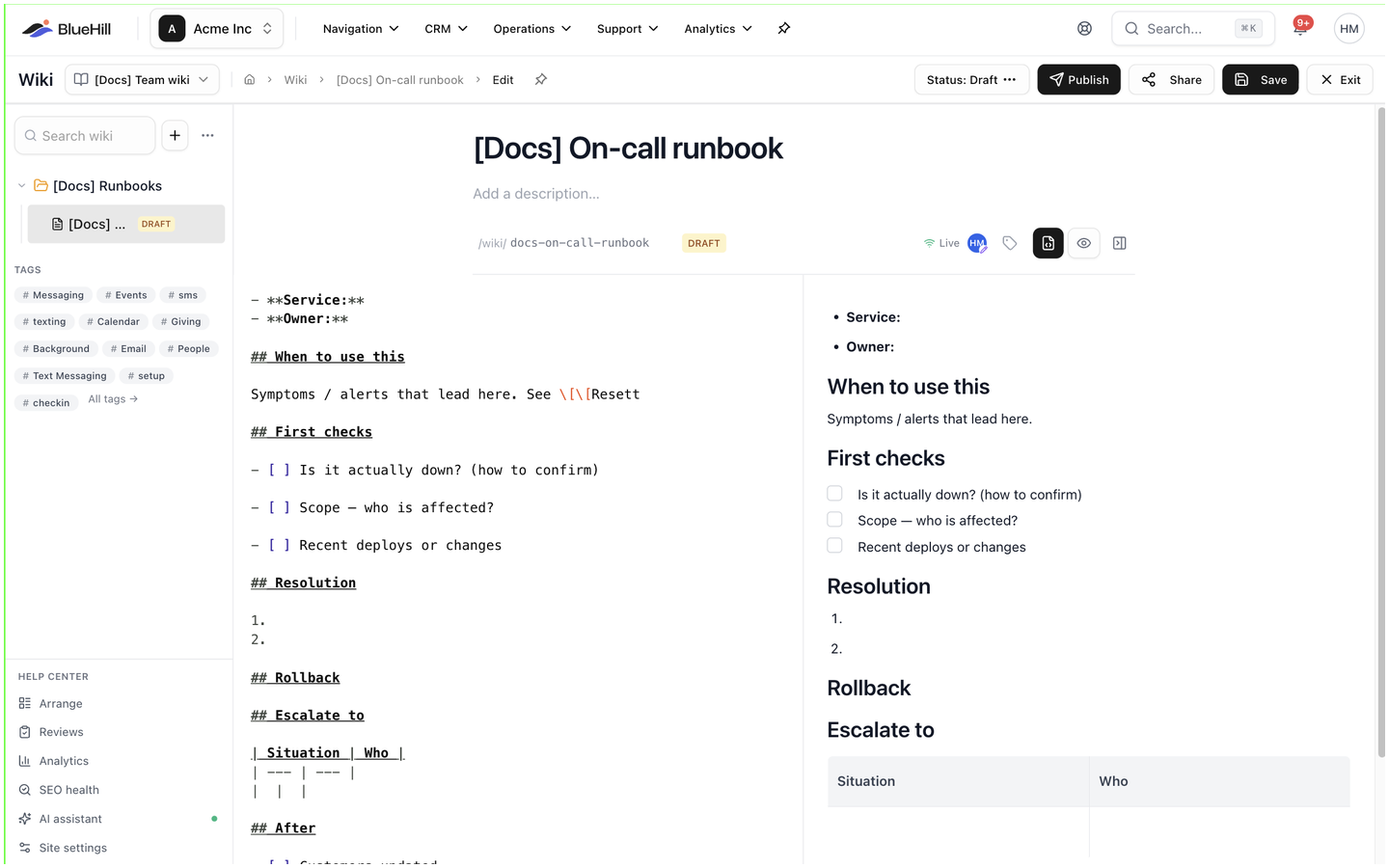
Click Source view in the editor header to edit the page as markdown, with a live preview beside it (Hide preview / Show preview). The [[ suggestions work here too, and ⌘S saves. Click Rich view to return to the normal editor. Both views edit the same page.
Keyboard shortcuts
| Keys | Action |
|---|---|
| ⌘B, ⌘I, ⌘U | Bold, italic, underline |
| ⌘Z, ⌘⇧Z | Undo, redo |
| ⌘K | Add or edit a link |
| Tab, Shift+Tab | Indent or outdent a list item |
| / | Open the slash menu |
| [[ | Link to a wiki page |
| ⌘S | Save (source view only) |
| Esc | Close a menu or popup |
On Windows and Linux, use Ctrl in place of ⌘.