
Find a page: search, pins and tags
For anyone looking for a page they know exists, or trying to keep the pages they use most within reach.
Search from the sidebar
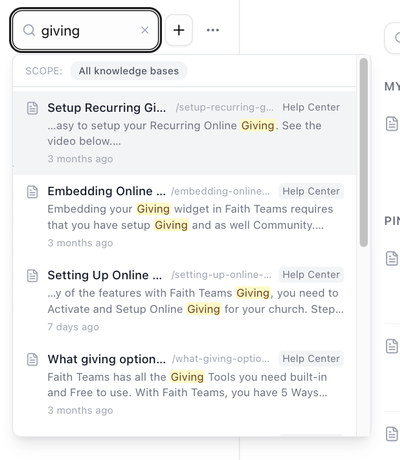
- Click Search wiki at the top of the sidebar and start typing. Results appear as you type: up to eight pages, each with its title, address, a snippet with your words highlighted and when it was last updated.
- Use ↑ and ↓ to move through the results and Enter to open one. Press Esc to close the list.
- Click See all results for "…" at the bottom for the full list.
Before you type, the list shows your Recent searches, up to eight, kept in your browser.
Search looks only in the active knowledge base. The row at the top of the results says which one (SCOPE: name, with the hint click to widen); click it to search All knowledge bases instead, after which each result carries a knowledge base chip.
The Search the wiki… box above the page list works in exactly the same way.
The search page
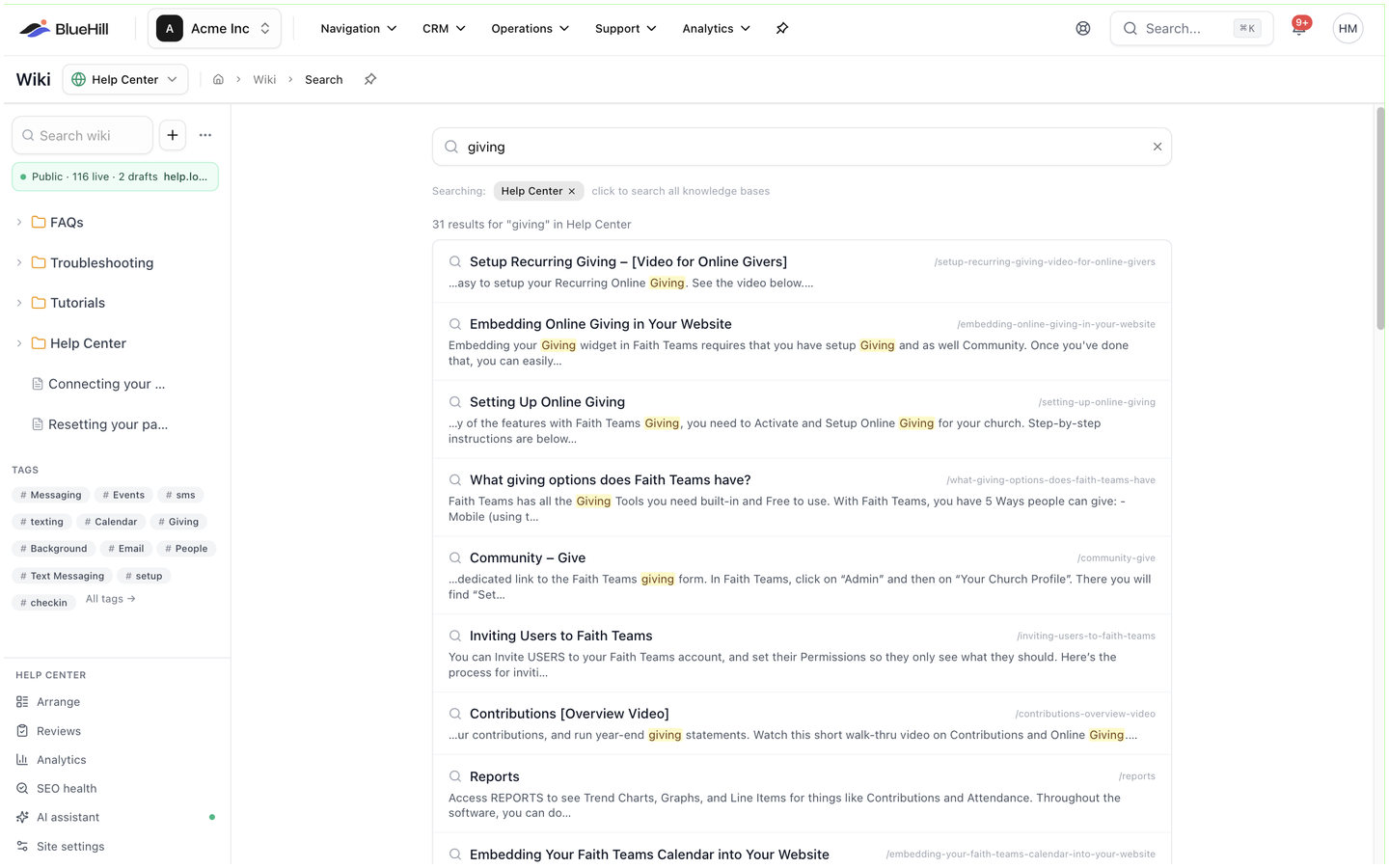
The full results page shows N results for "…" in name, each with its title, address and a longer snippet. The chip at the top, Searching: name, narrows the search to one knowledge base; click it (click to search all knowledge bases) to search all of them. If nothing matches, the page offers Search all knowledge bases instead. There are no other filters on this page.
Search from anywhere
Press ⌘K (or Ctrl+K) on any BlueHill page. Wiki pages appear in the results under Wiki pages. To search only the wiki, start your search with w: (for example w: refund policy), or press Tab to cycle through the search scopes until Wiki is selected.
Filter and sort the page list
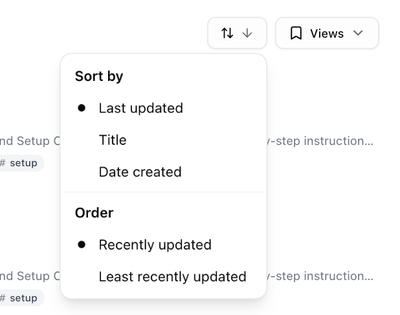
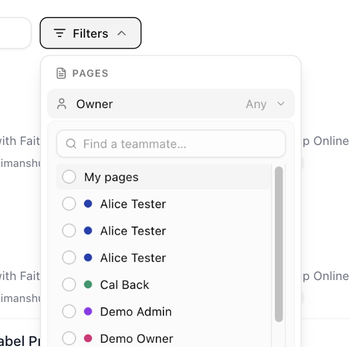
The list on the Wiki page can be narrowed and ordered:
- Filters → Owner shows only pages owned by you (My pages) or by one teammate; it reads Any until you choose. Type in Find a teammate… to find them.
- The sort button (two arrows) opens a menu with Sort by (Last updated, Title or Date created) and Order. The heading above the list changes to match, for example Title A–Z or Newest created.
- Views saves the current owner filter and sort under a name so you can reapply them later.
Pins
A pin keeps a page at the top of the Wiki page, above the sorted list.
- Add to My pins pins a page for you only. It appears under My pins, which only you can see.
- Pin for everyone pins it for the whole workspace. It appears under Pinned for everyone. You need edit access to the page.
Both options are in the page's ⋯ menu and in its ⋮ menu in the sidebar tree, and both can be undone from the same place (Remove from My pins, Unpin for everyone). Pins are an internal convenience; they have no effect on the help center, where articles are featured instead.
Tags
A tag is a label you can put on any page and browse by. Tags can be grouped (for example a Type group holding #runbook and #policy) and coloured.
Add a tag to a page
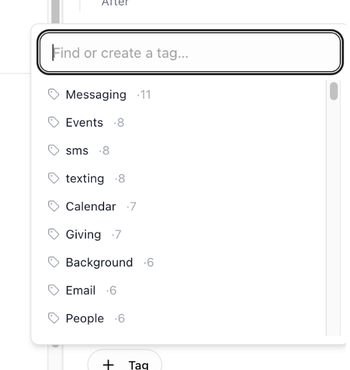
- Open the page in the editor. In the rail on the right, under Settings, click Tag.
- Type in Find or create a tag…. Click a tag to add it, or click it again to remove it.
- If no tag matches what you typed, pick a Color, optionally a Group (optional, e.g. Type, Owner), and click Create "…".
Pages created in a folder inherit the folder's tags. See The folder page.
Browse by tag
- The Tags section of the sidebar shows the twelve most-used tags in the workspace. Click one to open its page, which lists every page carrying that tag with the usual Sort and Views controls. All tags → opens the full list.
- Tags also appear as #name badges on page rows and in a page's header. Clicking one opens the same tag page.
Manage tags
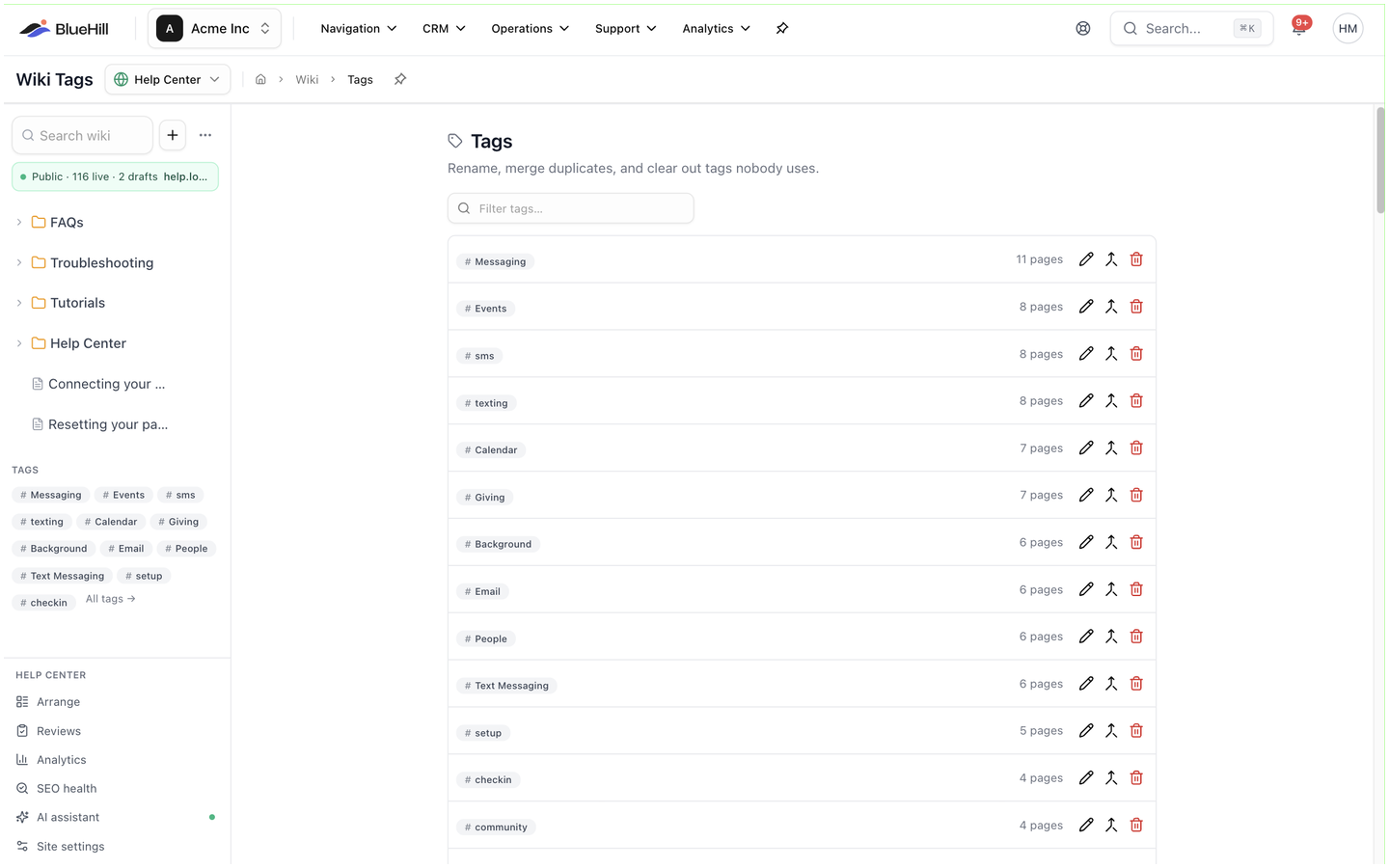
Click the Tags heading in the sidebar to open the tag management page. Each row shows the tag, its group, how many pages use it (an unused chip when none do) and three buttons:
| Button | What it does |
|---|---|
| Rename | Changes the tag's name everywhere it is used. |
| Merge into another tag | Moves every page from this tag to the one you pick, then deletes this tag. The confirmation, Merge "a" into "b"?, says how many pages are re-tagged. |
| Delete | Removes the tag. The confirmation, Delete tag "name"?, says how many pages lose it. |
Filter tags… narrows the list, and Delete N unused clears every tag that no page uses, after a confirmation listing them.
Next: Create a page.