
Knowledge bases, folders and the page tree
For anyone who decides where pages live: the admin who sets up knowledge bases, and anyone who creates folders, moves pages around or tidies the sidebar tree.
How the wiki is organized
A knowledge base is a separate workspace inside the wiki. Every page belongs to exactly one. Most teams keep internal notes in one knowledge base and customer-facing articles in another, because a knowledge base can be made public and served on the help center. Inside a knowledge base, folders group pages and can nest, and a page can sit under another page as a subpage. The sidebar tree shows all of this for the knowledge base you are working in.
Switch knowledge base
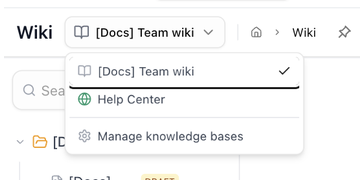
Click the knowledge base switcher next to the page title. It lists every knowledge base with a tick on the active one; a globe marks a public knowledge base and a book an internal one. Pick one and the sidebar tree, the page list and search all switch to it. The last item, Manage knowledge bases, opens the dialog described next.
Create, edit or delete a knowledge base
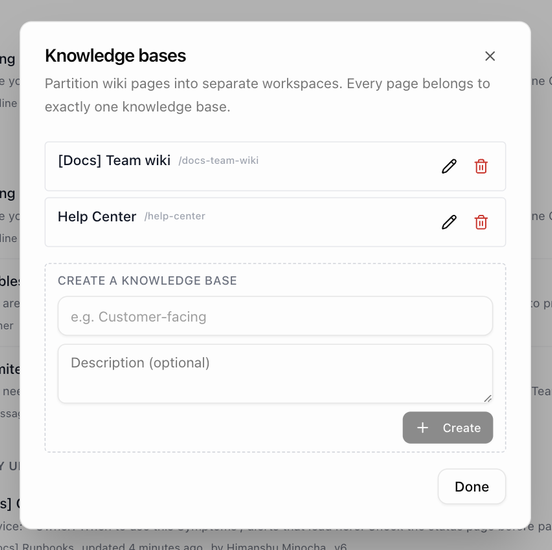
The Knowledge bases dialog lists your knowledge bases with their web address and a review required chip when one requires reviews.
To create one:
- Under Create a knowledge base, enter a Name (for example Customer-facing) and an optional Description.
- Click Create.
To change one, click its Edit button:
| Field | What it is for |
|---|---|
| Name and Description | How the knowledge base is listed in the switcher and on the help center. |
| Require an approved review before publishing | When ticked, pages in this knowledge base cannot be published until a teammate's review is approved and has not expired. Owners and admins can still publish. |
| Review validity (days) | How long an approval lasts. The default is 365. It is also the default Valid until offered when someone requests a review. |
Click Save. Reviews are described in Ask for a review and, in depth, in the Help Center guides.
Delete appears only when you have more than one knowledge base. The confirmation, Delete "name" knowledge base?, explains that Pages inside it will be moved to another KB; nothing is lost.
Making a knowledge base public is done by an admin in Support → Support settings → Help center, not in this dialog. See the Help Center guides.
Folders
Create a folder
- In the sidebar, click ⋯ and choose New folder, type a Folder name and press Enter. The folder is created at the top level of the active knowledge base.
- To nest a folder, open a folder's ⋮ menu and choose New subfolder.
The folder menu
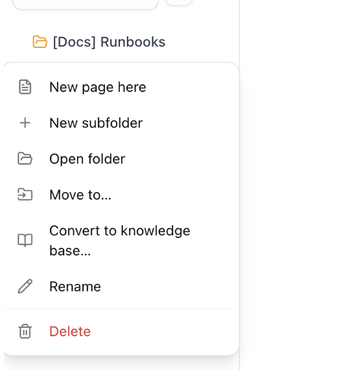
Hover a folder in the tree and click ⋮:
| Item | What it does |
|---|---|
| New page here | Opens the template picker and creates the page inside this folder. |
| New subfolder | Adds a folder inside this one. |
| Open folder | Opens the folder page, the same as clicking the folder's name. |
| Move to… | Moves the folder into another folder, or to the top level (Root). |
| Convert to knowledge base… | Turns the folder and everything in it into a new knowledge base. See Convert a folder into a knowledge base. |
| Rename | Edits the folder name in place. |
| Delete | Removes the folder. The confirmation, Delete folder "name"?, explains that Its pages and subfolders move to its parent. |
In a public knowledge base the menu starts with a Help center section (Hide from home / Show on home and Arrange categories…), described in the Help Center guides.
Hovering a folder also shows a + button, New page in folder.
The folder page
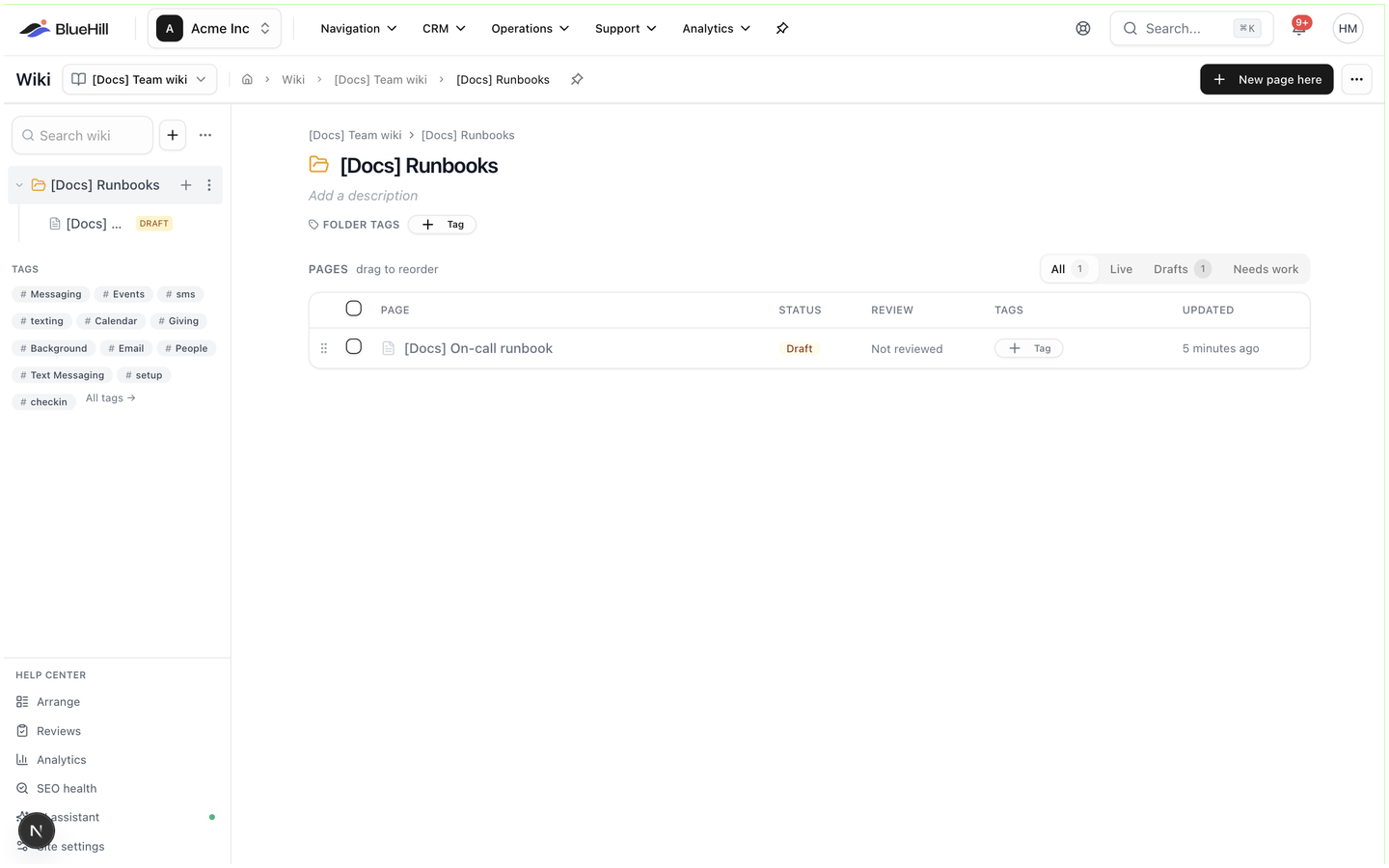
Click a folder's name in the tree to open its page. The arrow next to the name only expands or collapses the folder.
- The trail at the top shows the knowledge base and any parent folders, followed by the folder name.
- Add a description opens a text box (Describe this folder…). Press ⌘Enter to save or Esc to cancel.
- Folder tags are tags every new page created in this folder inherits. When some existing pages lack them, the line says how many and offers Apply to all N pages.
- Subfolders lists the folders inside this one, each with its page count. The section is only shown when there are some.
- Pages is a table of the folder's pages (drag to reorder them) with a filter (All, Live, Drafts, Needs work) and the columns Page, Status (Live, Draft or Archived), Review, Tags (editable in place) and Updated. Tick several pages to tag them at once with Tag N selected.
The header offers New page here and a ⋯ menu with Apply category tags to all pages and Delete folder. In a public knowledge base the page gains visitor statistics, an Arrange button and View on help center; see the Help Center guides.
The page tree
Page rows
Each page row shows its title (Untitled for a page without one) and, when relevant, a draft or archived chip, a star when the page is featured on the help center, and an amber dot when its review has expired or the page was edited after approval. Hovering a page shows a + button, New subpage, and the ⋮ menu.
The page menu
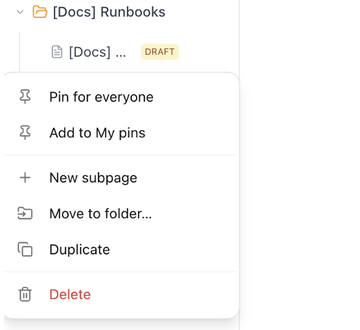
| Item | What it does |
|---|---|
| Pin for everyone / Unpin for everyone | Puts the page in the Pinned section of the Wiki page for the whole workspace. You need edit access to the page. |
| Add to My pins / Remove from My pins | Pins the page for you only. |
| New subpage | Creates a page under this one, starting from the template picker. |
| Move to folder… | Shows a Move to: picker with Root and every folder. |
| Duplicate | Copies the page as a new draft. |
| Delete | Moves the page to the trash. The confirmation is Move "title" to trash?. |
In a public knowledge base the menu starts with a Help center section for featuring and ordering articles, described in the Help Center guides.
Drag and drop
With a mouse or trackpad you can rearrange the tree directly:
- Drop a page above or below another page to reorder it.
- Drop a page onto another page to make it a subpage, or onto a folder to move it there.
- Drop a folder above, below or onto another folder in the same way.
You need edit access to the page you are moving; otherwise a message says You need edit access to move this page. Dragging is not available on touch screens; use Move to folder… instead.
Archived pages
Archived pages are kept but moved out of the way. In the tree they sit in a collapsed Archived (N) group at the bottom of the knowledge base. See Draft, published or archived.
Convert a folder into a knowledge base
If a folder has grown into something that deserves its own knowledge base, choose Convert to knowledge base… on its menu. The Convert to knowledge base dialog pre-fills the Name with the folder name, lets you add a Description (optional), and reports how many pages and folders will move. Every page keeps its sharing settings. Click Convert; the confirmation toast offers Undo for ten seconds.
You need edit access to every page in the folder; otherwise the dialog lists the pages that block the conversion. If the folder holds articles that are live on the help center, the dialog warns that they go offline unless the new knowledge base is also made public, which an admin can tick there and then. See the Help Center guides.